Use JavaScript to develop cross-platform desktop applications
Atwood’s Law was proposed by Jeff Atwood in 2007: "any application thatcan be written in JavaScript, will eventually be written in JavaScript.". It is said that this was just a joke made at the time. However, this joke seems to gradually become a reality. From various gorgeous web frameworks to powerful functions Nowadays, machine learning and server development have the presence of JavaScript. Some languages have been derived from JavaScript, such as TypeScript. And the use of JavaScript to make games has become more convenient, you can use CocosCreator. Html5 turned out , Has also promoted the former auxiliary status of JavaScript in web pages to the main force. The emergence of nodejs has enabled it to realize the so-called "full stack" development. Now JavaScript can even be used as mobile phone applications. However, in the mobile terminal, browser, server There is demand on the end, and there will be demand on desktop applications. Can JavaScript be used to develop cross-platform applications? The answer is: yes. UseElectronYou can easily use JavaScript to develop desktop applications. As you can see, many famous programs are directly or indirectly developed by it, such as Atom, VSCode, etc.
It should be noted that there are some restrictions on using Electron to develop desktop applications. First of all, we can't call complex system APIs (or we can't do it directly), which makes us unable to develop more complex enterprise-level applications. Secondly, its performance is still not on par with native applications. We can think of Electron as a packaging box with a browser shell. This packaging box gives us the ability to read and write files. We develop web applications and use it to encapsulate after debugging to add to our web applications. A browser kernel. In this way, our js code can break away from the traditional browser mode and run independently. However, it is the same as the traditional browser mode, so when there is a need for extremely high performance, it still needs to be developed in C++, Java, etc. However, most applications do not require such high performance requirements at all, so there is no problem with Electron development. Next, we tried to use Electron to develop Windows desktop applications step by step from scratch. Of course, this method is also applicable to Mac and Linux.
First, we enter the official website of Electron:https://electron.atom.io/. After entering, I found that it was all in English, it didn't matter, in fact, most of them can be ignored. We come directly to the home page here:
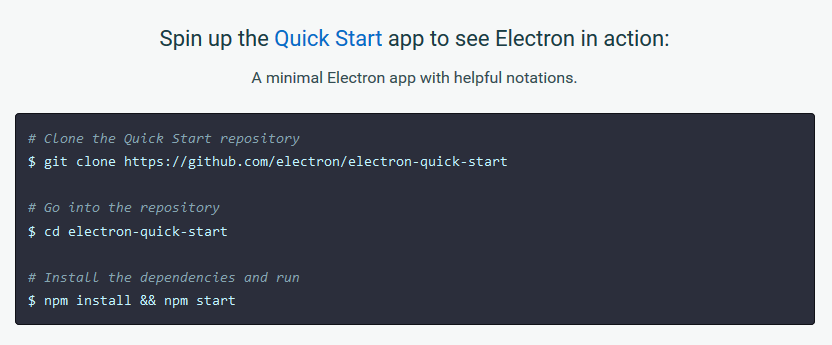
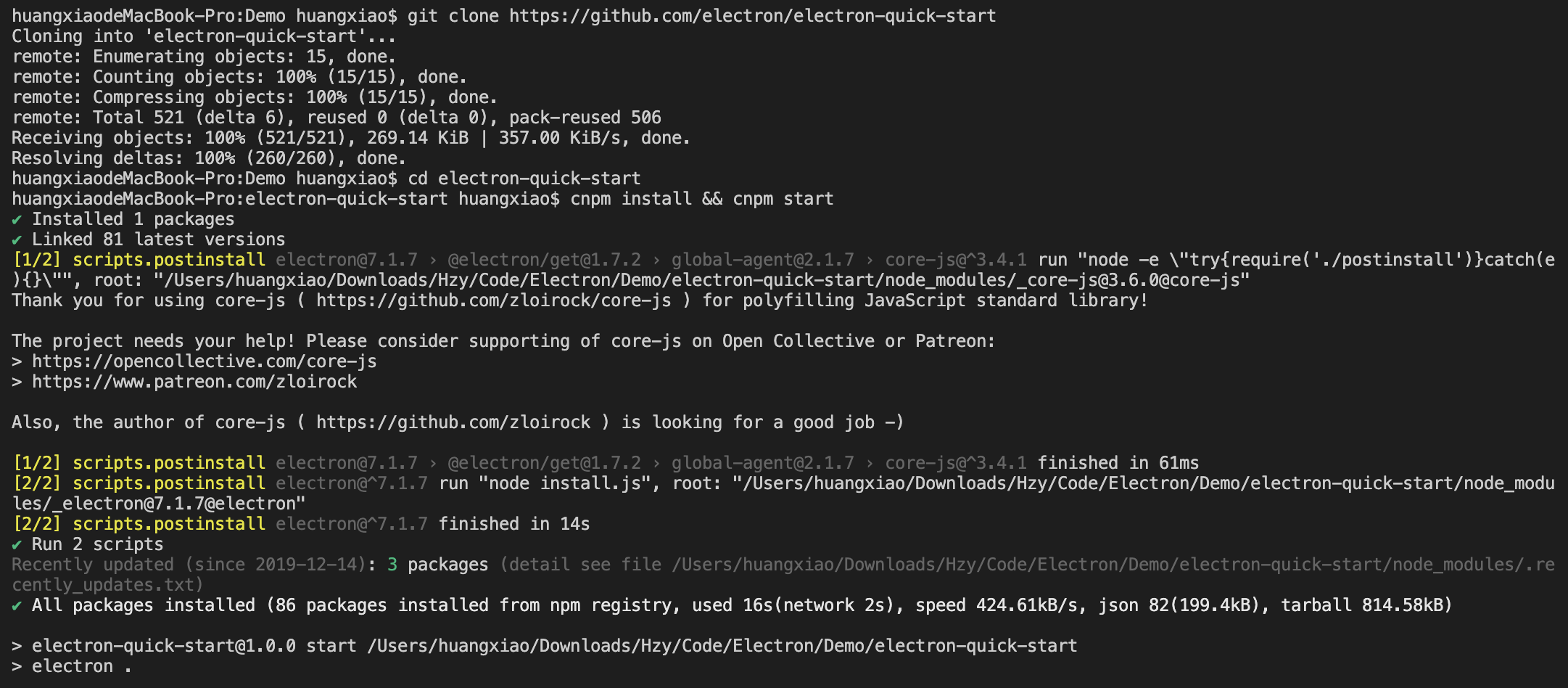
As shown in the figure, the official installation method is to use git and npm, but we can not use git. However, npm is necessary. Npm is a package management tool for nodejs. The new version of nodejs has integrated npm. After installing nodejs, it comes directly with npm. However, some old versions of nodejs, or unreliable nodejs downloaded from some unofficial sources, may not have npm, so we must install nodejs and npm before using it. There are many tutorials on the Internet, so I won’t demonstrate them here.It should be noted that in the third command npm install && npm start, we can only enter npm install, because the following instructions are likely to cause the console to "dead". I get stuck and cannot install Electron successfully.So, we just need to enter the directory we specify, and then execute the following commands (these commands are common to all systems):
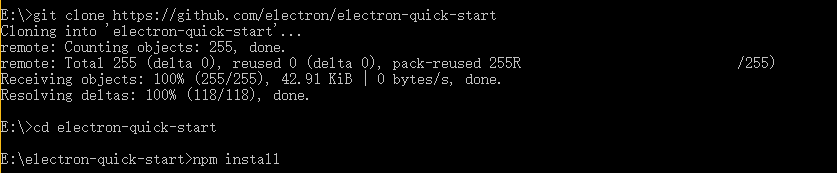
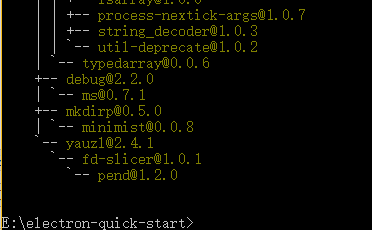
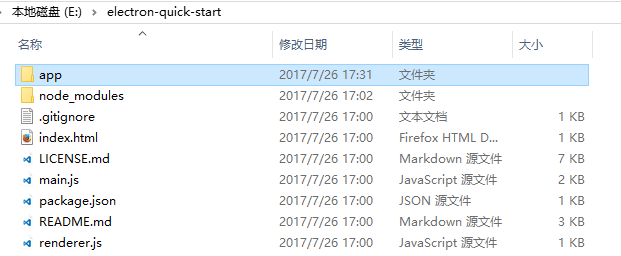
In this way, we have installed Electron. In the folder:

Open it, the directory structure of the file is like this:
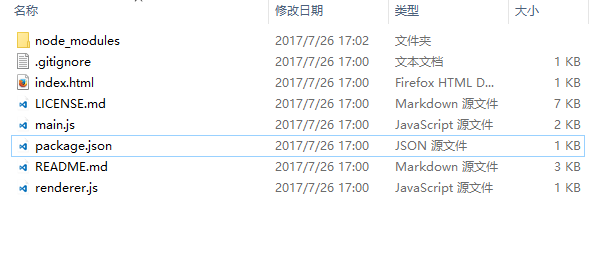
The directory seems complicated, in fact, we can even ignore these files! main.js can be equivalent to our configuration file, which contains some configuration information. By default, our application will directly open index.html in this directory. We can change the entry file by modifying the parameters in main.js. Of course, package.json is also useful, as we will cover later.
First, we can use electron.exe to run the application directly. In my directory, electron.exe is in the E:\electron-quick-start\node_modules\electron\dist directory. We can use electron.exe <rootpath> command format to run our application directly, rootpath represents the project directory you want to run. For example, the application I wrote with three.js before, the directory is: E:\app.

We enter the command in the console:
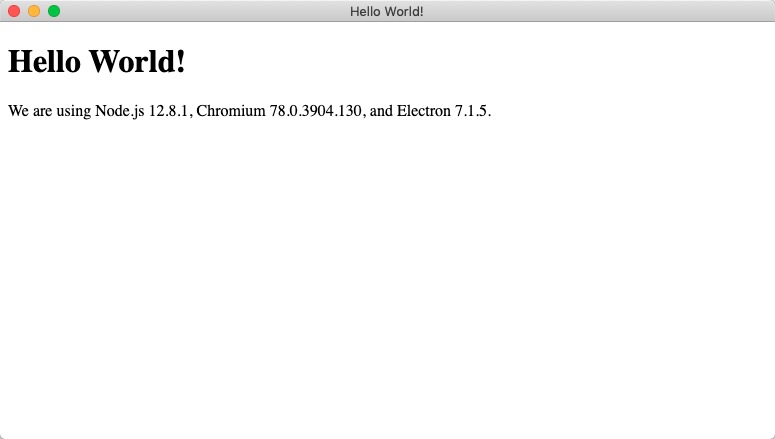
Effect:
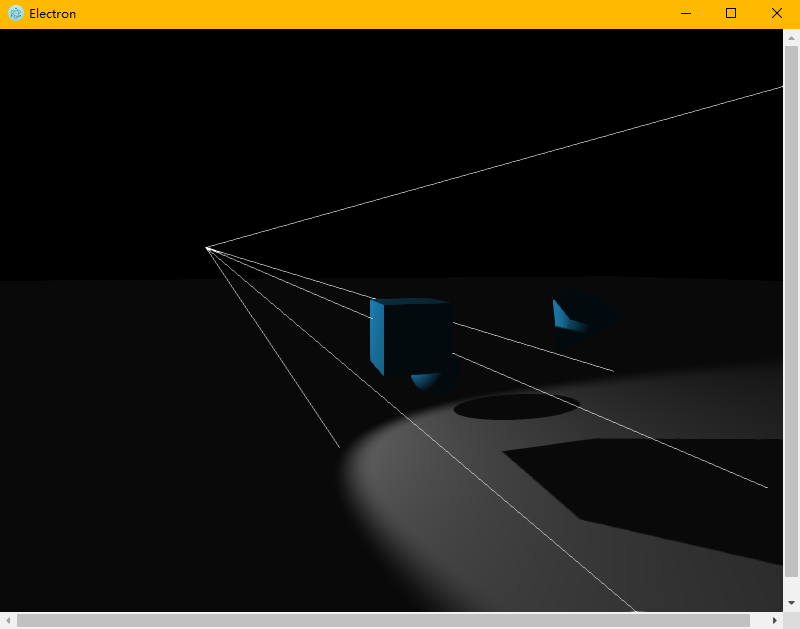
is indeed running as a desktop application. However, we want our application to be packaged directly into the form of .exe, .app, instead of letting our users manually enter commands to start the application. If you look at the official documentation, you will find that the official packaging method still has some pitfalls. If you don't handle it well, you will be recruited. Therefore, we use the more convenient electron-packager. The github link is here: https://github.com/electron-userland/electron-packager. First of all, we still follow the tutorial input instructions to install it. Similarly, this instruction is common on Linux, Mac, and Windows.
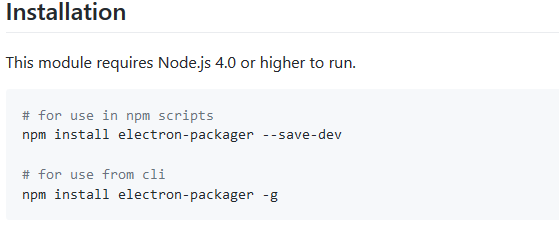
The installation method is the same as Electron, download it from git and install it.It should be noted that we can execute one of the two instructions above. It is recommended to execute the second one, because the second one is a global installation. After installation, we can directly execute the electron-packager command on the console, which greatly facilitates our efficiency.
After installation, we start packaging. First, copy our project directory to the electron directory we installed earlier:
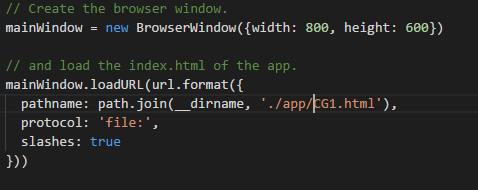
Since our application entry file is CG1.html under the app, we also need to open main.js to configure the entry file:
Then, open the package.json file and configure the parameters.
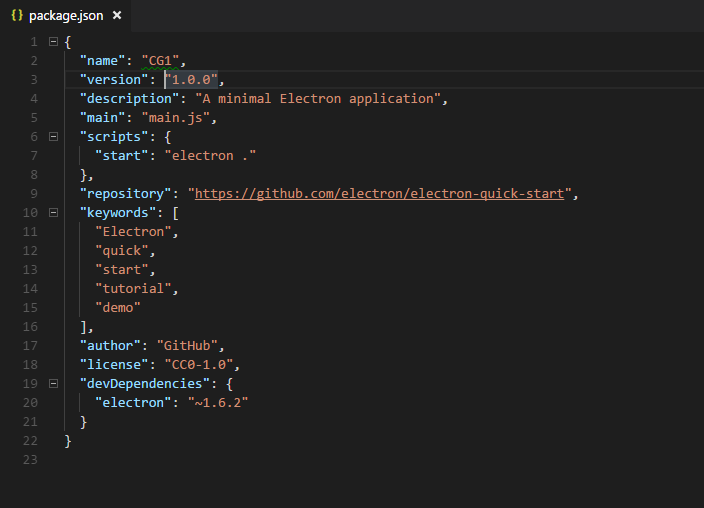
Here, only the name parameter is configured, because the name parameter is related to the application name generated after packaging. Next, enter our electron directory through the console (that is, the directory with main.js and package.json),
execute the following command in the console:

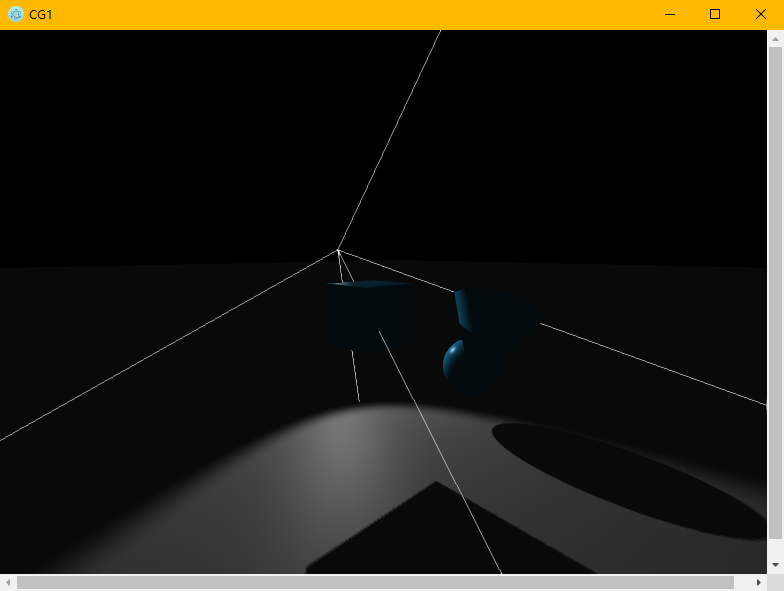
don’t miss the other one"."This refers to the current directory. In fact, if electron-packager is installed globally, then we can change the. To any path. Because this command can automatically detect the current computer's operating system, it can also detect 32 The bit is still 64-bit, so we can omit some parameters. But if you want to generate software with a customizable platform, you need to bring some parameters. The details are given in the github of the project. I believe if you have this need, then It should be no problem to get these parameters. Wait for a while, the packaging is complete. We can see an additional folder named CG1-win32-x64 under the folder. After opening, click CG1.exe to open the application , This program is already available as a release version to users!
Intelligent Recommendation
Use JavaScript, HTML and CSS to build cross-platform desktop applications (Electron / node)
Electron system tray icon / task notification bar icon / bottom right icon Electron application task bar icon flashing reminder How Electron communicates and sends messages to main.js...
JavaScript language to develop desktop applications
I have to say that JavaScript is so powerful that even computer desktop applications can be developed. The framework below is calledElectron。 Create a new folder in VS Code, then create a new folder b...
Hello World-Use Kotlin to develop cross-platform applications
Original author: Aman Bansal Original address: Create Hello World App with KMM ????- Android & IOS Translator: Bingxin said In the field of mobile development, Android and iOS versions of applicat...

Use .NET5, Blazor and Electron.net to build cross -platform desktop applications
Electron.net is an Electron encapsulation embedded in ASP.NET CORE. Through Electron.net, it can build a cross -platform application based on .NET5, so that developers only need to use ASP.NET CORE an...
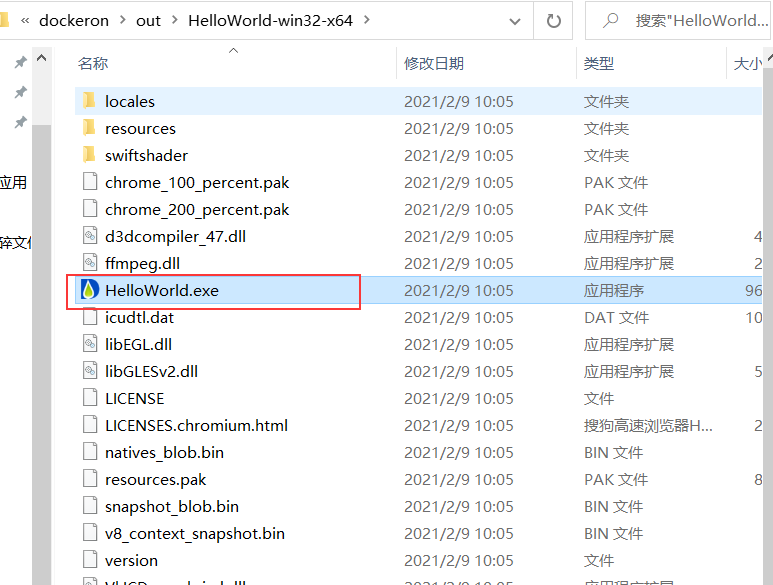
[Electron + Vue] [2] Develop cross-platform desktop applications package generation EXE file
table of Contents Package 1: DOS window command package 1, under DOS, enter npm install electron-packager -g globally installed our packing artifact: 2, under the project folder, that is, the root dir...
More Recommendation
Teach you to develop cross-platform desktop applications using Electron5 + Vue-CLI3
Electron is a technology framework based on Chromium and Node.js, which can build a technology framework for cross-platform applications using HTML, CSS, and JavaScript, compatible with Mac, Windows a...
Air: Develop desktop applications using HTML + JavaScript
Why can't 80% of the code farmers can't do architects? >>> Air: Develop desktop applications using HTML + JavaScript table of Contents background What is air? Environmental prepar...
Electron develops cross-platform desktop applications
Simple process In the open code root directory, the mkidr project folder Npm initialization Install electron Omit the development part of the code in the middle, to be continued Code development is co...
Electron+Vue develops cross-platform desktop applications
Although B/S is currently the mainstream of development, C/S still has great market demand. Restricted by browser sandbox restrictions, web applications cannot meet the usage requirements in certain s...

Electron builds cross-platform desktop applications
Write a custom directory title here Electron builds cross-platform desktop applications Download Official Demo - Electron-Quick-Start Main files: Successful package Electron builds cross-platform desk...