Electron+vue-cli3 develops cross-platform desktop applications
tags: Electron
table of Contents
1. Create a project
Hello there! This is your first time usingMarkdown editor Welcome page displayed. If you want to learn how to use the Markdown editor, you can read this article carefully to learn about the basic syntax of Markdown.
1.1 Install Nodejs
Node.js Chinese website download and install
1.2 Use cnpm to speed up downloads
Sometimes the download speed of npm is very slow, you can install cnpm, download from the domestic Taobao mirror, execute the following command:
Show some belowInline code piece。
$ npm install -g cnpm --registry=https://registry.npm.taobao.org
After that, all npm commands can be directly replaced with cnpm.
1.3 Why not use electron-vue to build it
Electron-vue official Chinese document.
Since SimulatedGREG/electron-vue has not been updated for a long time, and the generated engineering structure is not vue-cli3. So give up use.
1.4 Install/upgrade vue-cli3
First execute the following command to confirm the vue-cli version installed locally (if you have not installed vue on your computer, skip the first two steps to the third step!)
$ vue -V or $ vue --version
At the time of writing this blog, my vue is version 2.9.6.
If you are using vue-cli2.x or earlier versions locally, you can first execute the following command to uninstall globally:
$ cnpm uninstall vue-cli -g
(1) vue-cli3 uses the new npm package name, which is different from the old version.
(2) Execute the above command under vue2.9.6, the console input vue -V still has output, the solution:
a. Of course, the uninstall command still has to be executed: Global uninstall: npm uninstall vue-cli -g;
b. Delete the npmrc file
c. Retrieve and delete the vue-cli folder
Try again: vue -V, the version number will not be displayed.
(3) You can ignore the above problems and just install the latest version of vue-cli3 (valid for pro-test).
Execute the following command to install vue-cli3 globally
$ cnpm install @vue/cli -g
Execute the following command to upgrade vue-cli3
$ cnpm update @vue/cli -g
1.5 Create a vue project
In the specified directory, open the terminal and execute the following command to create a vue project
$ vue create electron-vue-demo
The project name here is electron-vue-demo (capital letters cannot appear), which can be changed according to your specific project
After the creation command is executed, before the creation is completed, the following options will appear (if you are familiar with this step, you can skip this section)
Vue CLI v4.4.6
? Please pick a preset: (Use arrow keys)
  default (babel, eslint)
> Manually select features
Select Manually select features (custom installation)
? Check the features needed for your project: (Press <space> to select, <a> to toggle all,
<i> to invert selection)
>(*) Babel
 ( ) TypeScript
 ( ) Progressive Web App (PWA) Support
 (*) Router
 (*) Vuex
 (*) CSS Pre-processors
 (*) Linter / Formatter
 ( ) Unit Testing
 ( ) E2E Testing
The commonly used modules are selected here, please choose according to actual needs.
? Use history mode for router? (Requires proper server setup for index fallback in production) (Y/n)
n
If router is selected, it will ask whether to use history mode.
By default, vue-router uses the hash mode (that is, the page is redirected through url#hash), and the hash of the URL is used to simulate a complete URL. When the URL changes, the page will not be reloaded.
If you use the history mode, the URL is just like a normal URL, such as http://yoursite.com/page, which is more beautiful. But also need background configuration support.
Here we choose n.
? Pick a CSS pre-processor (PostCSS, Autoprefixer and CSS Modules are supported by default): (Use
arrow keys)
  Sass/SCSS (with dart-sass)
  Sass/SCSS (with node-sass)
  Less
> Stylus
Select the CSS preprocessing module, here we use Stylus
? Pick additional lint features: (Press <space> to select, <a> to toggle all, <i> to invert selection)
>(*) Lint on save
 ( ) Lint and fix on commit
Line on save means to check the format when saving the code.
Lint and fix on commit means that the format is automatically corrected when $ git commit.
Here only choose Lint on save.
? Where do you prefer placing config for Babel, PostCSS, ESLint, etc.?
  In dedicated config files
> In package.json
Here is where to put the configuration files of babel, postcss and eslint?
In dedicated config files means independent files.
In package.json means it is placed in package.json.
Choose In package.json here.
? Save this as a preset for future projects? (y/N) N
Do you keep these settings for future projects? Choose N.
Then wait patiently for the completion of the project installation.
1.6 Automatic installation of Electron
Execute the following command to enter the project directory
$ cd electron-vue-demo
Then execute the following command:
$ vue add electron-builder
electron-builder is a simple and powerful library. Solve the thorny problem of packaging, and can deal with most of the packaging needs.
Configuration options appear next
? Choose Electron Version (Use arrow keys)
  ^7.0.0
  ^8.0.0
> ^9.0.0
Choose the Electron version. When I write this blog, the options are the above 3 versions, just choose the latest one.
Then wait patiently for the installation to complete.
1.7 Manually install Electron
Modify package.json and add the following 7 lines
...
  "scripts": {
    "serve": "vue-cli-service serve",
    "build": "vue-cli-service build",
    "lint": "vue-cli-service lint",
    "electron:build": "vue-cli-service electron:build",	// add
    "electron:serve": "vue-cli-service electron:serve",	// add
    "postinstall": "electron-builder install-app-deps",	// add
    "postuninstall": "electron-builder install-app-deps"	// add
  },
  "main": "background.js",		// add
  "dependencies": {
    "core-js": "^3.6.5",
    "vue": "^2.6.11",
    "vue-router": "^3.2.0",
    "vuex": "^3.4.0"
  },
  "devDependencies": {
    "@vue/cli-plugin-babel": "~4.4.0",
    "@vue/cli-plugin-eslint": "~4.4.0",
    "@vue/cli-plugin-router": "~4.4.0",
    "@vue/cli-plugin-vuex": "~4.4.0",
    "@vue/cli-service": "~4.4.0",
    "@vue/eslint-config-standard": "^5.1.2",
    "babel-eslint": "^10.1.0",
    "electron": "^9.0.5",		// add
    "eslint": "^6.7.2",
    "eslint-plugin-import": "^2.20.2",
    "eslint-plugin-node": "^11.1.0",
    "eslint-plugin-promise": "^4.2.1",
    "eslint-plugin-standard": "^4.0.0",
    "eslint-plugin-vue": "^6.2.2",
    "stylus": "^0.54.7",
    "stylus-loader": "^3.0.2",
    "vue-cli-plugin-electron-builder": "~2.0.0-rc.3",		// add
    "vue-template-compiler": "^2.6.11"
  },
  ...
New src/background.js
'use strict'

import { app, protocol, BrowserWindow } from 'electron'
import {
  createProtocol,
  installVueDevtools
} from 'vue-cli-plugin-electron-builder/lib'
const isDevelopment = process.env.NODE_ENV !== 'production'

// Keep a global reference of the window object, if you don't, the window will
// be closed automatically when the JavaScript object is garbage collected.
let win

// Scheme must be registered before the app is ready
protocol.registerSchemesAsPrivileged([
  { scheme: 'app', privileges: { secure: true, standard: true } }
])

function createWindow() {
  // Create the browser window.
  win = new BrowserWindow({
    width: 1000,
    height: 600,
    webPreferences: {
      // Use pluginOptions.nodeIntegration, leave this alone
      // See nklayman.github.io/vue-cli-plugin-electron-builder/guide/security.html#node-integration
      // for more info
      // nodeIntegration: process.env.ELECTRON_NODE_INTEGRATION
      webSecurity: false,
      nodeIntegration: true
    }
  })

  if (process.env.WEBPACK_DEV_SERVER_URL) {
    // Load the url of the dev server if in development mode
    win.loadURL(process.env.WEBPACK_DEV_SERVER_URL)
    if (!process.env.IS_TEST) win.webContents.openDevTools()
  } else {
    createProtocol('app')
    // Load the index.html when not in development
    win.loadURL('app://./index.html')
  }

  win.on('closed', () => {
    win = null
  })
}

// Quit when all windows are closed.
app.on('window-all-closed', () => {
  // On macOS it is common for applications and their menu bar
  // to stay active until the user quits explicitly with Cmd + Q
  if (process.platform !== 'darwin') {
    app.quit()
  }
})

app.on('activate', () => {
  // On macOS it's common to re-create a window in the app when the
  // dock icon is clicked and there are no other windows open.
  if (win === null) {
    createWindow()
  }
})

// This method will be called when Electron has finished
// initialization and is ready to create browser windows.
// Some APIs can only be used after this event occurs.
app.on('ready', async () => {
  if (isDevelopment && !process.env.IS_TEST) {
    // Install Vue Devtools
    try {
      await installVueDevtools()
    } catch (e) {
      console.error('Vue Devtools failed to install:', e.toString())
    }
  }
  createWindow()
})

// Exit cleanly on request from parent process in development mode.
if (isDevelopment) {
  if (process.platform === 'win32') {
    process.on('message', (data) => {
      if (data === 'graceful-exit') {
        app.quit()
      }
    })
  } else {
    process.on('SIGTERM', () => {
      app.quit()
    })
  }
}
The above code is generated after installation in section 1.6 using an automated method.
Install dependencies
Execute the following command in the project directory to install all dependent packages:
$ cnpm install
1.8 Compile and start the app
Execute the following commands to start compiling the APP and start the development environment APP
$ npm run electron:serve or $ yarn electron:serve
It may take a long time to start up for the first time. After loading, the APP will automatically open, just wait
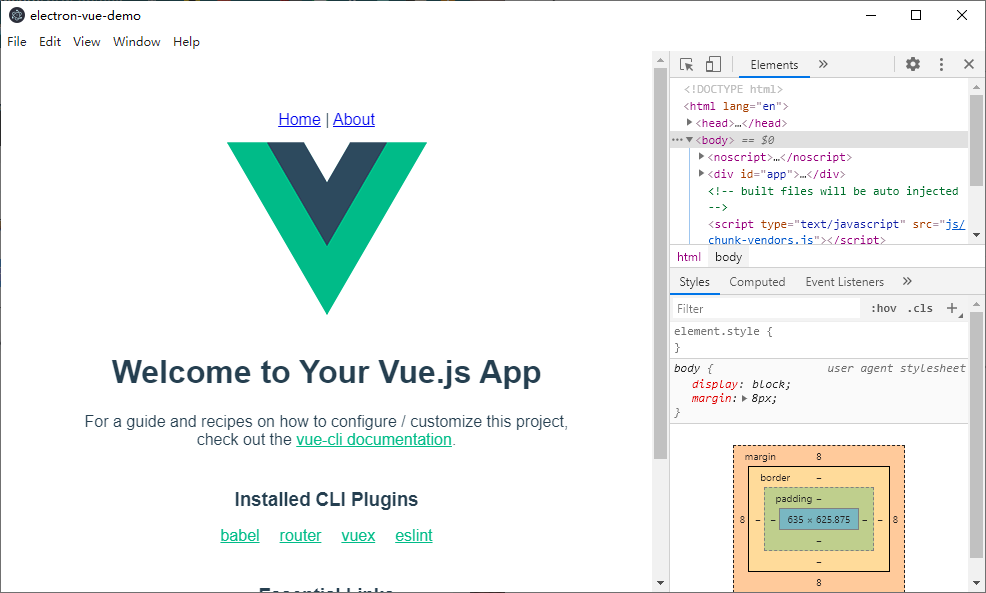
After the compilation is successful, the APP of the development environment will appear, as shown in the figure below (Win10 startup interface)
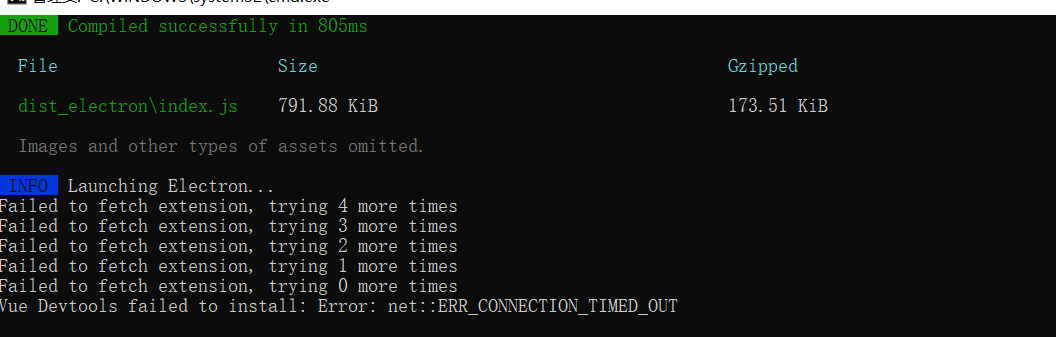
When back to the console, find the console information
INFO  Launching Electron...
Failed to fetch extension, trying 4 more times
Failed to fetch extension, trying 3 more times
Failed to fetch extension, trying 2 more times
Failed to fetch extension, trying 1 more times
Failed to fetch extension, trying 0 more times
Vue Devtools failed to install: Error: net::ERR_CONNECTION_TIMED_OUT
This is because of the request to install the vuejs devtools plugin. Need to overturn the wall to install successfully. You can ignore the above problem, and wait patiently for 5 requests to fail and it will automatically skip. The above success interface confirms that the skip is still successful and the compilation is successful.
There is still a solution:
Just comment out the following code in src/background.js:
/*
	if (isDevelopment && !process.env.IS_TEST) {
      // Install Vue Devtools
      try {
          await installVueDevtools();
      } catch (e) {
          console.error("Vue Devtools failed to install:", e.toString());
      }
  }
*/
2. Configuration items
2.1 Configure ESLint code format check tool
ESlint can efficiently check the code format, so that all engineers involved in the project can maintain a unified code style. The detection accuracy can even be as accurate as whether there is one more space or one less space. The unification of the code format is very helpful to improve the team's collaborative development efficiency, especially for engineers with code cleanliness.
Create .eslintrc.js in the project root directory (note that there is a. In front of the file name)
Please paste the following code:
module.exports = {
  root: true,
  env: {
    node: true
  },
  'extends': [
    'plugin:vue/essential',
    '@vue/standard'
  ],
  rules: {
    'no-debugger': process.env.NODE_ENV === 'production' ? 'error' : 'off',
         // Do not check the semicolon at the end of the statement
    'semi': ['off', 'always'],
         // Force indentation to 2 spaces
    'indent': ['error', 2],
         // Turn off the space detection between the function name and the parentheses
    'space-before-function-paren': 0,
         // Ignore spaces in braces
    'object-curly-spacing': 0
  },
  parserOptions: {
    parser: 'babel-eslint'
  }
}
Here explains the configuration of indent indentation, which must be matched with the .editorconfig in the project root directory
[*.{js,jsx,ts,tsx,vue}]
indent_style = space <--This defines whether the indentation type is space or tab
 indent_size = 2 <--This needs to correspond to the indent of .eslintrc.js
trim_trailing_whitespace = true
insert_final_newline = true
.editorconfig is used for IDE to format code automatically
 .eslintrc.js for ESlint detection
For more configuration, please refer to the ESLint tutorial.
2.2 Configure vue
Create vue.config.js in the project directory and paste the following code:
const path = require('path');

function resolve (dir) {
  return path.join(__dirname, dir);
}

module.exports = {
  publicPath: './',
  devServer: {
    // can be overwritten by process.env.HOST
    host: '0.0.0.0',
    port: 8080
  },
  chainWebpack: config => {
    config.resolve.alias
      .set('@', resolve('src'))
      .set('src', resolve('src'))
      .set('common', resolve('src/common'))
      .set('components', resolve('src/components'));
  }
};
devServer is used to set up the service of the development environment, here it means to start the web service on the local port 8080.
For chainWebpack, we gave the project directory an "alias". In the code, we can directly use the "alias" to access resources, saving you the trouble of entering a complete relative path each time.
Aliases can be used directly in js code, for example:
 @/common/js/xxx.js is equivalent to src/common/js/xxx.js
 common/js/xxx.js is equivalent to src/common/js/xxx.js

 To use an alias in css or html, you need to add "~" before the alias, for example:
@import "~common/stylus/font.styl"
3. Basic project settings
3.1 Introduction to the main process and rendering process
Before starting the following steps, it is necessary to briefly understand the application architecture of Electron
Main process
The process in which Electron runs the main script (background.js) of package.json is called the main process. The script running in the main process creates a web page to display the user interface. An Electron application always has one and only one main process.
Rendering process
Since Electron uses Chromium to display web pages, Chromium's multi-process architecture is also used. Each web page in Electron runs in its own rendering process.
In ordinary browsers, web pages usually run in a sandbox environment and are not allowed to access native resources. However, Electron users can interact with the operating system on the page under the support of Node.js API.
The relationship between the main process and the rendering process
The main process uses the BrowserWindow instance to create the page. Each BrowserWindow instance runs the page in its own rendering process. When a BrowserWindow instance is destroyed, the corresponding rendering process will also be terminated.
The main process manages all web pages and their corresponding rendering processes. Each rendering process is independent, it only cares about the web page it is running on.
For details, please refer to.Official document
3.2 APP window size
Modify background.js:
 win = new BrowserWindow({
      width: 1000,
      height: 600,
      webPreferences: {
        // Use pluginOptions.nodeIntegration, leave this alone
        // See nklayman.github.io/vue-cli-plugin-electron-builder/guide/security.html#node-integration
        // for more info
        nodeIntegration: process.env.ELECTRON_NODE_INTEGRATION
      }
   })
3.3 Cancel cross-domain restrictions
Modify background.js:
 win = new BrowserWindow({
      width: 1000,
      height: 600,
      webPreferences: {
        // Use pluginOptions.nodeIntegration, leave this alone
        // See nklayman.github.io/vue-cli-plugin-electron-builder/guide/security.html#node-integration
        // for more info
        // nodeIntegration: process.env.ELECTRON_NODE_INTEGRATION
        webSecurity: false,
        nodeIntegration: true
      }
   })
3.4 Cancel the menu bar
In the desktop APP we generated, we can see the default menu bar.
In windows, the menu bar is at the top of the APP window; in macOS, the menu bar is at the top of the computer screen.
In order to facilitate the project to directly generate a pure web application in the future, try to make all the functions of the APP in the rendering process, here we cancel the menu bar.
Due to the peculiarities of macOS, the top menu bar cannot be deleted, so we have special treatment for macOS and only keep "About" and "Exit" in the menu bar.
Modify background.js:
'use strict'
 // Add Menu component
import { app, protocol, BrowserWindow, Menu } from 'electron'
...
function createWindow() {
  // Create the browser window.
  ...

  win.on('closed', () => {
    win = null
  })

  createMenu()
}

 // Set the menu bar
function createMenu() {
     // darwin means macOS, settings for macOS
  if (process.platform === 'darwin') {
    const template = [{
      label: 'App Demo',
      submenu: [
        {role: 'about'},
        {
          role: 'quit'
        }]
    }]
    const menu = Menu.buildFromTemplate(template)
    Menu.setApplicationMenu(menu)
  } else {
         // windows and linux systems
    Menu.setApplicationMenu(null)
  }
}
The changed APP interface style:
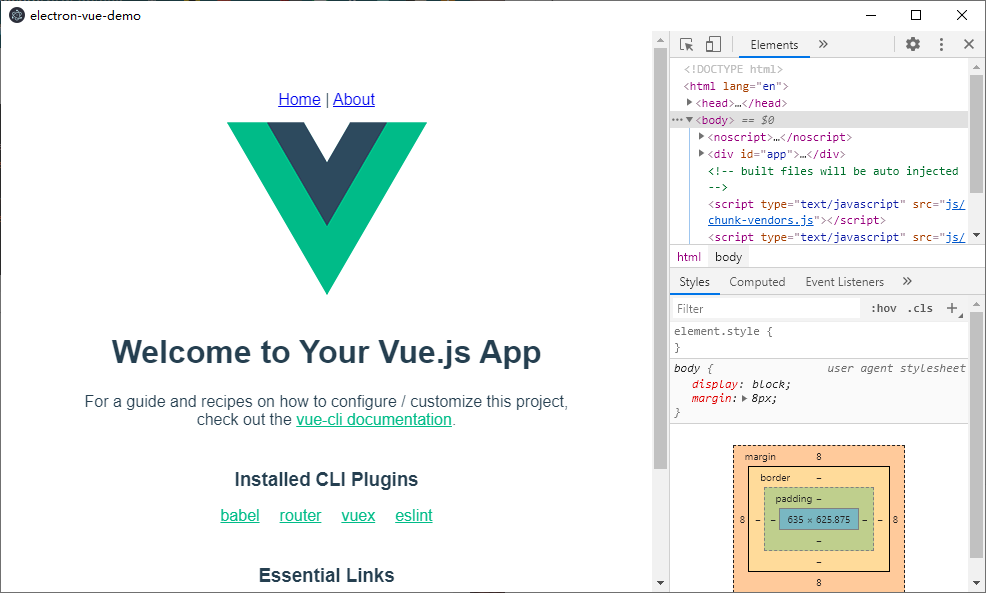
For more information about the menu bar settings, please refer toElectron official API.
3.5 Set the APP window icon
Prepare icons for windows and macOS versions:

Put the icon file in the public/ directory, the project structure is as follows:
|- /dist_electron
   |...
|- /public
   |- app.icns
   |- app.ico
   |- app.png
   |- favicon.ico
   |- index.html
|- /src
   |...
|- .editorconfig
|- .eslintrc.js
|- .gitignore
|- babel.config.js
|- package.json
|- package-lock.json
|- README.md
You can also modify favicon.ico by the way, but it is not used in the desktop version of the APP. It will only be used if you generate a pure web project in the future.
Modify background.js to let the APP window use icons
function createWindow() {
  // Create the browser window.
  win = new BrowserWindow({
    ...

    // eslint-disable-next-line no-undef
    icon: `${__static}/app.ico`
  })

  ...
}
The ${__static} here corresponds to the public directory

 Now, you can see that the APP window icon of the development environment has taken effect on the Windows system.

 For MacOS icons, please refer to chapter 4.1, and they need to be built to take effect.
3.6 Set the title bar name of the APP window
Modify public/index.html,
<!DOCTYPE html>
<html lang="en">
  <head>
    <meta charset="utf-8">
    <meta http-equiv="X-UA-Compatible" content="IE=edge">
    <meta name="viewport" content="width=device-width,initial-scale=1.0">
    <link rel="icon" href="<%= BASE_URL %>favicon.ico">
    <!-- Change'<%= htmlWebpackPlugin.options.title %>' to App Demo -->
    <title>My App</title>
  </head>
  <body>
    ...
  </body>
</html>
4. Pack
Here we have integrated the electron-builder tool, you can refer toOfficial document
Intelligent Recommendation
electron develops desktop applications
Today I suddenly wanted to make a web desktop application 1. First is application packaging 2Novice development can refer toelsectron desktop credit development...
electron ???? develop cross-platform desktop applications? ? ?
Foreword I have a good backend, because of work reasons: at present are all browser box apk developed based on Android operating system, now I want to develop browser box based on windows operating sy...

Electron builds cross-platform desktop applications
Write a custom directory title here Electron builds cross-platform desktop applications Download Official Demo - Electron-Quick-Start Main files: Successful package Electron builds cross-platform desk...
Electron development cross-platform desktop applications
Although B / S is the mainstream developed, C / S still has a large market demand. Sandbox restrictions on the browser, web applications cannot meet the needs of the use under certain scenes, while de...
Teach you how to use Electron5+vue-cli3 to develop cross-platform desktop applications
Electron is a technical framework based on Chromium and Node.js that can build cross-platform applications using HTML, CSS, and JavaScript, and is compatible with Mac, Windows, and Linux. Although B/S...
More Recommendation
Teach you to develop cross-platform desktop applications using Electron5 + Vue-CLI3
Electron is a technology framework based on Chromium and Node.js, which can build a technology framework for cross-platform applications using HTML, CSS, and JavaScript, compatible with Mac, Windows a...
Teach you to use the Electron13 + Vue-CLI3 + Element-UI to develop cross-platform desktop applications (3)
1.5 Automatically install Electron Enter the root directory, execute: Next, configuration options appear: Select the highest version of Electron. 1.7 Compiling and launch APP Perform the following com...
Teach you to use Electron13+Vue-CLI3+Element-UI to develop cross-platform desktop applications (2)
If you have not installed Vue-CLI3, first execute the following command installation: If you have installed Vue-CLI3, but not the latest version, you can execute the following command upgrades: 1.4 Cr...
Teach you to use Electron13+Vue-CLI3+Element-UI to develop cross-platform desktop applications (1)
1. Download node.js installation download link:Download | node.js, Install a long -term stable version, you can verify whether you have installed through command 2 Install NPM View the current version...
Electron Vue cross-platform desktop application
Before you create an Electron cross-platform application, you need to install some commonly used tools, such as Node, Vue, and Electron, etc. Installing Electron [Windows button + R -> Open Command...