Linux Docker User Guide
tags: Docker
Docker is an open source application container engine, based on Go language and open source following the Apache2.0 protocol;
Docker allows developers to package their applications and dependent packages into a lightweight, portable container, and then publish it to any popular Linux machine, which can also be virtualized;
The container is completely using the sandbox mechanism, there will not be any interface between each other (similar to the iPhone app), more importantly, the container performance overhead is extremely low;
Docker is divided into CE (Community Edition: Community Edition) and EE (Enterprise Edition: Enterprise Edition) after version 17.03. We can use the community version.
1. CentOS Docker installation
Uninstall the old version
The older version of Docker is called docker or docker-engine. If these programs are already installed, uninstall them and related dependencies:
sudo yum remove docker \
                  docker-client \
                  docker-client-latest \
                  docker-common \
                  docker-latest \
                  docker-latest-logrotate \
                  docker-logrotate \
                  docker-engine
Install Docker Engine-Community
Use the Docker warehouse for installation. Before installing Docker Engine-Community on the new host for the first time, you need to set up the Docker warehouse, and then you can install and update Docker from the warehouse.
Set up warehouse
Install the required software packages:
yum-utils provides yum-config-manager, and the device mapper storage driver requires device-mapper-persistent-data and lvm2:
sudo yum install -y yum-utils \
  device-mapper-persistent-data \
  lvm2
Use the following command to set up a stable warehouse:
sudo yum-config-manager \
    --add-repo \
    https://download.docker.com/linux/centos/docker-ce.repo
Install Docker Engine-Community
Install the latest version of Docker Engine-Community and containerd:
sudo yum install docker-ce docker-ce-cli containerd.io
If you are prompted to accept the GPG key, select Yes; Docker is not started by default after installation, and the docker user group has been created, but there are no users under this user group.
To install a specific version of Docker Engine-Community, list the available versions in the repository, then select and install:
List and sort the versions available in your repository, this example sorts the results by version number (highest to lowest)
yum list docker-ce --showduplicates | sort -r

docker-ce.x86_64  3:18.09.1-3.el7                     docker-ce-stable
docker-ce.x86_64  3:18.09.0-3.el7                     docker-ce-stable
docker-ce.x86_64  18.06.1.ce-3.el7                    docker-ce-stable
docker-ce.x86_64  18.06.0.ce-3.el7                    docker-ce-stable
Install a specific version by its full package name:
sudo yum install docker-ce-<VERSION_STRING> docker-ce-cli-<VERSION_STRING> containerd.io

sudo yum install docker-ce-17.12.0.ce-1.el7.centos docker-ce-cli-17.12.0.ce-1.el7.centos containerd.io
2. Docker usage
Start Docker:
sudo systemctl start docker
View Docker version information:
docker version
View Docker image information:
docker images
--No-trunc, view full information
View detailed Docker image information:
docker inspect IMAGE_ID
Verify that Docker Engine-Community is installed correctly by running the hello-world image:
sudo docker run hello-world
Docker Hello World:
docker run ubuntu:15.10 /bin/echo "Hello world"
docker: Docker binary executable file
run: combined with the previous docker to run a container
ubuntu: 15.10: Specify the image to run, Docker first finds whether the image exists from the local host, if it does not exist, Docker will download the public image from the image warehouse Docker Hub
/ bin / echo "Hello world": Command executed in the started container
Run the interactive container:
docker run -it ubuntu:15.10 /bin/bash
-t: specify a pseudo terminal or terminal in the new container
-i: allows you to interact with the standard input (STDIN) in the container
/ bin / bash: The command is placed after the image name, here we want to have an interactive shell, so / bin / bash is used
At this point we have entered a container of ubuntu15.10 system
We try to run the commands cat / proc / version and ls in the container to view the current system version information and the list of files in the current directory
We can exit the container by running the exit command or using CTRL + D
Get a new image:
docker pull ubuntu:13.10
Find the mirror:
docker search httpd
Use an image (will create a container):
docker run httpd
Update mirror:
docker commit -m="initialize system" -a="ensk" 22d3e281e9eb ensk/centos7:v1.0
-m: Descriptive information submitted
-a: specify the author of the image
22d3e281e9eb ID
ensk / centos7: v1.0: specify the name of the target image to be created
Start the container in background mode:
docker run -d ubuntu:15.10 /bin/sh -c "while true; do echo hello world; sleep 1; done"
Added the -d parameter will not enter the container by default, you need to use the command docker exec to enter the container
Export the image (will export the hierarchy):
docker save -o /usr/local/appkg/nginx.tar nginx:latest
Import the image:
docker load -i /usr/local/appkg/nginx.tar
View the running container:
docker ps
-a, view all containers
View the standard output in the container:
docker logs CONTAINER_ID
docker logs CONTAINER_NAME
Stop the container
docker stop CONTAINER_ID
docker stop CONTAINER_NAME
Deactivate all running containers:
docker stop $(docker ps -q)
Start a stopped container:
docker start CONTAINER_ID
Restart the container:
docker restart CONTAINER_ID
Enter the container:
docker attach CONTAINER_ID
docker exec -it CONTAINER_ID /bin/bash
The attach command, if you exit from this container, will cause the container to stop, it is not recommended to use
It is recommended to use the docker exec command, because this will exit the container terminal and will not cause the container to stop
Copy the file to the container:
docker cp /usr/local/appkg/jdk.tar.gz 1ab8545fb6ec:/usr/local/bin
Copy the file to the host machine:
docker cp 1ab8545fb6ec:/usr/local/bin/jdk.tar.gz /usr/local/appkg
Export container snapshot:
docker export CONTAINER_ID > /usr/local/bin/CONTAINER.tar
Import container snapshot:
docker import /usr/local/bin/CONTAINER.tar ensk/container:v1
Delete the container:
docker rm CONTAINER_ID
Delete all containers:
docker rm $(docker ps -aq)
Delete the mirror:
docker rmi REPOSITORY:TAG
docker rmi IMAGE_ID
docker rmi IMAGE_ID IMAGE_ID
Delete batch image:
docker rmi $(docker images -q IMAGE)
3. Run a WEB application
We run a Python Flask WEB application in a Docker container
Loading image:
docker pull training/webapp
Run the container:
docker run -d -P training/webapp python app.py
Check the WEB application container and find that there is more port information here
Docker opens port 5000 (default Python Flask port) to host port 32769:
PORTS
0.0.0.0:32768->5000/tcp
We can also use the -p flag to specify that the container port is bound to the host port. The difference between the two methods is:
-P: It is a container ’s internal port randomly mapped to the host ’s high port
-p: the container internal port is bound to the specified host port
docker run -d -p 5000:5000 training/webapp python app.py
You can also specify the network address to which the container is bound, such as binding 127.0.0.1:
docker run -d -p 127.0.0.1:5001:5000 training/webapp python app.py
Run the curl command:
curl 127.0.0.1:32768
Hello world!
View the container port mapped to the host port:
docker port CONTAINER_ID
docker port CONTAINER_NAME
View WEB application logs:
docker logs -f CONTAINER_ID
-f: Let docker logs output the standard output inside the container like tail -f
View the progress of the WEB application container
docker top CONTAINER_ID
Check the WEB application:
docker inspect CONTAINER_ID
Use docker inspect to view the underlying information of Docker, it will return a JSON file recording the configuration and status information of the Docker container
Stop, start, delete WEB application container:
docker stop CONTAINER_ID
docker start CONTAINER_ID
docker rm CONTAINER_ID
When deleting a container, the container must be stopped, otherwise an error will be reported
Author Github:tojohnonly , Blog:EnskDeCode
Intelligent Recommendation
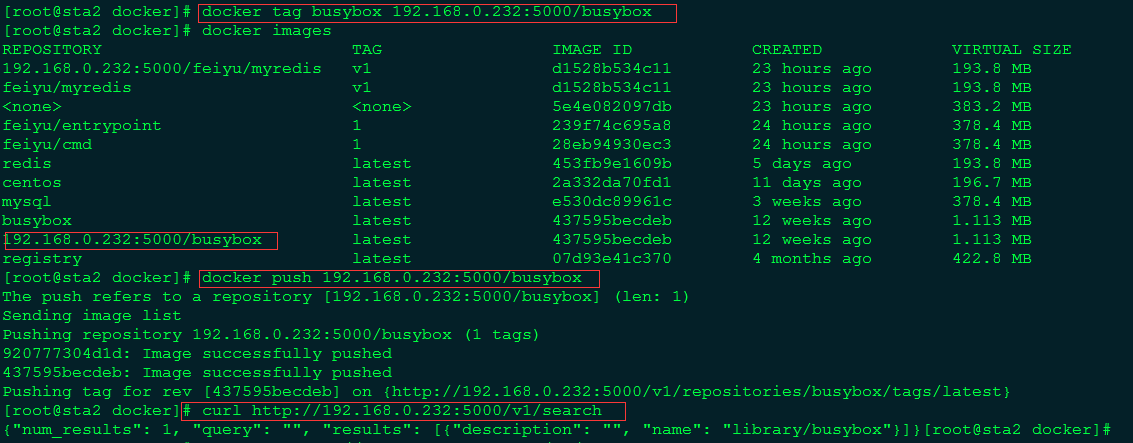
Docker User Guide (2)-Build a local warehouse
Copyright statement: This article is an original article by Tian Feiyu, please indicate the source when reprinting: Article original link:https://www.qcloud.com/community/article/94 Source: Tengyun Pa...
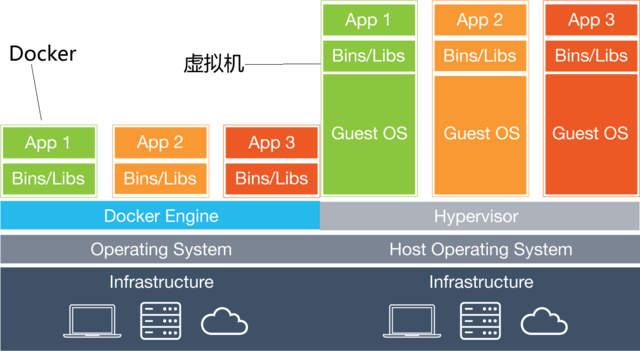
Docker user guide (1)-basic operation
Docker is an open source engine that can automatically deploy development applications to containers. It is written by the Docker company's team and licensed under the Apache 2.0 open source license. ...

Linux new user and allow docker
Create user 1. role The useradd or adduser command is used to create a user account and create a user's home directory. The usage rights are super users. 2. Format 3. Main parameters -c: Add a comment...

Logical Volume Management (LVM) Linux User Guide
What I want to tell you is that when LVM (logical volume management) first appeared in Fedora Linux, I was very resistant to it. My initial reaction was that I did not need this extra layer of abstrac...
Jenkins User Documentation-Guide Interface (based on Linux)
What is the Jenkins pipeline? Jenkins Pipeline (or simply called "pipeline") is a set of plug-ins that support the implementation and integration of continuous delivery pipelines to Jenkins....
More Recommendation
[Linux] ufw (simple firewall) user guide
#Install UFW firewall #Allow ssh traffic in and out of the network #Allow traffic on port 22 to enter and exit the network #Refuse the traffic on port 111 to enter and exit the network #Allow TCP port...

LTP (Linux Test Project) User Guide
Article Directory 1. Introduction to ltp-ddt 1.1、ltp 1.2、ltp-ddt 2. Environmental structure 2.1, cross compilation 2.2, file system 3. Test run 1. Introduction to ltp-ddt 1.1、ltp LTP (Linux Test Proje...
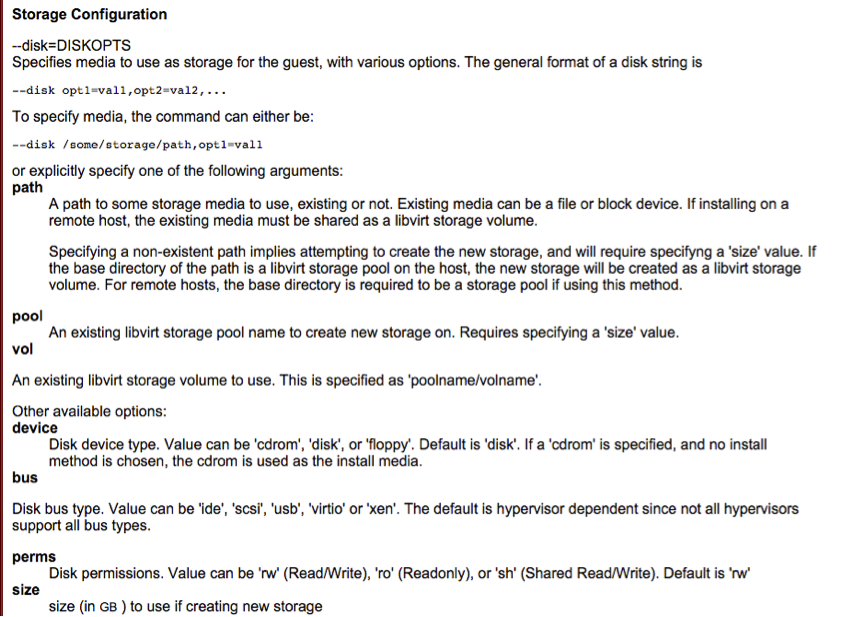
Linux virtual machine installation user guide
1. Install virt-manager yum install virt-manager.x86_64 yum install virt-viewer.x86_64 yum install libvirt-devel.x86_64 yum install libvirt-python.x86_64 yum install libvirt.x86_64 2. Modify the confi...
Sed - Linux SED Command User Guide
Article catalog Sed command Common Options Replacement mark Line up Delete operation other Sed command The SED editor is called a stream editor, which will do the following: Read a line of data from t...

Docker Getting Started Guide | Linux China
This tutorial contains some basic knowledge and operations of Docker, such as how to create a new Docker container, how to run the container, and how to create your own Docker image from an existing D...