Stream (4)
FileStream
How to understand FileStream?
Through the study of the first three chapters, I believe everyone has a certain understanding of Stream, but how to understand FileStream? Please see the picture below
Any file on our disk is composed of binary system. The most intuitive is the notepad. When we create a new notepad, its size is 0KB. We enter a number or

The file will automatically increase by 4kb when the letter is entered. It can be seen that as we enter more and more content, the file will increase accordingly. Similarly, when we delete the content of the file, the file will also decrease accordingly.
The clever one will definitely ask: Who put the content in the file in what form? Good question, remember the concept of flow in the first article? By the way, a school of fish in the real world can come through the river
In various places, FileStream is the same, byte can be transmitted through FileStream, so that we can perform a series of operations on any file on the computer.
Importance of FileStream
FileStream, as the name implies, is a file stream. The files on our computer can be operated through the file stream, such as file copy, cut, paste, delete, local file upload, download, etc.
Many important functions are inseparable from file streaming, so file streaming is not only very important on this machine, but it is also indispensable in today's network world. Imagine that we turn on the virtual machine and directly start
How convenient it is to copy a file to a virtual machine, if there is no file stream, this would be unimaginable. (Don’t misunderstand, the file stream cannot be transmitted directly over the network, but
The file uploaded by the client is transmitted to the server to receive through the network stream, and then processed through the file stream, the download is just the opposite)
Introduction to FileStream commonly used constructors (maybe a bit complicated to understand, please be sure to understand deeply)
*1: FileStream(SafeFileHandle, FileAccess)
                      A brief introduction to the unmanaged parameter SafeFileHandle

                                               SafeFileHandle: It is a file safe handle. This explanation may be at a loss for everyone.
- 1
- 2
- 3
- 4
Don’t worry, don’t pay attention to the profound meaning, just know that this type is c# unmanaged resource,
In other words, it can call methods of unmanaged resources, and it does not belong to the c# recycling mechanism, so we must
Use GC manual or other methods (Finalize or Dispose method) to recycle unmanaged resources, so
SafeFileHandle is an obscure bodyguard, has been secretly protecting FileStream and file security
In order for everyone to better understand this bodyguard, please see the first code:
What will be reported wrong? In fact, the program is stuck in Console.ReadLine(), FileStream does not
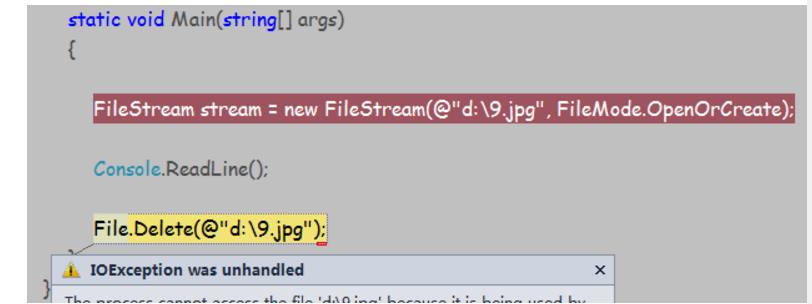
Was released, the system does not know whether this file is still useful, so help us protect this file
(The memory used by the unmanaged resource SafeFileHandle is still occupied by the program)
So SafeFileHandled protected the file internally and reported this exception
You can see that the IsClose property of stream.SafeFileHandle has become true, which means that the file can be safely deleted at this time

So back to an old problem. Every time we use FileStream, we must close it and release resources.
*2: FileStream(String, FileMode)
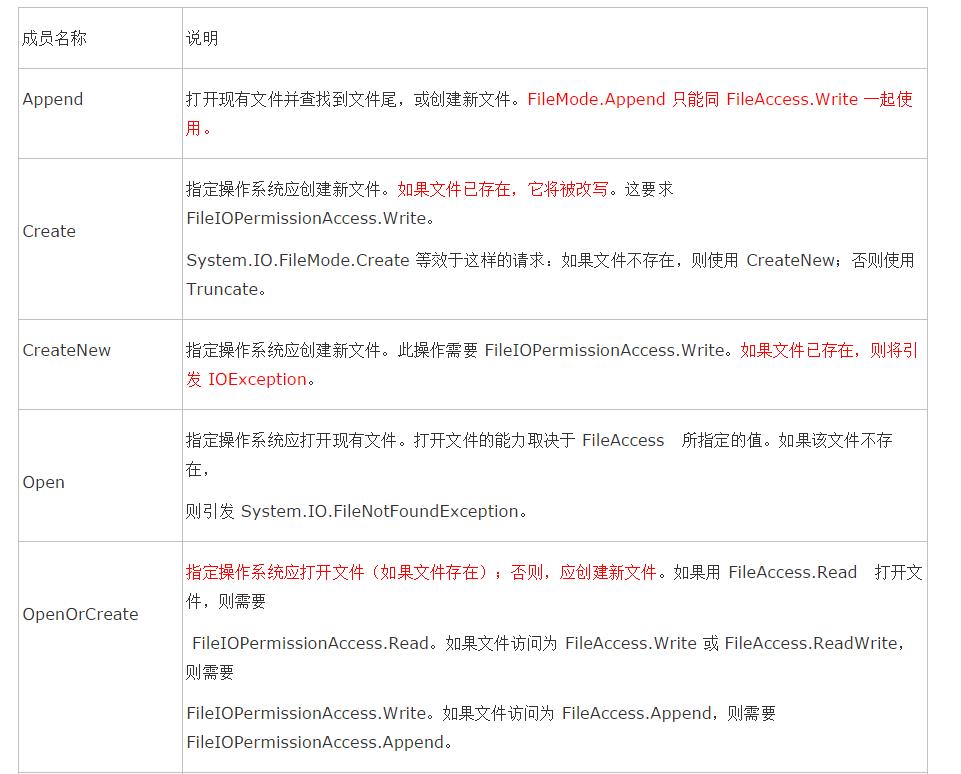
The String parameter represents the address where the file is located, and FIleMode is an enumeration that indicates how to open or create the file.
The FileMode enumeration parameters include the following:

Parameter ownsHandle: It is similar to the SafeFileHandler introduced to you, there are two points that must be noted:
    1 For the specified file handle, the operating system does not allow the requested access. For example, when access is Write or ReadWrite and the file handle is set to read-only access, an exception will be reported.

       So ownsHandle is the boss, FileAccess permissions should be within the scope of ownsHandle

                 2. FileStream assumes that it has exclusive control over the handle. When FileStream also holds a handle, reading, writing, or searching may cause data corruption. For data security, please use

                 Call Flush before the handle, and avoid calling any method other than Close after the handle is used.
- 1
- 2
- 3
- 4
- 5
- 6
- 7
- 8
*5: FileStream(String, FileMode, FileAccess, FileShare, Int32, Boolean async )
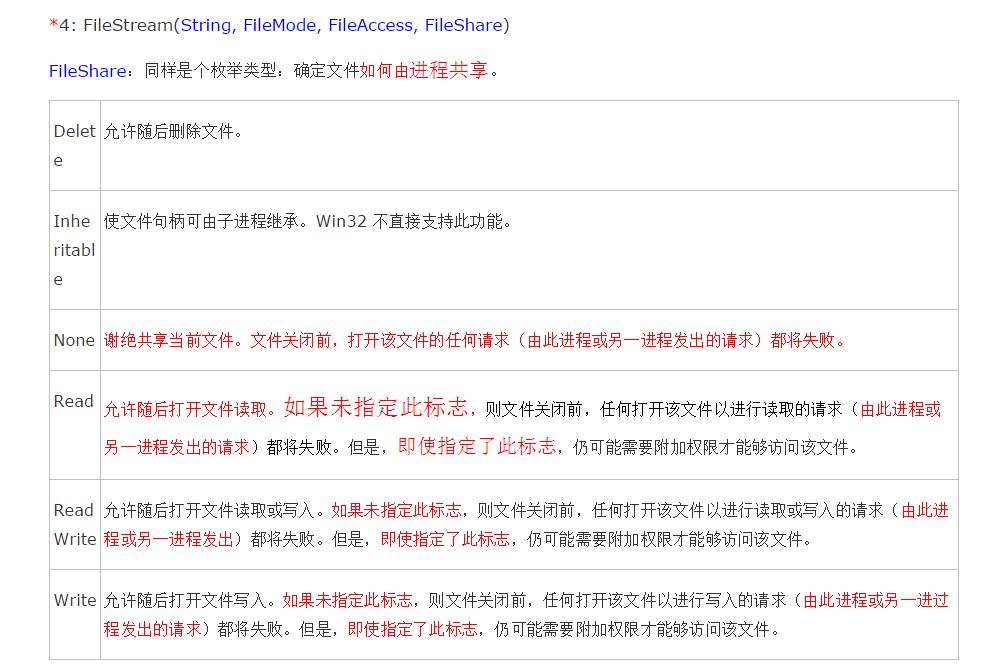
Int32: This is the size of a buffer, you can customize it according to your needs,
Boolean async: Whether to read and write asynchronously, tell the FileStream example whether to use asynchronous read and write
*6: FileStream(String, FileMode, FileAccess, FileShare, Int32, FileOptions)
FileOptions: This is similar to FileStream's advanced options for file operations
- 1
- 2
Introduction to FileStream Common Properties
*1: CanRead: Indicate whether FileStream can be read
*2: CanSeek: Indicate whether FileStream can track and find stream operations
*3: IsAsync: Does FileStream work synchronously or asynchronously?
*4: Name: the name of the FileStream Read-only attribute
*5: ReadTimeout: Set the read timeout time
*6: SafeFileHandle: File safe handle read-only attribute
*7: position: the stream position where the current FileStream is located
Introduction to FileStream common methods
The following methods rewrite some of the virtual methods of Stream (**Here you can click here to refer to the first article to review the past, and I will not describe it here)
1: IAsyncResult BeginRead asynchronous read
2: IAsyncResult BeginWrite asynchronous write
3: void Close close the current FileStream
4: void EndRead asynchronous read end
5: void EndWrite asynchronous write end
6: void Flush release the buffer immediately, export all the data to the basic stream (in the file)
7: int Read general read
8: int ReadByte read a single byte
9: Long Seek tracks where the stream is located
10: void SetLength sets the length of FileStream
11: void Write general write
12: void WriteByte writes a single byte
A method unique to FileStream
*1:FileSecurity GetAccessControl()
This is not very commonly used. FileSecurity is a file security class that directly expresses the current file access control list (ACL) items that meet the current file permissions. If you have an understanding of ACL, you will be able to discuss ACL knowledge separately.
*2: void Lock(long position,long length)
This Lock method is very different from the Look keyword in the thread. It can lock a certain part of the file, which is very powerful! Using this method, we can accurately lock part of the content of the file we need to lock
*3: void SetAccessControl(FileSecurity fileSecurity)
Similar to GetAccessControl, ACL technology will be introduced separately in the future
*4: void Unlock (long position,long length)
Just the opposite of the lock method, for the unlocking of the file part
File creation and copying (mainly demonstrate file synchronization and asynchronous operation)
First we try to DIY an IFileConfig
     /// <summary>
    ///  File configuration interface
    /// </summary>
    public interface IFileConfig
    {
        string FileName { get; set; }
        bool IsAsync { get; set; }
}- 1
- 2
- 3
- 4
- 5
- 6
- 7
- 8
Create file configuration class CreateFileConfig, which is used to add some configuration settings of files and realize the operation of adding files
/// <summary>
    ///  Create file configuration class
    /// </summary>
    public class CreateFileConfig : IFileConfig
    {
        // file name
        public string FileName { get; set; }
        //Asynchronous operation
        public bool IsAsync { get; set; }
        //Create the url of the file
        public string CreateUrl { get; set; }
}- 1
- 2
- 3
- 4
- 5
- 6
- 7
- 8
- 9
- 10
- 11
- 12
Let us define a file stream test class: FileStreamTest to implement file operations
  /// <summary>
    ///  FileStreamTest class
    /// </summary>
    public class FileStreamTest
- 1
- 2
- 3
- 4
- 5
Implement a simple Create method in this class to add files synchronously or asynchronously. FileStream will select the corresponding constructor according to the configuration class to achieve asynchronous or synchronous addition
/// <summary>
        ///  Add file method
        /// </summary>
        /// <param name="config">  Create file configuration class</param>
        public void Create(IFileConfig config)
        {
            lock (_lockObject)
            {
                //Get creation file configuration class object
                var createFileConfig = config as CreateFileConfig;
                //Check whether the creation file configuration class is empty
                if (this.CheckConfigIsError(config)) return;
                //Assuming that a paragraph is written after the file is created, there is no need to do this in the actual project, here is just a demonstration
                char[] insertContent = "HellowWorld".ToCharArray();
                //Convert to byte[]
                byte[] byteArrayContent = Encoding.Default.GetBytes(insertContent, 0, insertContent.Length);
                 //Decide whether to instantiate the stream object synchronously or asynchronously according to the incoming configuration file
                FileStream stream = createFileConfig.IsAsync ?
                    new FileStream(createFileConfig.CreateUrl, FileMode.Create, FileAccess.ReadWrite, FileShare.None, 4096, true)
                    : new FileStream(createFileConfig.CreateUrl, FileMode.Create);
                using (stream)
                {
                    // If you do not comment the following code, an exception will be thrown, and the prompt on Google is that WriteTimeout only supports network streaming
                   // stream.WriteTimeout = READ_OR_WRITE_TIMEOUT;
                    //If the stream is a synchronous stream and can be written
                    if (!stream.IsAsync && stream.CanWrite)
                        stream.Write(byteArrayContent, 0, byteArrayContent.Length);
                    else if (stream.CanWrite)//Asynchronous stream and writable
                        stream.BeginWrite(byteArrayContent, 0, byteArrayContent.Length, this.End_CreateFileCallBack, stream);

                    stream.Close();
                }
            }
}- 1
- 2
- 3
- 4
- 5
- 6
- 7
- 8
- 9
- 10
- 11
- 12
- 13
- 14
- 15
- 16
- 17
- 18
- 19
- 20
- 21
- 22
- 23
- 24
- 25
- 26
- 27
- 28
- 29
- 30
- 31
- 32
- 33
- 34
If the asynchronous method is adopted, the End_CreateFileCallBack callback method will finally enter, and the result.AsyncState object is the last parameter of the stream.BeginWrite() method in the above figure
Another thing to note is that every time you use the BeginWrite() method, you must bring the EndWrite() method, and the Read method is the same.
/// <summary>
        ///  Asynchronous write file callBack method
        /// </summary>
        /// <param name="result">IAsyncResult</param>
        private void End_CreateFileCallBack(IAsyncResult result)
        {
            //Get the original FileStream from the IAsyncResult object
            var stream = result.AsyncState as FileStream;
            //End asynchronous writing

            Console.WriteLine("Asynchronously create file address: {0}", stream.Name);
            stream.EndWrite(result);
            Console.ReadLine();
}- 1
- 2
- 3
- 4
- 5
- 6
- 7
- 8
- 9
- 10
- 11
- 12
- 13
- 14
The method of file copying is similar. First, define the copy file configuration class. Since the properties of the configuration class are used in the asynchronous callback, the file stream object and the corresponding byte array are added.
/// <summary>
    ///  File copy
    /// </summary>
    public class CopyFileConfig : IFileConfig
    {
        // file name
        public string FileName { get; set; }
        //Asynchronous operation
        public bool IsAsync { get; set; }
        //Original file address
        public string OrginalFileUrl { get; set; }
        //Copy destination address
        public string DestinationFileUrl { get; set; }
        //File stream, used in the callback method after asynchronous reading
        public FileStream OriginalFileStream { get; set; }
        //Original file byte array, used in callback method after asynchronous reading
        public byte[] OriginalFileBytes { get; set; }
}- 1
- 2
- 3
- 4
- 5
- 6
- 7
- 8
- 9
- 10
- 11
- 12
- 13
- 14
- 15
- 16
- 17
- 18
Then add a Copy method to the FileStreamTest class to implement the file copy function
/// <summary>
        ///  Copy method
        /// </summary>
        /// <param name="config">Copy file copy</param>
        public void Copy(IFileConfig config)
        {
            lock (_lockObject)
            {
                //Get CopyFileConfig object
                var copyFileConfig = config as CopyFileConfig;
                // Check whether the CopyFileConfig class object is empty or OrginalFileUrl is empty
                if (CheckConfigIsError(copyFileConfig) || !File.Exists(copyFileConfig.OrginalFileUrl)) return;
                //Create a synchronous or asynchronous stream
                FileStream stream = copyFileConfig.IsAsync ?
                 new FileStream(copyFileConfig.OrginalFileUrl, FileMode.Open, FileAccess.Read, FileShare.Read, 4096, true)
                 : new FileStream(copyFileConfig.OrginalFileUrl, FileMode.Open);
                //Define a byte array to accept byte data read from the original file
                byte[] orignalFileBytes = new byte[stream.Length];
                using (stream)
                {
                   // stream.ReadTimeout = READ_OR_WRITE_TIMEOUT;
                    //If asynchronous flow
                    if (stream.IsAsync)
                    {
                        //Put the stream and read byte[] data into the configuration class, which can be used in callBack
                        copyFileConfig.OriginalFileStream = stream;
                        copyFileConfig.OriginalFileBytes = orignalFileBytes;
                        if (stream.CanRead)
                         //Start reading asynchronously, and enter the End_ReadFileCallBack method after reading, which accepts the copyFileConfig parameter
                        stream.BeginRead(orignalFileBytes, 0, orignalFileBytes.Length, End_ReadFileCallBack, copyFileConfig);
                    }
                    else//Otherwise read synchronously
                    {
                        if (stream.CanRead)
                        {
                            //Generally read the original file
                            stream.Read(orignalFileBytes, 0, orignalFileBytes.Length);
                        }
                        //Define a write stream and create a file in a new location
                        FileStream copyStream = new FileStream(copyFileConfig.DestinationFileUrl, FileMode.CreateNew);
                        using (copyStream)
                        {
                          //  copyStream.WriteTimeout = READ_OR_WRITE_TIMEOUT;
                            //Write the contents of the source file into the new file
                            copyStream.Write(orignalFileBytes, 0, orignalFileBytes.Length);
                            copyStream.Close();
                        }
                    }
                    stream.Close();
                    Console.ReadLine();
                }
            }


}- 1
- 2
- 3
- 4
- 5
- 6
- 7
- 8
- 9
- 10
- 11
- 12
- 13
- 14
- 15
- 16
- 17
- 18
- 19
- 20
- 21
- 22
- 23
- 24
- 25
- 26
- 27
- 28
- 29
- 30
- 31
- 32
- 33
- 34
- 35
- 36
- 37
- 38
- 39
- 40
- 41
- 42
- 43
- 44
- 45
- 46
- 47
- 48
- 49
- 50
- 51
- 52
- 53
- 54
- 55
Finally, if the asynchronous method is used, it will enter the End_ReadFileCallBack callback function for asynchronous read and asynchronous write operations
/// <summary>
        ///  Asynchronous read and write file method
        /// </summary>
        /// <param name="result"></param>
        private void End_ReadFileCallBack(IAsyncResult result)
        {
            //Get the previous configuration file
            var config = result.AsyncState as CopyFileConfig;
            //End asynchronous reading
            config.OriginalFileStream.EndRead(result);
            //Write the new file address immediately after asynchronous reading
            if (File.Exists(config.DestinationFileUrl)) File.Delete(config.DestinationFileUrl);
            FileStream copyStream = new FileStream(config.DestinationFileUrl, FileMode.CreateNew);
            using (copyStream)
            {
                Console.WriteLine("Asynchronously copy the original file address: {0}", config.OriginalFileStream.Name);
                Console.WriteLine("The new file address after copying: {0}", config.DestinationFileUrl);
                //Call the asynchronous write method CallBack method is End_CreateFileCallBack, the parameter is copyStream
                copyStream.BeginWrite(config.OriginalFileBytes, 0, config.OriginalFileBytes.Length, this.End_CreateFileCallBack,copyStream);
                copyStream.Close();

            }

}- 1
- 2
- 3
- 4
- 5
- 6
- 7
- 8
- 9
- 10
- 11
- 12
- 13
- 14
- 15
- 16
- 17
- 18
- 19
- 20
- 21
- 22
- 23
- 24
Finally, let us call the main function:
static void Main(string[] args)
        {
            FileStreamTest test = new FileStreamTest();
            //Create file configuration class
            CreateFileConfig createFileConfig = new CreateFileConfig { CreateUrl = @"d:\MyFile.txt", IsAsync = true };
            //Copy file configuration class
            CopyFileConfig copyFileConfig = new CopyFileConfig
            {
                OrginalFileUrl = @"d:\8.jpg",
                DestinationFileUrl = @"d:\9.jpg",
                IsAsync = true
            };
            test.Create(createFileConfig);
            test.Copy(copyFileConfig);
}- 1
- 2
- 3
- 4
- 5
- 6
- 7
- 8
- 9
- 10
- 11
- 12
- 13
- 14
- 15


/// <summary>
    ///  Multipart upload example
    /// </summary>
    public class UpFileSingleTest
    {
        //We define Buffer as 1000
        public const int BUFFER_COUNT = 1000;

        /// <summary>
        ///  Upload the file to the server (local), due to segmented transmission,
        ///  Each segment must have a starting position and data corresponding to the data segment
        /// </summary>
        /// <param name="filePath">File address on server</param>
        /// <param name="startPositon">Segment start position</param>
        /// <param name="btArray">Data for each segment</param>
        private void WriteToServer(string filePath,int startPositon,byte[] btArray)
        {
            FileStream fileStream = new FileStream(filePath, FileMode.OpenOrCreate);
            using (fileStream)
            {
                //Set the position of the stream at the beginning of the segment
                fileStream.Position = startPositon;
                //Write this piece of data into a file through FileStream. Each time you write a piece of data, it's like a pool, and it’s like storing water in sections until it’s full
                fileStream.Write(btArray, 0, btArray.Length);
            }
        }


        /// <summary>
        ///  Handle the logic of uploading a single piece of local data to the server according to the startPostion passed in by the client
        ///  And totalCount to process the data of the corresponding segment and upload it to the server (local)
        /// </summary>
        /// <param name="localFilePath">The address of the file to be uploaded locally</param>
        /// <param name="uploadFilePath">Server (local) destination address</param>
        /// <param name="startPostion">The beginning of the segment</param>
        /// <param name="totalCount">Maximum amount of data in this segment</param>
        public void UpLoadFileFromLocal(string localFilePath,string uploadFilePath,int startPostion,int totalCount)
        {
            //if(!File.Exists(localFilePath)){return;}
           //The number of temporarily read data each time
            int tempReadCount = 0;
            int tempBuffer = 0;
            //Define a buffer array
            byte[] bufferByteArray = new byte[BUFFER_COUNT];
            //Define a FileStream object
            FileStream fileStream = new FileStream(localFilePath,FileMode.Open);
            //Set the position of the stream to the initial position of each piece of data
            fileStream.Position = startPostion;
            using (fileStream)
            {
                //Circularly read this piece of data and write it to the server
                while (tempReadCount < totalCount)
                {

                    tempBuffer = BUFFER_COUNT;
                    //The starting position of each segment + the length of the data read per cycle
                    var writeStartPosition = startPostion + tempReadCount;
                    //When the data in the buffer plus the number of temporary reads is greater than the amount of data in the segment,
                    //Set the data in the buffer to totalCount-tempReadCount
                    if (tempBuffer + tempReadCount > totalCount)
                    {
                        //The data in the buffer is totalCount-tempReadCount
                        tempBuffer = totalCount-tempReadCount;
                        //Read the data into the bufferByteArray array
                        fileStream.Read(bufferByteArray, 0, tempBuffer);
                        if (tempBuffer > 0)
                        {
                            byte[] newTempBtArray = new byte[tempBuffer];
                            Array.Copy(bufferByteArray, 0, newTempBtArray, 0, tempBuffer);
                            //Upload the data in the buffer to the server
                            this.WriteToServer(uploadFilePath, writeStartPosition, newTempBtArray);
                        }

                    }
                    //If the amount of data in the buffer is less than the amount of data in this segment, and tempBuffer=when BUFFER_COUNT is set, pass
                    //While loop reads the data of the same buffer value each time and writes it to the server until all the data is processed
                    else if (tempBuffer == BUFFER_COUNT)
                    {
                        fileStream.Read(bufferByteArray, 0, tempBuffer);
                        this.WriteToServer(uploadFilePath, writeStartPosition, bufferByteArray);
                    }

                    //Through the buffer data each time, accumulatively increase the number of temporary reads
                    tempReadCount += tempBuffer;
                }
            }
        }

}- 1
- 2
- 3
- 4
- 5
- 6
- 7
- 8
- 9
- 10
- 11
- 12
- 13
- 14
- 15
- 16
- 17
- 18
- 19
- 20
- 21
- 22
- 23
- 24
- 25
- 26
- 27
- 28
- 29
- 30
- 31
- 32
- 33
- 34
- 35
- 36
- 37
- 38
- 39
- 40
- 41
- 42
- 43
- 44
- 45
- 46
- 47
- 48
- 49
- 50
- 51
- 52
- 53
- 54
- 55
- 56
- 57
- 58
- 59
- 60
- 61
- 62
- 63
- 64
- 65
- 66
- 67
- 68
- 69
- 70
- 71
- 72
- 73
- 74
- 75
- 76
- 77
- 78
- 79
- 80
- 81
- 82
- 83
- 84
- 85
- 86
- 87
- 88
- 89
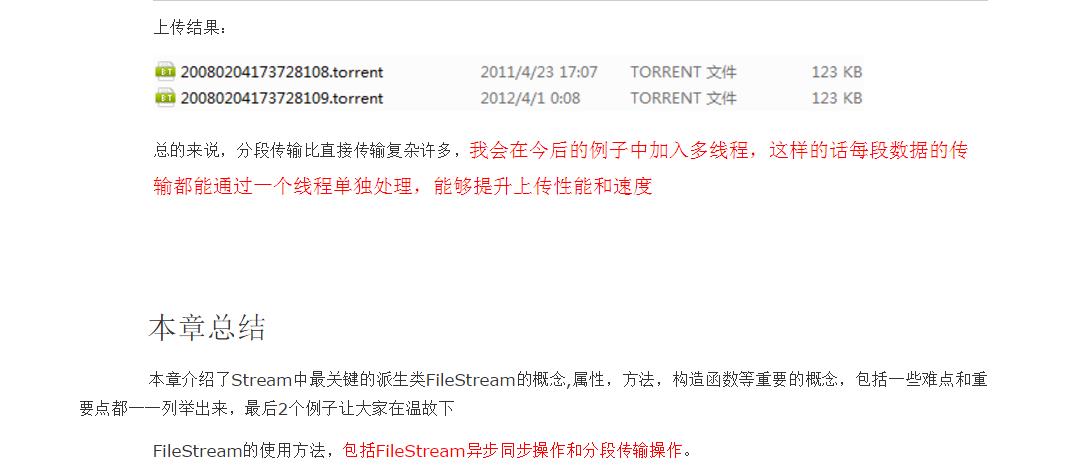
Everything is ready, all we have left is to cut the file into several parts and upload it
static void Main(string[] args)
        {
            UpFileSingleTest test=new UpFileSingleTest();
            FileInfo info = new FileInfo(@"G:\\Skyrim\20080204173728108.torrent");
            //Get the total length of the file
            var fileLegth = info.Length;
            //Assuming that the file is cut into 5 segments
            var divide = 5;
            //Get the length of each file segment
            var perFileLengh = (int)fileLegth / divide;
            //Indicates that the length of the last remaining file segment is smaller than perFileLengh
            var restCount = (int)fileLegth % divide;
            //Circular upload data
            for (int i = 0; i < divide+1; i++)
            {
                //Define different data segments each time, assuming the data length is 500, then the starting position of each segment is i*perFileLength
                var startPosition = i * perFileLengh;
                //Get the data volume of each data segment
                var totalCount = fileLegth - perFileLengh * i > perFileLengh ? perFileLengh : (int)(fileLegth - perFileLengh * i);
                //Upload this piece of data
                test.UpLoadFileFromLocal(@"G:\\Skyrim\\20080204173728108.torrent", @"G:\\Skyrim\\20080204173728109.torrent", startPosition, i == divide ? divide : totalCount);
            }

}- 1
- 2
- 3
- 4
- 5
- 6
- 7
- 8
- 9
- 10
- 11
- 12
- 13
- 14
- 15
- 16
- 17
- 18
- 19
- 20
- 21
- 22
- 23
- 24
from:http://blog.csdn.net/younghaiqing/article/details/54729606
Intelligent Recommendation
4. Java Stream method
Method use case in stream: limit、sorted、filter、count、findFirst、findAny、map、mapToInt、mapToLong、mapToDouble、flatMap、flatMapToInt、flatMapToLong、flatMapToDouble、anyMatch、allMatch、noneMatch、reduce、toArray ...
4. The application of the stream of java8
(1) Internal operation of the list type, and then return to the list object (2) Obtain a value in the list for comparison and judgment (3)...
File (4) (combined stream, random stream, serialized)
Combined stream: Combine multiple files of the same format and the same encoding, use the merge stream 1. Create a byte input stream (multiple files) 2, create a collection (vector), add a byte input ...
Byte stream and character stream 4 (Writer)
Writer appears after JDK1.1, and its class is defined as follows: Appendable interfaces are defined in the Appendable interface, and the appended data is either a character or a string. The following ...
More Recommendation
IO (input_output) 4-print stream, serialized stream
Article Directory Print stream Redirect standard I/O Serialization stream Overview Use serialization to save object information Serialization and deserialization realize registration and login Propert...
JavaIO stream-4. Memory output stream
Solve the problem of garbled characters when reading Chinese. When reading all bytes, memory overflow may occur...
Java: Object stream of the process of IO stream (4)
1. ObjectInputStream and ObjectOutputStream (1) To store an object, you can implement all the members variables of the object store all the members variables. At the same time, we only need to read al...
IO stream (4) Standard output stream PrintStream
One. Basic use setout () method of PRINTSTREAM II. Record the realization of the log 1.logger class 2. Test 3. Result ...
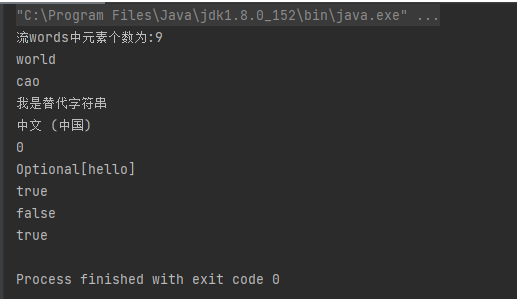
4. Get results from the stream (the end of the stream)
After the flow is complete, we need to go back to the result of the stream processing. At this time, we can use a series of methods to get it. Note: After using the termination method, this stream wil...