opengl+mfc+vs2008
tags: vs2008 mfc opengl
----Create an MFC SDI Windows Application Engineering Text, in addition to the single document properties, use all other default options. Open the Settings dialog in the menu Project, add openGL32.lib glu32.lib glaux.lib three GL libraries in the object/library modules edit box of the Link property page. We use these library functions to complete the graphic editing work.
---- In order for the SDI application generated by VC++ AppWizard to use OpenGL drawing, some modifications are needed, as explained below.
----1. Introduce the PreCreateWindow function
---- OpenGL window must have WS_CLIPCHILDREN (create the Windows style used by the parent window, used to trim the area covered by the child window when redrawing) and WS_CLIPIBLINGS (create the Windows style used by the child window, use to trim other children when redrawing The area covered by the window) two styles. In addition, window class properties cannot include the CS_PARENTDC style. The specific program is implemented as follows:
BOOL  CTextView::PreCreateWindow
(CREATESTRUCT& cs)
{
    // TODO: Modify the Window class or styles here by modifying
// the CREATESTRUCT cs

//An OpenGL window must be created with the following flag
// and must not include CS_PARENTIDC for the class style.
  cs.style|=WS_CLIPSIBLINGS|WS_CLIPCHILDREN;

    return CView::PreCreateWindow(cs);
}
----2.OnCreate function defines the pixel format PIXELFORMAT and creates RC
---- In order for the window to support OpenGL drawing, the window must be initialized. This includes defining the pixel format PIXELFORMAT and creating an RC, specifying a suitable pixel format for OpenGL, creating a shading context and associating it with the device context of the window. The shading context holds information about the current shading environment. You can call a self-built viewport member function SetupPixelFormat() in OnCreate. The specific functions are as follows:
BOOL CTextView::SetupPixelFormat()
{
//Create a rendering context
CDC* m_pDC=GetDC();
if(m_pDC==NULL) //failure to get DC
{
MessageBox(“Could't get a valid DC.");
return FALSE;
}
//Default pixel format is a single-buffered,
//OpenGL support hardware-accelerated,RGBA mode format
PIXELFORMATDESCRIPTOR pfd =
{
sizeof(PIXELFORMATDESCRIPTOR),//Structure size.
1,
// Structure version number.Property flags:
PFD_DRAW_TO_WINDOW | // support window
PFD_SUPPORT_OPENGL | // support OpenGL
PFD_DOUBLEBUFFER,
PFD_TYPE_RGBA, // RGBA type
24, // 32-bit color.
0, 0, 0, 0, 0, 0, // Not concerned with these: attributes not involved
0, // No alpha : no alpha buffer
0, // Shift bit ignored: ignore conversion bits
0, 0, 0, 0, 0, / / No accum buffer: no accumulation cache
32, // 32-bit depth buffer.
0, // No stencil: no template cache
0, // No auxliliary buffers: no secondary cache
PFD_MAIN_PLANE, // Main layer type.: Main layer type
0, // Reserved.: Number of reserved structures
0, 0, 0 // Unsupported.: Number of structures not supported
};
int nPixelFormat=
ChoosePixelFormat(m_pDC->GetSafeHdc(),&pfd);
if( nPixelFormat ==0)
{
MessageBox(“ChoosePixelFormat failed.");
return FALSE;
}
if(SetPixelFormat(m_pDC->GetSafeHdc(),
nPixelFormat,&pfd)==0)
{
MessageBox(“SetPixelFormat failed.");
return FALSE;
}
if( (m_hRC=wglCreateContext(m_pDC->
GetSafeHdc())) ==0)
{
MessageBox(“wglCreateContext failed.");
return FALSE;
}
if( (wglMakeCurrent(m_pDC->GetSafeHdc(),m_hRC)) ==0)
{
MessageBox(“wglMakeCurrent failed.");
return FALSE;
}
if(m_pDC) ReleaseDC(m_pDC);
return TRUE;
}----3. Call the initialization background function in the OnCreate() function InitializeOpenGL()
void CTextView::InitializeOpenGL()
{
	glClearColor(0.2f,0.2f,0.2f,0.0f);
	glClearDepth(1.0);
	glDepthFunc(GL_LESS);
        glEnable(GL_DEPTH_TEST);
	glShadeModel(GL_SMOOTH);
}
----4. Start the animation timer in OnCreate()
SetTimer(0,40,NULL);
----5. Recalculate the scene size when receiving the WM_SIZE message, and set the graphic display mode with OnSize.
In order to make the object display properly, it is necessary to project and determine the viewport.
void CTextView::OnSize(UINT nType, int cx, int cy)
{
CView::OnSize(nType, cx, cy);

// TODO: Add your message handler code here
//Save the wide and height of the current window Client
GLsizei nWidth=(GLsizei)cx;
GLsizei nHeight=(GLsizei)cy;
ratio=(double)cx/(double)cy;

//Coupute the aspect ratio
GLdouble dAspect=(GLdouble)nWidth/(GLdouble)nHeight;

glViewport(0,0,nWidth,nHeight);
glMatrixMode(GL_PROJECTION);
glLoadIdentity();
gluPerspective
 (FOV,dAspect,NEARPLANE,FARPLANE);

glMatrixMode(GL_MODELVIEW);
glLoadIdentity();
}
----6. Simply call DrawScene() in OnDraw() to execute OpenGL function.
void CTextView::OnDraw(CDC* pDC)
{
	CTextDoc* pDoc = GetDocument();
	ASSERT_VALID(pDoc);

	// TODO: add draw code for native data here
	DrawScene();
	//Invalidate();
}
----7. Delete the context and undo the timer when undoing the window
void CTextView::OnDestroy()
{
	CView::OnDestroy();

     // TODO: Add your message handler code here
     //This call makes the current RC not current
	if(wglMakeCurrent(0,0)==FALSE)
	MessageBox(“wglMakeCurrent failed.");

	//delete the RC
	if(m_hRC && (wglDeleteContext(m_hRC)==FALSE))
	MessageBox(“wglDeleteContext fail.");
	KillTimer(1);
}
----8. When the 40ms timer expires, simply invalidate the client area of the entire scene and redraw it.
void CTextView::OnTimer(UINT nIDEvent)
{
// TODO: Add your message handler code here and/or call default
Invalidate();
CView::OnTimer(nIDEvent);
}
Modify interface
---- Delete all the options except the Exit menu item under File in IDR_MAINFRAME, add three menu items: “Show GDI Text”, “List Create Text” and “List 3D Text”, and assign them the appropriate ID. Use ClassWizard to add command handlers and interface update functions to the view class for these three menu items. The corresponding functions for displaying GDI text are as follows:
void CTextView::OnGdiText()
{
    // TODO: Add your command handler code here
	m_iWhichText=0;
	Invalidate();
}

void CTextView::OnUpdateGdiText(CCmdUI* pCmdUI)
{
// TODO: Add your command update UI handler code here
if(m_iWhichText==0)	pCmdUI->SetCheck();
else pCmdUI->SetCheck(0);
}
---- Add three functions Draw3DText (), DrawListText () and DrawGdiText () for three different text rendering methods. Add the DrawScene() function, which is called by the OnDraw function to draw the scene. In the DrawScene() function, when m_iWhichText is 0, 1, or 2, DrawGdiText(), DrawListText(), and Draw3DText() are called to display the text. The specific function is implemented as follows:
void CTextView::OnDraw(CDC* pDC)
{
	CTextDoc* pDoc = GetDocument();
	ASSERT_VALID(pDoc);

     // TODO: add draw code for native data here
	DrawScene();
     //Invalidate();
}

void CTextView::DrawScene()
{
 glClear
(GL_COLOR_BUFFERBIT|GL_DEPTH_BUFFER_BIT);

	glPushMatrix();
        glTranslatef(0.0f,0.0f,-FARPLANE);
	//TextureMap();
	glPopMatrix();
	glPushMatrix();
	glTranslatef
 (0.0f,0.0f,-(FARPLANE+NEARPLANE)/2);

	if(m_iWhichText==1) DrawListText();
	if(m_iWhichText==2) Draw3DText();
 	glPopMatrix();
	glFinish();
	SwapBuffers(wglGetCurrentDC());

	if(m_iWhichText==0) DrawGdiText();
}
GDI display text
---- Call the wglGetCurrentDC() function to get the current device context, use the TextOut function to display the text, but note that in the DoubleBuffer mode, the drawing function is called after the glFinish() and SwapBuffers(wglGetCurrentDC()) functions, otherwise it will be generated. Blinking, use the GDI function before the end of drawing OpenGL. To remove the flicker, you can only use the SingleBuffer mode. The specific functions are as follows:
void CTextView::DrawGdiText()
{
HDC		hdc=wglGetCurrentDC();
::SetBkMode( hdc, TRANSPARENT );
::SetTextColor( hdc, RGB(250,0,0) );

CString sState("Show GDI text.");
::TextOut(hdc,5,5,sState,sState.GetLength());
}
wglUseFontBitmaps
Function display text
---- Use wglUseFontBitmaps() to load ASCII characters into the display list, then use the glCallLists() function to display the text using the display list sequence. wglUseFontBitmaps has four parameters, which are the currently used DC, the load list from the first ASCII characters, the number of ASCII characters loaded into the list, and the starting list number. glListBase() specifies the starting list serial number that glCallLists executes. glCallLists() has three parameters: the number of execution list sequences, the type of list values, and the text to display. Note that if the text to be displayed is a string, the information it provides is an offset relative to the initial loaded ASCII character, so the final displayed ASCII character is the starting number of the list specified from glListBase(). The offset list in glCallLists(), so wglUseFontBitmaps loads the list parameter from the first ASCII characters, the start list serial number executed by glCallLists specified by glListBase(), and the text parameter to be displayed in glCallLists() Can affect the final display results. Chinese characters cannot be displayed because they display ASCII characters. The glRasterPos3f function determines the offset in the OpenGL view's coordinate system. The specific function is implemented as follows:
void CTextView::DrawListText()
{
wglUseFontBitmaps(wglGetCurrentDC(),0,256,1000);
glListBase(1000);
glRasterPos3f(-5.0f,0.0f,0.0f);
glCallLists(20,GL_UNSIGNED
 _BYTE,“Draw with List Text.");
}
wglUseFontOutlines
Function displays 3D text
----wglUseFontOutlines allows OpenGL to display 3D text. Its usage is roughly the same as the wglUseFontBitmaps function, but there are four parameters for interpolating calculation parameters, font depth, display mode, and load font cache, and only TrueType fonts can be displayed. The font type should be selected before display. The specific function is implemented as follows:
void CTextView::Draw3DText()
{
GLYPHMETRICSFLOAT agmf[256];
// create display lists for glyphs 0 through 255
// with 0.1 extrusion and default deviation.
//The display list numbering starts at 1000
  (it could be any number)
wglUseFontOutlines(wglGetCurrentDC(),
   0,255,1000,0.3f,0.8f, WGL_FONT_LINES ,agmf);

// Set up transformation to draw the string
	glTranslatef(-15.0f,0.0f,0.0f);
	glScalef(4.0f, 4.0f, 4.0f);
	// Display a string
	glListBase(1000);
// Indicates the start of display lists for the glyphs
// Draw the characters in a string

glCallLists(26, GL_UNSIGNED_BYTE,
 “Draw outline list 3D text.");
}
Intelligent Recommendation
VS2008, MFC file operation 5-Registry operation
Continuing the notes from the previous section: VS2008, MFC file operation 4-CFile class, CFileDialog class Method Open in text mode 1. In the engineering APP category, first demonstrate in InitInstan...

OPENGL learning [1] VS2008 development OPENGL program development environment to build
1. The VS2008 tool is downloaded and installed on the Internet by itself. Now only the detailed steps for configuring the OPENGL environment in the VS2008 development tool are provided. The developmen...
Embed OpenGL to MFC
Handling from the CSDN blog:Embed OpenGL to MFC My big job in computer graphics is to implement some functions based on the MFC framework using OpenGL. But I didn't know how to add OpenGL modules to M...
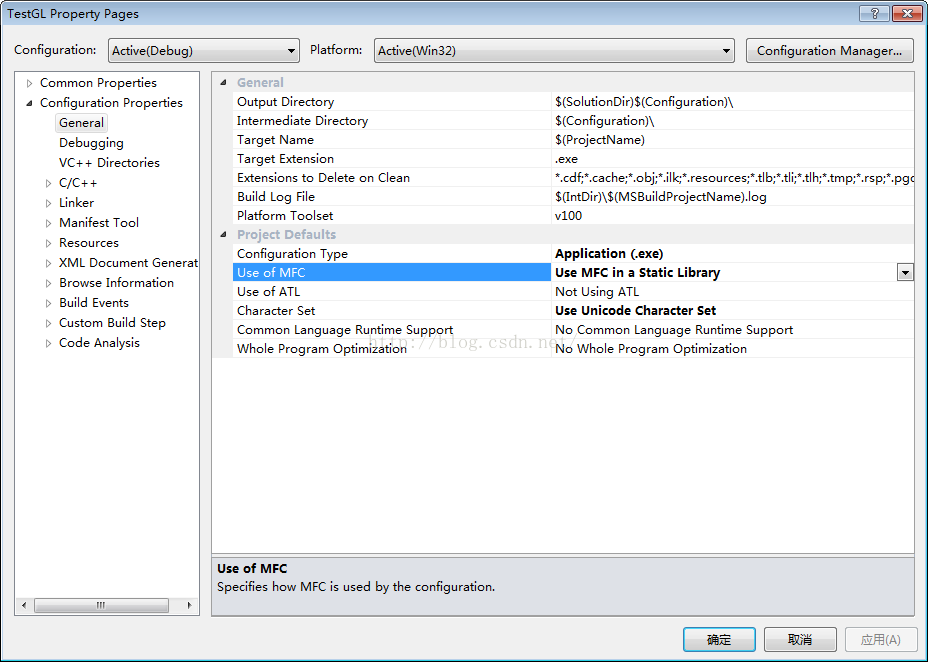
MFC+OpenGL basic drawing
Reprinted address: https://blog.csdn.net/u013232740/article/details/47904115 ------------------------------------------------------------------------------------------------------------ This example u...
MFC openGL cube
MFC OpenGl cube...
More Recommendation
MFC opengl sun
cpp Added package #include <gl/gl.h> #include <gl/glu.h> //#include <gl/glaux.h> #include <gl/glut.h>...
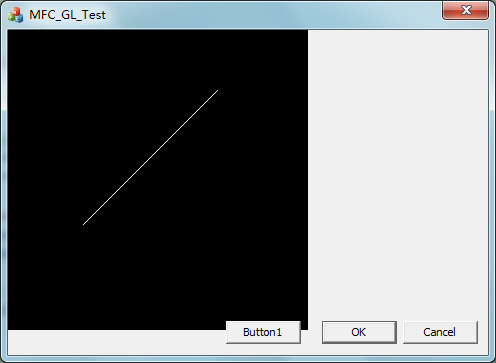
OpenGL drawing in MFC dialog
When we write software, we always have our own interface. Of course, we have to deal with MFC when using C++. The visual interface usually uses MFC's Dialog; OpenGL usually generates a window when dra...

MFC-OpenGL programming
aims (1) Draw three cubes, the positions are as shown in the figure. Request to draw the coordinate system 3 axes. (2) The three cubes rotate together along the coordinate axis (x or y or z). Say Ming...
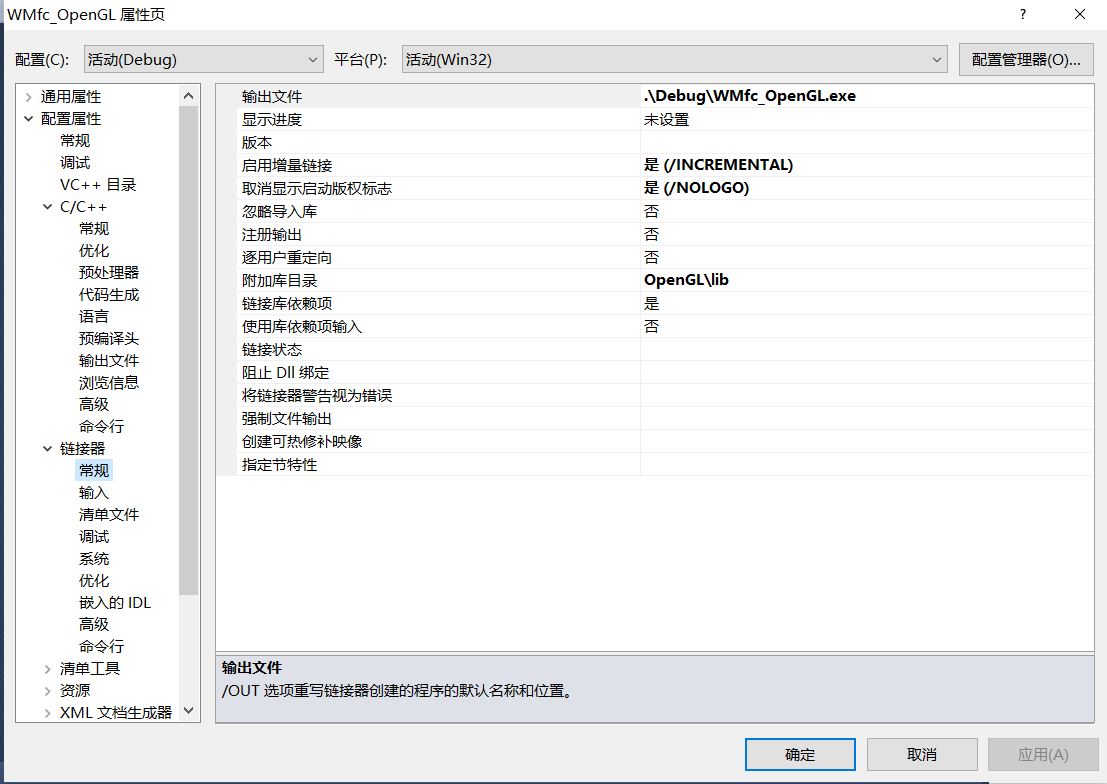
MFC correctly configures OpenGL
MFC correctly configures OpenGL Library download link After the library downloads, decompress the project file: Subsequently modified attributes in the project: Finally, the header file is included in...
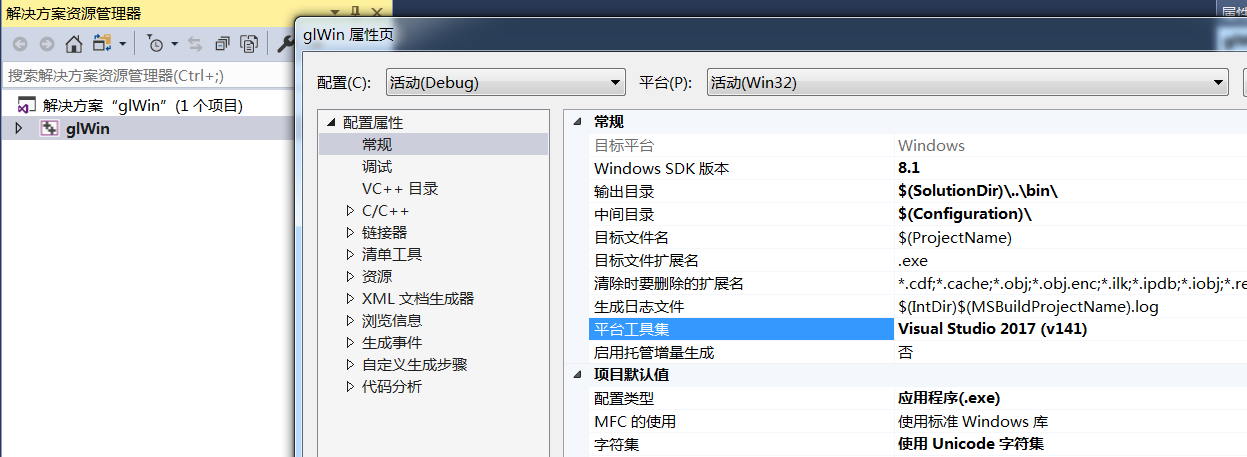
MFC OpenGL Record
MFC OpenGL Record https://www.songho.ca/opengl/gl_mvc.html https://www.opengldn.com/codes glWin.exe This earth can rotate The code is written by VS2015 Win32, not MFC project, and there are main.cpp f...