QOpenGLWidget class to explain
tags: QOpenGLWidget QT
Detailed Description
QOpenGLWidget class is OpenGL graphics for rendering.
In addition to selecting and using QPainter standard OpenGL graphics rendering, QOpenGLWidget class provides a display in Qt OpenGL graphics application functions. It is very simple to use: the new class inherits from QOpenGLWidget, using the same method as inherited from class QWidget subclass.
QOpenGLWidget class provides convenient three virtual function, it can be re-implemented in the new sub-class to complete the OpenGL tasks:
- paintGL () - OpenGL rendering the scene, it will need to call when updating Widget.
- resizeGL () - Set OpenGL viewport and projection. Whenever resize the Widget (first show will be called when the window Widget, because all events newly created Widget will automatically resized).
- initializeGL () - OpenGL resources and the establishment of the state. In the first call resizeGL () or paintGL () once called once before.
If you need to trigger the redraw from paintGL place () other than (a typical example is the use of a timer to animate scenes), you should call the update widget () function to update.
When you call paintGL (), when resizeGL () or initializeGL (), Widget of the current OpenGL rendering environment needs to be set. If you need to call the standard OpenGL API functions (for example, the Widget constructor or their drawing functions) from another location, you must first call makeCurrent ().
All have occurred in rendering OpenGL frame buffer object, makeCurrent () to ensure that it is rendering environment, when you create and bind other objects in paintGL frame buffer rendering code () in the middle, do not use ID 0 rebind frame buffer It will be called defaultFramebufferObject () to get the ID should be binding.
QOpenGLWidget allows the use of different OpenGL version and configuration file when the platform support. Simply the setFormat (formatted requested). However, a plurality QOpenGLWidget in the same window, they are required to use the same format, or at least not shared environment format. To resolve this problem, use QSurfaceFormat :: setDefaultFormat (), rather than setFormat ().
Note: When requested context OpenGL core profile, before calling QSurfaceFormat :: setDefaultFormat configuration example QApplication () on some platforms (e.g., macOS) is required. This is to ensure that resources are shared between contexts hold function, because all the internal context are using the correct version and configuration files created.
OpenGL Function Calls, Headers and QOpenGLFunctions
During OpenGL function call, it is strongly recommended to avoid calling the function directly. In contrast, I prefer to use QOpenGLFunctions (in the production of portable applications) or version of variant (eg, QOpenGLFunctions_3_2_Core, etc., when for the modern, when desktop OpenGL only). In this way, the application will work in all normal Qt build configuration, including the implementation of applications dynamically loaded OpenGL implementation, which means that the application does not link directly to GL implementation, thus directly a function call is not feasible.
In paintGL (), the current scene (context) always can call QOpenGLContext :: currentContext () to access. In this context, you can by calling QOpenGLContext :: functions () to retrieve been initialized, ready QOpenGLFunctions instance. It is inherited and calls QOpenGLFunctions :: initializeOpenGLFunctions () in initializeGL () for each of GL calls from QOpenGLFunctions Add alternative prefix.
As for OpenGL titles, please note that in most cases, without directly contain any title, such as GL.h. associated with the Qt OpenGL header file will contain qopengl.h, which will be applied to systems containing header. This may be 3.x or OpenGL ES 2.0 headers, the highest version available, or the system provides gl.h. addition, as part of Qt OpenGL and OpenGL ES, there is provided a copy of the header extension (on some systems called glext.h). These will automatically be included on the platform where feasible. This means that from the ARB, EXT, OES and the constant expansion of the function pointer typedef automatically available.
Code Examples
The simplest example
 class MyGLWidget : public QOpenGLWidget
  {
  public:
      MyGLWidget(QWidget *parent) : QOpenGLWidget(parent) { }

  protected:
      void initializeGL()
      {
          // Set up the rendering context, load shaders and other resources, etc.:
          QOpenGLFunctions *f = QOpenGLContext::currentContext()->functions();
          f->glClearColor(1.0f, 1.0f, 1.0f, 1.0f);
          ...
      }

      void resizeGL(int w, int h)
      {
          // Update projection matrix and other size related settings:
          m_projection.setToIdentity();
          m_projection.perspective(45.0f, w / float(h), 0.01f, 100.0f);
          ...
      }

      void paintGL()
      {
          // Draw the scene:
          QOpenGLFunctions *f = QOpenGLContext::currentContext()->functions();
          f->glClear(GL_COLOR_BUFFER_BIT);
          ...
      }

  };
Or by using OpenGL functions instead QOpenGLFunction
 class MyGLWidget : public QOpenGLWidget, protected QOpenGLFunctions
  {
      ...
      void initializeGL()
      {
          initializeOpenGLFunctions();
          glClearColor(...);
          ...
      }
      ...
  };
To obtain a given OpenGL version or profile compatible context, depth and stencil buffer or requirements, call setFormat ():
  QOpenGLWidget *widget = new QOpenGLWidget(parent);
  QSurfaceFormat format;
  format.setDepthBufferSize(24);
  format.setStencilBufferSize(8);
  format.setVersion(3, 2);
  format.setProfile(QSurfaceFormat::CoreProfile);
  widget->setFormat(format); // must be called before the widget or its parent window gets shown
When using OpenGL 3.0+ context, when portability is not important, variant version of QOpenGLFunctions easy access to all modern OpenGL functions given version available:
      void paintGL()
      {
          QOpenGLFunctions_3_2_Core *f = QOpenGLContext::currentContext()->versionFunctions<QOpenGLFunctions_3_2_Core>();
          ...
          f->glDrawArraysInstanced(...);
          ...
      }
As described above, global settings format required to be within the life cycle of the application apply to all windows and context simpler and more robust. The following is an example:
  int main(int argc, char **argv)
  {
      QApplication app(argc, argv);

      QSurfaceFormat format;
      format.setDepthBufferSize(24);
      format.setStencilBufferSize(8);
      format.setVersion(3, 2);
      format.setProfile(QSurfaceFormat::CoreProfile);
      QSurfaceFormat::setDefaultFormat(format);

      MyWidget widget;
      widget.show();

      return app.exec();
  }
Relation to QGLWidget
Traditional QtOpenGL module (prefixed in QGL class) provides a widget is called QGLWidget. QOpenGLWidget intended to be a substitute for it. Therefore, especially in the new application it is generally recommended to use QOpenGLWidget.
While the API is very similar, but there are important differences between the two: QOpenGLWidget Always use a frame buffer object rendering off-screen. On the other hand, QGLWidget using native window and surfaces. Which can cause problems when it is used in a complex user interface, because, according to the platform, the present machine which widgets may have various limitations, such as commands on a stack. QOpenGLWidget create a separate native window to avoid this by not.
Since the support frame buffer objects, QOpenGLWidget QOpenGLWindow behaves very similar behavior to update or PartialUpdateBlit PartialUpdateBlend. This means leaving the contents in between paintGL () call, so that you can perform incremental rendering. Use QGLWidget (of course QOpenGLWindow has a default update behavior) is usually not the case, because the content will swap buffer uncertain back buffer.
Note: Most applications do not require incremental rendering, because they will show all the content view at each draw call. In this case, the paintGL () call as soon as possible glClear () is very important. This facilitates the use of the tile without the use of a buffer of the frame buffer contents previously identified mobile GPU architecture tile based reload. Omitting explicit call can lead to performance of such systems is significantly reduced.
Note: Avoid calling winId () on QOpenGLWidget. This function triggers the creation of a native window, thereby reducing performance and possible glitches.
Differences to QGLWidget
In addition to the main framebuffer object supports the concept of difference, there are many smaller difference between internal and QOpenGLWidget old QGLWidget:
- Call paintGL (OpenGL state when). QOpenGLWidget by the glViewport () Set the viewport. It does not perform any liquidation.
- When he started painting cleared by QPainter. Different from the conventional widget, QGLWidget autoFillBackground default is true. Then, each time you use QPainter :: begin (), which will remove the background color palette. QOpenGLWidget not follow: autoFillBackground default is false, just like any other widget the same. The only exception is when the viewport other widgets as QGraphicsView like. In this case, autoFillBackground automatically set to true, to ensure compatibility with QGLWidget based viewport.
Intelligent Recommendation
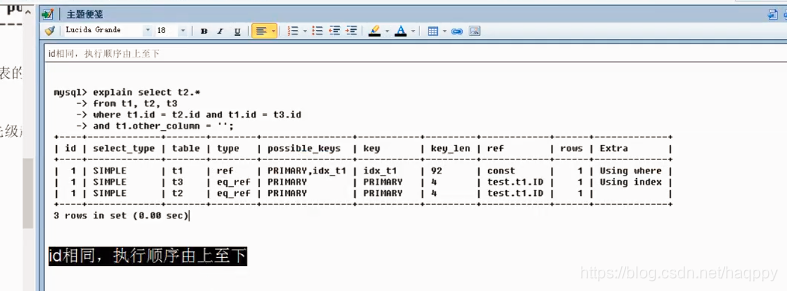
MySQL Explain class notes
MySQL explain What is the explain? Explain What can I do? how to use? Field explanation What is the explain? Explain is called the execution plan. In general, mysql is how to understand the sql statem...

Explain the package and class in java
1, the packaging class in java Why do you need a packaging class? (1) Because Java is an object-oriented programming language, and basic data types are not object-oriented (2) Collections in Java requ...
Day6- explain the characteristics of the class
I. Overview In the blog post, we've talked about some of the knowledge class, let's review the following: Define a class (class dog (object)) -> Examples of (d = dog ()) -> instantiate the objec...
java class explain internal
java in the concept of an inner class, as has been busy before, did not separate out time to sum up, I'll be like inside knowledge about the summary of today, if there are shortcomings, welcome critic...
Java Future class to explain
Future application scenarios Future class structure in FIG. RunnableFuture SchedualFuture CompleteFuture ForkJoinTask The main method of Future Future interface includes five methods get () method can...
More Recommendation
trim String class () to explain
[quote = "javaeye"] [size = medium] because it is a web crawling work, quite often it is the processing of the string. JAVA is so commonly used classes in the String class, Pattern class, Ma...

Scanner class (java.util.Scanner) explain
Scanner class (java.util.Scanner) Requirements: Get the age, name and grades entered by the user from the keyboard Solution: use Scanner class Scanner class implementation steps In the first line of v...
Explain the Number class in Java
The abstract class Number is the superclass byte, double, float, int, long and short representing the platform classes that can convert numeric values into basic data types. The specific semantics o...
Explain the Collections class in detail
(Please pay attention to my blog post of "Collection of Collections"——"Detailed Collection Framework") Some students may have such questions-Is the Collections class al...
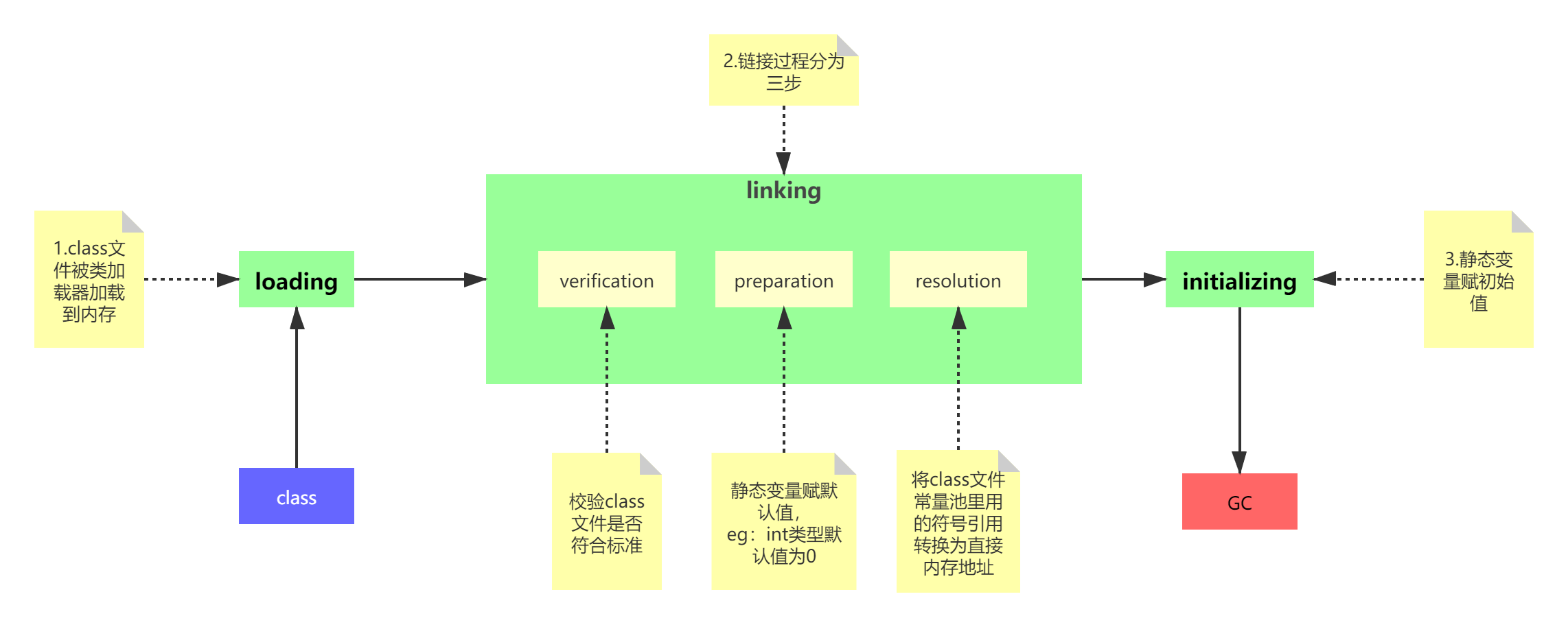
Explain the Class loading process
table of Contents 1. Overview of loading, linking and initializing of class 2. Class loading 3. Custom ClassLoader 1. ClassLoader source code (key part) 2. How to customize the class loader 3. When to...