Pyqt5 button buttons style design
tags: python learning notes
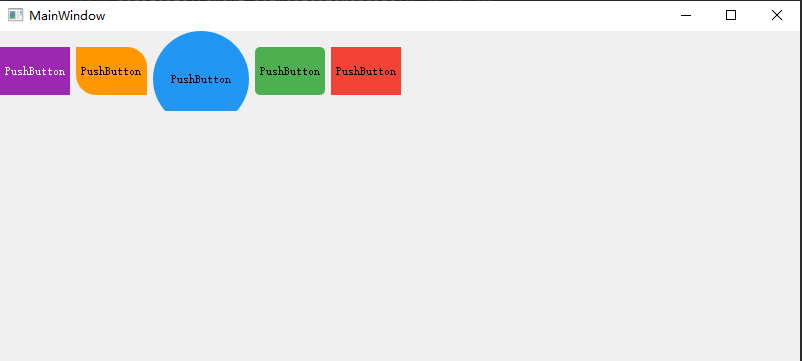
Screenshot:
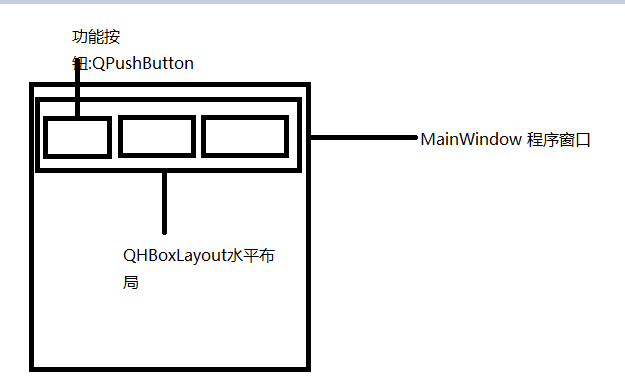
PYQT model design:
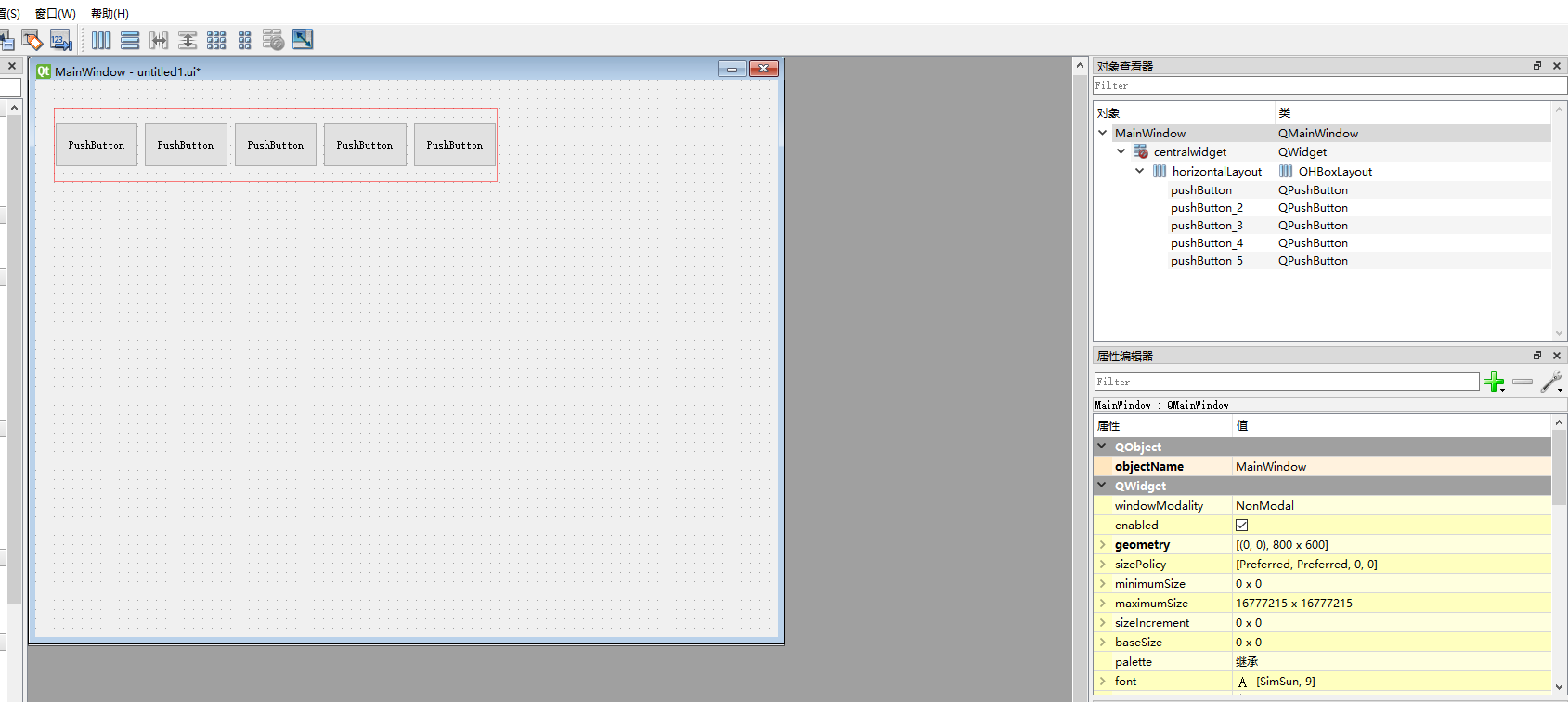
Screenshot of pyqt designer:
*.UI source code:
<?xml version="1.0" encoding="UTF-8"?>
<ui version="4.0">
 <class>MainWindow</class>
 <widget class="QMainWindow" name="MainWindow">
  <property name="geometry">
   <rect>
    <x>0</x>
    <y>0</y>
    <width>800</width>
    <height>600</height>
   </rect>
  </property>
  <property name="windowTitle">
   <string>MainWindow</string>
  </property>
  <widget class="QWidget" name="centralwidget">
   <widget class="QWidget" name="horizontalLayoutWidget">
    <property name="geometry">
     <rect>
      <x>20</x>
      <y>30</y>
      <width>478</width>
      <height>80</height>
     </rect>
    </property>
    <layout class="QHBoxLayout" name="horizontalLayout">
     <item>
      <widget class="QPushButton" name="pushButton_5">
       <property name="minimumSize">
        <size>
         <width>0</width>
         <height>48</height>
        </size>
       </property>
       <property name="text">
        <string>PushButton</string>
       </property>
      </widget>
     </item>
     <item>
      <widget class="QPushButton" name="pushButton_4">
       <property name="minimumSize">
        <size>
         <width>0</width>
         <height>48</height>
        </size>
       </property>
       <property name="text">
        <string>PushButton</string>
       </property>
      </widget>
     </item>
     <item>
      <widget class="QPushButton" name="pushButton_3">
       <property name="minimumSize">
        <size>
         <width>0</width>
         <height>48</height>
        </size>
       </property>
       <property name="text">
        <string>PushButton</string>
       </property>
      </widget>
     </item>
     <item>
      <widget class="QPushButton" name="pushButton_2">
       <property name="minimumSize">
        <size>
         <width>0</width>
         <height>48</height>
        </size>
       </property>
       <property name="text">
        <string>PushButton</string>
       </property>
      </widget>
     </item>
     <item>
      <widget class="QPushButton" name="pushButton">
       <property name="minimumSize">
        <size>
         <width>0</width>
         <height>48</height>
        </size>
       </property>
       <property name="text">
        <string>PushButton</string>
       </property>
      </widget>
     </item>
    </layout>
   </widget>
  </widget>
 </widget>
 <resources/>
 <connections/>
</ui>
*.UI convert to*.py code
# -*- coding: utf-8 -*-

# Form implementation generated from reading ui file 'untitled1.ui'
#
# Created by: PyQt5 UI code generator 5.15.4
#
# WARNING: Any manual changes made to this file will be lost when pyuic5 is
# run again.  Do not edit this file unless you know what you are doing.
import sys

from PyQt5 import QtCore, QtGui, QtWidgets
from PyQt5.QtWidgets import QApplication, QMainWindow


StyleSheet = """
/*Here is a general settings, all buttons are valid, but the later can cover this*/
QPushButton {
         border: none; /*Remove the border* /
}
/*
QPushButton#xxx
 or
#xx
 They all indicate to be specified by the set ObjectName
*/
QPushButton#pushButton {
         background-color: #f44336; /*Background color* /
}
#pushButton:hover {
         background-color: #e57373; /*Background color when the mouse hovers* /
}
 /*Note that Presset must be placed behind the hover, otherwise there is no effect*/
#pushButton:pressed {
         background-color: #FFCDD2; /*Mouse Press the background color when not letting go* /
}
#pushButton_2 {
    background-color: #4caf50;
         border-radius: 5px; /*rounded corner* /
}
#pushButton_2:hover {
    background-color: #81c784;
}
#pushButton_2:pressed {
    background-color: #c8e6c9;
}
#pushButton_3 {
    background-color: #2196f3;
         /*Limited minimum maximum size*/
    min-width: 96px;
    max-width: 96px;
    min-height: 96px;
    max-height: 96px;
         border-radius: 48px; /*circular* /
}
#pushButton_3:hover {
    background-color: #64b5f6;
}
#pushButton_3:pressed {
    background-color: #bbdefb;
}
#pushButton_4 {
    max-height: 48px;
         Border-Top-Right-Radius: 20px; /*The rounded corner in the upper right corner* /
         Border-BOTTOM-Left-Radius: 20px; /*Corporation in the lower left corner* /
    background-color: #ff9800;
}
#pushButton_4:hover {
    background-color: #ffb74d;
}
#pushButton_4:pressed {
    background-color: #ffe0b2;
}
 /*Based on the text content to distinguish the buttons, the same is based on other attributes to distinguish*/
#pushButton_5 {
         color: white; /*text color* /
    background-color: #9c27b0;
}
"""


class Ui_MainWindow(object):
    def setupUi(self, MainWindow):
        MainWindow.setObjectName("MainWindow")
        MainWindow.resize(800, 600)
        self.centralwidget = QtWidgets.QWidget(MainWindow)
        self.centralwidget.setObjectName("centralwidget")
        self.horizontalLayoutWidget = QtWidgets.QWidget(self.centralwidget)
        self.horizontalLayoutWidget.setGeometry(QtCore.QRect(0, 0, 401, 80))
        self.horizontalLayoutWidget.setObjectName("horizontalLayoutWidget")
        self.horizontalLayout = QtWidgets.QHBoxLayout(self.horizontalLayoutWidget)
        self.horizontalLayout.setContentsMargins(0, 0, 0, 0)
        self.horizontalLayout.setObjectName("horizontalLayout")
        self.pushButton_5 = QtWidgets.QPushButton(self.horizontalLayoutWidget)
        self.pushButton_5.setMinimumSize(QtCore.QSize(0, 48))
        self.pushButton_5.setObjectName("pushButton_5")
        self.horizontalLayout.addWidget(self.pushButton_5)
        self.pushButton_4 = QtWidgets.QPushButton(self.horizontalLayoutWidget)
        self.pushButton_4.setMinimumSize(QtCore.QSize(0, 48))
        self.pushButton_4.setObjectName("pushButton_4")
        self.horizontalLayout.addWidget(self.pushButton_4)
        self.pushButton_3 = QtWidgets.QPushButton(self.horizontalLayoutWidget)
        self.pushButton_3.setMinimumSize(QtCore.QSize(0, 48))
        self.pushButton_3.setObjectName("pushButton_3")
        self.horizontalLayout.addWidget(self.pushButton_3)
        self.pushButton_2 = QtWidgets.QPushButton(self.horizontalLayoutWidget)
        self.pushButton_2.setMinimumSize(QtCore.QSize(0, 48))
        self.pushButton_2.setObjectName("pushButton_2")
        self.horizontalLayout.addWidget(self.pushButton_2)
        self.pushButton = QtWidgets.QPushButton(self.horizontalLayoutWidget)
        self.pushButton.setMinimumSize(QtCore.QSize(0, 48))
        self.pushButton.setObjectName("pushButton")
        self.horizontalLayout.addWidget(self.pushButton)
        MainWindow.setCentralWidget(self.centralwidget)

        self.retranslateUi(MainWindow)
        QtCore.QMetaObject.connectSlotsByName(MainWindow)

    def retranslateUi(self, MainWindow):
        _translate = QtCore.QCoreApplication.translate
        MainWindow.setWindowTitle(_translate("MainWindow", "MainWindow"))
        self.pushButton_5.setText(_translate("MainWindow", "PushButton"))
        self.pushButton_4.setText(_translate("MainWindow", "PushButton"))
        self.pushButton_3.setText(_translate("MainWindow", "PushButton"))
        self.pushButton_2.setText(_translate("MainWindow", "PushButton"))
        self.pushButton.setText(_translate("MainWindow", "PushButton"))


if __name__ == '__main__':
    app = QApplication(sys.argv)
         # Set style binding: bind by ObjectName name
    app.setStyleSheet(StyleSheet)
    MainWindow = QMainWindow()
    ui = Ui_MainWindow()
    ui.setupUi(MainWindow)
    MainWindow.show()
    sys.exit(app.exec_())
This article refers to GitHub:https://github.com/PyQt5/PyQt
Intelligent Recommendation
qml button style design, write the style as a component
You can set the style of the button through the style property of Button as follows: But if multiple buttons are used at the same time, the above method is cumbersome, at this time we can useComponent...
PYQT5 button style landscaped - the change position and size when the mouse pointing
PYQT5 button style landscaped - the change position and size when the mouse pointing The main interface shows a beautiful border. Button style Here, the button font setting, font color, font size Butt...
pyqt5-7. Buttons with icons
Button uses the setIcon() method to set an icon on the left side of the button Set icons for the button group as follows:...
Buttons in PYQT5 Add icons
reference: Reference example QpushButton set up background image with setStylesheet There are two ways to set up background images: However, for this method background picture cannot be adaptive to th...
The buttons in PYQT5 and QBUTTONGROUP
Button class QABSTRACTBUTTON inheritance relationship The direct base class of the button is QABSTRACTBUTTON. The subclasses that inherit this base class include QPushbutton, QRADIOBUTTON, QCHECKBOX, ...
More Recommendation
PyQt5 button
QPushButton The QPushButton widget provides a command button. Buttons or command buttons are probably the most commonly used widgets in any graphical user interface. Press (or click) a button to order...
[PYQT5] button
First, it must rely on Widget to display. Create a Window class, inherit from QWIDGET Create a button and place it on the Widget. btn=QPushButton(self) Some methods of Button Function name Parameter m...

10 CSS3 buttons - programmers no longer have to worry about button design...
Hand-cranked hairlifting... Itey's image uploading function is not reasonable... This time I will share 10 different CSS3 buttons for you. If you want your page to have a cool style, then I bel...
Click the button to toggle button style and click two buttons at the same time can not be achieved
In my contact with the project, there is a demand when selecting text agreed to give the assignment 2, when you click on text not, please send in assignments 3, but can not click on a button to agree ...
Forty -seven, a row of buttons, click which button to change which button style function implementation
illustrate In a row of buttons, click which button to change which button style. As shown below In this small function, I often encounter it in the project, and every time I have the brain, I don't kn...