Docker Three Musketeers: Docker swarm
tags: docker warm Three Musketeers
Read the catalog:
- Docker Machine creates a Docker host
- Docker Swarm configuration cluster node
- Docker Service deploys a single cluster service
- Docker Stack deploys multiple cluster services and GUI management pages
- Common commands of docker-machine, docker swarm, docker node, docker service and docker stack
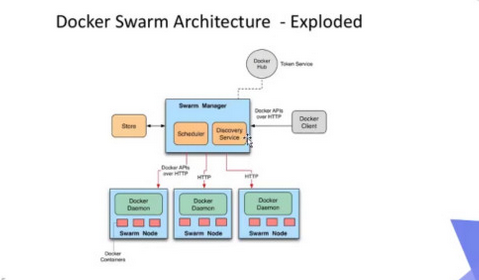
Docker SwarmLike Docker Compose, they are all official Docker container orchestration projects, but the difference is that Docker Compose is a tool for creating multiple containers on a single server or host, while Docker Swarm can create container clusters on multiple servers or hosts Services, for the deployment of microservices, obviously Docker Swarm will be more suitable.
Starting from Docker 1.12.0 version, Docker Swarm has been included in the Docker engine (docker swarm), and the service discovery tool has been built in, we do not need to configure Etcd or as beforeConsulCome to configure service discovery.
1. Docker Machine creates a Docker host
Before configuring Docker Swarm, we also need to talk about another official Docker tool, Docker Machine (also one of the three Docker Musketeers), whose role is to quickly help us build a Docker host environment. For example, if we want to use Docker Swarm, we must have a lot Docker host to operate, Docker Machine is the most ideal tool.
Because I am operating on Mac OS, and Docker for Mac already includes Docker Machine (docker machine), so I don't need to install it anymore. If you use Linux system, the installation is very simple, the command:
$ sudo curl -L https://github.com/docker/machine/releases/download/v0.13.0/docker-machine-`uname -s`-`uname -m` > /usr/local/bin/docker-machine
$ sudo chmod +x /usr/local/bin/docker-machine
Well, we first use Docker Machine to create four Docker hosts, the command:
$ docker-machine create -d virtualbox manager1 &&
docker-machine create -d virtualbox manager2 &&
docker-machine create -d virtualbox worker1 &&
docker-machine create -d virtualbox worker2

Running pre-create checks...
(worker1) No default Boot2Docker ISO found locally, downloading the latest release...
(worker1) Latest release for github.com/boot2docker/boot2docker is v17.11.0-ce
(worker1) Downloading /Users/xishuai/.docker/machine/cache/boot2docker.iso from https://github.com/boot2docker/boot2docker/releases/download/v17.11.0-ce/boot2docker.iso...
Execute the above command, you will find the speed is very slow (as above), the reason is to download one from GitHubboot2docker.isoFile (no way for domestic network), how to solve it? Very simple, we use X browser to download manuallyboot2docker.isoFile, and then copy to the corresponding directory (my computer's directory/Users/xishuai/.docker/machine/cache/), and then execute the above command to find a batch of fast.
We can view the Docker host information created below, the command:
$ docker-machine ls
NAME       ACTIVE   DRIVER       STATE     URL                         SWARM   DOCKER        ERRORS
manager1   -        virtualbox   Running   tcp://192.168.99.100:2376           v17.11.0-ce
manager2   -        virtualbox   Running   tcp://192.168.99.101:2376           v17.11.0-ce
worker1    -        virtualbox   Running   tcp://192.168.99.102:2376           v17.11.0-ce
worker2    -        virtualbox   Running   tcp://192.168.99.103:2376           v17.11.0-ce
As you can see, we have created four Docker hosts (two Managers and two Workers), and we can also connect to any server to operate, the command:
$ docker-machine ssh manager1
                        ##         .
                  ## ## ##        ==
               ## ## ## ## ##    ===
           /"""""""""""""""""\___/ ===
      ~~~ {~~ ~~~~ ~~~ ~~~~ ~~~ ~ /  ===- ~~~
           \______ o           __/
             \    \         __/
              \____\_______/
 _                 _   ____     _            _
| |__   ___   ___ | |_|___ \ __| | ___   ___| | _____ _ __
| '_ \ / _ \ / _ \| __| __) / _` |/ _ \ / __| |/ / _ \ '__|
| |_) | (_) | (_) | |_ / __/ (_| | (_) | (__|   <  __/ |
|_.__/ \___/ \___/ \__|_____\__,_|\___/ \___|_|\_\___|_|
Boot2Docker version 17.11.0-ce, build HEAD : e620608 - Tue Nov 21 18:11:40 UTC 2017
Docker version 17.11.0-ce, build 1caf76c
2. Docker Swarm configuration cluster node
We execute the following command:
$ docker-machine ssh manager1 "docker swarm init --advertise-addr 192.168.99.100"
Swarm initialized: current node (n0ub7dpn90rxjq97dr0g8we0w) is now a manager.

To add a worker to this swarm, run the following command:

    docker swarm join --token SWMTKN-1-5uwpqibnvmho1png8zmhcw8274yanohee32jyrcjlait9djhsk-envtxo4dl6df2ar3qldcccfdg 192.168.99.100:2377

To add a manager to this swarm, run 'docker swarm join-token manager' and follow the instructions.
The above ismanager1On the host, create a Docker Swarm management node (when initializing the cluster, the current node will be automatically set as the management node).
Then we areworker1withworker2On the host, create two working nodes and join them to the cluster. Command:
$ docker-machine ssh worker1 "docker swarm join --token SWMTKN-1-5uwpqibnvmho1png8zmhcw8274yanohee32jyrcjlait9djhsk-envtxo4dl6df2ar3qldcccfdg 192.168.99.100:2377"
This node joined a swarm as a worker.

$ docker-machine ssh worker2 "docker swarm join --token SWMTKN-1-5uwpqibnvmho1png8zmhcw8274yanohee32jyrcjlait9djhsk-envtxo4dl6df2ar3qldcccfdg 192.168.99.100:2377"
This node joined a swarm as a worker.
There is another onemanager2The host needs to be configured as a management node, we need to firstmanager1On the host, get the correspondingtoken, And then configured as a management node, the command:
$ docker-machine ssh manager1 "docker swarm join-token manager"
To add a manager to this swarm, run the following command:

    docker swarm join --token SWMTKN-1-5uwpqibnvmho1png8zmhcw8274yanohee32jyrcjlait9djhsk-0koz1b98sco8r5cn3g61eahnu 192.168.99.100:2377

$ docker-machine ssh manager2 "docker swarm join --token SWMTKN-1-5uwpqibnvmho1png8zmhcw8274yanohee32jyrcjlait9djhsk-0koz1b98sco8r5cn3g61eahnu 192.168.99.100:2377"
This node joined a swarm as a manager.
After configuration, we entermanager1In the host (the above command can also be executed in the host), and then view the information of the cluster nodes, the command:
$ docker node ls
ID                            HOSTNAME            STATUS              AVAILABILITY        MANAGER STATUS
n0ub7dpn90rxjq97dr0g8we0w *   manager1            Ready               Active              Leader
t4cy67qp0bf2spgabsutwxnzt     manager2            Ready               Active              Reachable
if0kmzp4ww3oy57y7cha7v36t     worker1             Ready               Active
jgg61cujzaeb3du5796fm0x2g worker2 Ready Active LeaderOf course the head of the cluster,ReachableCan be understood as the candidate of the head, it will go up as soon as the head hangs.
It should be noted that after I configured it that day, all Docker hosts werestopAgain, and then the next daystartAfter that, the following problems appeared:
docker node ls
Error response from daemon: rpc error: code = Unknown desc = The swarm does not have a leader. It's possible that too few managers are online. Make sure more than half of the managers are online.
It seems that the cluster node has lost its head. Related questions:How to deal with "The swarm does not have a leader" problem of docker swarm cluster, According to the article to solve:
$ docker swarm init --force-new-cluster
Error response from daemon: could not choose an IP address to advertise since this system has multiple addresses on different interfaces (10.0.2.15 on eth0 and 192.168.99.102 on eth1) - specify one with --advertise-addr
$ docker swarm init --force-new-cluster --advertise-addr 192.168.99.102
Error response from daemon: This node is not a swarm manager. Worker nodes can't be used to view or modify cluster state. Please run this command on a manager node or promote the current node to a manager.
$ docker node ls
Stuck
$ docker-machine restart manager1
Can't restart, keep turning
No way, I can only delete four Docker hosts and recreate it.
3. Docker Service deploys a single cluster service
Before deploying the cluster service, we need to do some preparations, because the Docker image acceleration address is not configured in the Docker host, so when pulling the official image, it will definitely be very slow. In addition to configuring the Docker image acceleration address, we can also Use Docker private image warehouse to solve this problem.
Reference article:Ubuntu Docker Registry builds a private warehouse
Here, I will briefly explain the configuration steps. First, execute the following command on Mac OS:
$ docker run -d -v /Users/xishuai/Documents/Docker:/var/lib/registry -p 5000:5000 --restart=always --name registry registry

$ docker tag nginx 192.168.99.1:5000/nginx:latest &&
docker push 192.168.99.1:5000/nginx:latest &&
docker pull 192.168.99.1:5000/nginx:latest

$ curl http://192.168.99.1:5000/v2/_catalog
{"repositories":["nginx"]}
We created a private warehouse container on Mac OS and putnginxThe image is placed in a private warehouse, because Https is not used, so when pulling and pushing the image, the following errors will be reported (Mac OS and Docker hosts will report errors):
$ docker pull 192.168.99.1:5000/nginx:latest
The push refers to a repository [192.168.99.1:5000/nginx]
Get https://192.168.99.1:5000/v1/_ping: http: server gave HTTP response to HTTPS client
Solution, we need to add configuration to the four Docker hosts separately (Docker for Mac can be configured in the management interface), the command:
$ sudo touch /etc/docker/daemon.json &&
sudo chmod 777 /etc/docker/daemon.json &&
sudo echo '{ "insecure-registries":    ["192.168.99.1:5000"] }' > /etc/docker/daemon.json
Then restart the four Docker hosts (Docker for Mac also needs to be restarted), the command:
$ docker-machine restart manager1 &&
docker-machine restart manager2 &&
docker-machine restart worker1 &&
docker-machine restart worker2
The above is more verbose, we will officially deploy cluster services next, or takenginxMirror as an example, the command (docker service createcommandDetailed description):
$ docker service create --replicas 4 -p 8088:80 --name nginx 192.168.99.1:5000/nginx:latest
ap8h8srb8yh3mni0h2nz61njz
overall progress: 4 out of 4 tasks
1/4: running   [==================================================>]
2/4: running   [==================================================>]
3/4: running   [==================================================>]
4/4: running   [==================================================>]
verify: Service converged
have to be aware of is,--replicas 4Represents the number of service creation instances (the default is one), what does it mean? For example, 4 is to create one on each of the four Docker hostsnginxService, if it is 3, it is three Docker hosts, or you can understand the number of Docker hosts, in addition,REPLICASThere will be a progress display, and the execution is asynchronous.
We can also manually set the number of instances, the command:
$ docker service scale nginx=4After the service is deployed, we can view it. Command:
$ docker service ls
ID                  NAME                MODE                REPLICAS            IMAGE                            PORTS
ap8h8srb8yh3        nginx               replicated          4/4                 192.168.99.1:5000/nginx:latest   *:8080->8080/tcp

$ docker service ps nginx
ID                  NAME                IMAGE                            NODE                DESIRED STATE       CURRENT STATE                ERROR               PORTS
l2rdrwzs5zog        nginx.1             192.168.99.1:5000/nginx:latest   manager1            Running             Running about a minute ago
vsfczzbwanx3        nginx.2             192.168.99.1:5000/nginx:latest   manager2            Running             Running about a minute ago
qtbgw5h6dsi9        nginx.3             192.168.99.1:5000/nginx:latest   worker              Running             Running about a minute ago
za2ejnvb3n6z        nginx.4             192.168.99.1:5000/nginx:latest   worker2             Running             Running about a minute ago
We arbitrarily use one of the four Docker host IP addresses, and the browser opens:http://192.168.99.100:8088/

4. Docker Stack deploys multiple cluster services and GUI management page
docker serviceDeploying a single service, we can usedocker stackFor multi-service orchestration deployment, the same is useddocker-compose.ymlConfiguration file, example:
version: "3"

services:
  nginx:
    image: 192.168.99.1:5000/nginx:latest
    ports:
      - 8088:80
    deploy:
      mode: replicated
      replicas: 4

  visualizer:
    image: 192.168.99.1:5000/dockersamples/visualizer:latest
    ports:
      - "8080:8080"
    volumes:
      - "/var/run/docker.sock:/var/run/docker.sock"
    deploy:
      replicas: 1
      placement:
        constraints: [node.role == manager]

  portainer:
    image: 192.168.99.1:5000/portainer/portainer:latest
    ports:
      - "9000:9000"
    volumes:
      - "/var/run/docker.sock:/var/run/docker.sock"
    deploy:
      replicas: 1
      placement:
        constraints: [node.role == manager]
As shown above, we need to deploy three services in total.nginxService as an example,visualizer(Official address)withportainer(Official address) Are cluster GUI management services.
Deployment command:
$ docker stack deploy -c docker-compose.yml deploy-demo
Creating service deploy-demo_nginx
Creating service deploy-demo_visualizer
Creating service deploy-demo_portainer
After the deployment is successful, we can view the specific details, the command:
$ docker stack ls
NAME                SERVICES
deploy-demo 3ViewvisualizerGUI cluster management, browser opens:http://192.168.99.100:8080/

ViewportainerGUI cluster management, you need to configure account information first, the browser opens:http://192.168.99.100:9000/

can be seen,portainerratiovisualizerIt's so powerful, even all our operations can be doneportainerComplete.
5. Common commands of docker-machine, docker swarm, docker node, docker service and docker stack
docker-machine common commands
| command | Explanation |
|---|---|
| docker-machine create | Create a Docker host (usually-d virtualbox) |
| docker-machine ls | View all Docker hosts |
| docker-machine ssh | SSH to the host to execute commands |
| docker-machine env | Show environment variables needed to connect to a host |
| docker-machine inspect | Output host more information |
| docker-machine kill | Stop a host |
| docker-machine restart | Restart a host |
| docker-machine rm | Delete a host |
| docker-machine scp | Copy files between hosts |
| docker-machine start | Start a host |
| docker-machine status | View host status |
| docker-machine stop | Stop a host |
docker swarm common commands
| command | Explanation |
|---|---|
| docker swarm init | Initialize the cluster |
| docker swarm join-token worker | View the token of the worker node |
| docker swarm join-token manager | View the token of the management node |
| docker swarm join | Join the cluster |
docker node common commands
| command | Explanation |
|---|---|
| docker node ls | View all cluster nodes |
| docker node rm | Delete a node (-fForced deletion) |
| docker node inspect | View node details |
| docker node demote | Node downgrade from management node to working node |
| docker node promote | Node upgrade, upgrade from working node to management node |
| docker node update | Update node |
| docker node ps | View the tasks in the node |
docker service common commands
| command | Explanation |
|---|---|
| docker service create | Deployment Service |
| docker service inspect | View service details |
| docker service logs | See a service log |
| docker service ls | View all service details |
| docker service rm | Delete a service (-fForced deletion) |
| docker service scale | Set a number of services |
| docker service update | Update a service |
docker stack common commands
| command | Explanation |
|---|---|
| docker stack deploy | Deploy new stack or update existing stack |
| docker stack ls | List existing stacks |
| docker stack ps | List tasks in the stack |
| docker stack rm | Delete stack |
| docker stack services | List services in the stack |
| docker stack down | Remove a stack (will not delete data) |
Intelligent Recommendation
Docker Three Musketeers: Machine, Compose, Swarm
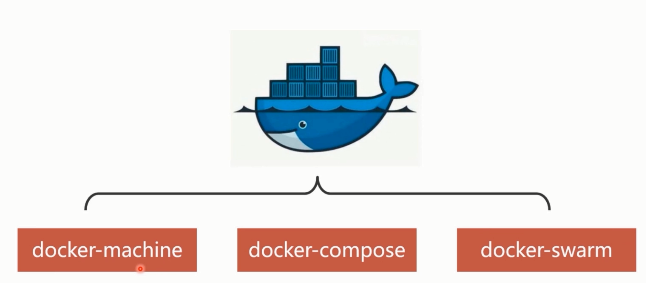
Docker Three Musketeers In order to maximize the advantages of containerization technology, docker company has launched three major technologies docker-machine docker-compose docker-swarm They can be ...
Docker Series 5: Docker Three Musketeers Docker Swarm
Title: Docker Series 5: Docker Three Musketeers Docker Swarm categories: Docker tags: - Docker timezone: Asia/Shanghai date: 2019-02-19 basic concept node A host running Docker can proactively initial...
Docker Three Musketeers docker-swarm: Know docker-swarm and single-room docker-swarm cluster
docker-swarm One, know docker-swarm 2. Build a docker-swarm cluster One, know docker-swarm 2. Build a docker-swarm cluster Upgrade docker-ce swarm initialization Add server2 and server3 to the managem...
Docker-learning summary (the Docker-swarm practice supplement of the Three Musketeers)
Article Directory Docker-swarm practice supplement Service Custom Network Service mount custom data volume Docker-swarm practice supplement Service Custom Network Overlay is a virtual network created ...

Docker(2)-Docker Swarm cluster of Docker Three Musketeers (manually build, stretch, shrink, cluster monitoring)
Overview of Docker Swarm Docker Swarm, like Docker Compose, is an official Docker container orchestration project But the difference is that Docker Compose is a tool for creating multiple containers o...
More Recommendation
Docker Three Musketeers Compose
Docker Three Musketeers Compose Docker Compose is one of Docker's official Orchestration projects and is responsible for the rapid deployment of distributed applications. Compose basic introduction In...
Docker- Three Musketeers Compose
ComponeDocker project is the official open source project, responsible for fast layout of Docker containers. From a functional point of view, withOpenStackmiddleHeatVery similar.ComposePositioning is ...
docker Three Musketeers machine
Article Directory Docker Machine Introduction Docker Machine Practice Preparing the Environment Download and install the machine Creating machine Create a free machine requires close login to remote h...
Docker Three Musketeers
References Docker warehouse address:https://download.docker.com/linux/ubuntu Docker Compose:https://github.com/docker/compose/releases VitualBox:https://www.virtualbox.org/wiki/Linux_Downloads Docker ...
Detailed Docker Three Musketeers
docekr-compose, docekr-machine and docker-swarm are the three major orchestration tools provided by docker natively. docker-machine doceker-machine is solving the problem of docker running environment...