helm3 install harbor warehouse
tags: Kubernetes Helm Docker
main content
- helm install harbor warehouse
- The installation process only takes 2 minutes
- Domestic sources need to be replaced with domestic sources
helm repo add stable http://mirror.azure.cn/kubernetes/charts
- Add harbor source
helm repo add harbor https://helm.goharbor.io
Reference materials:
helm search
$ helm search repo harbor
NAME            CHART VERSION   APP VERSION     DESCRIPTION
harbor/harbor   1.3.0           1.10.0          An open source trusted cloud native registry th...
helm chart (you can clone repository if you want to see the details)
$ git clone https://github.com/goharbor/harbor-helm.git
$ cd harbor-helm && git checkout 1.3.0
installation
$ helm install harbor harbor/harbor -f values.yaml
 $ echo "end"
values.yaml file (official comments are perfect)
- Detail part searchNap
- the author is kong AgentclusterIP To expose the domain name
- External domain nameharbor.abc.com
- Persistent layerS3 To achieve, sensitive information is replaced by a nap
- Only containschartmuseum with clair
- database Use a set deployed outsidepostgresql
expose:
  # Set the way how to expose the service. Set the type as "ingress",
  # "clusterIP", "nodePort" or "loadBalancer" and fill the information
  # in the corresponding section
  type: clusterIP
  tls:
    # Enable the tls or not. Note: if the type is "ingress" and the tls
    # is disabled, the port must be included in the command when pull/push
    # images. Refer to https://github.com/goharbor/harbor/issues/5291
    # for the detail.
    enabled: false
    # Fill the name of secret if you want to use your own TLS certificate.
    # The secret contains keys named:
    # "tls.crt" - the certificate (required)
    # "tls.key" - the private key (required)
    # "ca.crt" - the certificate of CA (optional), this enables the download
    # link on portal to download the certificate of CA
    # These files will be generated automatically if the "secretName" is not set
    secretName: ""
    # By default, the Notary service will use the same cert and key as
    # described above. Fill the name of secret if you want to use a
    # separated one. Only needed when the type is "ingress".
    notarySecretName: ""
    # The common name used to generate the certificate, it's necessary
    # when the type isn't "ingress" and "secretName" is null
    commonName: ""
  ingress:
    hosts:
      core: core.harbor.domain
      notary: notary.harbor.domain
    # set to the type of ingress controller if it has specific requirements.
    # leave as `default` for most ingress controllers.
    # set to `gce` if using the GCE ingress controller
    # set to `ncp` if using the NCP (NSX-T Container Plugin) ingress controller
    controller: default
    annotations:
      ingress.kubernetes.io/ssl-redirect: "true"
      ingress.kubernetes.io/proxy-body-size: "0"
      nginx.ingress.kubernetes.io/ssl-redirect: "true"
      nginx.ingress.kubernetes.io/proxy-body-size: "0"
  clusterIP:
    # The name of ClusterIP service
    name: harbor
    ports:
      # The service port Harbor listens on when serving with HTTP
      httpPort: 80
      # The service port Harbor listens on when serving with HTTPS
      # httpsPort: 443
      # The service port Notary listens on. Only needed when notary.enabled
      # is set to true
      # notaryPort: 4443
  nodePort:
    # The name of NodePort service
    name: harbor
    ports:
      http:
        # The service port Harbor listens on when serving with HTTP
        port: 80
        # The node port Harbor listens on when serving with HTTP
        nodePort: 30002
      https:
        # The service port Harbor listens on when serving with HTTPS
        port: 443
        # The node port Harbor listens on when serving with HTTPS
        nodePort: 30003
      # Only needed when notary.enabled is set to true
      notary:
        # The service port Notary listens on
        port: 4443
        # The node port Notary listens on
        nodePort: 30004
  loadBalancer:
    # The name of LoadBalancer service
    name: harbor
    # Set the IP if the LoadBalancer supports assigning IP
    IP: ""
    ports:
      # The service port Harbor listens on when serving with HTTP
      httpPort: 80
      # The service port Harbor listens on when serving with HTTPS
      httpsPort: 443
      # The service port Notary listens on. Only needed when notary.enabled
      # is set to true
      notaryPort: 4443
    annotations: {}
    sourceRanges: []

# The external URL for Harbor core service. It is used to
# 1) populate the docker/helm commands showed on portal
# 2) populate the token service URL returned to docker/notary client
#
# Format: protocol://domain[:port]. Usually:
# 1) if "expose.type" is "ingress", the "domain" should be
# the value of "expose.ingress.hosts.core"
# 2) if "expose.type" is "clusterIP", the "domain" should be
# the value of "expose.clusterIP.name"
# 3) if "expose.type" is "nodePort", the "domain" should be
# the IP address of k8s node
#
# If Harbor is deployed behind the proxy, set it as the URL of proxy
# [ ]External domain name
externalURL: https://harbor.abc.com

# The persistence is enabled by default and a default StorageClass
# is needed in the k8s cluster to provision volumes dynamicly.
# Specify another StorageClass in the "storageClass" or set "existingClaim"
# if you have already existing persistent volumes to use
#
# For storing images and charts, you can also use "azure", "gcs", "s3",
# "swift" or "oss". Set it in the "imageChartStorage" section
persistence:
  enabled: true
  # Setting it to "keep" to avoid removing PVCs during a helm delete
  # operation. Leaving it empty will delete PVCs after the chart deleted
  resourcePolicy: "keep"
  persistentVolumeClaim:
    registry:
      # Use the existing PVC which must be created manually before bound,
      # and specify the "subPath" if the PVC is shared with other components
      existingClaim: ""
      # Specify the "storageClass" used to provision the volume. Or the default
      # StorageClass will be used(the default).
      # Set it to "-" to disable dynamic provisioning
      storageClass: ""
      subPath: ""
      accessMode: ReadWriteOnce
      size: 5Gi
    chartmuseum:
      existingClaim: ""
      storageClass: ""
      subPath: ""
      accessMode: ReadWriteOnce
      size: 5Gi
    jobservice:
      existingClaim: ""
      storageClass: ""
      subPath: ""
      accessMode: ReadWriteOnce
      size: 1Gi
    # If external database is used, the following settings for database will
    # be ignored
    database:
      existingClaim: ""
      storageClass: ""
      subPath: ""
      accessMode: ReadWriteOnce
      size: 1Gi
    # If external Redis is used, the following settings for Redis will
    # be ignored
    redis:
      existingClaim: ""
      storageClass: ""
      subPath: ""
      accessMode: ReadWriteOnce
      size: 1Gi
  # Define which storage backend is used for registry and chartmuseum to store
  # images and charts. Refer to
  # https://github.com/docker/distribution/blob/master/docs/configuration.md#storage
  # for the detail.
  imageChartStorage:
    # Specify whether to disable `redirect` for images and chart storage, for
    # backends which not supported it (such as using minio for `s3` storage type), please disable
    # it. To disable redirects, simply set `disableredirect` to `true` instead.
    # Refer to
    # https://github.com/docker/distribution/blob/master/docs/configuration.md#redirect
    # for the detail.
    disableredirect: true
    # Specify the "caBundleSecretName" if the storage service uses a self-signed certificate.
    # The secret must contain keys named "ca.crt" which will be injected into the trust store
    # of registry's and chartmuseum's containers.
    # caBundleSecretName:

    # Specify the type of storage: "filesystem", "azure", "gcs", "s3", "swift",
    # "oss" and fill the information needed in the corresponding section. The type
    # must be "filesystem" if you want to use persistent volumes for registry
    # and chartmuseum
    # [ ]Persistence layer
    type: s3
    filesystem:
      rootdirectory: /storage
      #maxthreads: 100
    azure:
      accountname: accountname
      accountkey: base64encodedaccountkey
      container: containername
      #realm: core.windows.net
    gcs:
      bucket: bucketname
      # The base64 encoded json file which contains the key
      encodedkey: base64-encoded-json-key-file
      #rootdirectory: /gcs/object/name/prefix
      #chunksize: "5242880"
    s3:
      region: ap-southeast-1
      bucket:  Nap
      accesskey:  Nap
      secretkey:  Nap
      #regionendpoint: http://myobjects.local
      #encrypt: false
      #keyid: mykeyid
      #secure: true
      #v4auth: true
      #chunksize: "5242880"
      #rootdirectory: /s3/object/name/prefix
      #storageclass: STANDARD
    swift:
      authurl: https://storage.myprovider.com/v3/auth
      username: username
      password: password
      container: containername
      #region: fr
      #tenant: tenantname
      #tenantid: tenantid
      #domain: domainname
      #domainid: domainid
      #trustid: trustid
      #insecureskipverify: false
      #chunksize: 5M
      #prefix:
      #secretkey: secretkey
      #accesskey: accesskey
      #authversion: 3
      #endpointtype: public
      #tempurlcontainerkey: false
      #tempurlmethods:
    oss:
      accesskeyid: accesskeyid
      accesskeysecret: accesskeysecret
      region: regionname
      bucket: bucketname
      #endpoint: endpoint
      #internal: false
      #encrypt: false
      #secure: true
      #chunksize: 10M
      #rootdirectory: rootdirectory

imagePullPolicy: IfNotPresent

# Use this set to assign a list of default pullSecrets
imagePullSecrets:
#  - name: docker-registry-secret
#  - name: internal-registry-secret

logLevel: info
# The initial password of Harbor admin. Change it from portal after launching Harbor
harborAdminPassword: "Harbor12345"
# The secret key used for encryption. Must be a string of 16 chars.
secretKey: "not-a-secure-key"

# The proxy settings for updating clair vulnerabilities from the Internet and replicating
# artifacts from/to the registries that cannot be reached directly
proxy:
  httpProxy:
  httpsProxy:
  noProxy: 127.0.0.1,localhost,.local,.internal
  components:
    - core
    - jobservice
    - clair

## UAA Authentication Options
# If you're using UAA for authentication behind a self-signed
# certificate you will need to provide the CA Cert.
# Set uaaSecretName below to provide a pre-created secret that
# contains a base64 encoded CA Certificate named `ca.crt`.
# uaaSecretName:

# If expose the service via "ingress", the Nginx will not be used
nginx:
  image:
    repository: goharbor/nginx-photon
    tag: v1.9.3
  replicas: 1
  # resources:
  #  requests:
  #    memory: 256Mi
  #    cpu: 100m
  nodeSelector: {}
  tolerations: []
  affinity: {}
  ## Additional deployment annotations
  podAnnotations: {}

portal:
  image:
    repository: goharbor/harbor-portal
    tag: v1.9.3
  replicas: 1
# resources:
#  requests:
#    memory: 256Mi
#    cpu: 100m
  nodeSelector: {}
  tolerations: []
  affinity: {}
  ## Additional deployment annotations
  podAnnotations: {}

core:
  image:
    repository: goharbor/harbor-core
    tag: v1.9.3
  replicas: 1
  ## Liveness probe values
  livenessProbe:
    initialDelaySeconds: 300
# resources:
#  requests:
#    memory: 256Mi
#    cpu: 100m
  nodeSelector: {}
  tolerations: []
  affinity: {}
  ## Additional deployment annotations
  podAnnotations: {}
  # Secret is used when core server communicates with other components.
  # If a secret key is not specified, Helm will generate one.
  # Must be a string of 16 chars.
  secret: ""
  # Fill the name of a kubernetes secret if you want to use your own
  # TLS certificate and private key for token encryption/decryption.
  # The secret must contain keys named:
  # "tls.crt" - the certificate
  # "tls.key" - the private key
  # The default key pair will be used if it isn't set
  secretName: ""

jobservice:
  image:
    repository: goharbor/harbor-jobservice
    tag: v1.9.3
  replicas: 1
  maxJobWorkers: 10
  # The logger for jobs: "file", "database" or "stdout"
  jobLogger: file
# resources:
#   requests:
#     memory: 256Mi
#     cpu: 100m
  nodeSelector: {}
  tolerations: []
  affinity: {}
  ## Additional deployment annotations
  podAnnotations: {}
  # Secret is used when job service communicates with other components.
  # If a secret key is not specified, Helm will generate one.
  # Must be a string of 16 chars.
  secret: ""

registry:
  registry:
    image:
      repository: goharbor/registry-photon
      tag: v2.7.1-patch-2819-2553-v1.9.3

    # resources:
    #  requests:
    #    memory: 256Mi
    #    cpu: 100m
  controller:
    image:
      repository: goharbor/harbor-registryctl
      tag: v1.9.3

    # resources:
    #  requests:
    #    memory: 256Mi
    #    cpu: 100m
  replicas: 1
  nodeSelector: {}
  tolerations: []
  affinity: {}
  ## Additional deployment annotations
  podAnnotations: {}
  # Secret is used to secure the upload state from client
  # and registry storage backend.
  # See: https://github.com/docker/distribution/blob/master/docs/configuration.md#http
  # If a secret key is not specified, Helm will generate one.
  # Must be a string of 16 chars.
  secret: ""
  # If true, the registry returns relative URLs in Location headers. The client is responsible for resolving the correct URL.
  # [ ]
  relativeurls: true
  middleware:
    enabled: false
    type: cloudFront
    cloudFront:
      baseurl: example.cloudfront.net
      keypairid: KEYPAIRID
      duration: 3000s
      ipfilteredby: none
      # The secret key that should be present is CLOUDFRONT_KEY_DATA, which should be the encoded private key
      # that allows access to CloudFront
      privateKeySecret: "my-secret"

chartmuseum:
  enabled: true
  # Harbor defaults ChartMuseum to returning relative urls, if you want using absolute url you should enable it by change the following value to 'true'
  absoluteUrl: false
  image:
    repository: goharbor/chartmuseum-photon
    tag: v0.9.0-v1.9.3
  replicas: 1
  # resources:
  #  requests:
  #    memory: 256Mi
  #    cpu: 100m
  nodeSelector: {}
  tolerations: []
  affinity: {}
  ## Additional deployment annotations
  podAnnotations: {}

clair:
  enabled: true
  image:
    repository: goharbor/clair-photon
    tag: v2.1.0-v1.9.3
  replicas: 1
  # The interval of clair updaters, the unit is hour, set to 0 to
  # disable the updaters
  updatersInterval: 12
  # resources:
  #  requests:
  #    memory: 256Mi
  #    cpu: 100m
  nodeSelector: {}
  tolerations: []
  affinity: {}
  ## Additional deployment annotations
  podAnnotations: {}

notary:
  enabled: false
  server:
    image:
      repository: goharbor/notary-server-photon
      tag: v0.6.1-v1.9.3
    replicas: 1
    # resources:
    #  requests:
    #    memory: 256Mi
    #    cpu: 100m
  signer:
    image:
      repository: goharbor/notary-signer-photon
      tag: v0.6.1-v1.9.3
    replicas: 1
    # resources:
    #  requests:
    #    memory: 256Mi
    #    cpu: 100m
  nodeSelector: {}
  tolerations: []
  affinity: {}
  ## Additional deployment annotations
  podAnnotations: {}
  # Fill the name of a kubernetes secret if you want to use your own
  # TLS certificate authority, certificate and private key for notary
  # communications.
  # The secret must contain keys named ca.crt, tls.crt and tls.key that
  # contain the CA, certificate and private key.
  # They will be generated if not set.
  secretName: ""

database:
  # if external database is used, set "type" to "external"
  # and fill the connection informations in "external" section
  # [ ]
  type: external
  internal:
    image:
      repository: goharbor/harbor-db
      tag: v1.9.3
    # The initial superuser password for internal database
    password: "changeit"
    # resources:
    #  requests:
    #    memory: 256Mi
    #    cpu: 100m
    nodeSelector: {}
    tolerations: []
    affinity: {}
  external:
    host: "pgsql-postgresql"
    port: "5432"
    username: "harbor"
    password: "harbor"
    coreDatabase: "registry"
    clairDatabase: "clair"
    # notaryServerDatabase: "notary_server"
    # notarySignerDatabase: "notary_signer"
    # "disable" - No SSL
    # "require" - Always SSL (skip verification)
    # "verify-ca" - Always SSL (verify that the certificate presented by the
    # server was signed by a trusted CA)
    # "verify-full" - Always SSL (verify that the certification presented by the
    # server was signed by a trusted CA and the server host name matches the one
    # in the certificate)
    sslmode: "disable"
  # The maximum number of connections in the idle connection pool.
  # If it <=0, no idle connections are retained.
  maxIdleConns: 50
  # The maximum number of open connections to the database.
  # If it <= 0, then there is no limit on the number of open connections.
  # Note: the default number of connections is 100 for postgre.
  maxOpenConns: 100
  ## Additional deployment annotations
  podAnnotations: {}

redis:
  # if external Redis is used, set "type" to "external"
  # and fill the connection informations in "external" section
  type: internal
  internal:
    image:
      repository: goharbor/redis-photon
      tag: v1.9.3
    # resources:
    #  requests:
    #    memory: 256Mi
    #    cpu: 100m
    nodeSelector: {}
    tolerations: []
    affinity: {}
  external:
    host: "192.168.0.2"
    port: "6379"
    # The "coreDatabaseIndex" must be "0" as the library Harbor
    # used doesn't support configuring it
    coreDatabaseIndex: "0"
    jobserviceDatabaseIndex: "1"
    registryDatabaseIndex: "2"
    chartmuseumDatabaseIndex: "3"
    password: ""
  ## Additional deployment annotations
  podAnnotations: {}
Intelligent Recommendation

Centos7 install docker warehouse Harbor
1. Install docker//Install common component packages yum install -y yum-utils device-mapper-persistent-data lvm2 //Configure docker's yum sourceyum-config-manager --add-repo ht...

CentOS7 install Harbor mirror warehouse
1.yum install docker 2. Replace the domestic mirror source 3. Install docker-compose 4. Download Harbor binary package 5. Unzip 6. Modify the configuration file harbor.yml cp harbor.yml harbor.yml.bak...
Docker install harbor mirror warehouse
Configure SSL Generate ca&server certificate https://app.yinxiang.com/fx/ca9f76fa-2c10-4b6b-9331-5465b8099f8a mkdir -p /etc/docker/certs.d/harbor.${domain} cp /home/certs/ca.crt /etc/docker/certs....

Centos7 install Dcoker warehouse---Harbor
1. Install docker source 2. Install docker 3. Install docker-compose If the download from the above official website address is too slow: Change source download Grant execution permissions 4. Install ...
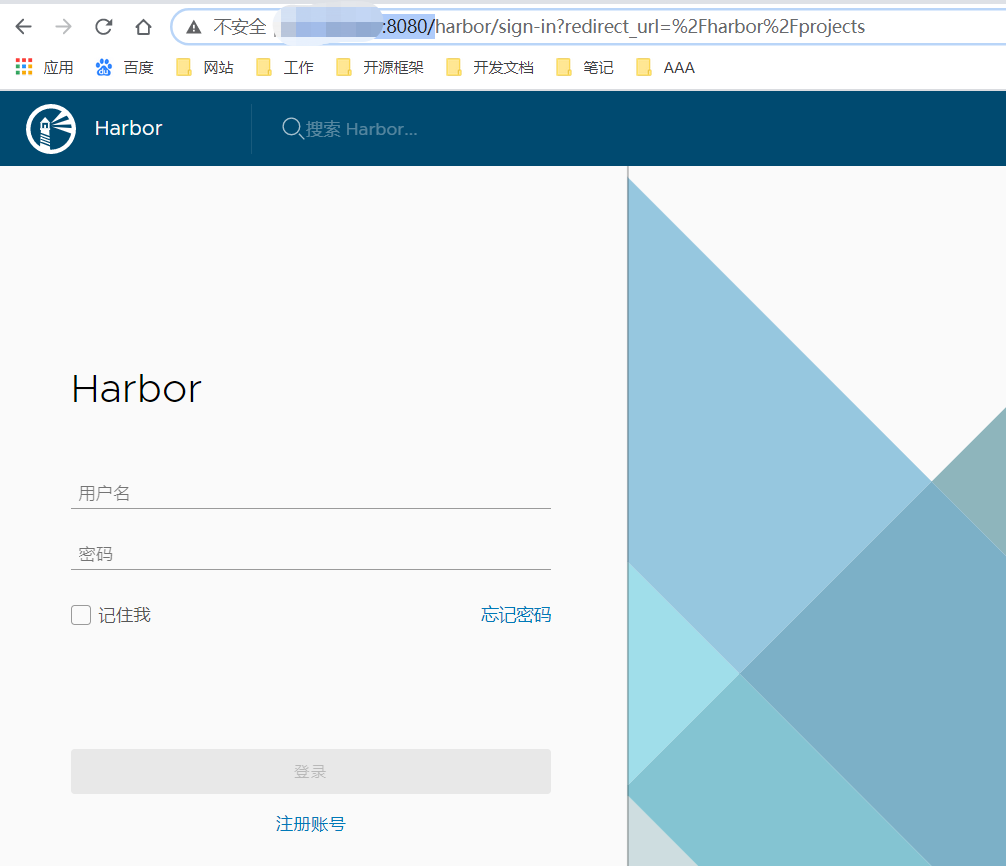
Linux install harbor mirror warehouse
You need to install docker-compost before installing harbor 1. Download the harbor compressed package 2. Unzip after successful download 3. After decompression, enter harbor to edit harbor.yml configu...
More Recommendation
Install Harbor Docker Mirror Warehouse
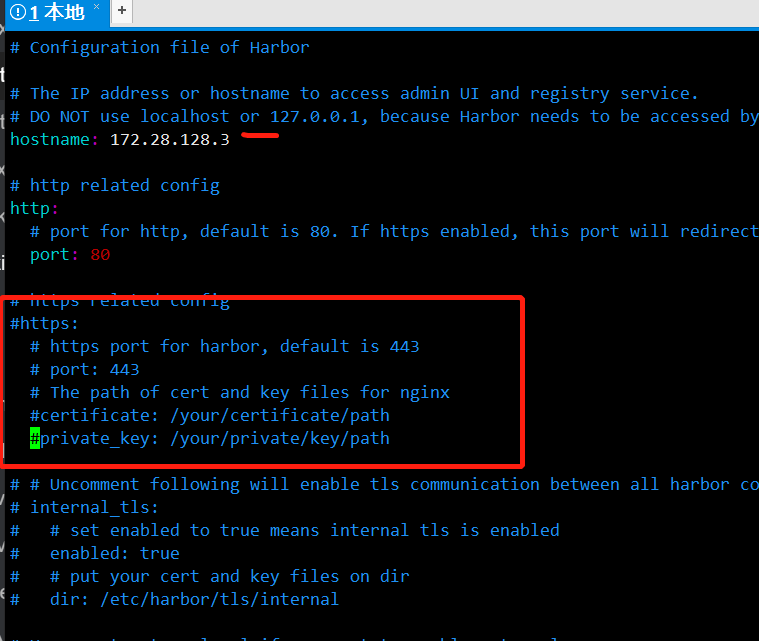
Prepare the Docker environment. Install Docker Compose Download Harbor https://github.com/goharbor/harbor/releases Decompression Enter the directory Edit the file Harbor.yml. Hostname changes the IP o...
Centos Install Harbor, with Helm Warehouse
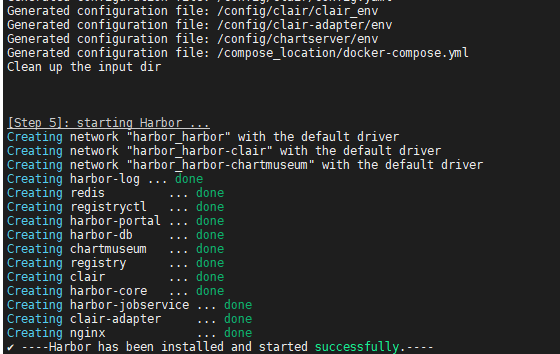
First, install Docker Second, install docker-compose Third, install Harbor 1, download the Harbor offline installation package: 2, decompression: 3, modify Harbor.yml: Modify content: (127.0.0.1) repl...
Install deployment HARBOR Mirror Warehouse
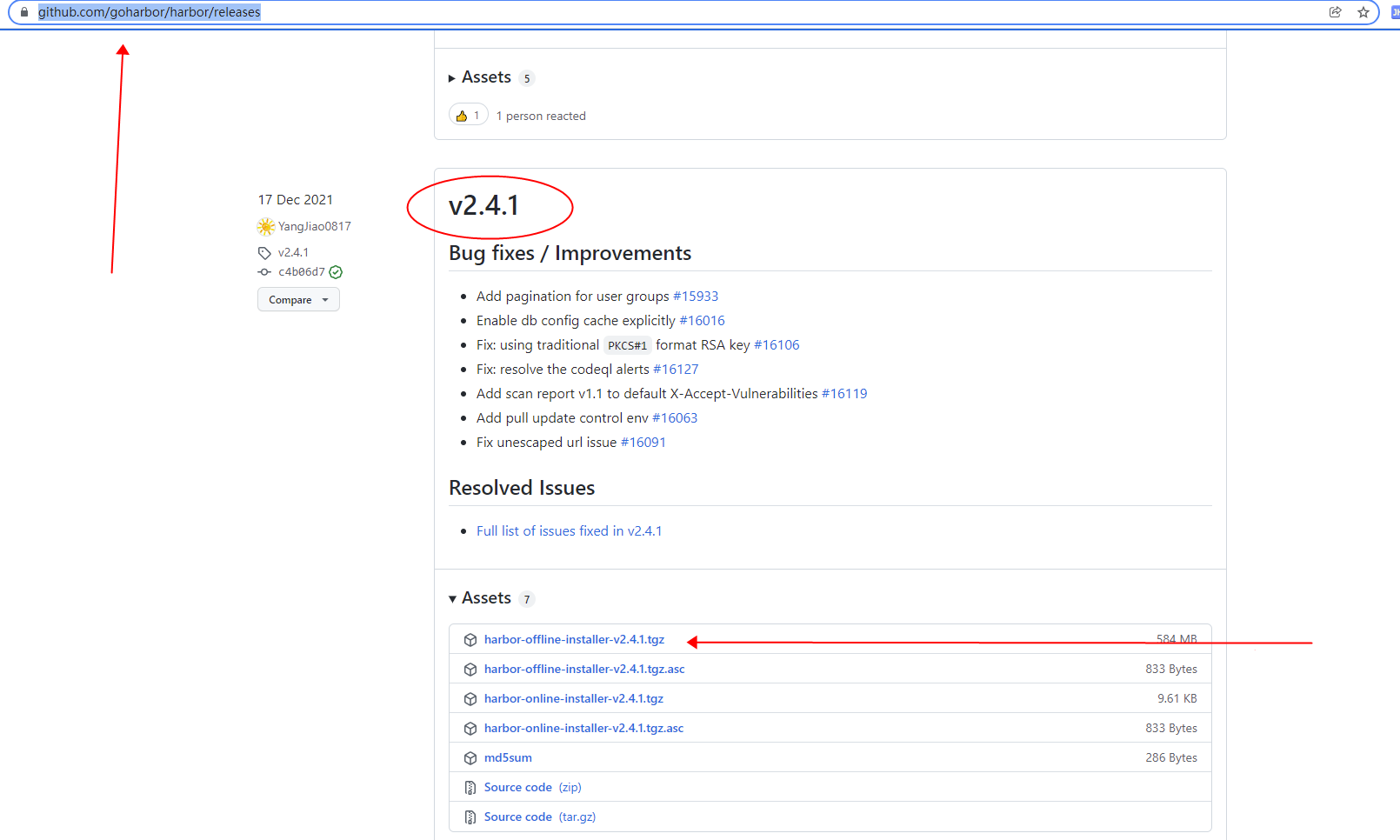
Article catalog Foreword First, download Second, install Third, visit Harbor Foreword HARBOR is an open source mirror repository that uses policies and roles to protect mirts, ensuring that the image ...
Install Harbor private Docker warehouse
First, reference Harbor release address Official installation documentation Second, the environment Refer to the following three installations Docker and Docker-Compose Centos7 installation Docker Cen...
Install the container mirror warehouse Harbor
1. Preparation Official website address: https://goharbor.io/ github project address: https://github.com/goharbor/harbor Installation requirements: https://goharbor.io/docs/2.4.0/install-config/instal...