Second, PC connection TELLO EDU and make simple control via Python
tags: Tello
1, PC connection TELLO EDU sends command and acceptance response
Power up TELLO EDU, at which time the status indicator of the plane is displayed-> Yellow flash

Yellow flash indicates remote control signal interruption
At this point, connect the PC on the TELLO EDU, as follows:
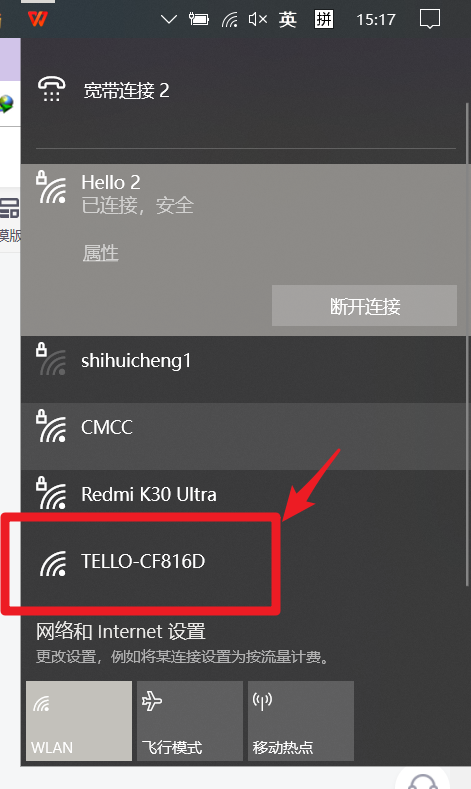
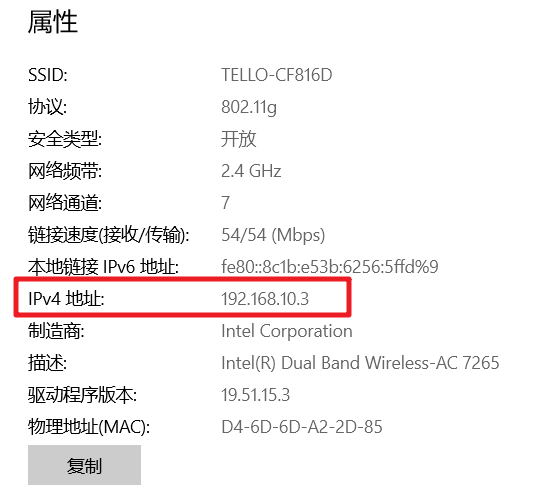
When the PC is connected to WiFi, the state of the aircraft is still yellow flash.
# Tello3.py
#
# Tello Python3 Control Demo
#
#
#
# http://www.ryzerobotics.com/
#
# 24/6/2021

import threading
import socket
import sys
import time

 # Send commands and acceptance responses
#Tello IP:192.168.10.1      udp port:8889

 #   's host and port
host = ''
 Port = 9000 #PC accepts responses from IP 0.0.0.0 via UDP port 9000
 # Port = 8890 PC Listen to the message from IP 0.0.0.0 via UDP port 8890
locaddr = (host,port)


# Create a UDP socket
sock = socket.socket(socket.AF_INET, socket.SOCK_DGRAM)

tello_address = ('192.168.10.1', 8889)

sock.bind(locaddr)

def recv():
    count = 0
    while True:
        try:
            data, server = sock.recvfrom(1518)
            print("recv >>>>> ",data.decode(encoding="utf-8"),"#server:",server)
        except Exception:
            print ('\nExit . . .\n')
            break


print ('\r\n\r\nTello Python3 Demo.\r\n')
print ('Tello: command takeoff land flip forward back left right \r\n       up down cw ccw speed speed?\r\n')
print ('end -- quit demo.\r\n')


#recvThread create
recvThread = threading.Thread(target=recv)
recvThread.start()

while True:

    try:
        msg = input("");
        #msg = "command"
        #print("msg:",msg)

        if not msg:
            break

        if 'end' in msg:
            print ('...')
            sock.close()
            break

        # Send data
        msg = msg.encode(encoding="utf-8")
        #print("msg.encode:",msg)
        sent = sock.sendto(msg, tello_address)
        #print("sent:",sent)
    except KeyboardInterrupt:
        print ('\n . . .\n')
        sock.close()
        break
At this point, you can operate the TELLO, and the input command will appear as follows, where OK appears, that is, the connection is normal.
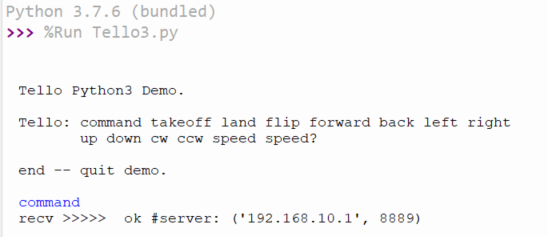
Enter other instructions to complete the flight control of TELLO, such as:
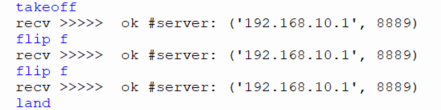
For specific instructions, please refer to "TELLO_SDK_2.0_.nd instructions .pdf"
2, PC connection TELLO EDU accepting state
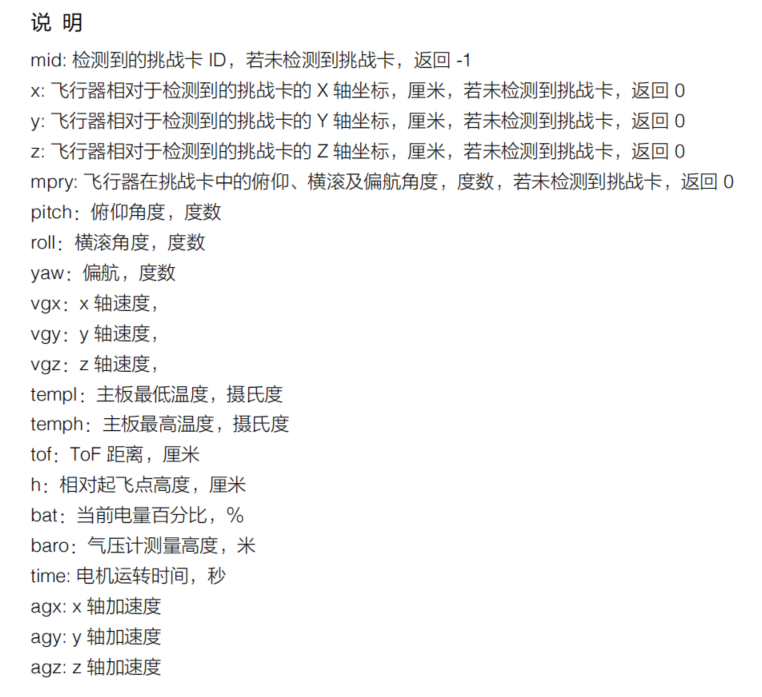
At this point, in the TELLO3.py file, the port will be changed to 8890, and the status information of TELLO will be automatically received after running the program.
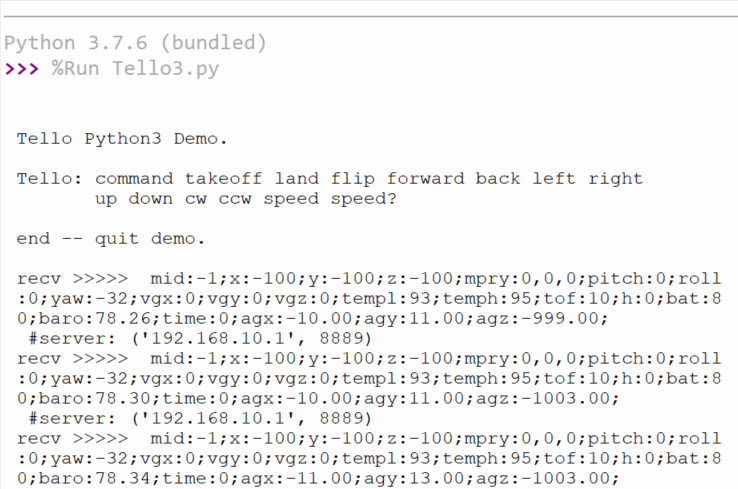
The meaning of each parameter is seen "TELLO_SDK_2.0_ User Instructions.pdf"
Intelligent Recommendation
Android and PC communicate via USB connection (1)
Android and PC communicate via USB connection (1) principle By establishing a socket connection between the Android device and the PC via USB, the Android is used as the server, and the PC is used as ...
PC and Android communicate via USB connection for Socket
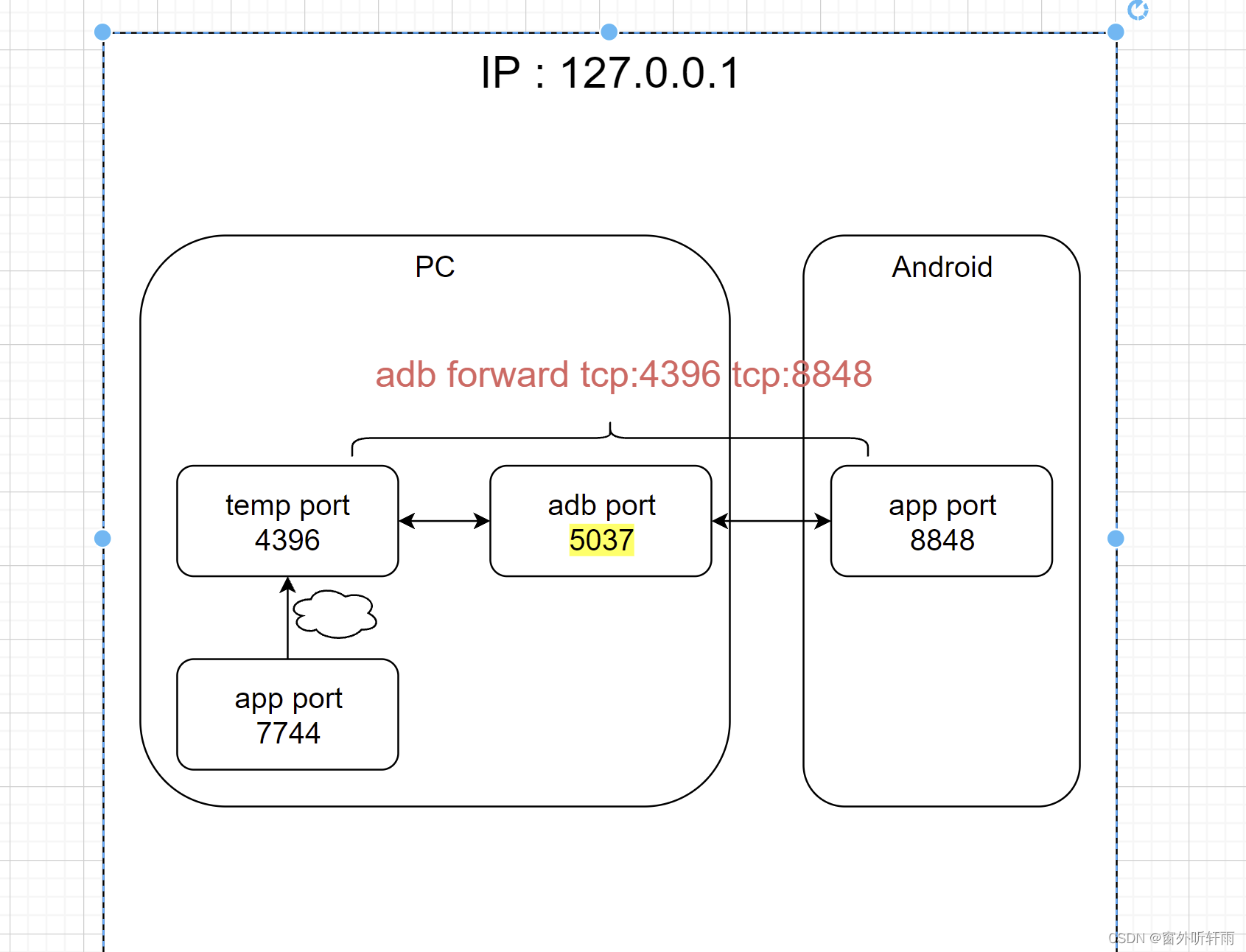
The PC and Android have their own ports, which are not common. The connection between the two must be done by using the adb bridge to communicate. If you don't say much, just go to the picture. Explan...
Raspberry PC via interface remote control
Raspberry Pie, computer in the same network, connected to the same WiFi, mainly Select "2 NetWork Opinions" -> Select "N2 Wi-Fi" -> Enter WiFi's password WLAN0 that appears i...
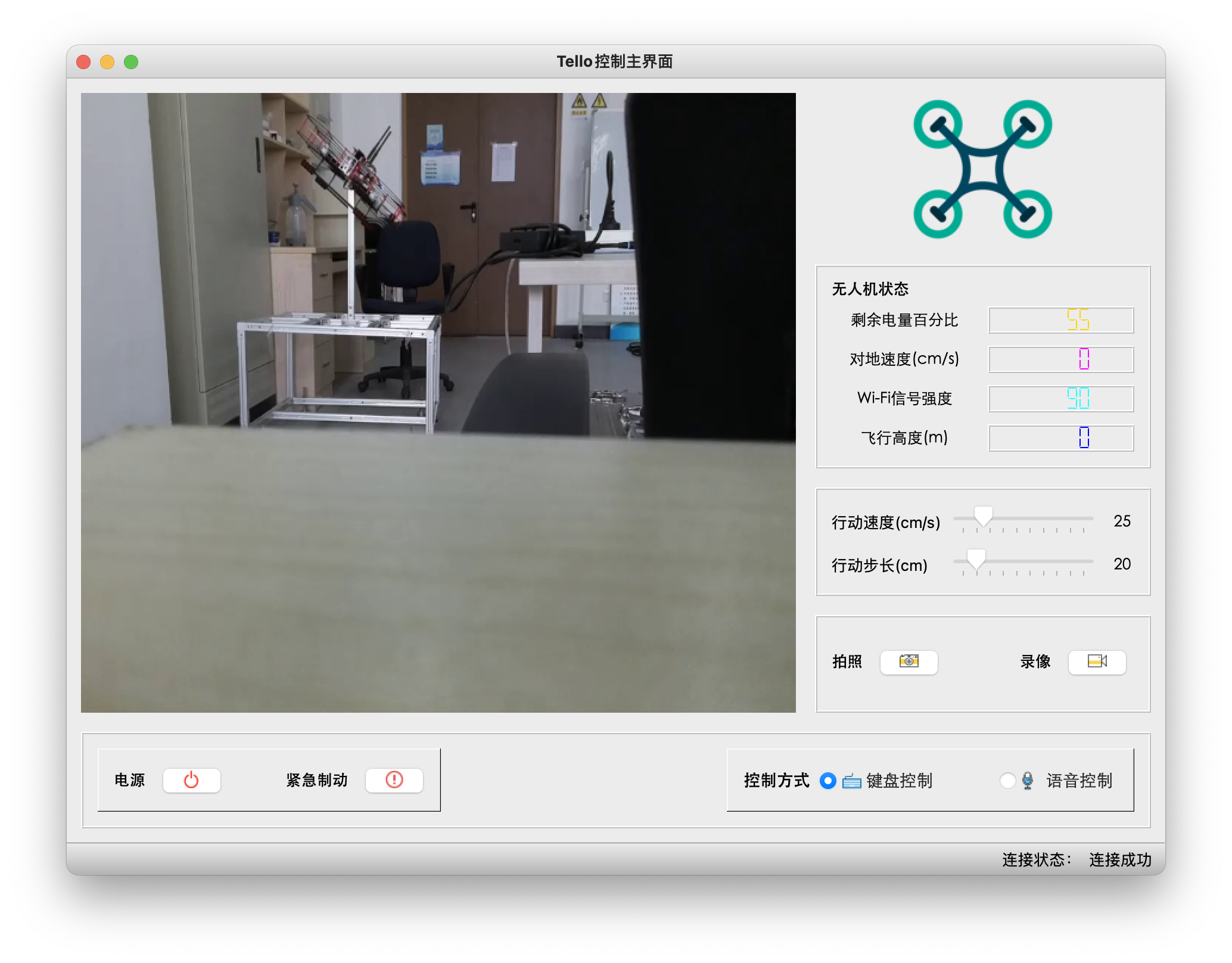
Python implements DJI Tello drone control platform and implements voice control/gesture control/face tracking/green ball tracking/photographing and recording
Tello Intelligent Information Processing Platform Introduction control Keyboard control voice control Visual function Face tracking Green ball tracking Gesture control Posture control Take photos and ...
Python sends messages via WeChat for pc
In daily life or work, sometimes we want to send instant messages through WeChat to remind us of important events at any time, but WeChat does not provide a personal interface. Although it is possible...
More Recommendation
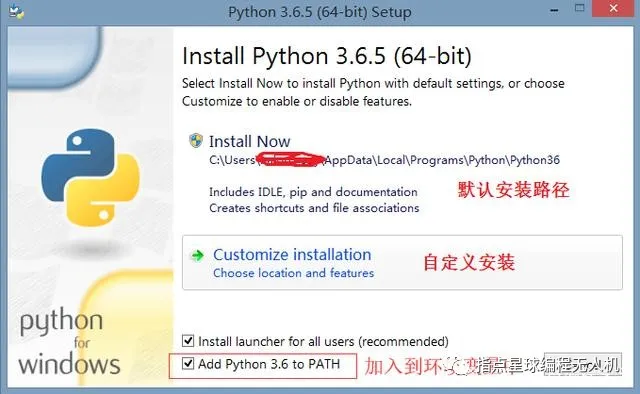
Use Python programming from zero DJI TELLO
Use Python programming from zero DJI TELLO Computers from a Python environment -> Programming drones with Python, in fact, it is not complicated. The steps are the following: Install the basic oper...
PC computer end via ADB connection Android device debugging
1.PC Connect the Android equipment through WiFi / network cable, first PC end with USB cable Android equipment, Android device checks the CONNECT to PC, open USB Debug (USB debugging) 2. PC Equipment ...
Vue3+TS Make a simple PC to sign
App.vue App.css footer.vue footer.css header.vue header.css list.vue list.css listitem.vue listitem.css Cache part localStorageUtils.ts...
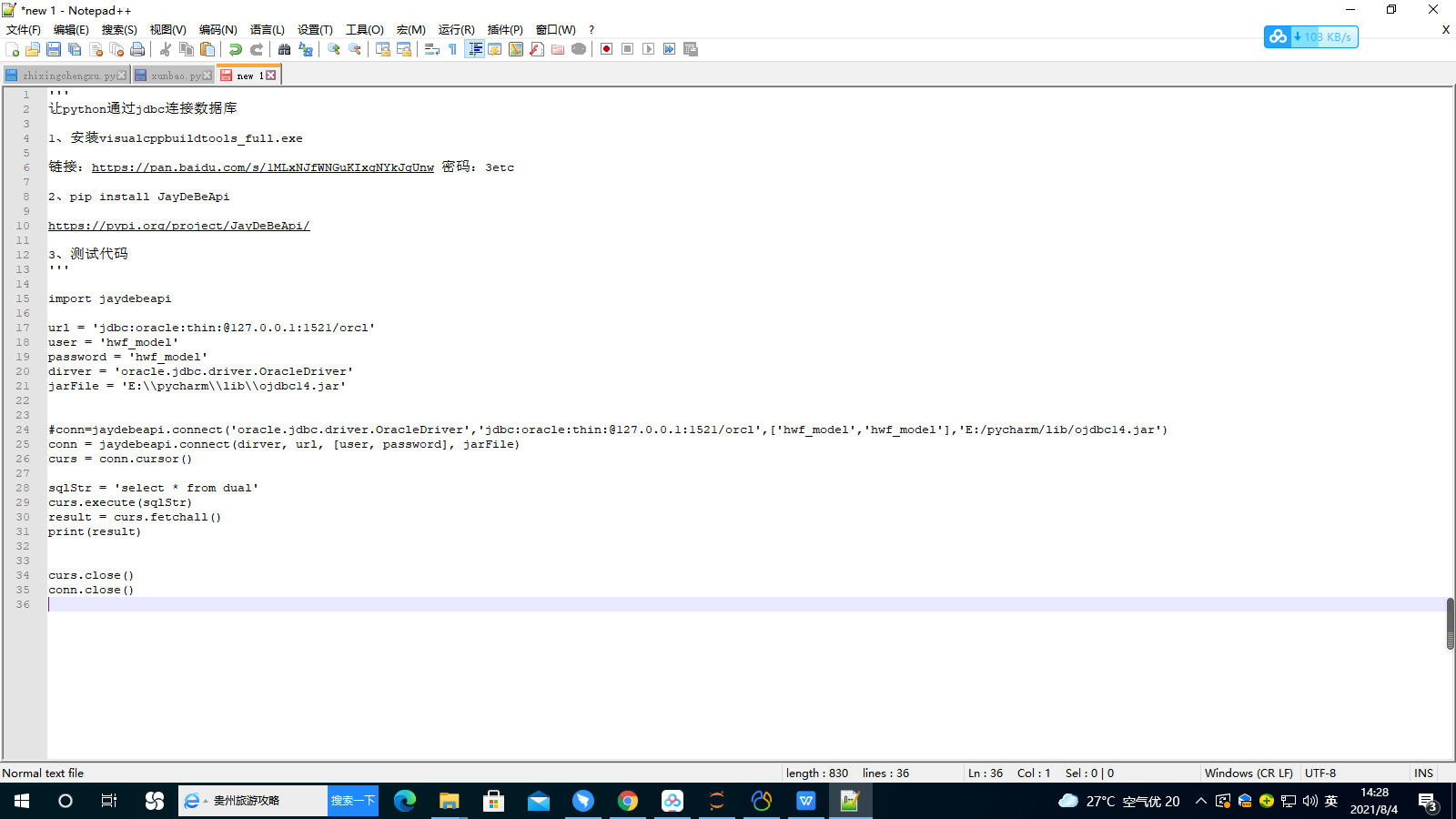
Python connection database via JDBC
‘’’ Let Python connect to the database via JDBC 1, install VisualcppBuildTools_Full.exe Link: https: //pan.baidu.com/s/1mlxnjfwngukixgnykjgunw Code: 3ETC 2、pip install JayDeBeApi htt...
Python connection DM7 via ODBC
1. Install ODBC driver (this time is 2.3.0 as an example) 1. First upload the package in the attachment to the server 2. Unzip TAR package 3. Install UNIX ODBC View odbc configuration file path 4. Ver...