In-depth understanding of controls in Excel worksheets
tags: VBA Excel Control Form control ActiveX
There are two types of controls that can be used in an Excel worksheet: form controls and ActiveX controls.
Insert control
It is very simple to use VBA to insert controls in the worksheet.
Sub AddCtls()
    'Form controls
    ActiveSheet.Buttons.Add 87.75, 33, 86.25, 33
    ActiveSheet.CheckBoxes.Add 228.75, 33, 70.5, 33
    'ActiveX control
    ActiveSheet.OLEObjects.Add ClassType:="Forms.CommandButton.1", Link:=False _
        , DisplayAsIcon:=False, Left:=86.25, Top:=99.75, Width:=90, Height:=33
    ActiveSheet.OLEObjects.Add ClassType:="Forms.CheckBox.1", Link:=False, _
        DisplayAsIcon:=False, Left:=228, Top:=99, Width:=90, Height:=33
End Sub
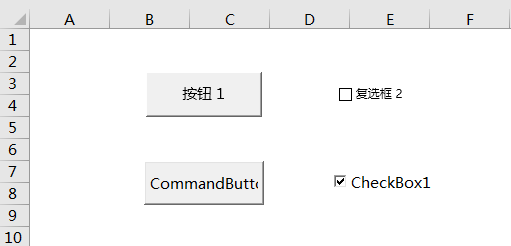
Insert two different types of button and check box controls into the worksheet.
Traverse control
Everyone knows that in the user form, it can be easily usedFor Each Ctl in Userform1.ControlsTraverse the controls in the form, but if you need to traverse the controls in the worksheet and modify their related properties, it is not as simple as in the user form.
Shapes collection
The easiest way is to traverse the Shapes collection in the worksheet, what! ? Don't bully me because I read less, the English word Shape means graphics, and it has nothing to do with controls!
The output result in the immediate window looks a bit magical, these controls do belong to the Shapes collection.
Sub GetCtlList1()
    For Each s In ActiveSheet.Shapes
        Debug.Print s.Name, s.Type
    Next
End Sub
'--- Immediate window ---
'Button 1           8 (msoFormControl)
'Check Box 2        8
'CommandButton1     12 (msoOLEControlObject)
'CheckBox1          12
Note: The constant values in parentheses are manually added by the author
Control type 8 (msoFormControl) is a form control, and type 12 (msoOLEControlObject) is an ActiveX control.
Control properties
Now that the control has been located, let's use Caption, Value...attributes directly, sorry. The Shape object does not support these properties. Obviously you can operate these controls in the worksheet, such as checking the checkboxes. Is there no way to read them? The answer is yes, it can be read, but it is more troublesome. The usage of properties is different from the controls in the user form.
Sub GetCtlList2()
On Error Resume Next
    For Each s In ActiveSheet.Shapes
        If s.Type = 8 Then
        Debug.Print s.Name, s.AlternativeText, s.Type, s.FormControlType
        ElseIf s.Type = 12 Then
        Debug.Print s.Name, s.DrawingObject.Object.Caption, s.Type, s.OLEFormat.progID
        End If
    Next
End Sub
'--- Immediate window ---
'Button 1 button 1 8 0 (xlButtonControl)
'Check Box 2 Check box 2 8 1 (xlCheckBox)
'CommandButton1     CommandButton1 12           Forms.CommandButton.1
'CheckBox1          CheckBox1      12           Forms.CheckBox.1
For example: the text displayed on the control seen in the worksheet, which requires access to form controlsOLEFormat.Object.CaptionProperty, but for ActiveX controlsDrawingObject.Object.CaptionAttributes.
The following table lists the comparison of several common properties of the two controls.
| name | Control text | Control type | Control value |
|---|---|---|---|
| Form button | OLEFormat.Object.Caption | FormControlType | - |
| Form checkbox | OLEFormat.Object.Caption | FormControlType | OLEFormat.Object.Value |
| ActiveX button | DrawingObject.Object.Caption | OLEFormat.progID | - |
| ActiveX checkbox | DrawingObject.Object.Caption | OLEFormat.progID | OLEObjects(..).Object.Value |
By default, the form controlOLEFormat.Object.CaptionAttributes andAlternativeTextThe attribute values are the same.
Instance
Worksheet controls are often used to make user survey questionnaires. The correct usage of form controls is to set firstCell link, When the final statistics of the survey results, you only need to read the value of the corresponding cell.
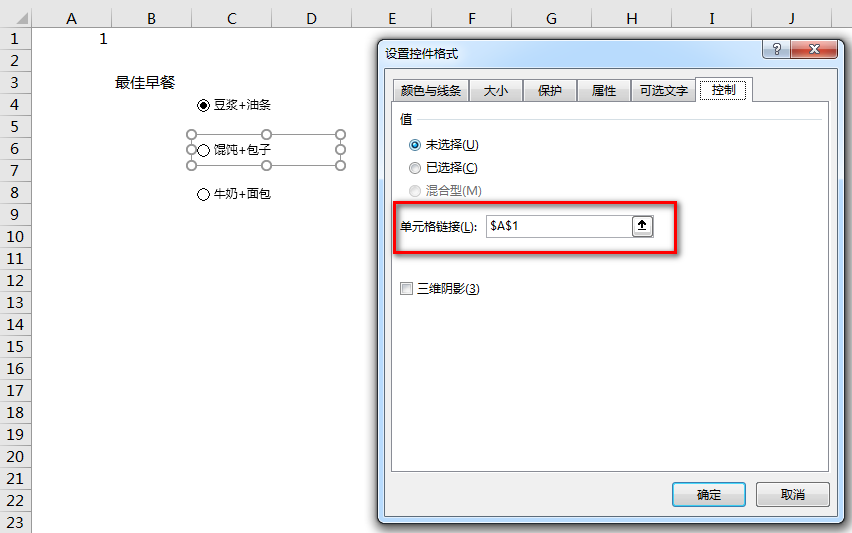
However, many of the questionnaires used in daily work do not have cell links. The cousins and cousins who are ultimately responsible for the survey results have to work overtime to count manually.
If the cousins learn VBA earlier, click the mouse, and drink, there will be statistical results.
Sub GetOptionValue()
    For Each s In ActiveSheet.Shapes
        If s.Type = 8 Then
          Debug.Print s.OLEFormat.Object.Caption, _
          IIf(s.OLEFormat.Object.Value = 1, "Selected", "Unselected")
        End If
    Next
End Sub
'--- Immediate window ---
'Soy milk + fried dough sticks selected
'Wonton + Bun unchecked
'Milk + bread unchecked
If the radio button is not selected, itsOLEFormat.Object.ValueThe attribute return value is -4146.
Intelligent Recommendation
Combine multiple Excel worksheets with Python
The address of the merged multiple EXCEL tables written in VBA script is:EXCEL VBA Macro to merge multiple sheets of the same format The following is the code written by Python script to merge multipl...

[Excel Skill] Quickly switch worksheets
Shortcut keys: When the number of worksheets is small, you can use shortcut keys to switch between: previous (Ctrl + PgUp), next (Ctrl + PgDn) Tip: You can use alt + tab to switch between different wo...
Combine multiple excel workbooks and worksheets
Function description: Merge all excel under the current folder, including each workbook and each worksheet under each workbook step: 1. Each sheet of all tables needs to have the same header; 2. All t...
C# How to merge Excel worksheets
Document merging and splitting is an effective way to achieve document management. In our work, we may encounter situations where multiple documents need to be merged, so how to achieve it, this artic...

Create a table of contents for Excel worksheets
Sometimes we will create many worksheets in one workbook. How can we manage worksheets simply and clearly. Of course, it is best to create a directory. Here we will learn a way to create a directory f...
More Recommendation
Java protects Excel workbooks and worksheets
For security reasons, you may need to protect the entire workbook or worksheet. Sometimes, you may even need to protect a worksheet, but keep the specified cells for editing. This article will introdu...
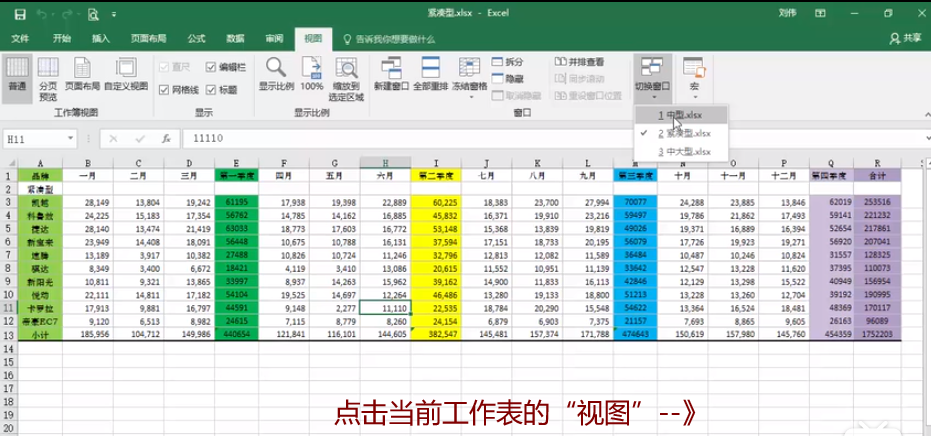
[Excel] Side-by-side comparison of worksheets
[Excel] Side-by-side comparison of worksheets 1. Switching the worksheet: Display multiple workbooks in the same window: Click "Maximize" on any working point in the upper right corner, and ...
Python reads Excel workbooks and worksheets
Python reads Excel workbooks and worksheets Recently, I need to use python to operate the Excel table, so I probably learned how to operate it. The table is simple but very practical. Here are some si...
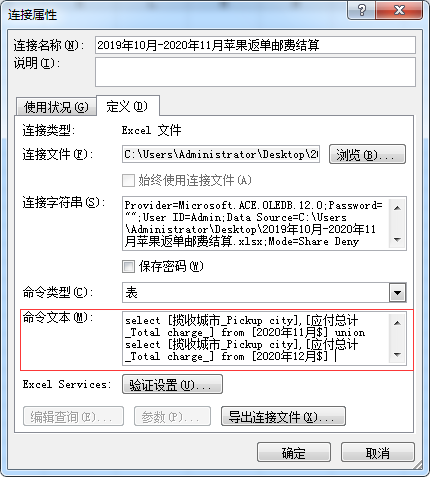
Excel combines multiple worksheets with SQL
Author:iamlaosong The demand is to count the cumulative sales of the province's 12 months all year round, the original data is a clear table per month. Simple practice is to consolidate 12 months, do ...
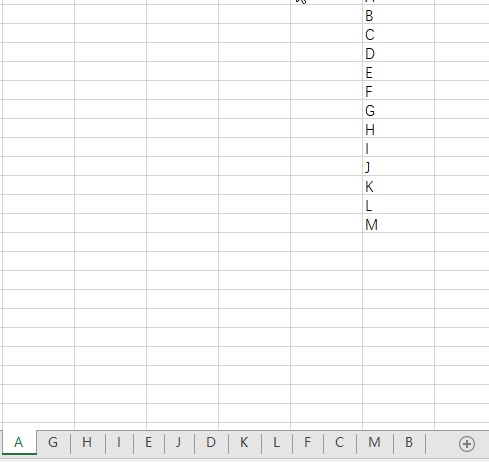
How to sort Excel worksheets alphabetically
Today I will share with you how to sort Excel worksheets in alphabetical order 1. As shown in the figure below, we want to sort the worksheets alphabetically. 2. First, we click on the option in the p...