Frame component of tkinter window development(11)
tags: GUI development # TKinter
Frame component of tkinter window development
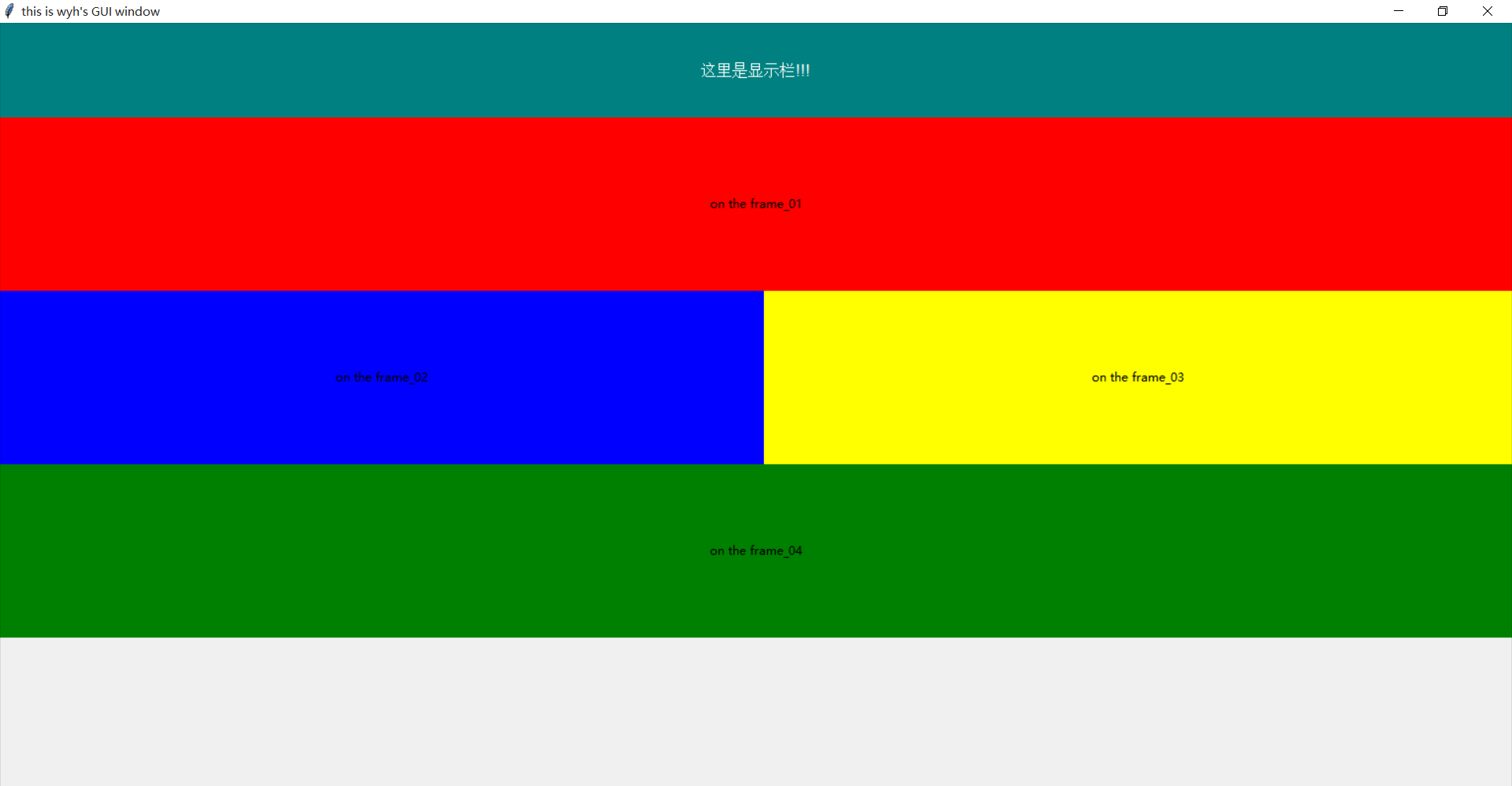
Frame: The frame, used to carry and place other GUI elements, is a container, which is a WindowsSeparate small areasofpart, It can divide Windows into different areas, and then store different other components. At the same time, a Frame can also be divided into two Frames. Frame can be considered as a container, similar to the front-end div tag
import tkinter as tk
from PIL import Image, ImageTk  # pillow module python image processing library

# Step 1, instantiate object, create window
window = tk.Tk()

# Step 2, give a name to the visualization of the window
window.title("this is wyh's GUI window")

# Step 3, set the size of the window (length * width)
window.geometry('800x500')  # The multiplication here is small x

# Step 4, set the display label on the graphical interface and place the controls

var = tk.StringVar()
var.set("Here is the display bar!!!")

l1 = tk.Label(window, textvariable=var, bg='teal', fg='white', font=('Arial', 12), width=800, height=5)
l1.pack()

# Step 5, create a main frame, which grows on the main window
frame = tk.Frame(window)
frame.pack()

# Step 6, create a second layer of frame, grow on top of the main frame
frame_01 = tk.Frame(frame)  # The second layer of frame, which grows on the main frame
frame_02 = tk.Frame(frame)  # The second layer of frame, which grows on the main frame
frame_03 = tk.Frame(frame)  # The second layer of frame, which grows on the main frame
frame_04 = tk.Frame(frame)  # The second layer of frame, which grows on the main frame
frame_01.pack(side='top')
frame_04.pack(side='bottom')
frame_02.pack(side='left')
frame_03.pack(side='right')

# Step 7, create three sets of labels, which are the content on the second layer of the frame, divided into left and right areas, marked with different colors
tk.Label(frame_01, text='on the frame_01', bg='red', width=800, height=10).pack()
tk.Label(frame_02, text='on the frame_02', bg='blue', width=110, height=10).pack()
tk.Label(frame_03, text='on the frame_03', bg='yellow', width=110, height=10).pack()
tk.Label(frame_04, text='on the frame_04', bg='green', width=400, height=10).pack()

# Step 6, the main window cyclically displays
window.mainloop()
Intelligent Recommendation

Python --- (six) Tkinter window component: Entry
Previous:Python-(5) Tkinter window component: LabelFrame ...
Python --- (ten) Tkinter window component: Text
Previous:Python-(nine) Tkinter window component: Scale &...
Python --- (eleven) Tkinter window component: Canvas
Previous:Python — (ten) Tkinter window component: Text &...
Checkbutton component developed by tkinter window(8)
Checkbutton widget developed by tkinter window...
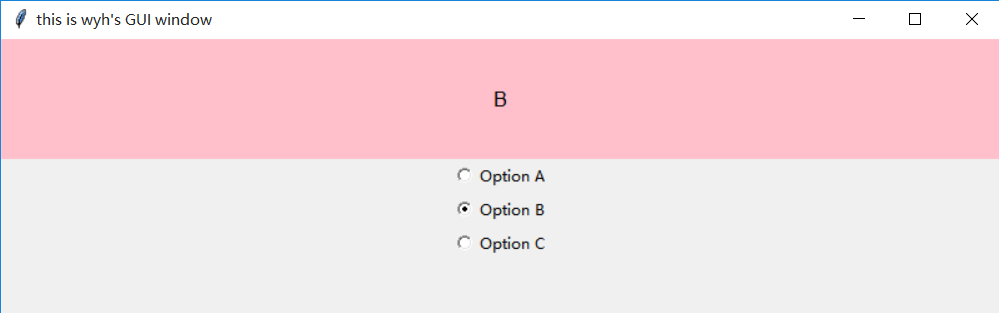
Radiobutton component developed by tkinter window(7)
Radiobutton component developed by tkinter window...
More Recommendation
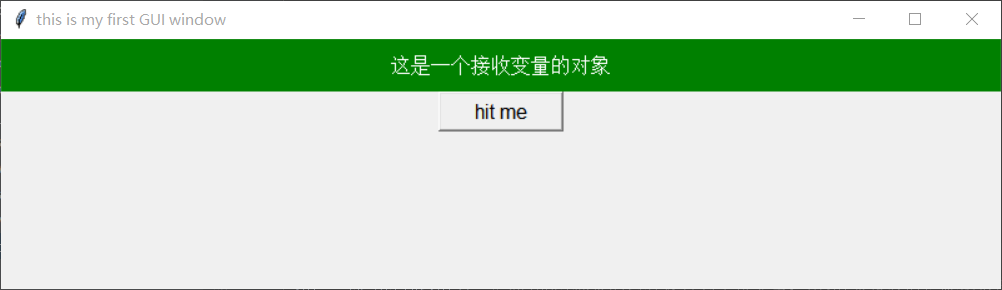
Button component developed by tkinter window (3)
Button component developed by tkinter window Ordinary buttons are easy to create, just specify the content of the button (text, bitmap, image) and a callback function when the button is pressed: b = t...
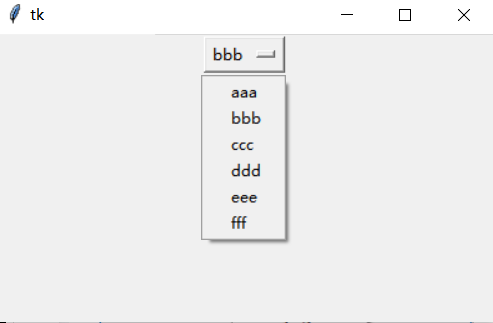
Python --- (15) Tkinter window component: OptionMenu
Previous:Python-(14) Tkinter window component: Menubutton &nbs...
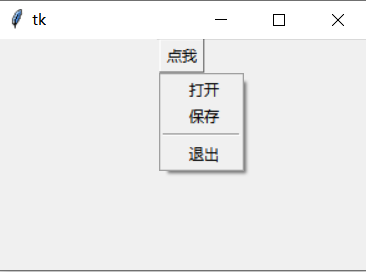
Python --- (fourteen) Tkinter window component: Menubutton
Previous:Python-(13) Tkinter window components: Menu &nb...

Python --- (9) Tkinter window component: Scale
Previous:Python-(eight) Tkinter window component: Scrollbar &n...
Python --- (17) Tkinter window component: Spinbox
Previous:Python-(16) Tkinter window component: Message &...