Unity "Apply Root Motion" and "Bake into Pose"
Reference
made by Unity 2017.1.1f1
Models and animations can be downloaded for free on the Asset Store
Keyword "Mixamo"

Test Case
Add a Demo2 folder, and create a new scene, Animator Controller and control script
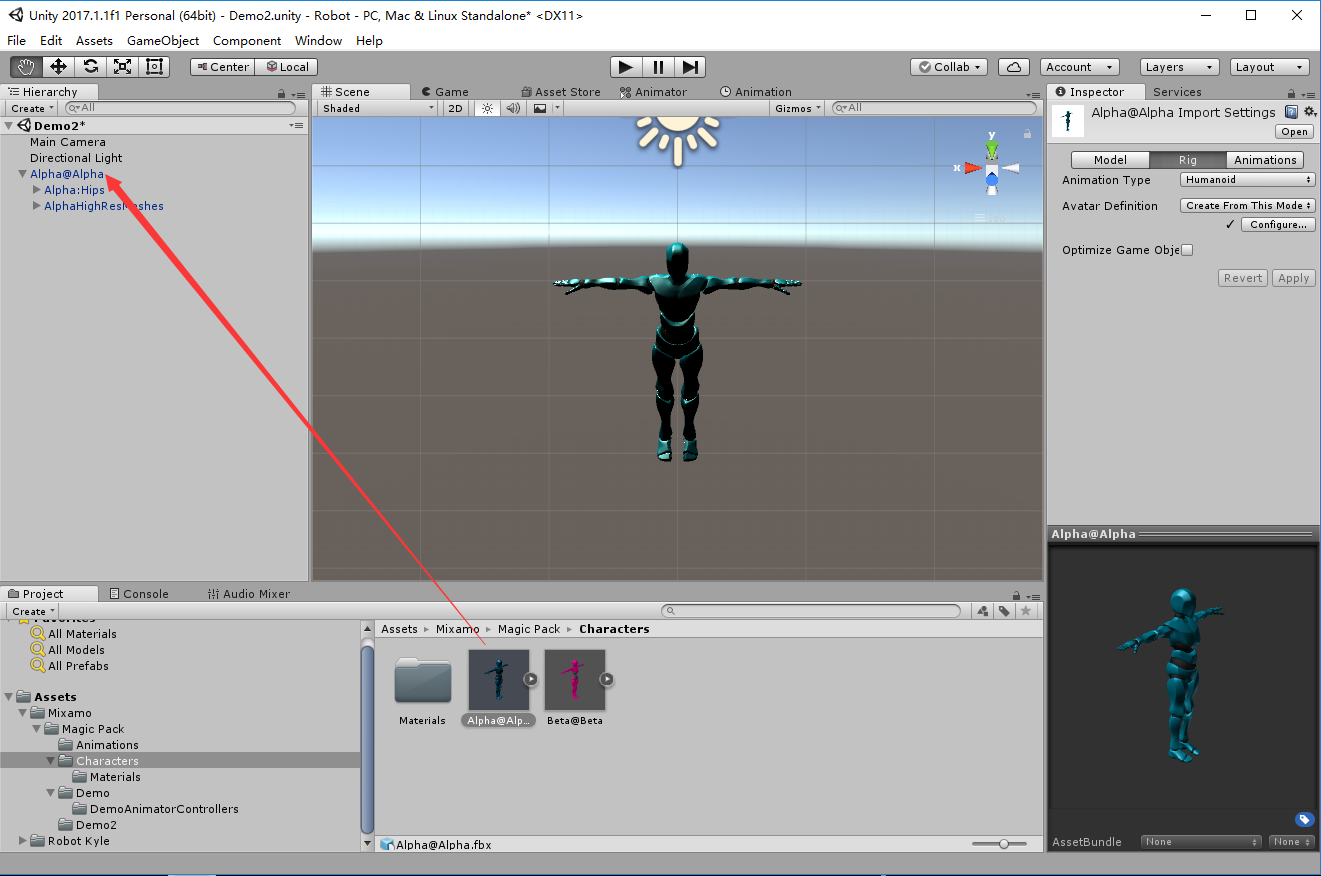
Drag the character model prefab under Mixamo/Magic Pack/Characters to the Hierarchy panel
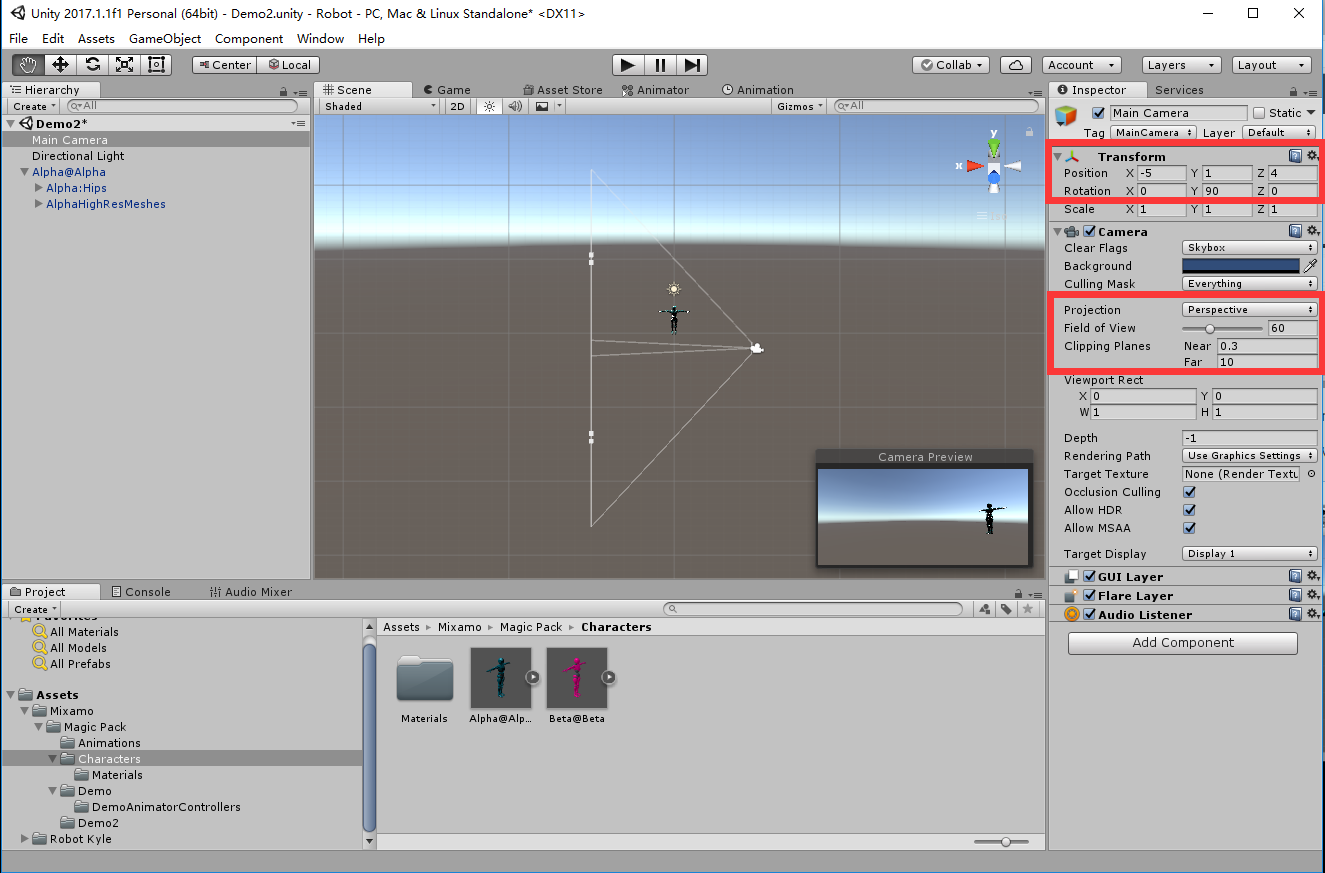
Adjust the camera parameters so that you can see the characters moving
Configure the Animator Controller and drag it to the character model in the Hierarchy panel

Write a script and drag it to the character model in the Hierarchy panel
using System.Collections;
using System.Collections.Generic;
using UnityEngine;

public class NewBehaviourScript : MonoBehaviour {

    private Animator mAnimator;
    // Use this for initialization
    void Start () {
        mAnimator = GetComponent<Animator>();
    }

    // Update is called once per frame
    void Update () {
        if(Input.GetKey(KeyCode.W))
        {
            mAnimator.SetTrigger("Walk");
        } else
        {
            mAnimator.SetTrigger("Idle");
        }
    }
}
Principle analysis
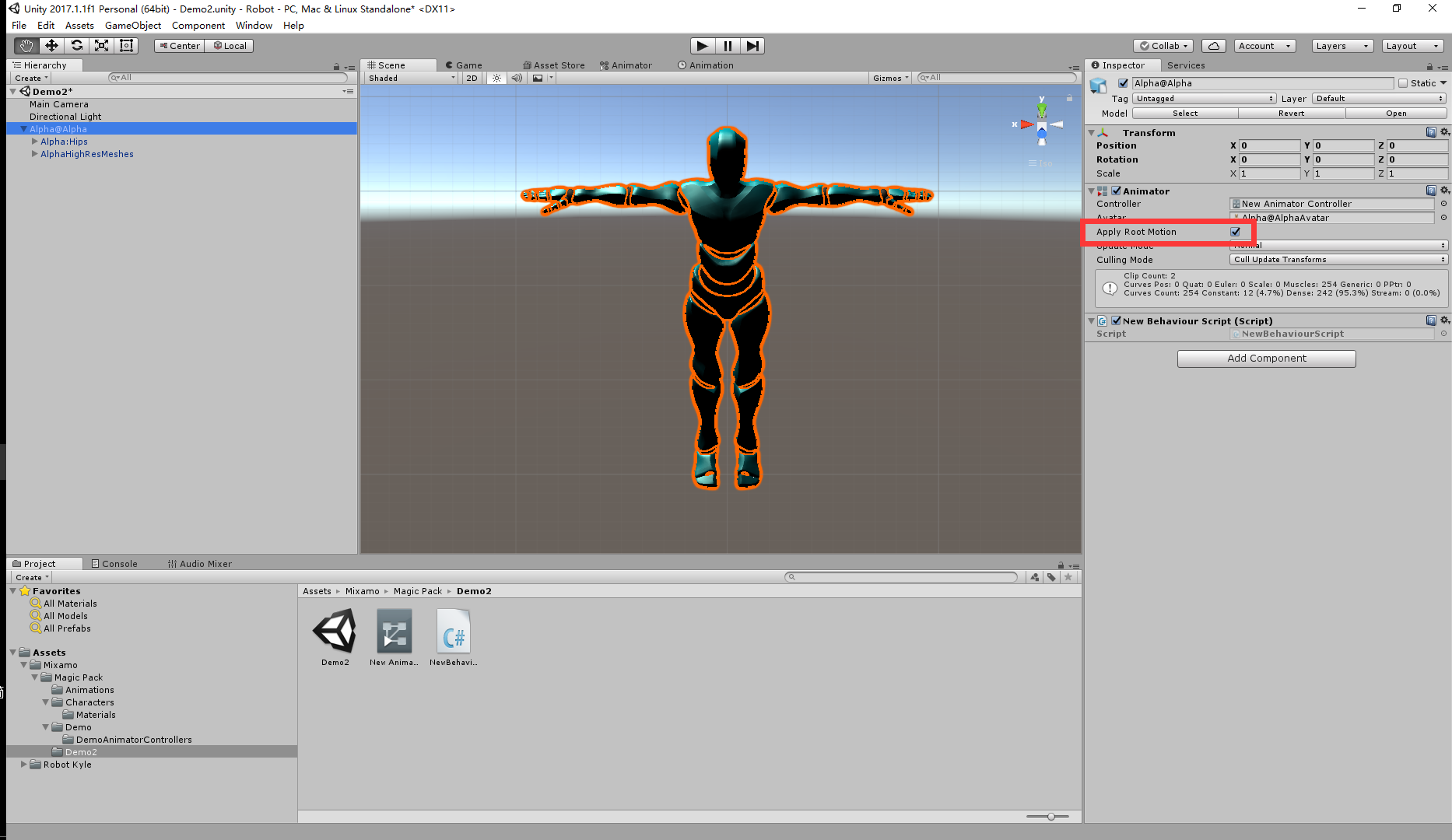
(1)Apply Root Motion
Location: Click on the character model in the Hierarchy panel, in its Animator component
(2)Bake Into Pose
Location: It is an attribute of Animation.
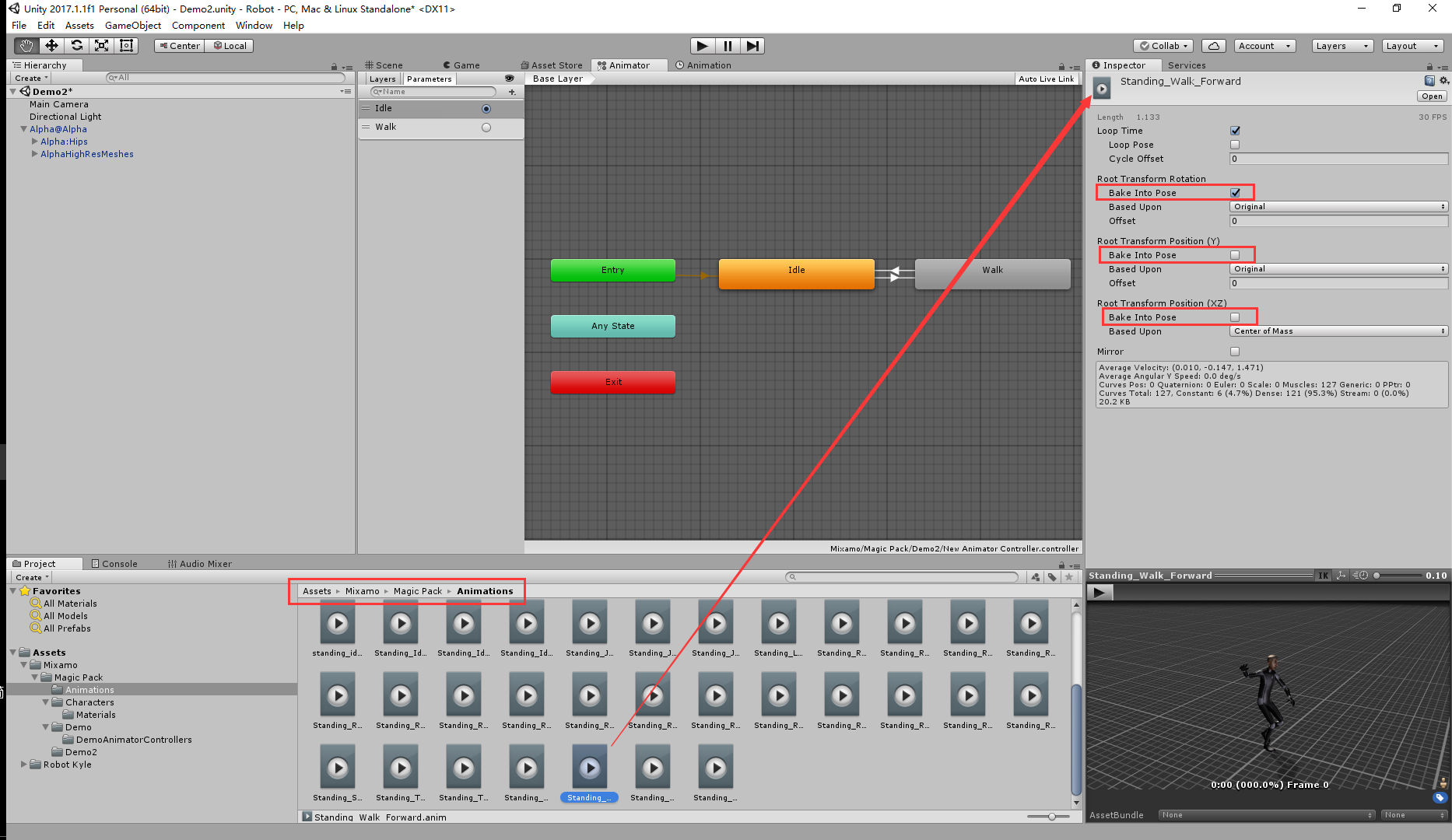
In untiy, the transformation in the animation is divided into two kinds, Body Transform and Root Transform, these two settings will affect each other.
If it is set to Body Transform (pose), these transformations are part of the animation itself, that is to say, no matter whether Apply Root Motion is set or not, in the scene, we will see changes in the position or angle of the model. (Because Body Transform does not affect the actual position and angle of the model, so here is just a pure animation effect, the position and angle parameter values of the model remain unchanged)
If set to Root Transform, Root Transform will affect the actual position and angle of the model (the premise is to set "Apply Root Motion", if you do not set Apply Root Motion, that is to say, the transformation will not be applied, the model position or angle in the scene There will be no change (the parameter value will naturally also remain unchanged), just like a walking animation, it may always be walking in place).
Then let’s focus on the “Apply Root Motion” here. Here it will play two roles. The first and most important thing is to decide whether to apply Root Transform. If so, then at the same time as the animation, the position of the model and The angle will change at the same time. If it is not checked here, then it means that Root Transform is not applied, so that all of our Root Transforms will have no effect. (That is equivalent to all transformations without Bake into Pose are useless).
The second function of Apply Root Motion is to apply the changes in Body Transform to the model after the animation is over (note that this is only applied at the end, that is to say, during the animation, the position, rorate and other parameters of the model are not Change, when the animation is over, it will change before starting a new animation, pay attention to the difference between this and the aforementioned Root Transform)
Scenario analysis
[Test under Standing_work_forward.anim animation]
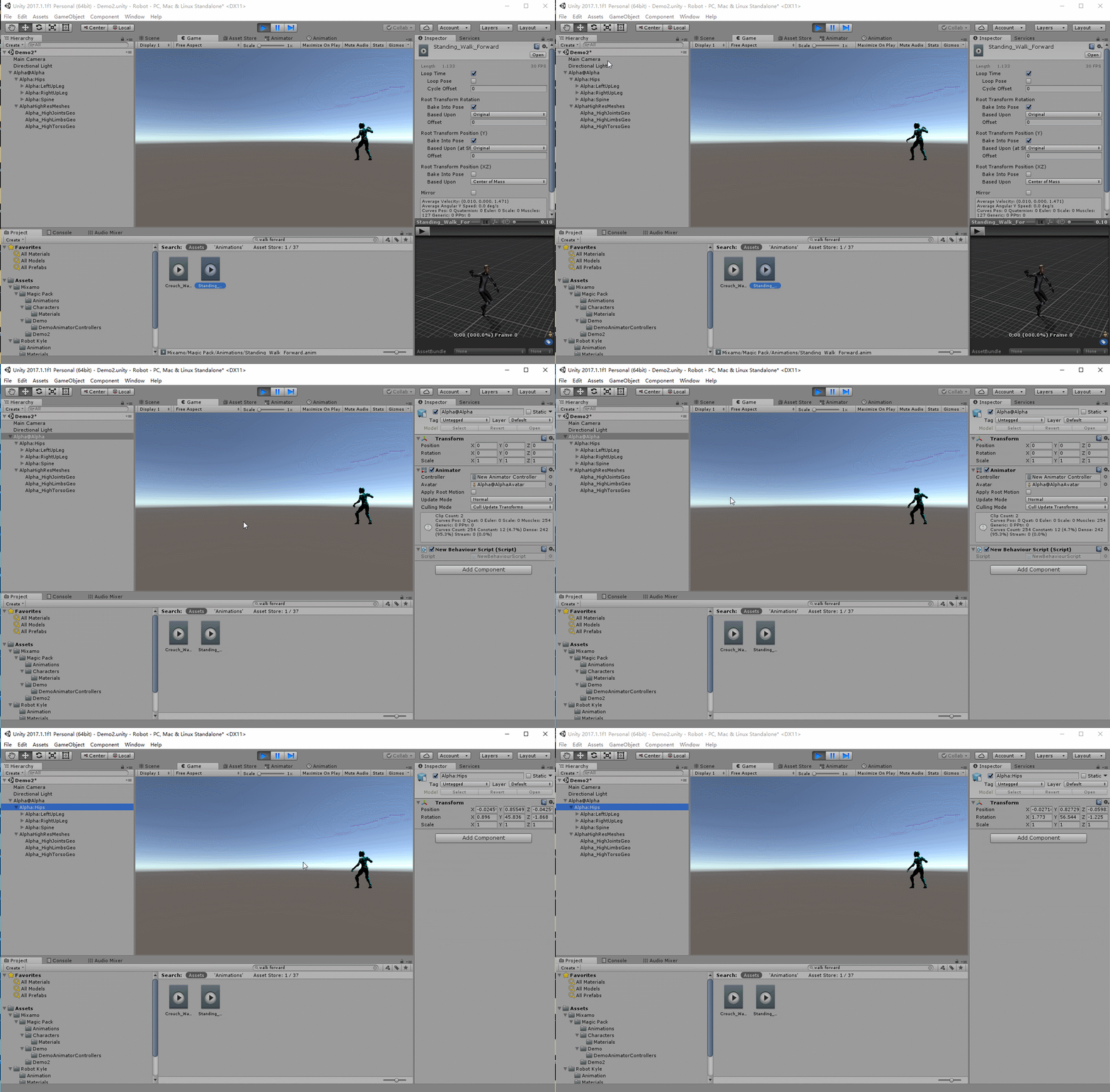
Run the scene, click the cross cursor (shortcut key W), you can see that in the Idle state, the bones of the model are actually moving all the time, but the position property of its parent object, which is an empty GameObject, remains unchanged.
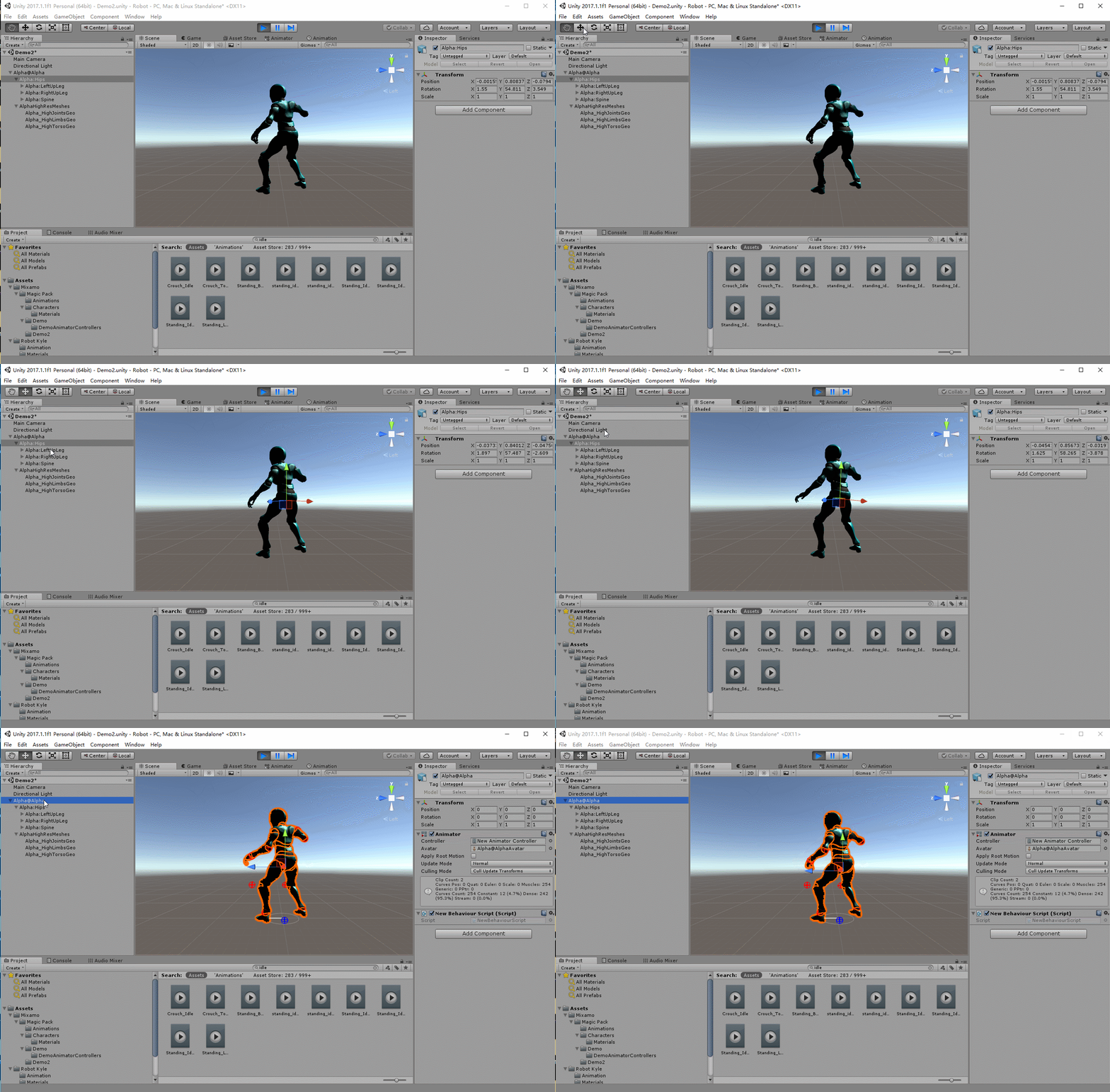
[Test under Standing_work_forward.anim animation]
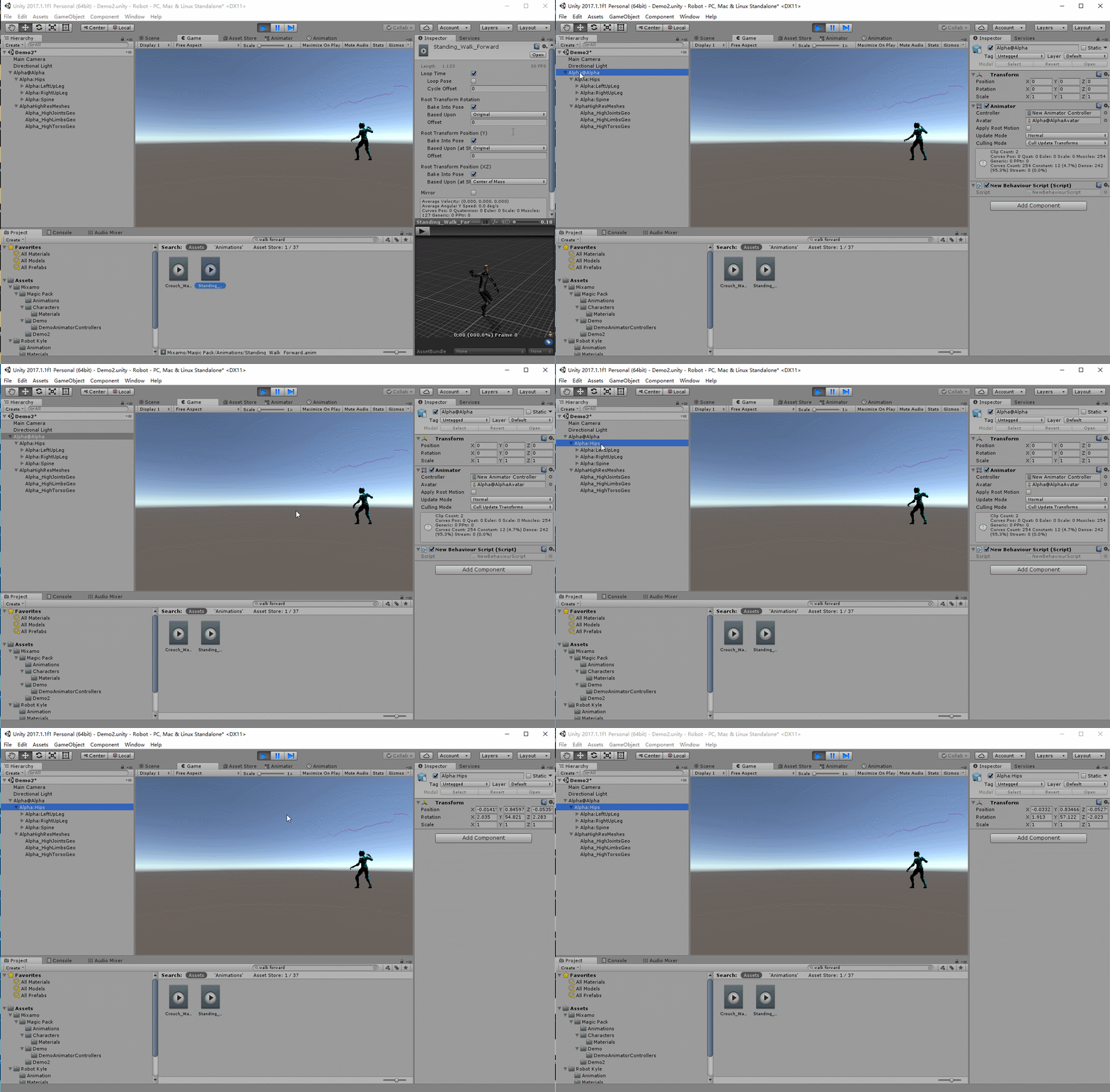
(1) Check "Bake into Pose" and uncheck "Apply Root Motion"
[Walk ahead from the same place every time]
After checking "Bake into Pose", the transformation belongs to Body Transform, so even if "Apply Root Motion" is not checked here, the animation will still be reflected in the scene, and the characters will follow the animation Path walking (but if we observe the position parameter of the model in the Inspector, the value has not changed). But because Apply Root Motion is not checked, the transformation will not be applied to the model after the animation ends. So if you start a new animation at this time, the model will instantly return to the starting position (when the new animation starts, the model At the beginning of the walking animation).
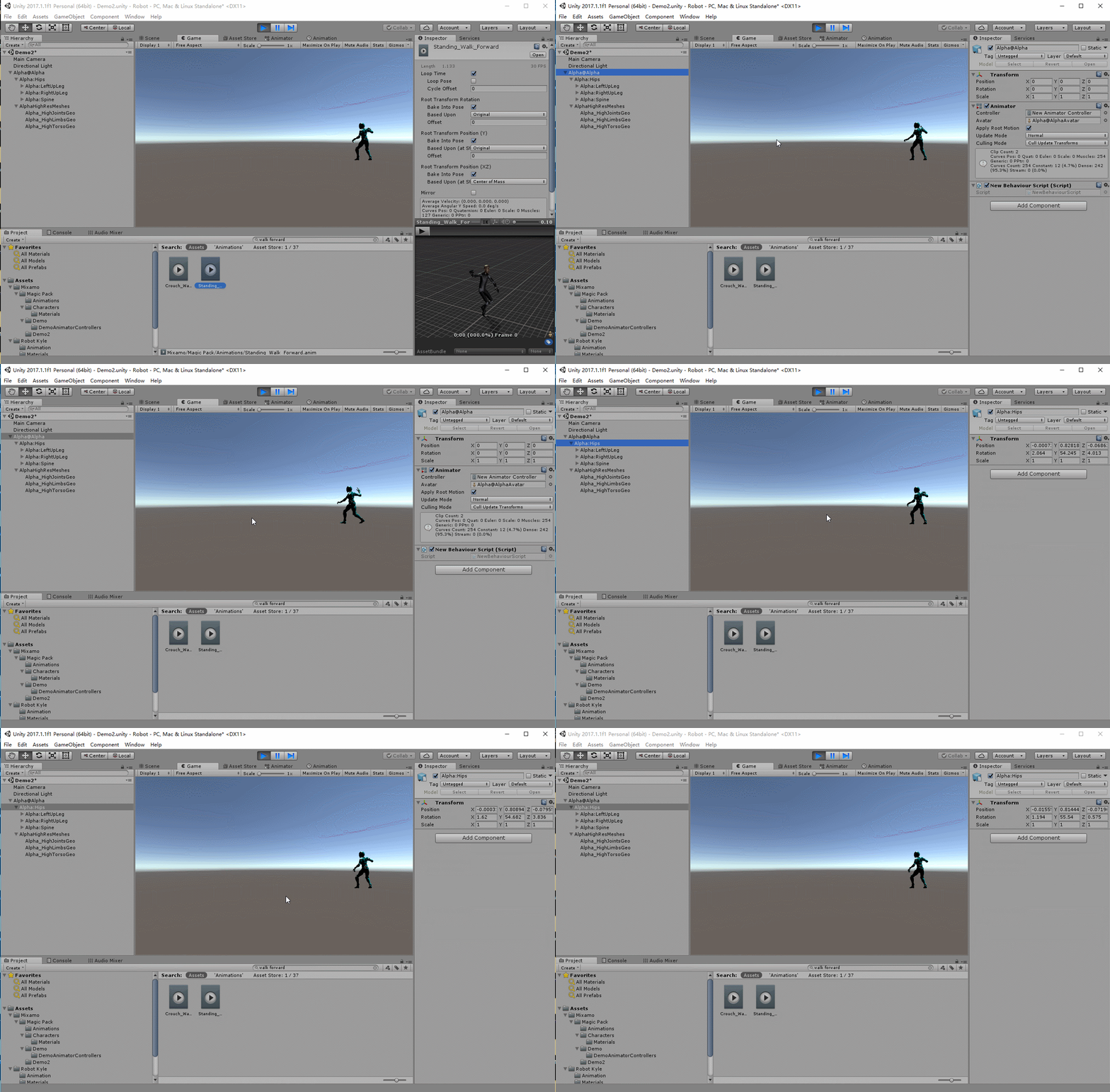
(2) Check "Bake into Pose", check "Apply Root Motion"
[Walk ahead from the same place every time]
After checking “Bake into Pose”, “Apply Root Motion” is locked as unchecked, so the effect is the same as scenario 1.
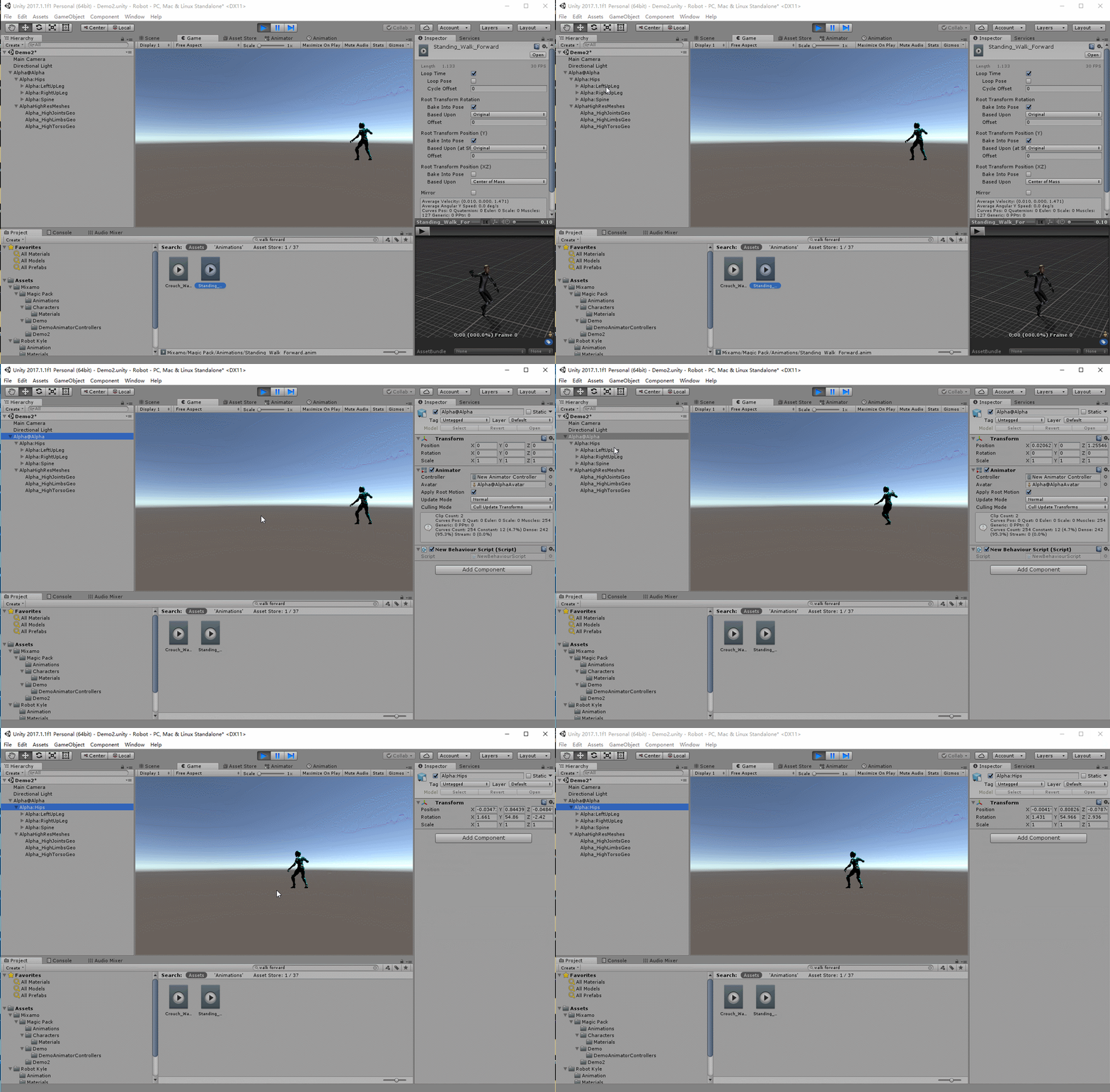
(3) Uncheck "Bake into Pose", check "Apply Root Motion"
[Walk forward]
Transformation is used as Root Transform, so because Apply Root Motion is checked here, the transformation will be applied to the model (the position of the model changes continuously with the animation), naturally, when the new animation starts , The model is at the position at the end of the animation.
(4) Uncheck "Bake into Pose" and uncheck "Apply Root Motion"
[Walk in place]
The change here is still used as Root Transform, but because Apply Root Motion is not checked, the transformation will not be applied, so the model will always be in place, naturally, when the new animation starts, the model is in The position at the beginning of the walking animation.
Intelligent Recommendation
Resolve Permission denied: user=root, access=WRITE, inode=&quot;/&quot;:hdfs:supergroup:drwxr-xr-x
When we install components such as Hadoop with cloudera, we may encounter such problems when operating HDFS. Permission denied: user=root, access=WRITE, inode="/":hdfs:supergroup:drwxr...
axis2 File &quot;/axis2-web/listSingleService.jsp&quot; not found
Check service.xml service name is correct...
Exception in thread &quot;AWT-EventQueue-0&quot; java.lang.NullPointerException
An exception occurred when adding a mouse listener events awt Swing project Exception in thread "AWT-EventQueue-0" java.lang.NullPointerException at day02.LoginFrame$MyAct...
Spring Security There is no PasswordEncoder mapped for the id &quot;null&quot;
java.lang.IllegalArgumentException: There is no PasswordEncoder mapped for the id "null" at org.springframework.security.crypto.password.DelegatingPasswordEncoder$Unmapp...
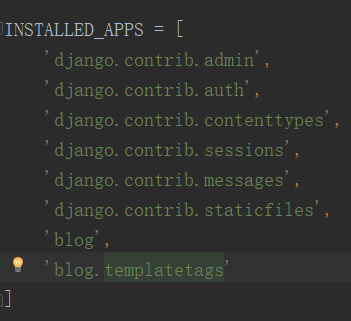
django.template.exceptions.TemplateSyntaxError: '&quot;myfilter&quot;' is not a registered tag libra
Error may: 1. Create a new file in your templatetags app directory folder is defined as the package did not create __init__.py 2. issue written procedures Create a file in templatetags myfilter.py htm...
More Recommendation
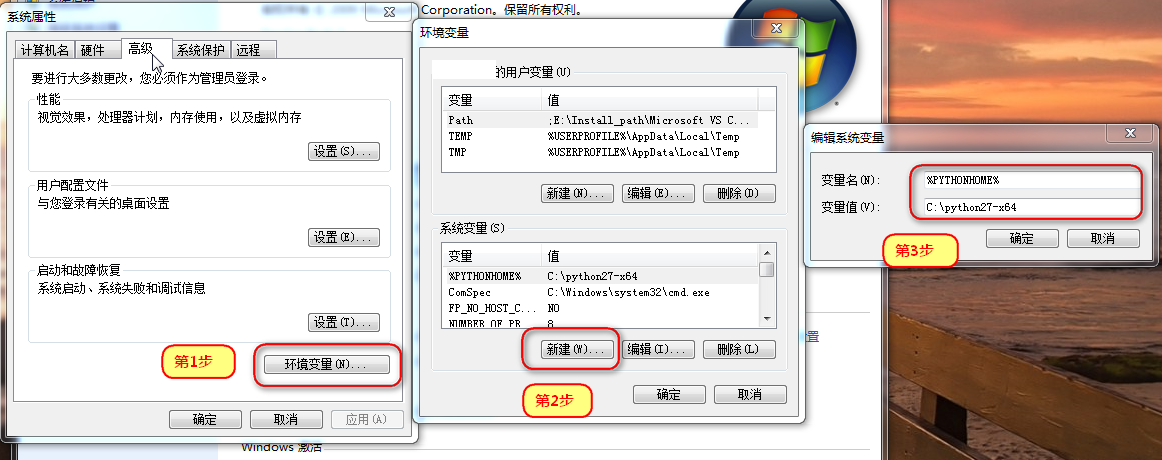
IDA 7.0 Python import &quot;site&quot; failed
The pit of my relatively long time, in order to prevent other people into the pit, on the timely write a blog to tell the others, in line withKnowledge and technology sharing principle. Because these ...
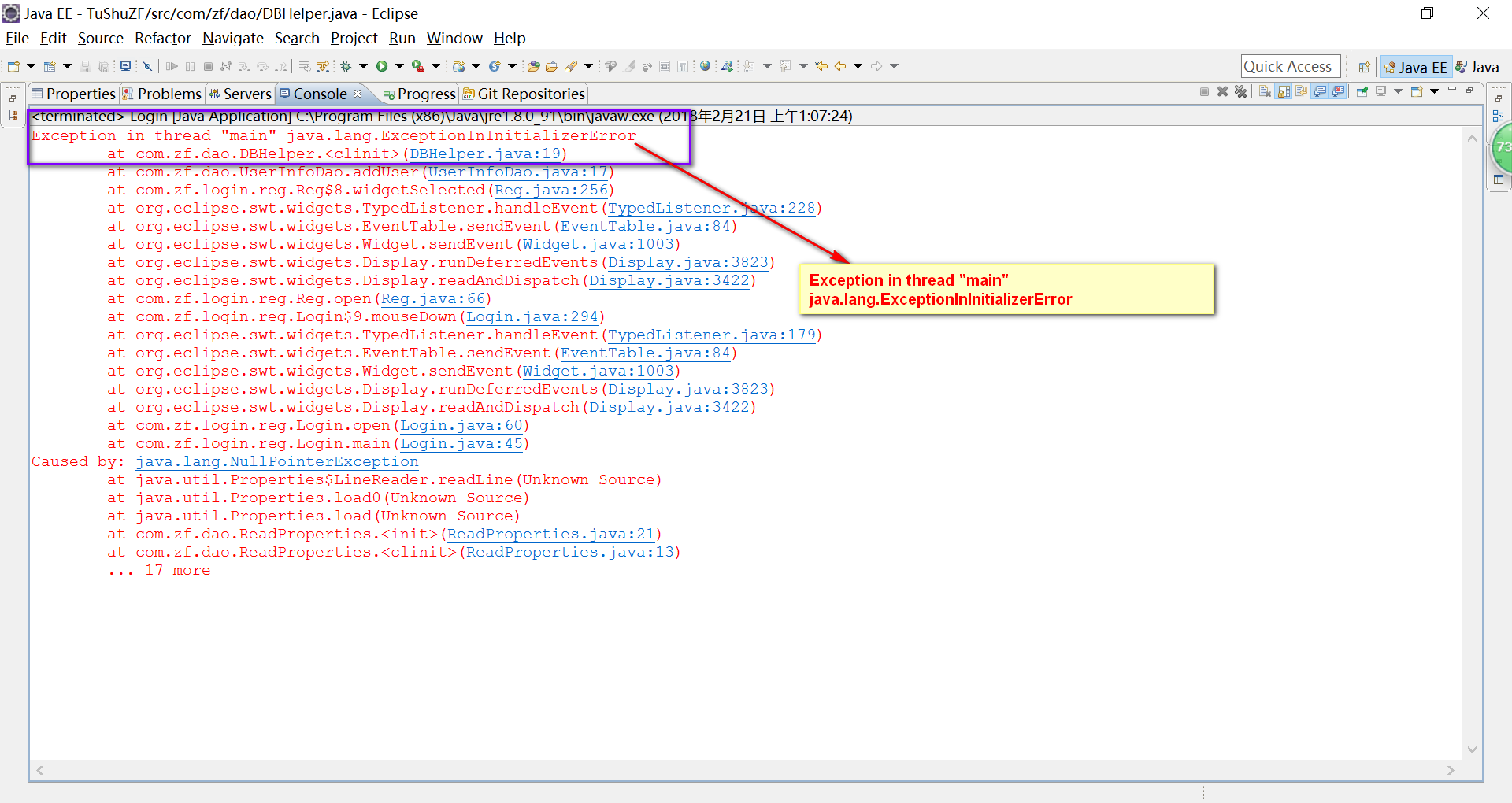
Exception in thread &quot;main&quot; java.lang.ExceptionInInitializerError
Exception in thread "main" java.lang.ExceptionInInitializerError. Today, the above error prompt abnormal main thread "Properties" when writing programs with DBHelper As shown below...

Exception in thread &quot;main&quot; java.lang.NoSuchMethodError:
1. The following error appears in the maven-jstorm project: 2. The reason is: the jar package required by jstrom is not installed Solution: downloadjstormSource package download link: https://github.c...
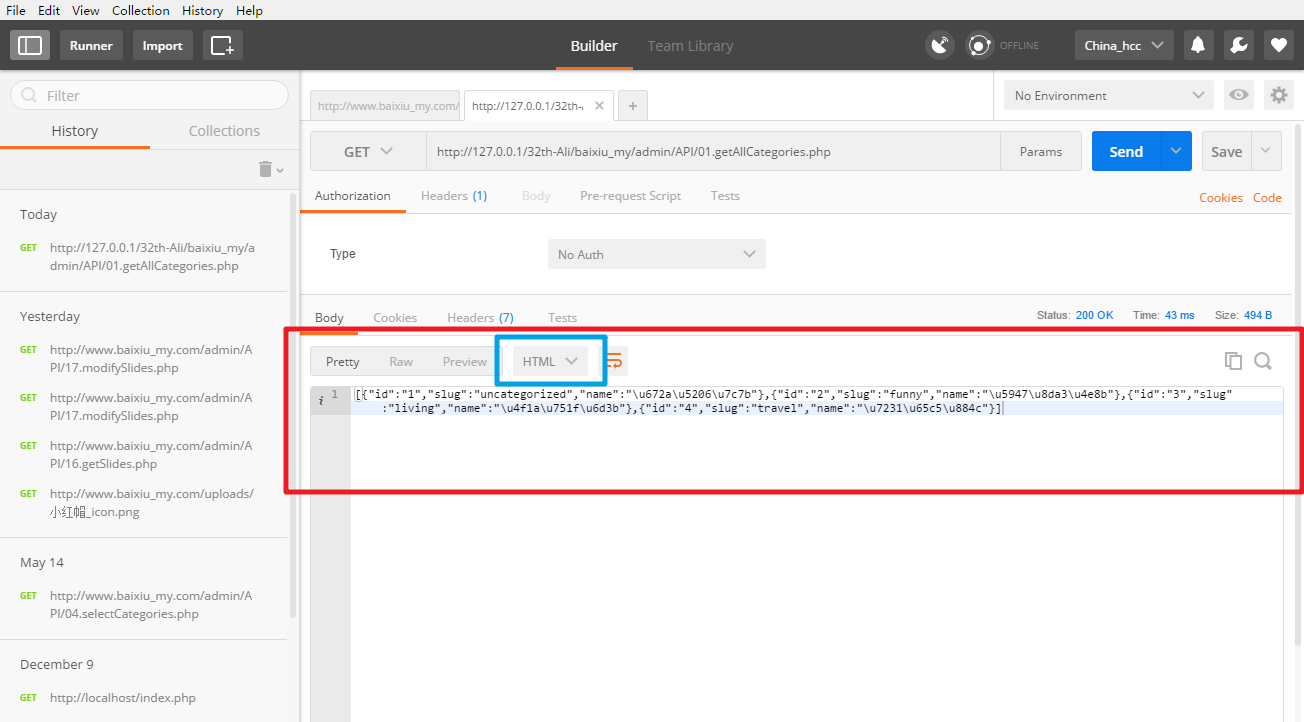
header(&quot;content:application/json;chartset=uft-8&quot;)
demand Get content from the database and convert it to JSON format tool The Postman tool is used here as a verification of the PHP file interface (API) Code snippet 1(Without using header) First look ...

ScrollView’s handy trick--android:fillViewport=&quot;true&quot;
ScrollView is one of Android’s most commonly used widget and is also one of the easiest to use. When something is too big to fit on screen, drop it inside a ScrollView and you&rsq...