Unity Gizmos draws the camera's viewport, frustum and FOV
tags: Unity Camera FOV
Unity Gizmos draws the camera's viewport, frustum and FOV
First, the purpose
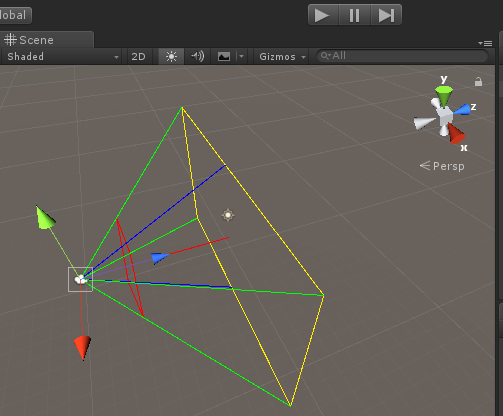
Due to development needs, it is necessary to draw the camera's viewport, frustum, and FOV in order to observe some relationships between the game object and the camera in order to facilitate the development of the game.
Two, the main points
1) Draw in OnDrawGizmos() and OnDrawGizmosSelected(), choose one of them
Note: OnDrawGizmosSelected() displays the drawing result when the mounted object is selected
2) Debug.DrawLine() function to draw related line segments
3) The fieldOfView and aspect related parameters of the camera, as well as the viewport distance, plus the mathematical triangle relationship, calculate the relevant key points
Three, matters needing attention
1) Mount the script to the objects that need to draw the camera viewport, frustum and FOV

Fourth, the effect preview
Five, code preview
using System.Collections;
using System.Collections.Generic;
using UnityEngine;

/// <summary>
/// Debug draws the camera's viewport, frustum and FOV
/// </summary>
public class DrawLineCamereViewHelper: MonoBehaviour
{
         public float _farDistance = 10;//Far viewport distance
         public float _nearDistance = 3;//Near viewport distance

    private Camera _camera;
    private Transform _camTrans;


    void Start()
    {


    }

    /// <summary>
         /// Draw graphics
    /// </summary>
    void OnDrawGizmos()
    {
        Debug.Log("OnDrawGizmos");
        if (_camera == null)
        {
            _camera = this.GetComponent<Camera>();
            _camTrans = _camera.transform;
        }
        OnDrawFarView();
        OnDrawNearView();
        OnDrawFOV();
        OnDrawConeOfCameraVision();

    }

    /// <summary>
         /// Display and draw graphics when selected
    /// </summary>
    void OnDrawGizmosSelected() {
        //Debug.Log("OnDrawGizmosSelected");
        //if (_camera == null)
        //{
        //    _camera = this.GetComponent<Camera>();
        //    _camTrans = _camera.transform;
        //}
        //OnDrawFarView();
        //OnDrawNearView();
        //OnDrawFOV();
        //OnDrawConeOfCameraVision();
    }

    /// <summary>
         /// Draw a far viewport
    /// </summary>
    void OnDrawFarView()
    {
        Vector3[] corners = GetCorners(_farDistance);

        // for debugging
        Debug.DrawLine(corners[0], corners[1], Color.yellow); // UpperLeft -> UpperRight
        Debug.DrawLine(corners[1], corners[3], Color.yellow); // UpperRight -> LowerRight
        Debug.DrawLine(corners[3], corners[2], Color.yellow); // LowerRight -> LowerLeft
        Debug.DrawLine(corners[2], corners[0], Color.yellow); // LowerLeft -> UpperLeft


                 //Center line
        Vector3 vecStart = _camTrans.transform.position;
        Vector3 vecEnd = vecStart;
        vecEnd += _camTrans.forward * _farDistance;
        Debug.DrawLine(vecStart, vecEnd, Color.red);
    }

    /// <summary>
         /// Draw a closer viewport
    /// </summary>
    void OnDrawNearView()
    {
        Vector3[] corners = GetCorners(_nearDistance);

        // for debugging
                 Debug.DrawLine(corners[0], corners[1], Color.red);//top left-top right
                 Debug.DrawLine(corners[1], corners[3], Color.red);//top right-bottom right
                 Debug.DrawLine(corners[3], corners[2], Color.red);//bottom right-bottom left
                 Debug.DrawLine(corners[2], corners[0], Color.red);//lower left-upper left
    }

    /// <summary>
         /// Draw the camera's FOV
    /// </summary>
    void OnDrawFOV()
    {
                 float halfFOV = (_camera.fieldOfView * 0.5f) * Mathf.Deg2Rad;//half fov
                 float halfHeight = _farDistance * Mathf.Tan(halfFOV);//distance distance position, half of the camera viewport height

                 //Starting point
        Vector3 vecStart = _camTrans.position;

                 //On the
        Vector3 vecUpCenter = vecStart;
        vecUpCenter.y -= halfHeight;
        vecUpCenter.z += _farDistance;

                 //Bottom middle
        Vector3 vecBottomCenter = vecStart;
        vecBottomCenter.y += halfHeight;
        vecBottomCenter.z += _farDistance;

        Debug.DrawLine(vecStart, vecUpCenter, Color.blue);
        Debug.DrawLine(vecStart, vecBottomCenter, Color.blue);
    }

    /// <summary>
         /// Draw the edge of the camera's viewing cone
    /// </summary>
    void OnDrawConeOfCameraVision() {
        Vector3[] corners = GetCorners(_farDistance);

        // for debugging
        Debug.DrawLine(_camTrans.position, corners[1], Color.green); // UpperLeft -> UpperRight
        Debug.DrawLine(_camTrans.position, corners[3], Color.green); // UpperRight -> LowerRight
        Debug.DrawLine(_camTrans.position, corners[2], Color.green); // LowerRight -> LowerLeft
        Debug.DrawLine(_camTrans.position, corners[0], Color.green); // LowerLeft -> UpperLeft
    }


         //Get the coordinates of the four corners of the camera viewport
         //Parameter distance viewport distance
    Vector3[] GetCorners(float distance)
    {
        Vector3[] corners = new Vector3[4];

                 //fov is the vertical field of view, horizontal fov depends on the aspect ratio of the viewport in degrees


                 float halfFOV = (_camera.fieldOfView * 0.5f) * Mathf.Deg2Rad;//half fov
                 float aspect = _camera.aspect;//Camera viewport aspect ratio

                 float height = distance * Mathf.Tan(halfFOV);//distance distance position, half of the camera viewport height
                 float width = height * aspect;//Half of the camera viewport width

                 //Top left
                 corners[0] = _camTrans.position-(_camTrans.right * width);//Camera coordinates-half of the viewport width
                 corners[0] += _camTrans.up * height;//+half of the viewport height
                 corners[0] += _camTrans.forward * distance;//+viewport distance

                 // top right
                 corners[1] = _camTrans.position + (_camTrans.right * width);//camera coordinates + half of the viewport width
                 corners[1] += _camTrans.up * height;//+Half of the viewport height
                 corners[1] += _camTrans.forward * distance;//+viewport distance

                 // bottom left
                 corners[2] = _camTrans.position-(_camTrans.right * width);//Camera coordinates-half of the viewport width
                 corners[2] -= _camTrans.up * height;//-half of the viewport height
                 corners[2] += _camTrans.forward * distance;//+viewport distance

                 // bottom right
                 corners[3] = _camTrans.position + (_camTrans.right * width);//camera coordinates + half of the viewport width
                 corners[3] -= _camTrans.up * height;//-half of the viewport height
                 corners[3] += _camTrans.forward * distance;//+viewport distance

        return corners;
    }
}
Intelligent Recommendation
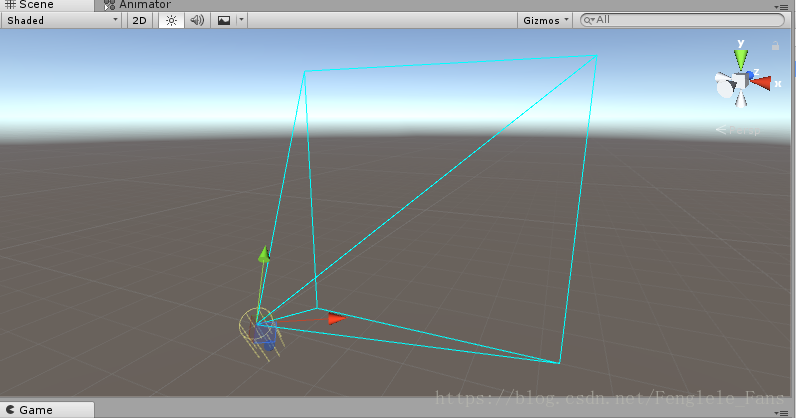
Description of auxiliary class Gizmos in Unity
Unity has an underlined auxiliary class, which is seen in many plug-ins, and it is still useful at some times. Here is actually a wave of hand testing. The script is as follows: Various effect picture...
Unity dynamically adapts camera FOV
According to the set field of view, automatically adjust the camera FOV at different resolutions ...
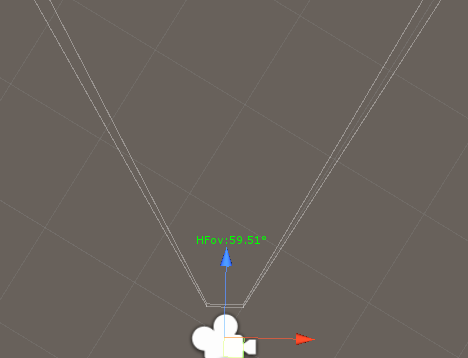
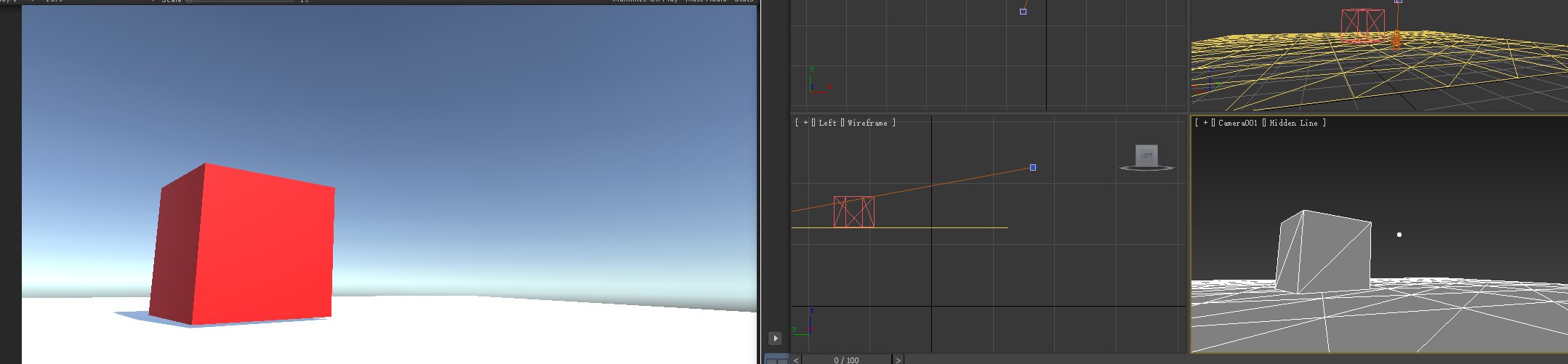
Unity camera introduced 3DMAX with fov
Unity camera introduced 3DMAX with fov First look at the renderings first Write a Unity tool 1. First pull the exported model to the camera node, you need to select the camera in Hierarchy as the root...
Unity Camera Fov angle conversion
Unity Camera Fov angle conversion...
More Recommendation

FOV
Angle of view (FOV) field angle of view, the angle range of the camera image may be received, may be often referred to as the field of view. Generally the lens image circle are large enough to cover o...
Unity - the magical Gizmos auxiliary wireframe class
Often see these in the sceneWireframe, icon shapeI seem to have never noticed. . . . This is all thanks to Gizmos. Gizmos is here You can adjust the options and values to see the effect. Change the ...

Unity Editor Extension Chapter 2—Gizmos
Use Gizoms to draw grids and matrix transformations 1. Create a Leve class as a scene control class: 2. Create the EditorUtil class as a helper class: 3. Create the MenuItems class as an editor...

Unity Editor Basics (V): Gizmos auxiliary frame
Create the following directory structure in the project or in new projects before: If it is a new project, simply create Scripts and Gizmos like. The article used the API: Por...