Notepad++ removes comments from the code to remove // single-line comments and /**/multi-line comments
You need to clear the comments in the code when applying for software copyright. You can quickly complete the combination of word and Notepad++.
1. Use Word's Insert File function to merge multiple source code files by opening a new word file and finding "Object" under the "Insert" tab. Click on the small triangle drop-down menu on the right to select "File in File". ..", then select the file to be merged in the file selection dialog box that pops up. If the required file is not displayed in the dialog box, the file type filter may be selected incorrectly, and change to "All files (*.*) )" should be able to see. After selecting the file, click "Insert (S)". Next, the encoding type selection dialog box may pop up. There is a file preview below, and the encoding format that allows the text to be displayed correctly can be selected. A little annoying is that each file has to be selected once.
2. Use Notepad++ to delete comments by:
First open a new blank file in Notepad++, then copy the text in the word file in step 1 and copy it in Notepad++, then use the “replace” function to delete the comment.
1) Delete // start comment
Select "Search" -> "Replace" from the menu, in the "Find Target" box in the pop-up replacement dialog box, fill in the ..* (excluding the colon:), and the "Replace with" box is left blank. Do not even have spaces. In the "Search Mode", select "Regular Expression" and the selection box on the right side of "□. Match New Line" is cleared. As shown below:
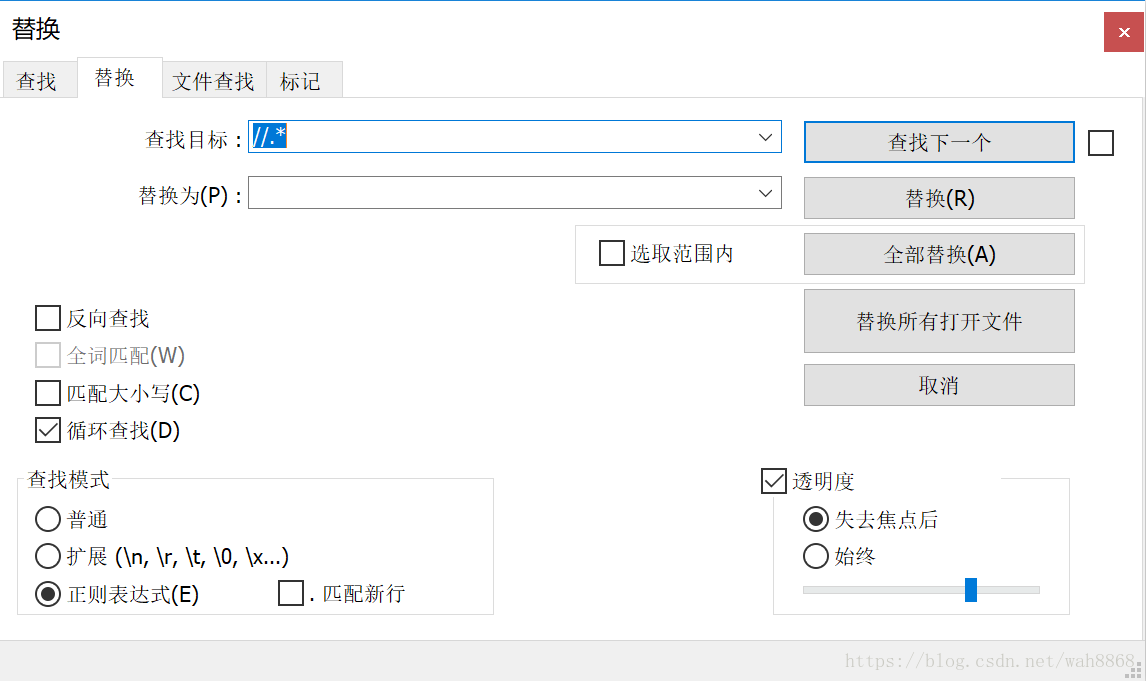
You can click “Find Next” to see if the selected text is the content you want to delete. After each click, the content that appears every time is the comment to be deleted, indicating that the found target is indeed the content to be deleted. You can click on "Replace All" to delete them all.
2) Delete the comment between "/* */". The operation steps are the same as the previous step, just change the expression in the "Find Target" box to: /\*.*?\*/ (excluding the colon:) , the "Replace with" box is left blank, not even spaces. In the "Search Mode", select "Regular Expression" and the selection box on the right side of ". Match New Line" is checked. As shown below:
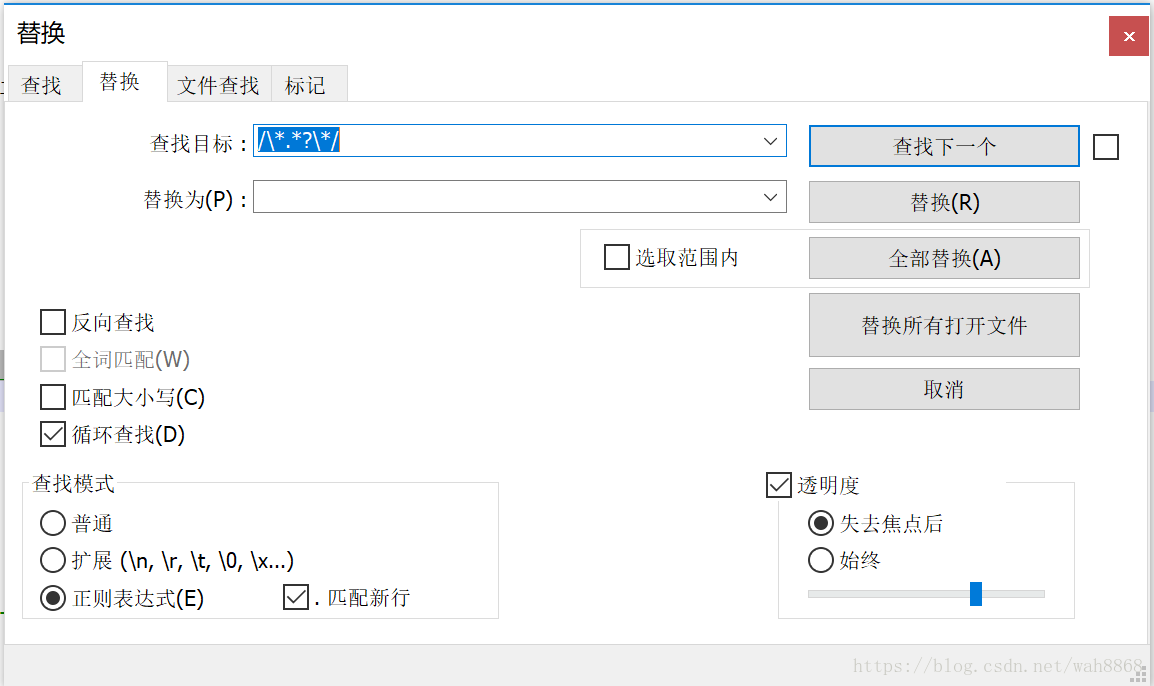
First click "Find Next" to see if the selected text is the content to be deleted. After each click, the content that appears every time is the comment to be deleted, indicating that the found target is indeed the content to be deleted. You can delete them all by clicking "Replace All".
3) Delete the blank line, the operation method is: edit -> line operation -> remove the blank line (including blank characters)
4) Delete the trailing space, the operation method is: edit -> blank character operation -> remove the trailing space
5) Tab to space, the operation method is: edit -> blank character operation -> TAB to space
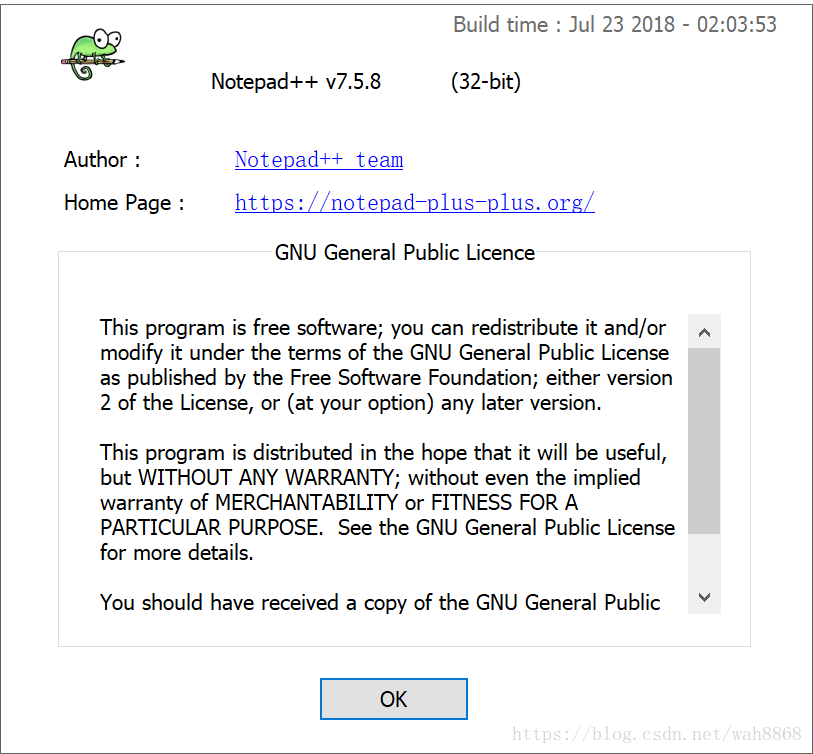
The above operation is to take advantage of Notepad++'s regular expression function, using Notepad++ version v7.5.8 (32bit)
For detailed usage of regular expressions, please see the following article:
Intelligent Recommendation
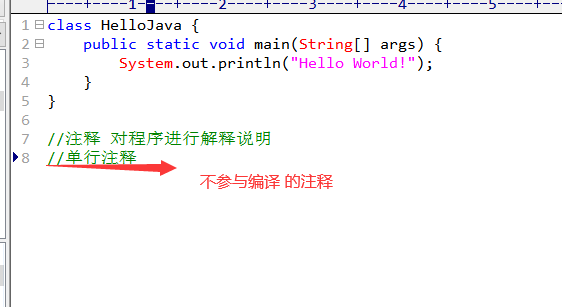
JAVA comments Single-line comments Multi-line comments Explanation of documentation comments (Basics of Xiaobai)
JAVA comment (Comment) 1. Annotation types in Java == Improve the readability of the code, facilitate subsequent changes and search, an important method for debugging the program == Comments are a goo...
Single-line comments and multi-line comments in HTML, CSS, javascript
HTML comments: Css note: JS notes:...
Usage of multi-line comments and single-line comments in C/C++
In the C/C++ programming language, comments are divided into two types, one is multi-line comments and the other is single-line comments. The writing of multi-line comments starts with the "/*&qu...
Two practical methods for single-line comments and multi-line comments in Shell!
Regarding single-line comments and multi-line comments in the shell, this document introduces two practical methods. The text contains a long code that can be copied and can be swiped to the left, I h...
Single-line comments and multi-line comments in HTML, CSS, and javascript
HTML comments: css notes: JS comment:...
More Recommendation
JavaScript annotation (multi-line comments + single-line comments)
JavaScript annotation (multi-line comments + single-line comments) The comment is a string of characters that are not parsed. JavaScript comments have two methods: Untrue annotation:// A single line c...
Shell script single-line and multi-line comments
Reprinted at: https://www.jianshu.com/p/205a7dfed3e6...
SQLServer single-line and multi-line comments
surroundings:SQLServer 2008 R2 Question: unknownSQLServer Usage in the comment. solve: Single-line comments:-- Multiline comments:/*......*/ Example of use: Single-line comments: Multiline comments:...
linux shell single line multi-line comments
1. Single-line comments, using the symbol # 2. Multi-line comments (1) Use: <<!! (2) using the statement if false then fi ...
SQL single-line and multi-line comments
MySQL Single-line comments 1. Use the "#" 2. Use the "-" Note, - followed by a space Multi-line comments: Use the / * * / Oracle Single-line comments: - for example, Multi-line com...