Flutter Widget
tags: dart flutter Architecture
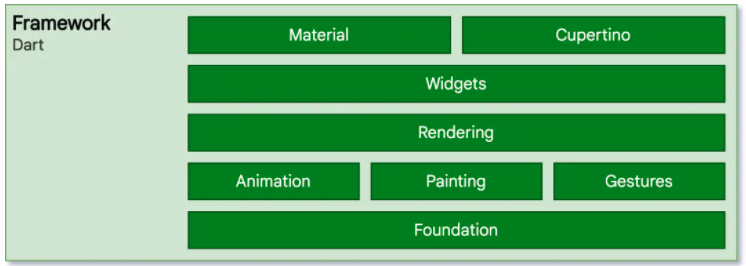
It is not difficult to see from the Flutter's architecture diagram that Widget is the basis of the entire view description. Flutter's core design ideas are
everything is a widget.
That is, everything is widget. Unlike "control" in native development, the concept of Widget in Flutter is more extensive. THEME, etc., used for APP theme data, and so on, controls in native development usually only refer to UI elements.
Widget in Flutter can be restrained with two rules:
- Everything is widget.
- Each Widget is only responsible for the part of your attention.
The first one means that what you see is composed of widget. Different from natively, some things related to some parameters in the native are widgets, such as size, background, margin, padding, etc. The things that were originally needed to be set to the parameter settled in the Flutter was mapping into a separate Widget.
The second meaning is that each Widget should only be responsible for your own responsibility, such as the text box Text component, only responsible for how to display a text, no other, no need to consider your size, location, margin, etc. Widget is responsible for this function to control it. As a text box, it is only responsible for the responsibility of the text box.
1. Introduction to widget
Next, we can further understand Widget through the official documentation of the source code (Flutter 2.0.6) and the source code. We first understand the description of Widget through the official documentation.
Describes the configuration for an [Element].
It can be known from the above document that in Flutter, the function of Widget is "Describe the configuration data of a UI element"In other words, widget does not actually mean the display element that is finally drawn on the device screen, and it just describes an configuration data of Element (the focus of this article is widget, and you will not introduce too much), tell you not too much), tell you not too much), tell you not too much), tell you not too much), tell you not too much), tell you not too much), tell you not too much), tell you not too much), tell you not too much), tell you not too much), tell you not too much). How to render the ELEMENT instance, we continue to look down.
/// Widgets are the central class hierarchy in the Flutter framework. A widget
/// is an immutable description of part of a user interface. Widgets can be
/// inflated into elements, which manage the underlying render tree.
Widgets is the core class in the Flutter framework, and a widget is part ofUnchangedThe description of the user interface, small components can expand into elements for management of the underlying rendering tree.
/// Widgets themselves have no mutable state (all their fields must be final).
/// If you wish to associate mutable state with a widget, consider using a
/// [StatefulWidget], which creates a [State] object (via
/// [StatefulWidget.createState]) whenever it is inflated into an element and
/// incorporated into the tree.
Widgets itself has no variable state (all of their fields must be final). If you want to be associated with widgets, consider using it
[StateFulwidget], it creates a [status] object (through [StateFulwidget.createstate]) when it is merged into a tree when it is inflate into an element)
/// A given widget can be included in the tree zero or more times. In particular
/// a given widget can be placed in the tree multiple times. Each time a widget
/// is placed in the tree, it is inflated into an [Element], which means a
/// widget that is incorporated into the tree multiple times will be inflated
/// multiple times.
The given widget can be included in zero or multiple times in the tree. Special Widget can be placed in the tree many times. Each time a Widget is placed in a tree, it swells into a [Element], which means that the small components that are combined into the tree multiple times will be involved multiple times.
/// The [key] property controls how one widget replaces another widget in the
/// tree. If the [runtimeType] and [key] properties of the two widgets are
/// [operator==], respectively, then the new widget replaces the old widget by
/// updating the underlying element (i.e., by calling [Element.update] with the
/// new widget). Otherwise, the old element is removed from the tree, the new
/// widget is inflated into an element, and the new element is inserted into the
/// tree.
[Key] The attribute controls how a small component replace another small component in the tree. If the [RuntimeType] and [Key] properties of the two small components are equal, the new components will replace the old components by updating the basic elements (calling [Element.Update]) by updating the basic elements. Otherwise, the old elements will be deleted from the tree, the new small components swell into elements, and new elements are inserted into the tree.
Organize, Widget is used to describe how to create Element. Widget itself is an indispensable object. All its fields must be final. When the object is taken from the old tree to the new tree, but in the same Widget Tree, a sub -widget can appear many times because it is just a design. In a rendering, the Flutter Framework will call the CreateElement () method of Widget. This method will create a new corresponding Element object and return, so even if the widget is reused, the framework will create multiple different Element objects.
2. Widget attributes and methods
The rest is the attributes and descriptions of widget. We will continue to look down next. This will be explained in the Widget source code
@immutable
abstract class Widget extends DiagnosticableTree {
  const Widget({ this.key });
  final Key? key;

  @protected
  @factory
  Element createElement();

  @override
  String toStringShort() {
    final String type = objectRuntimeType(this, 'Widget');
    return key == null ? type : '$type-$key';
  }

  @override
  void debugFillProperties(DiagnosticPropertiesBuilder properties) {
    super.debugFillProperties(properties);
    properties.defaultDiagnosticsTreeStyle = DiagnosticsTreeStyle.dense;
  }

  @override
  @nonVirtual
  bool operator ==(Object other) => super == other;

  @override
  @nonVirtual
  int get hashCode => super.hashCode;

  static bool canUpdate(Widget oldWidget, Widget newWidget) {
    return oldWidget.runtimeType == newWidget.runtimeType
        && oldWidget.key == newWidget.key;
  }

  static int _debugConcreteSubtype(Widget widget) {
    return widget is StatefulWidget ? 1 :
           widget is StatelessWidget ? 2 :
           0;
    }
}
- The Widget class inherits from Diagnosticabletree. Diagnosticabletree is the "diagnostic tree". The main role is to provide debugging information.
- Key: [Key] attribute to control how a small part is replaced by a tree. The main role is to determine whether the old widget is reused at the next Build, and the conditional condition is in the CanupDate () method.
- CreateElement (): As the "one widget can correspond to multiple element"; Flutter Framework will call this method to generate the Element object of the corresponding node when constructing a UI tree. This method is hidden by Flutter Framework, which will not be called during our development process.
- Debugfillproperties (...) The method of copying the parent class is mainly to set some characteristics of diagnostic trees.
- Canupdate (…) is a static method. It is mainly used to re -use the old Widget when re -built trees. In fact, specifically, it should be: whether the new Widget object is used to update the Element object corresponding to the old UI tree on the old UI tree Configuration; we can see through its source code, as long as the newwidget and the RuntimeType and KEY of OldWidget will be updated with newWidget to update the configuration of the Element object with NewWidget, otherwise it will create a new Element.
In addition, the Widget class itself is an abstract class. The core of which is the definition of the CreateElement () interface. In Flutter development, we generally do not need to directly inherit the Widget class to implement a new component. On the contrary, we usually inherit the StatelessWidget or StateFulWidget. To indirectly inherit the Widget class to implement.
See also:
///
/// * [StatefulWidget] and [State], for widgets that can build differently
/// several times over their lifetime.
/// * [InheritedWidget], for widgets that introduce ambient state that can
/// be read by descendant widgets.
/// * [StatelessWidget], for widgets that always build the same way given a
/// particular configuration and ambient state.
_ /// [StateFulwidget] and [state], _The components that can be constructed many times in its life cycle
/// _ [InheritedWidget], _ Introduce Widget that can be read by the environment that can be read by the offspring.
_ /// [StatelessWidget], _ always build a small component of specific configuration and environmental state in the same way
StatelessWidget and StateFulwidget are directly inherited from the Widget class, and these two classes are two very important abstract classes in Flutter. They introduce two Widget models. We will introduce these two categories one by one.
3. Widget key
There is a key parameter in the constructor of each Widget. What is the role of this parameter? ** Key is used to retain its state when changing the position of Widget. ** For example, retain the user's sliding position, or modify a Widget collection when retaining the Widget state, such as ROW and Column.
3.1 What is the key?
/// A [Key] is an identifier for [Widget]s, [Element]s and [SemanticsNode]s.
///
/// A new widget will only be used to update an existing element if its key is
/// the same as the key of the current widget associated with the element.
Key is a sign of Widget, Element and SemanticsNode.
Only when the key of a new component is the same as the key to the current element, it will be used to update the existing elements.
The common key in Flutter is:
- LocalKey
  - ObjectKey
  - UniqueKey
  - ValueKey
    - PageStorageKey
- GlobalKey
  - GlobalObjectKey
  - LabeledGlobalKey
3.2 When do you need to use Key?
Most of the time, but when you need to add, delete or adjust the order of the same type of Widget collection, you need to use Key. For example, in an APP to be done, we need to execute new matters, adjust the order order of priority, remove them after completing matters.
First understand why you need to use Key through a simple example. The following is a list of random numbers:

Randomnum is a statelesswidget:
class RandomNum extends StatelessWidget {
  final int num;
  RandomNum(): num = Random().nextInt(1000 * 1000), super();

  @override
  Widget build(BuildContext context) {
    return Padding(
      padding: EdgeInsets.all(8),
      child: Text('$num'),
    );
  }
}
When we click on the REORDER button, the random number list will be sorted, everything is normal. Then we changed Randomnum to StateFulwidget.
class RandomNum extends StatefulWidget {
  @override
  State<StatefulWidget> createState() => RandomNumState();
}

class RandomNumState extends State<RandomNum> {
  int num;

  @override
  void initState() {
    num = Random().nextInt(1000 * 1000);
    super.initState();
  }

  @override
  Widget build(BuildContext context) {
    return Padding(
      padding: EdgeInsets.all(8),
      child: Text('$num'),
    );
  }
}
At this point, click the REORDER button, and the numbers on the screen have not changed. What's going on?
We know that in Flutter, each Widget corresponds to an Element. Element tree is actually very simple. Only the type of related Widget is preserved and the connection to the element Element. Element trees can be regarded as the skeleton of the APP, which shows the structure of the app, but all additional information needs to be found by reference to Widget.
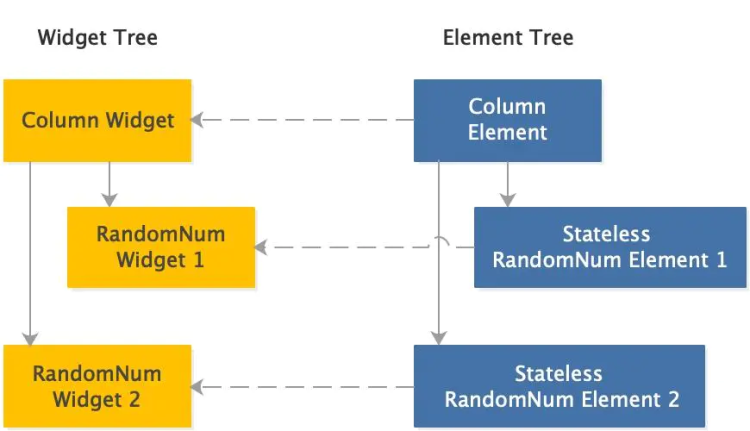
This is a stateless version of Widget and Element tree. When we change the order of ITEMS, Flutter traverses the Element tree to confirm whether the structure is changed, starting from the Element corresponding to the column, until all the descendants nodes. For each Element, Flutter checks the type of new Widget and whether the type is consistent with the currently referenced Widget. If it is consistent, the reference to the new Widget is cited. For Randomnum, because there is no key, Flutter only checks its type.
When we change the order of ITEMS, the Widget tree will be rebuilt, but because the structure is consistent with the previous, the Element tree structure will not change, but the Widget reference pointed by Element has changed. For statelessWidget, there is no problem. All information is stored in Widget, as long as the Widget tree is changed.
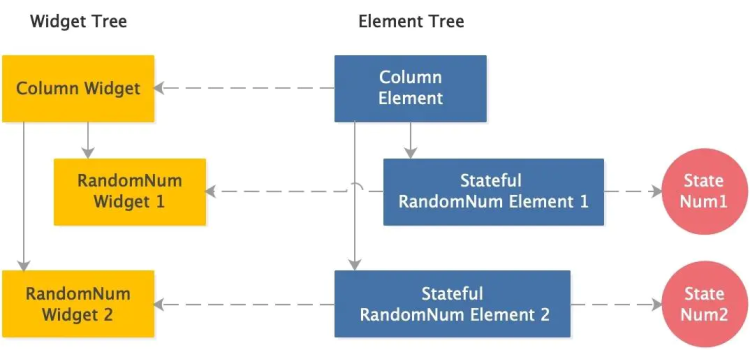
When Randomnum becomes StateFulwidget, the Widget tree and Element tree are the same as before, but adding a related state object. At this time, Num is no longer stored in Widget, but is stored in the State object. When we adjust the order of Widget, Flutter will still traverse the Element tree, check whether the tree structure changes, and update the reference to Widget.
Flutter determines the actual display content on the screen based on the Element tree and the associated state object. Therefore, the screen display content will not change. Now we add a key to Randomnum:
class _RandomNumAppState extends State<RandomNumApp> {
  List<RandomNum> items;

  @override
  void initState() {
    items = [
      RandomNum(key: UniqueKey()),
      RandomNum(key: UniqueKey()),
      RandomNum(key: UniqueKey()),
      RandomNum(key: UniqueKey()),
      RandomNum(key: UniqueKey()),
      RandomNum(key: UniqueKey()),
    ];
    super.initState();
  }
  ...
}

class RandomNum extends StatefulWidget {
  RandomNum({Key key}): super(key: key);

  @override
  State<StatefulWidget> createState() => RandomNumState();
}
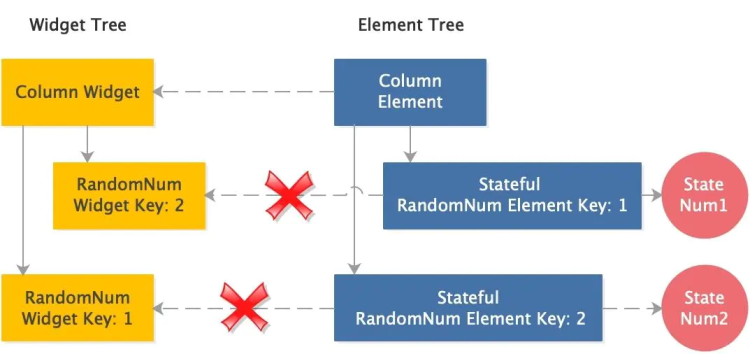
When we change the order of ITEMS, Flutter traverses the Element tree to check whether it needs to be updated. Column is the same as before, directly pointing the Widget to the new Widget. For the Element of Randomnum, because the key value of Element is different from the key value of the corresponding Widget, Flutter will temporarily fail this Element and remove the reference to it and its reference to Widget.
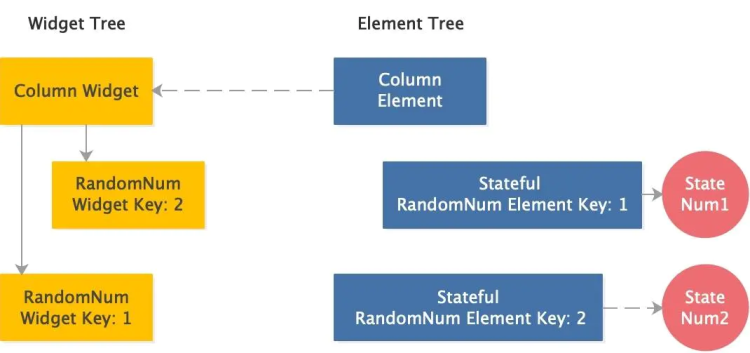
Then, starting with the first non -matching Widget, Flutter will find Element with the corresponding key value in all the failed sub -nodes. If you find it, you will point this Element's widget to this widget. Then do the same operation of the second widget, and so on.
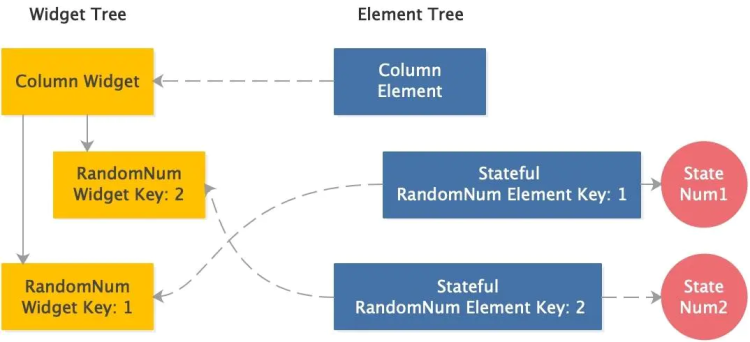
After the traverser is over, the reference to the Element tree is updated. At this time, Widget, Element, and State correspond to it.
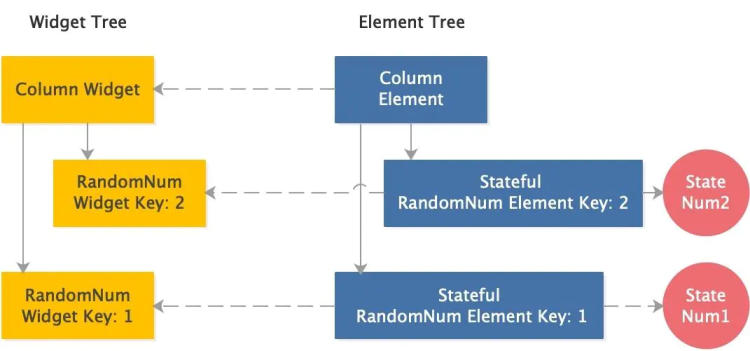
In summary, when we need to update a collection of a state, a collection of widgets of the same type, we need to use Key to retain the state of Widget.
3.3 Where should I use key?
When we need to use Key, what position should the key should be used in the Widget tree? ** The top layer of the Widget Tree that needs to be preserved. ** We have been talking about State just now. You may think that it should be used on the first statefulwidget, but this is wrong!
Modify the above example, we wrap the Randomnum, the statefulwidget in a padding::
class _RandomNumAppState extends State<RandomNumApp> {
  List<Padding> items;

  @override
  void initState() {
    items = [
      Padding(
        padding: EdgeInsets.all(4),
        child: RandomNum(key: UniqueKey()),
      ),
      Padding(
        padding: EdgeInsets.all(4),
        child: RandomNum(key: UniqueKey()),
      ),
      Padding(
        padding: EdgeInsets.all(4),
        child: RandomNum(key: UniqueKey()),
      ),
      Padding(
        padding: EdgeInsets.all(4),
        child: RandomNum(key: UniqueKey()),
      ),
    ];
    super.initState();
  }
}
Run the program again, we find that all the numbers are generated again every time, what's the matter? Let's take a look at the Widget and Element tree after adding padding.
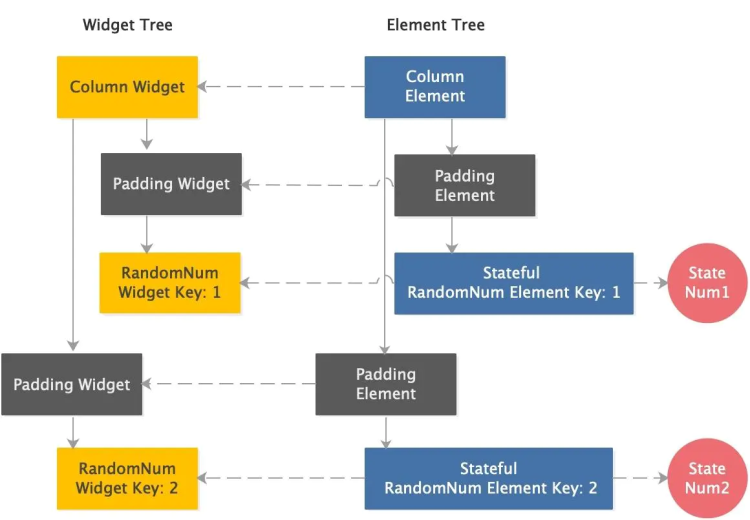
When we change the position of the Randomnum node, Flutter's Widget-To-Element algorithm algorithm is found in the tree in the tree. Let's look at the first layer first, the padding layer, temporarily ignore other nodes, just look at one layer at a time.
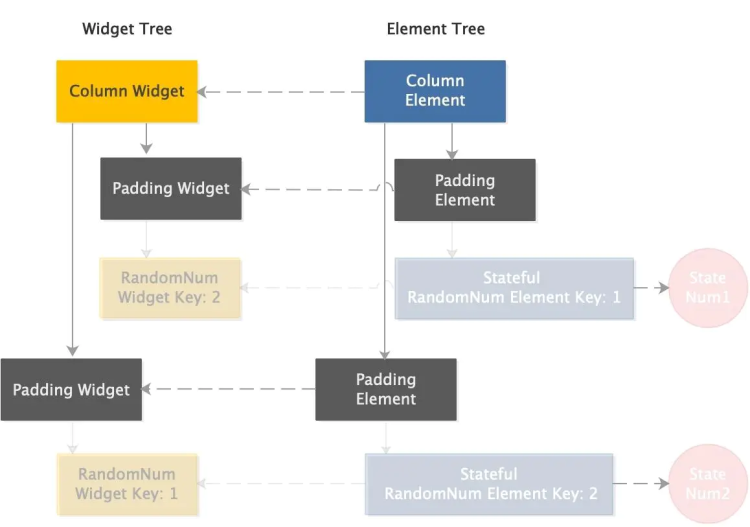
It can be seen that for the padding layer, after adjusting the order of Randomnum, the matching relationship has not changed. Padding has not yet kept, so it only needs to compare its type. Can.
Then look at the second layer, the first sub -tree corresponding to the first padding:
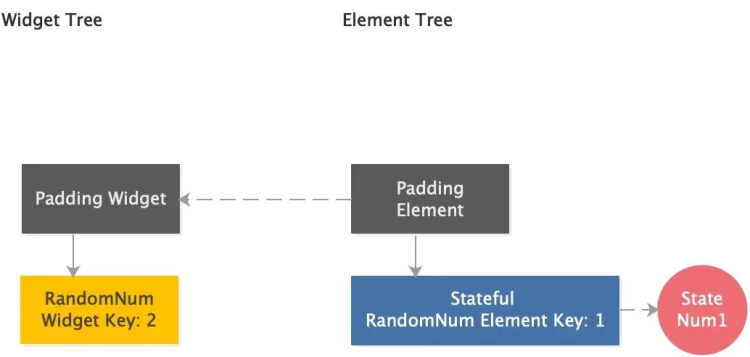
Element's key value does not match the key value of Widget, so Flutter will fail this Element and remove the connection to it. We use local key in the example, which means that Flutter will only use this key value at a level to match Widget and Element. Because it is impossible to find Element with the same key value at the same level, Flutter will re -create a new Element and give a new state object. Therefore, we see that all the numbers are re -created.
If we use Key on padding, Flutter will perceive the change and correctly update the connection, just like the example above.
class _RandomNumAppState extends State<RandomNumApp> {
  List<Padding> items;

  @override
  void initState() {
    items = [
      Padding(
        key: UniqueKey(),
        padding: EdgeInsets.all(4),
        child: RandomNum(),
      ),
      Padding(
        key: UniqueKey(),
        padding: EdgeInsets.all(4),
        child: RandomNum(),
      ),
      Padding(
        key: UniqueKey(),
        padding: EdgeInsets.all(4),
        child: RandomNum(),
      ),
      Padding(
        key: UniqueKey(),
        padding: EdgeInsets.all(4),
        child: RandomNum(),
      ),
    ];
    super.initState();
  }
  ...
}
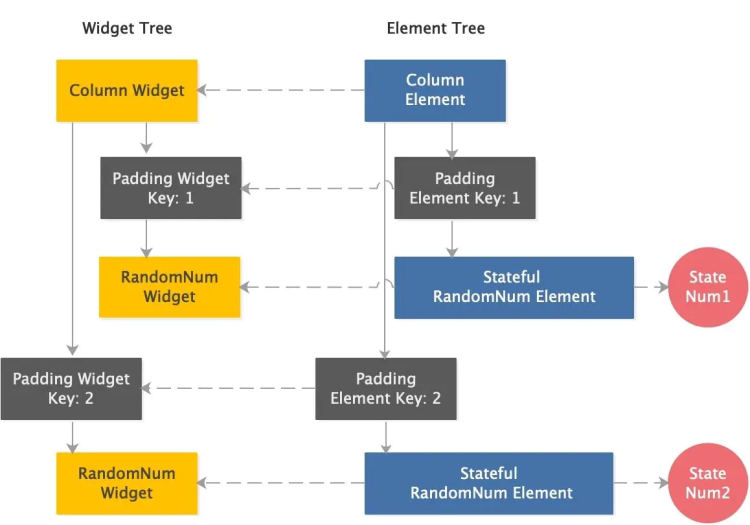
3.4 What type of key should be used?
We already know when we need to use Key and where should we use Key. However, if we look at the Flutter document, we will find that there are many types of key, so what type of key should be used?
When we modify a Widget collection, just like the above set of numbers, we only need to distinguish from the key of other widgets. For this situation, you can choose according to the information saved in Widget.
- LocalKey
When we modify a Widget collection, just like the above set of numbers, we only need to distinguish from the key of other widgets. For this situation, you can choose according to the information saved in Widget.
- ValueKey
Equivalence is determined by its value attribute.
In a list of to do it, if the text of each list item is unique, then ValueKey is a good choice. The text is used as its value:
return TodoItem(
  key: ValueKey(todo.task),
  todo: todo,
  onDismissed: (direction) {
    _removeTodo(context, todo);
  },
);
- ObjectKey
The equal nature is determined by its similar value attribute.
What if the combination of complex information is kept in Widget? For example, in a address book app, each person's information has many items:
AddressBookEntry:
  FirstName: Hob
  LastName: Reload
  Birthday: July 18

AddressBookEntry:
  FirstName: Ella
  LastName: Mentary
  Birthday: July 18

AddressBookEntry:
  FirstName: Hob
  LastName: Thyme
  Birthday: February 29
Any information may not be the only one, the name and birth date may be repeated, but the combination of information is unique. ObjectKey may be the most suitable.
- UniqueKey
Just equal to yourself.
If the value of multiple widgets is the same, or if you want to ensure the uniqueness of each key, you can use UniqueKey. UNIQUEKEY is used in the above example, because we did not save any unchanged and unique data in Widget. The number needs to be determined until the Randomnum is constructed or initState.
- PageStorageKey
definitionPageStorageWhere is the value of the value?
The scroll list (ScrollPosition) uses the PageStorage to save the rolling position. Each time the scroll stops, the value saved in the PageStorage will be updated.
void didEndScroll() {
  activity.dispatchScrollEndNotification(copyWith(), context.notificationContext);
  if (keepScrollOffset)
    saveScrollOffset();
}

@protected
void saveScrollOffset(){
  PageStorage.of(context.storageContext)?.writeState(context.storageContext, pixels);
}
PageStorage is used to save and restore data longer than the Widget's life cycle. These data are stored in a per-Route Map. Key is determined by Widget's PageStorageKey and its ancestral nodes. To enable the widget to find the saved value when reconstruction, the Identity of the key value must remain unchanged every time Widget is built.
For example, in order to ensure that the rolling position of each MyScrollabletabView can be restored during the reconstruction of TabbarView. We specify the PAGESTORAGEKEY for it:
TabBarView(
  children: myTabs.map((Tab tab) {
    MyScrollableTabView(
      key: PageStorageKey<String>(tab.text), // like 'Tab 1'
      tab: tab,
    ),
  }),
)
- GlobalKey
The only key in the entire app.
GlobalKey only identifies an Element that can access other objects associated with this Element through GlobalKey, such as BuildContext. For StateFulWidget, you can access its state through GlobalKey.
Unlike the Localkey introduced above, the Widget containing GlobalKey can change the parent node when moving. Similar to Localkey, the movement of the location must be completed in an animation frame.
For example, if we want to show the same Widget on different pages, while maintaining its state, we need to use GlobalKey.
The cost of GlobalKey is relatively high. If it is not for the two purposes above, that is, to change the parent node when maintaining the Widget state, or you need to access the information in the completely different part of the widget tree in the Widget tree. You can consider using the LocalKey introduced above. Essence
When replacing the position in the Widget tree, use Key to keep the state. The most common scene is to modify a collection of the same type of Widget, such as a list. Put Key on the top of the Widget tree tree that wants to keep it, and select the appropriate key based on the type of information saved in the Widget.
Reference
- Introduction to widget
- Widget Basic Series -Key
Intelligent Recommendation

Flutter widget: other layouts
1. Flex If you are not sure if the specific alignment direction is horizontal or vertical, you can use it. (Can it be displayed dynamically according to different directions?) He indicates that the ch...

Flutter base-widget
1 everything is a widget Flutter is different from Android. android contains layout (various layouts), components (buttons, textviews, etc.); flutter's everything is widgets, including the topmost pag...

Flutter widget framework
The Flutter Widget is built with a modern responsive framework, which is inspired by React, with the central idea of building a UI with Widgets. Everything in Flutter is a componentWidgetWhen the st...
Flutter Widget - loading pictures
1. Load the image in the project: Create an images folder in the project root directory and put three images into it; Add in the yaml file; use 2. Load a web image 3. Fade in the picture with placehol...
Flutter Widget - GestureDetector
With gesture-handling classes, you can handle a variety of interactions, and you can customize the View. When you need a UI that is special and handles more interactive views, I think it's a good choi...
More Recommendation
Flutter Learning Text Widget
Flutter is everything! ! ! Text is a very important component in Flutter, which is a text component. First parse the above code: First imported the introduction of the Flutter application from the mat...

5. Customize the Flutter Widget
Hello everyone, in this article, let's learn how to customize a Widget. We will encapsulate the Center in the previous article into our custom App Widget and then call it. Creating a custom widget is ...
Flutter Basic Widget
Everything Widget Widgets are the foundation of every Flutter application. Each widget is part of an immutable definition on the user interface. Unlike other frameworks that define View, controller, L...
Flutter Basic Component Widget
In Flutter, almost all objects are oneWidget, with native developmentControlThe difference is that in FlutterwidgetThe concept is more extensive, it can not only represent UI elements, but also can re...
Flutter-Widget Overview
For detailshttps://flutter.dev/docs/development/ui/widgets-intro articles will be synced to WeChat public number: Android blog First, HelloWorld The main function is the entry function, and Center and...