[Git] How to use PyCharm to update and upload code to remote branches
1. Background:
Because I didn’t pay much attention to Git before, after arriving in the new company, I found that I was not familiar with many operations of Git, and it was easy to be at a loss when encountering problems. After some learning, I integrated the process of uploading code into PyCharm. When uploading the code, there is no need to type those commands again, and the code can be uploaded in a very short time (within 1 minute), which greatly improves the efficiency, so I decided to summarize this process for the convenience of subsequent use.
2. Basic settings
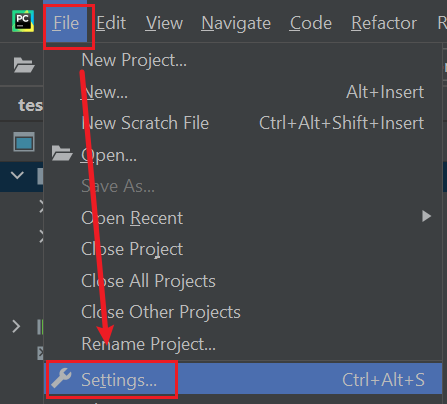
First of all, point the settings of PyCharm to the git installed on this machine, open File - Settings
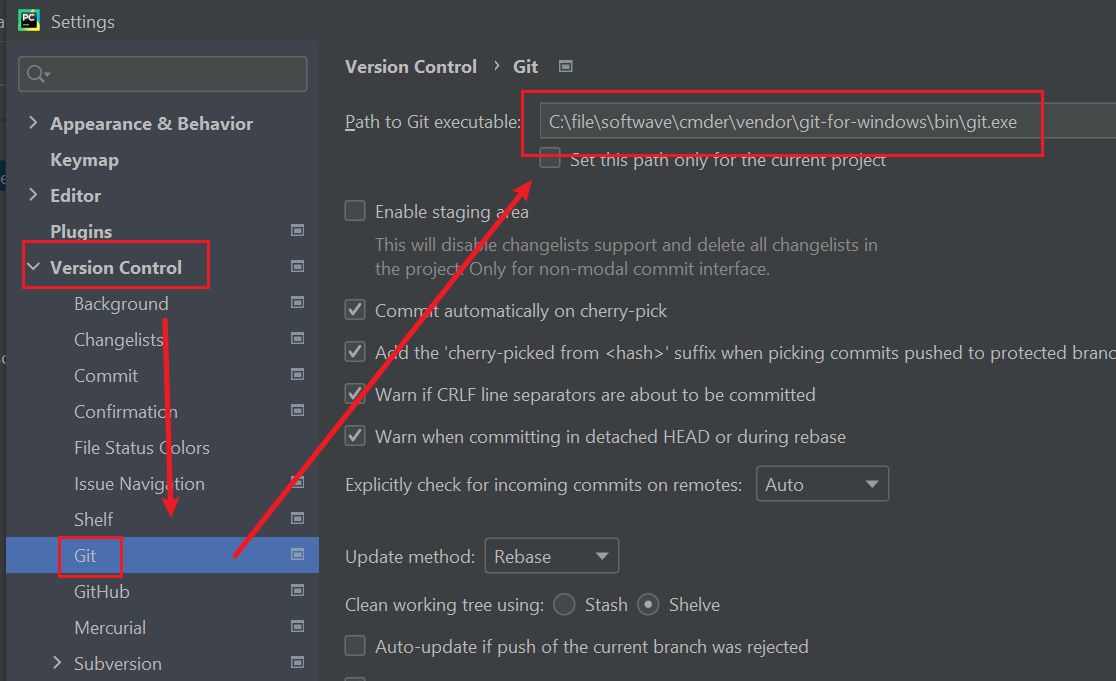
Then open the version control, select Git, note that here I chose the git path that comes with cmder, if you have installed git yourself, write your own path
3. Upload
Upload is divided into several situations
- For the first upload, a new branch needs to be created
- Upload code to an existing branch
Below I will use my gitee account to demonstrate the whole process, but the principle is the same, and it will also take effect on Gitlab.
3.1 For the first upload, a new branch needs to be created
3.1.1 Before uploading any code, please make three links (fetch, pull, rebase)
- First switch to the master branch
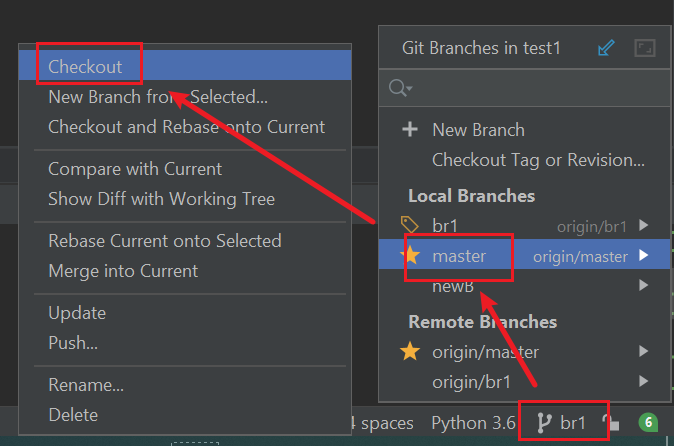
Open your project, click on the branch name in the lower right corner, select master, and then select Checkout
Corresponding command:
git checkout master
If the lower right corner is already master, there is no need to switch.
-
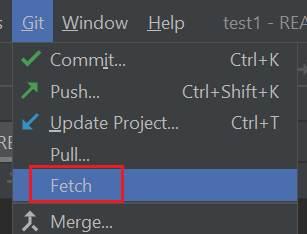
On the top menu bar, select Git - Fetch
This step is only to download the code from the remote end, but it has not been updated to come in
Corresponding command:
git fetch -
Git - Pull…
This step pulls the code from the remote end. The default is to pull from the current corresponding branch. For example, the master pulls the origin/master by default.
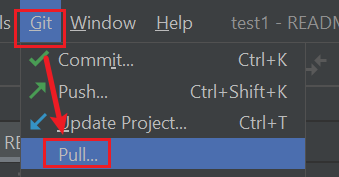
The origin of this step is fixed and not optional, and the master is the corresponding remote branch, so don’t choose it wrong.
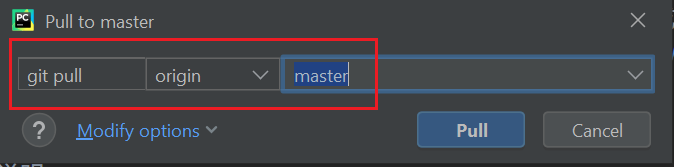
Corresponding command:
git pull
- Git - Rebase…
This step is to put your previous submissions after other people's submissions, which can prevent the confusion of the submission tree
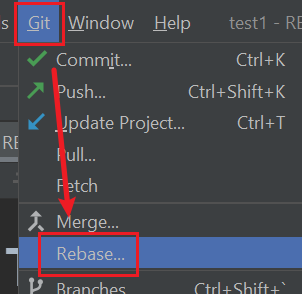
Select the commit based on the remote branch
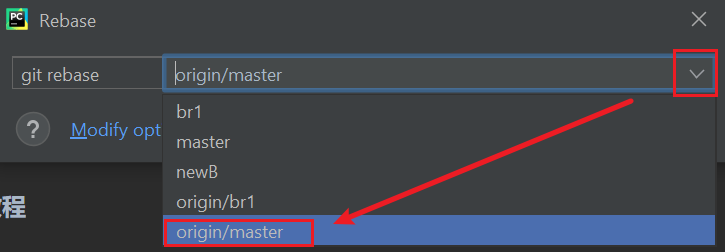
3.1.2 Create your own branch
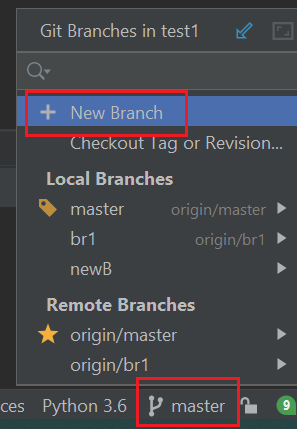
- Under the master branch, select a new branch in the lower right corner (this branch will be created based on the master, if you open a new branch under other branches, it will be created based on this branch)
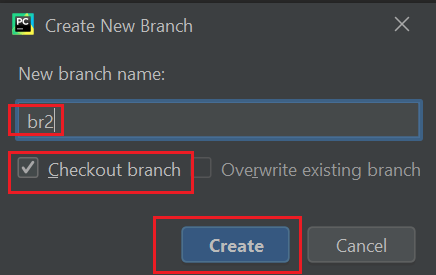
Enter the branch name in the pop-up window, and choose to switch to the branch
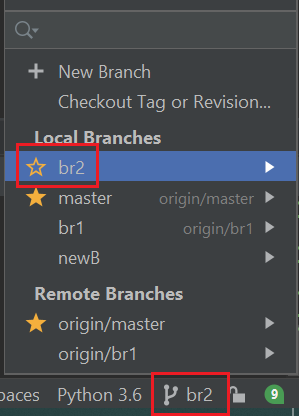
You can see that the branch name in the lower right corner has changed, and the local branch has an additional br2
Corresponding command:
git checkout -b br2
- If you want to delete this branch, you also need to switch to the master branch, then select the br2 branch, and select Delete
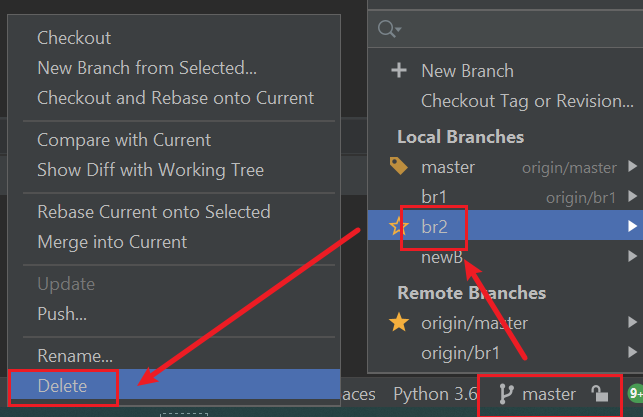
Corresponding command:
git branch -D br2
This step will only delete your local branch.
3.1.3 Update code
-
If you plan to use this branch to upload code, then follow the steps below
For demonstration, I made a modification under br2 and added a new line, which you can regard as your update
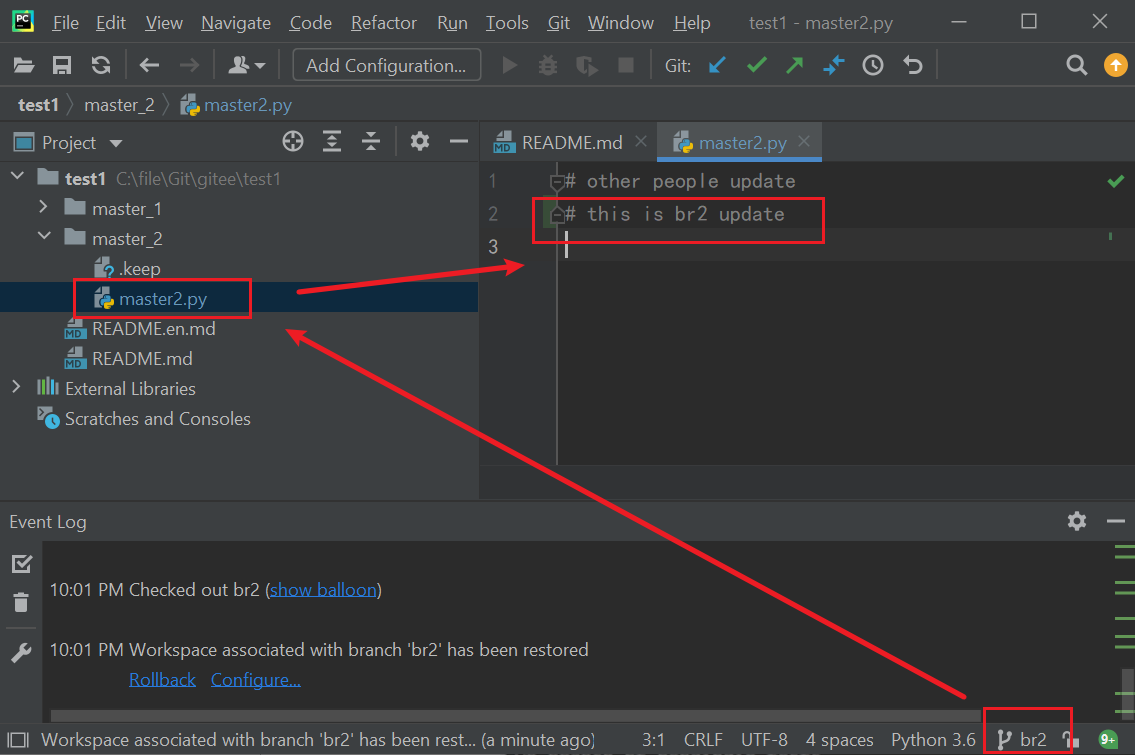
-
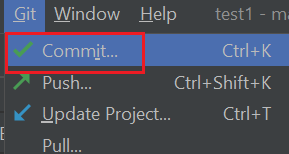
submit
Reminder: If there are some other checks such as code specifications before submitting, please complete them before submitting.
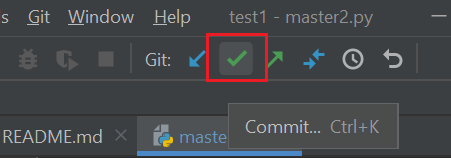
You can also use this button
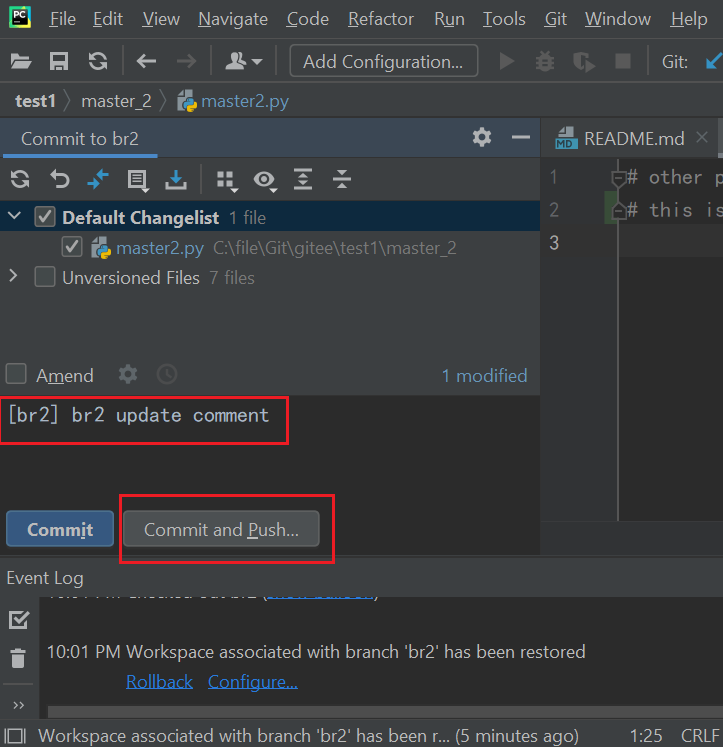
Corresponding command:
git commit -m “XXX” -
to push
Pay attention to the content in the red box, push to origin/br2 instead of origin/master, this point should be checked carefully

Corresponding command:
git push --set-upstream origin br2
Among them –set-upstream is to specify the upload (upstream) branch
- At this point you may want to check on Git to see if the push is successful
But generally there will be a prompt in the lower left corner of PyCharm, you can also click to see the operation log
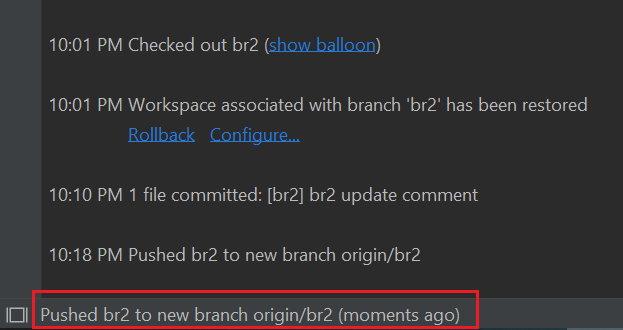
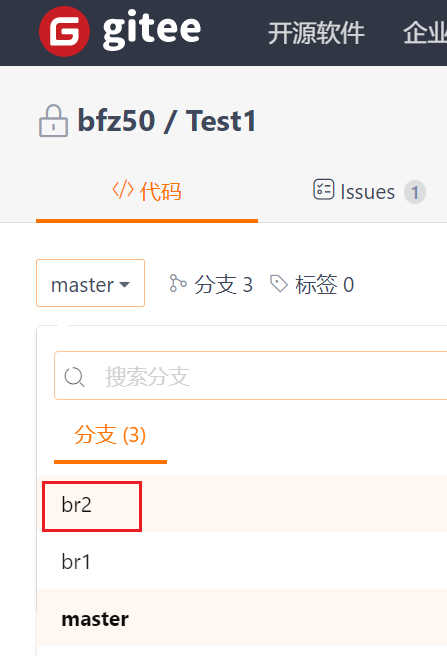
Of course, a new branch has also been created in git
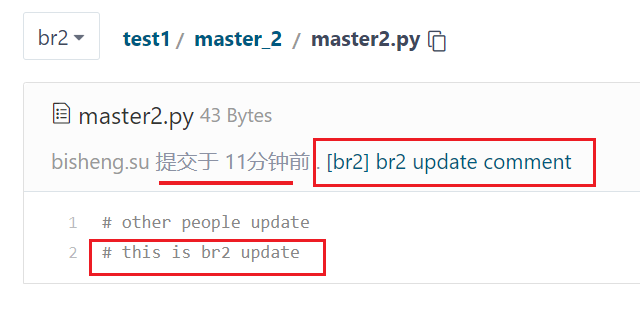
My modifications have also been updated to the br2 branch.
3.1.4 Update Minor Modifications
- At this point you suddenly remembered that you still have a txt file to upload, so you can do this
If the previous commit interface is still there, you can shrink it first
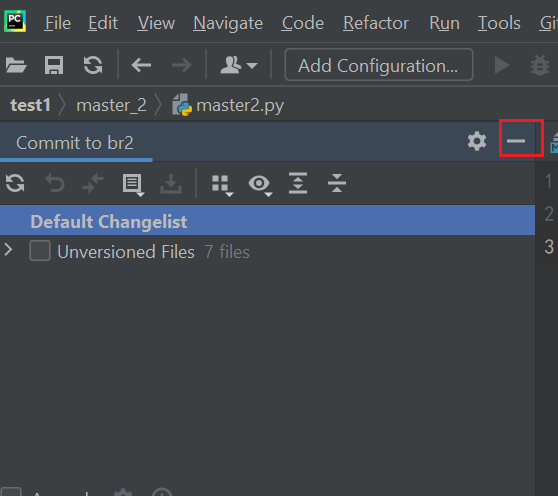
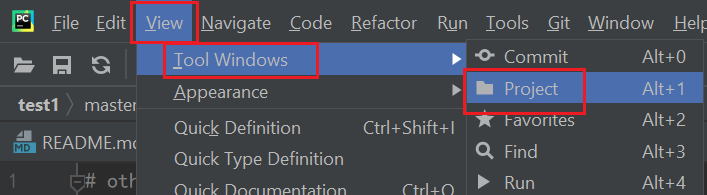
If you still don't see the project file, you can display it in the following way
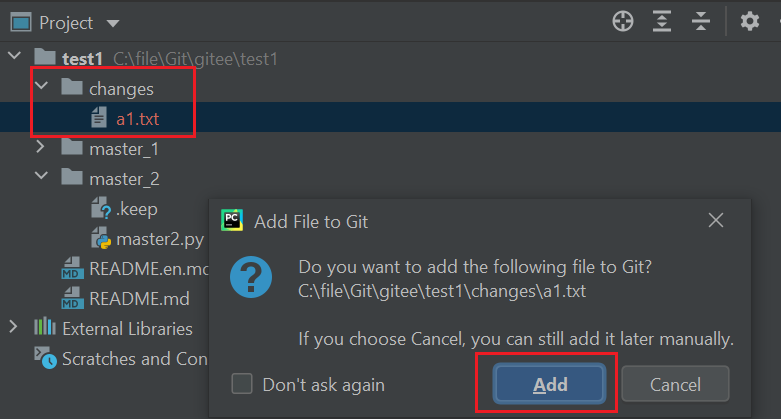
- Ok, now I add a txt file to the project to record some things
If you have the following prompts during the process of adding files, just click add
-
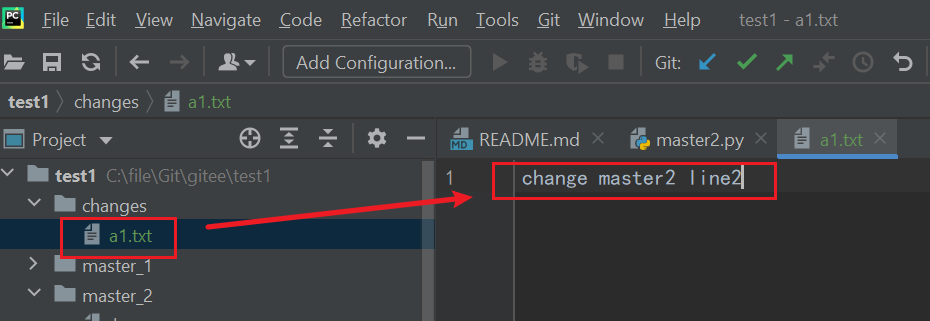
Then I add the following to this file
-
Since there is no need to add comments again this time, I just submit it in the default way
amend means that there is no need to keep the last submission record, and the latest one will be kept. Since you don't want others to know that you forgot to submit a txt, you choose this
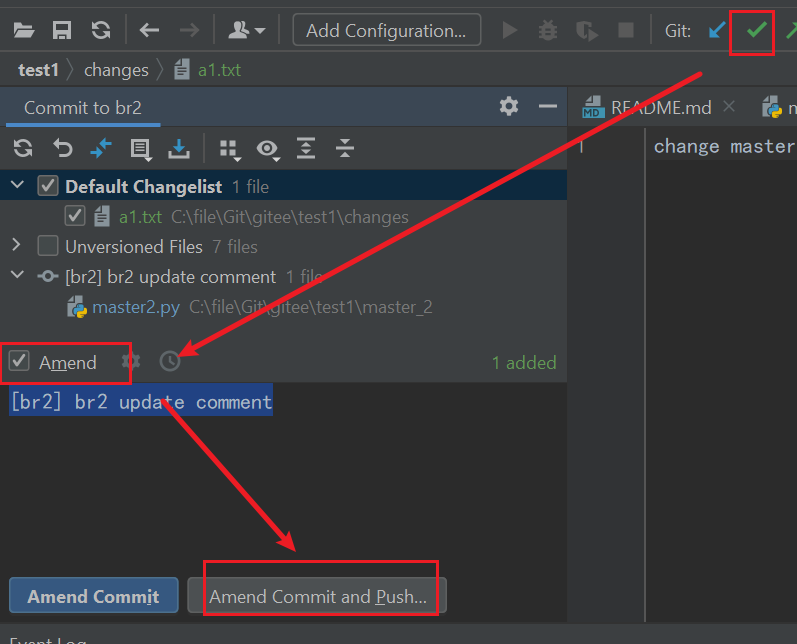
Corresponding command:
git commit --amend --no-edit -
This update can be done by force push
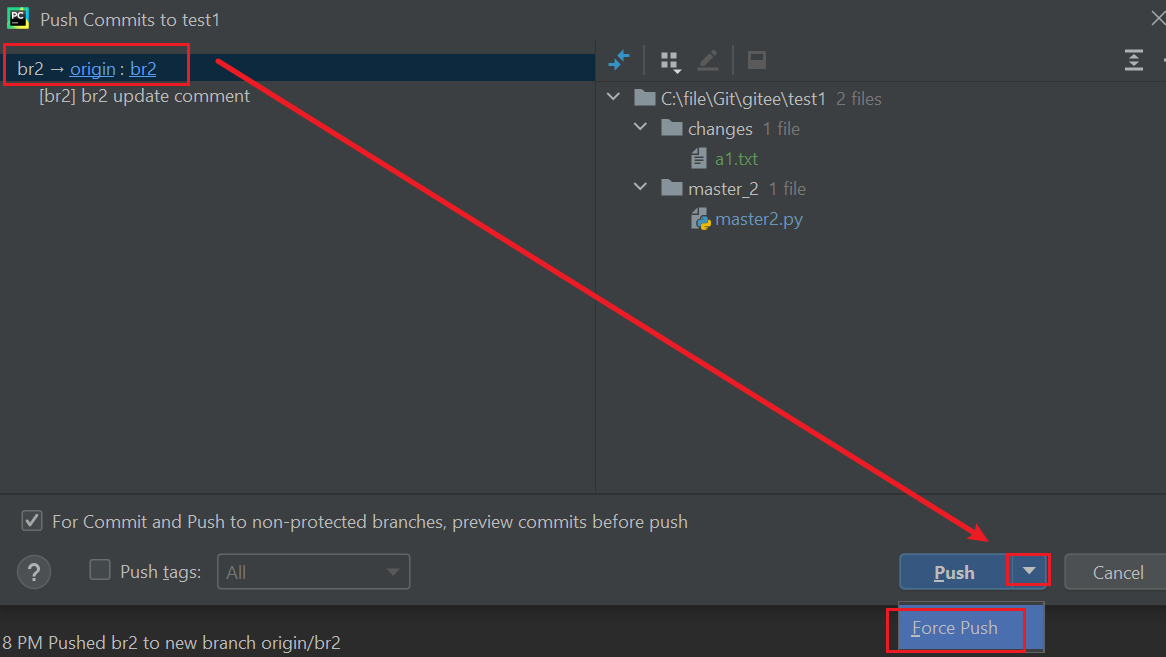
Corresponding command:
git push -f
At this point, the following warning will appear, this operation will overwrite the remote submission, which is exactly what we want, just choose to force push

3.1.5 Look at the remote
At this point, let's look at the remote branch again
As you can see, the changes folder was obviously pushed by me 1 minute ago, but what I saw was the push 30 minutes ago
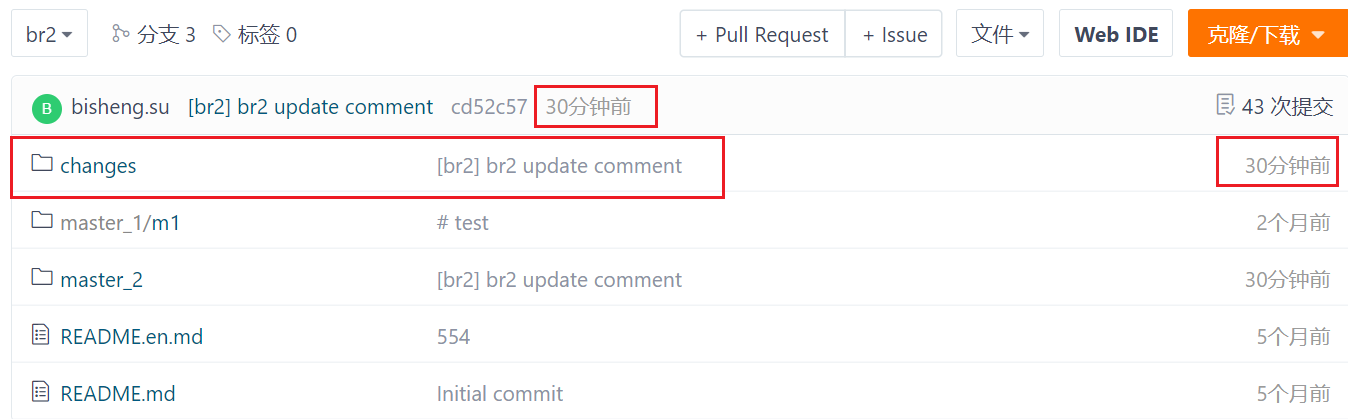
Then look at the submission history, there is only one submission today
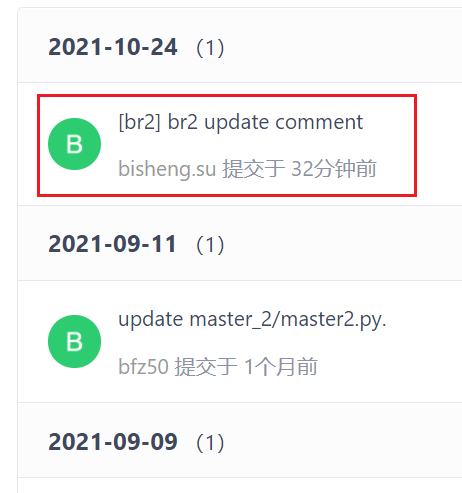
At this point, the push of the new branch is over!
3.2 Upload code to an existing branch
After the first version of your code was read by your boss, he pointed out more than 10 errors and ordered you to solve it immediately, so you stayed up all night and prepared to upload a new version of the code.
3.2.1 Before making any changes, please make three consecutive (fetch, pull, rebase)
Since this part is similar to the previous one, it will not be repeated
3.2.2 Pull your submission and put it behind someone else's submission
In order not to interfere with the submission tree, after you update the master, you need to extract your last submission and submit it again on someone else's master
The operation is as follows
First switch to your branch
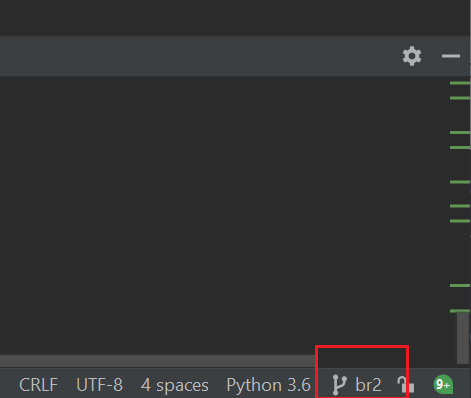
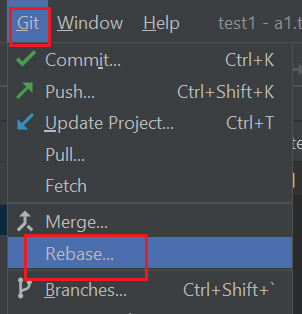
Then choose Git - Rebase...
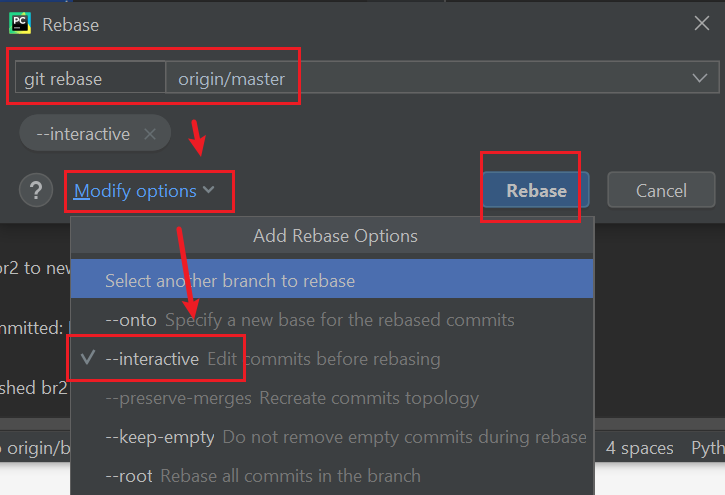
This rebase requires manual rebase on the basis of the master, so the -i parameter needs to be added,
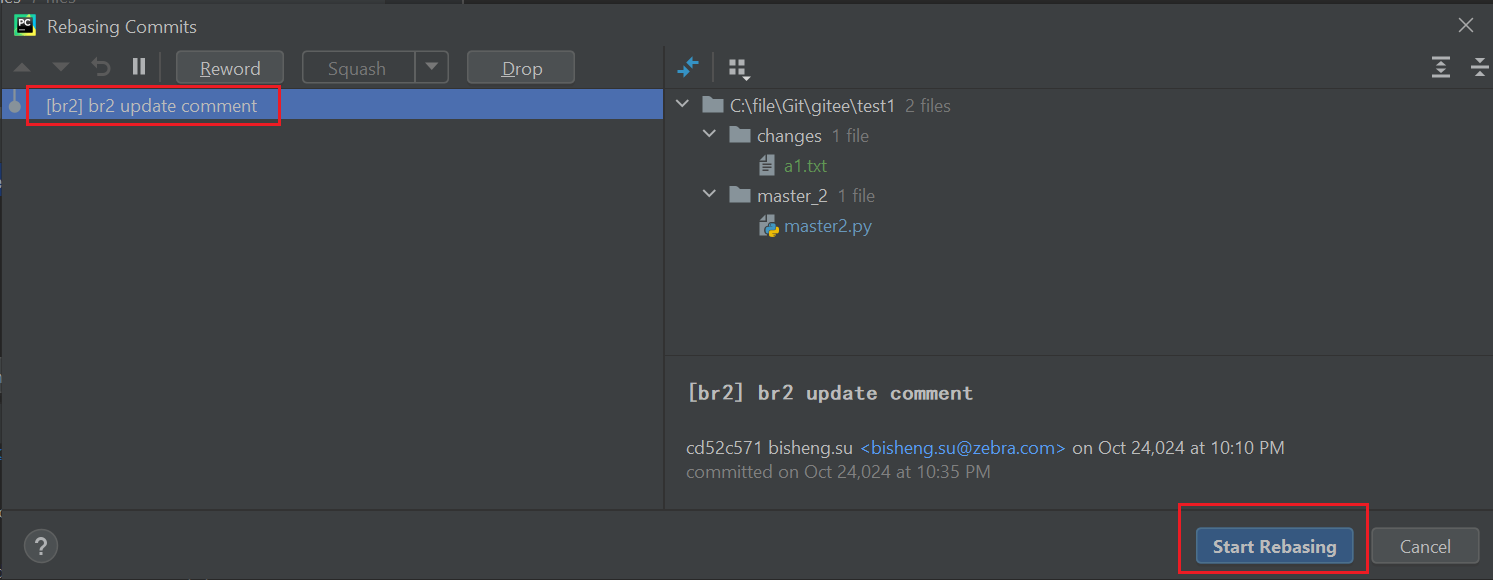
At this point, your commit record will pop up. If you don't need to update, just rebase directly
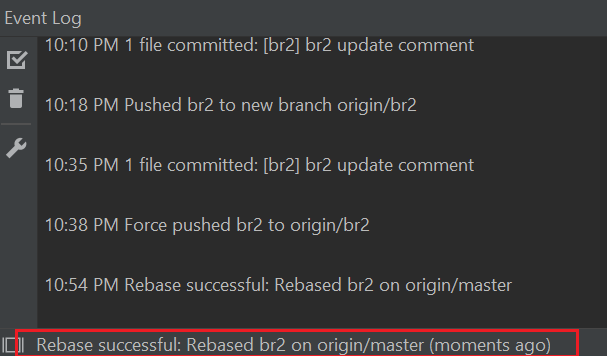
There will be a hint of rebase success in the lower left corner
3.2.3 Push to remote
The purpose of this push is to push your rebase operation to the remote end, so that your subsequent commits will also be after this rebase, preventing some other commits from being interspersed in the middle
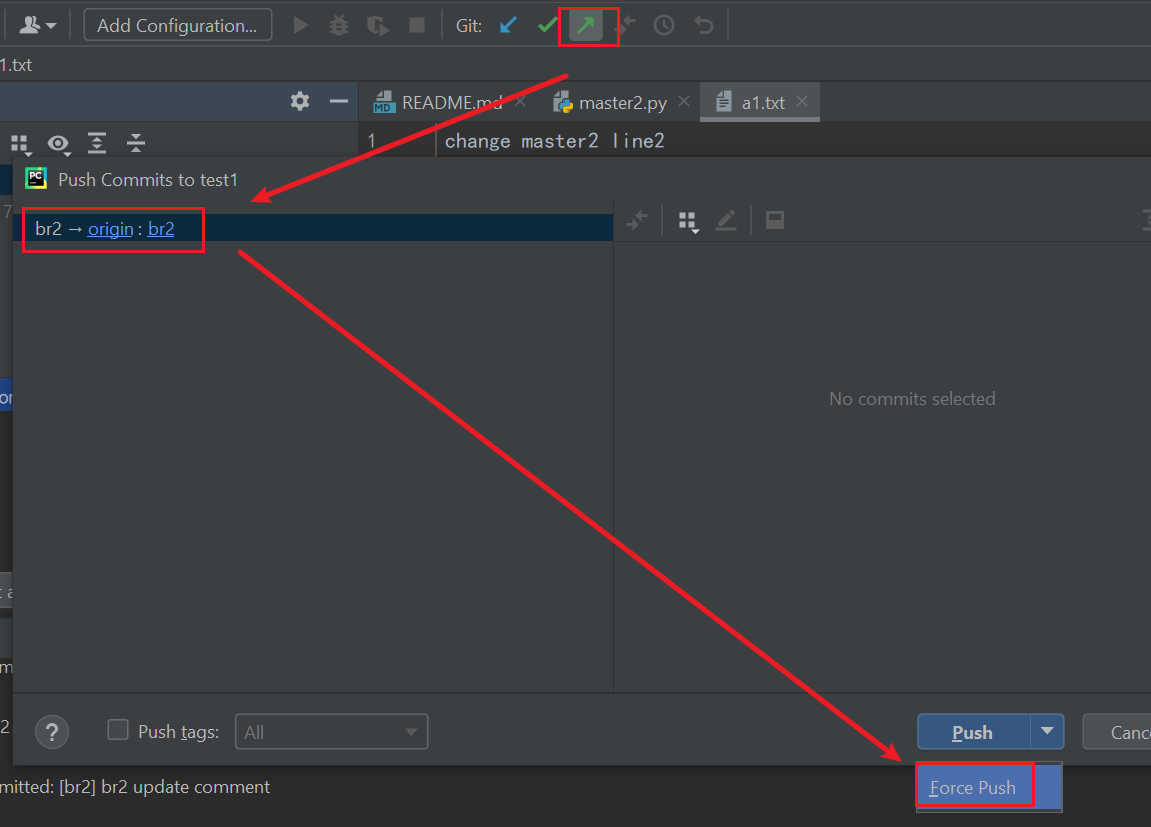
3.2.4 Update the code and push it to the remote end
At this point you can check the code again, if there is no problem, update to br2, then commit and push
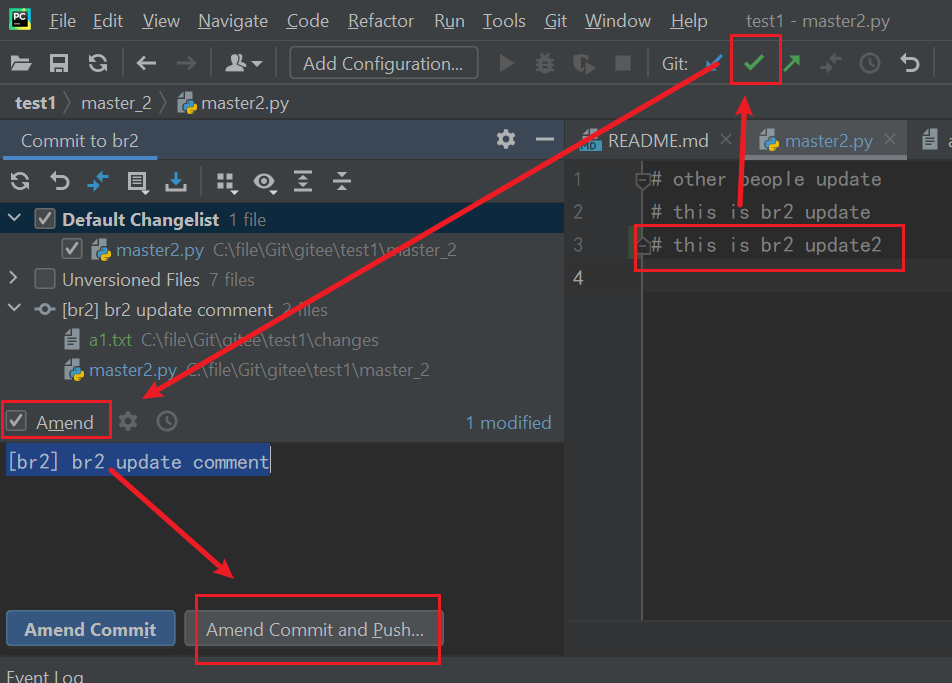
force push
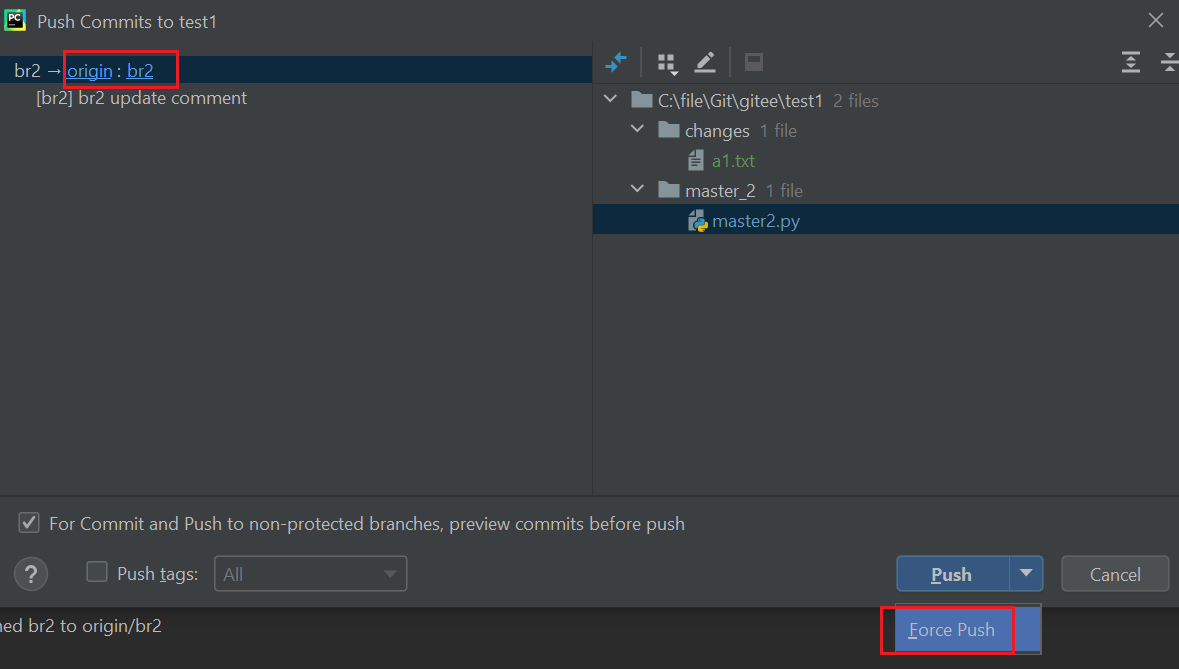
At this point, the following warning will appear, select Force push
At this point, the push is complete!
Intelligent Recommendation

Use Git commands - view remote branches, local branches, create branches
Git - View remote branches, local branches, create branches View local branch View remote branch View all branches Switch remote branch Merge branch Undo the last commit Git commit -m comment line fee...
(Reproduced) use git upload code and update code
Upload Description renew Description Upload Detailed explanation - Upload local projects to Code Cloud (Gitee) remote warehouse Prerequisites: 1. Git client has been installed on the local computer, n...
Use Git to upload code to a remote code repository
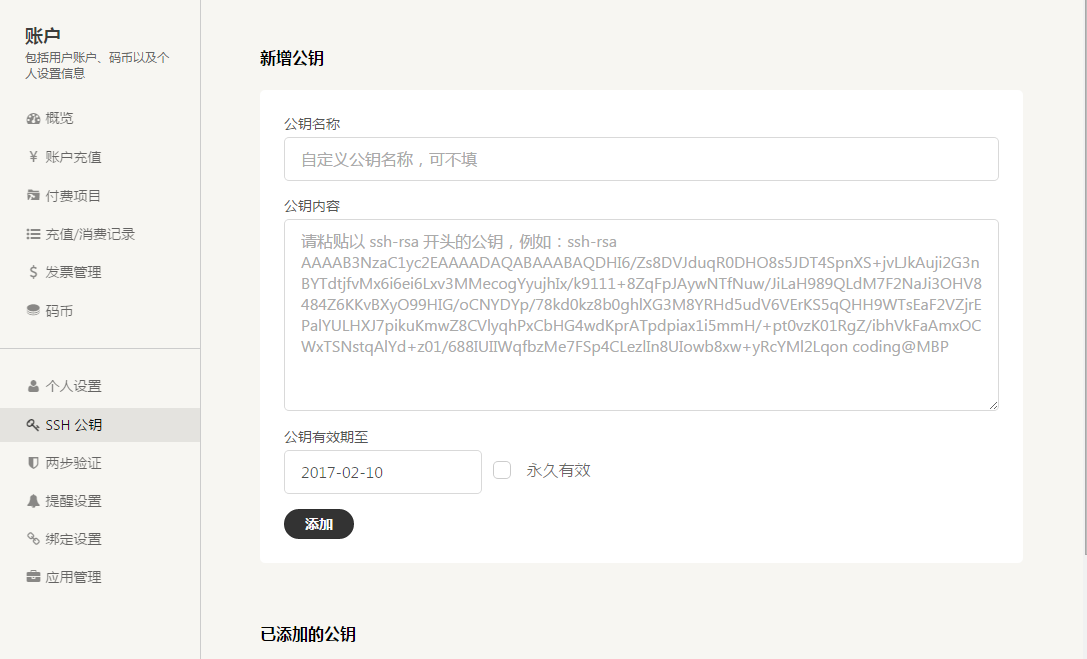
1. Generate ssh Right click on the desktop of the computer, select Git Bash Here, enter the operation interface, enter ssh-keygen -t rsa -C "[email protected]" (Note: Register here ...
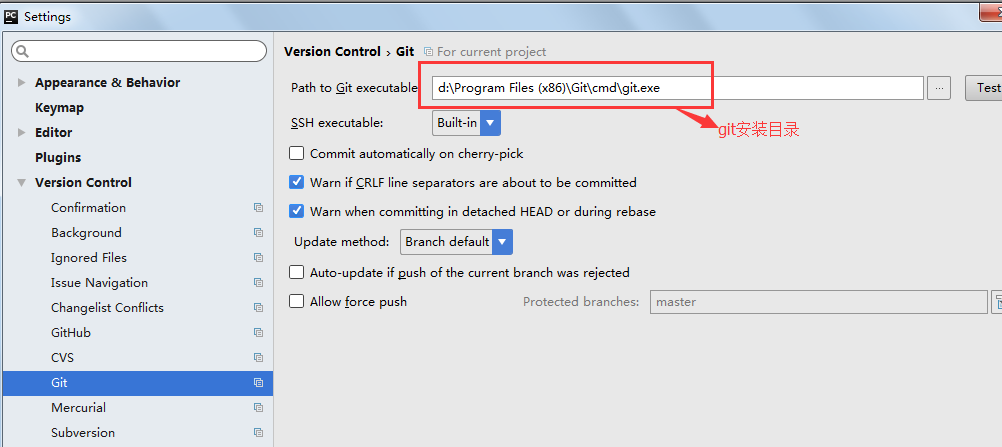
PyCharm uses tricks -- git to upload code to a remote repository
One way to upload and download code in git mode is through the git client. Another way is to use the editor pycharm. This article mainly writes how to upload and download code through the pycharm clie...
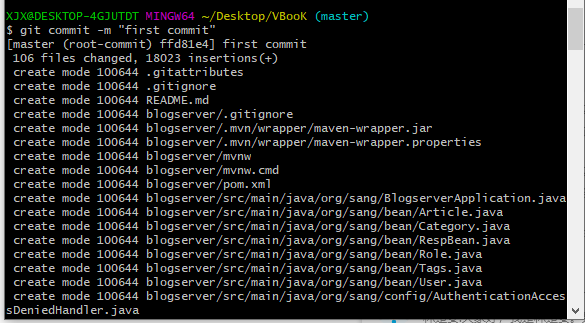
Use git to upload (update) the local code to github
Step 1: Build a git repository Create a new folder, enter the folder, right-click, and open git -> Git Bash Here Excuting an order git init After executing the command, a .git folder will be automa...
More Recommendation
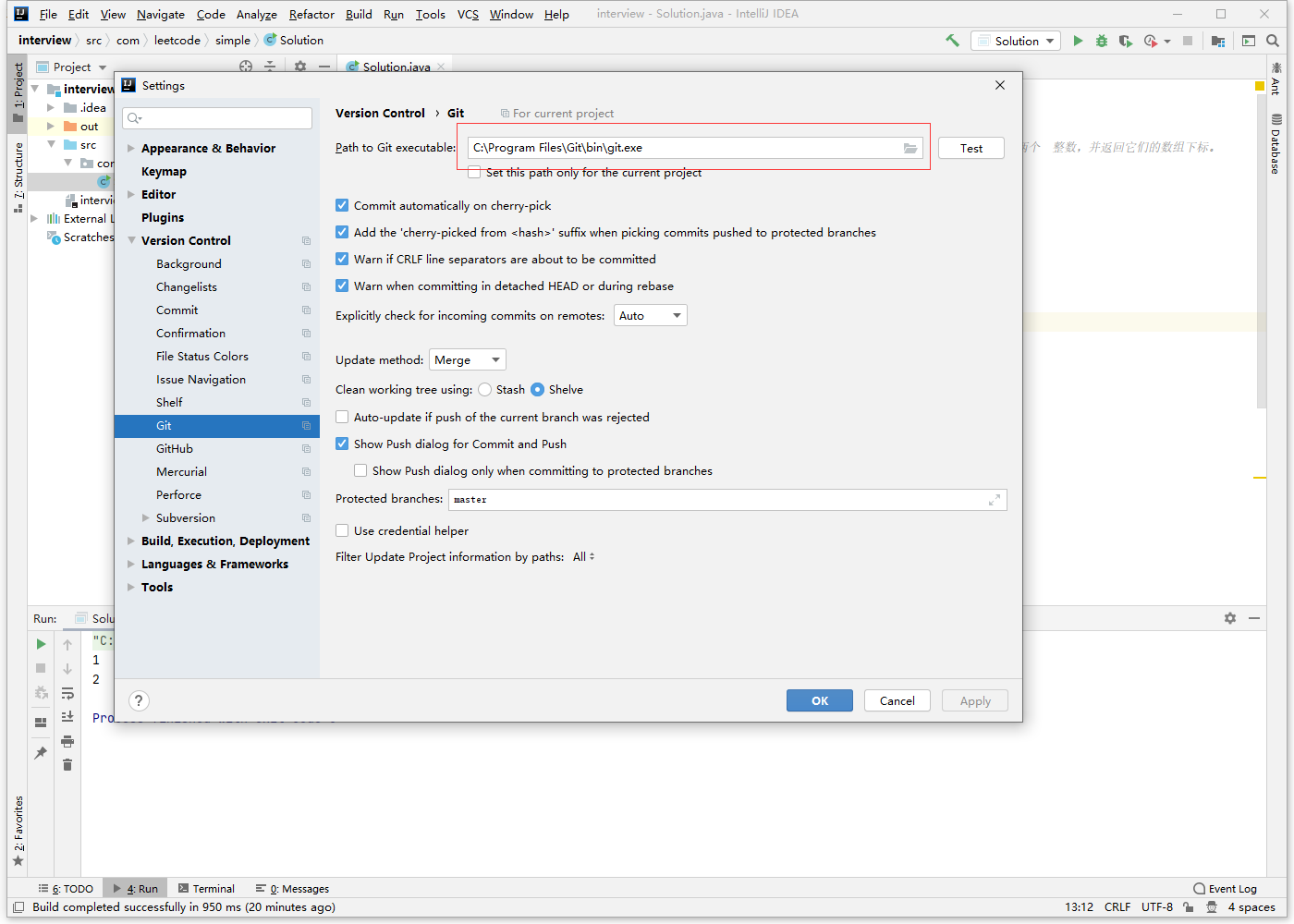
Use git upload code to remote warehouse
Use git upload code Configure Git 1. Download and install git 2. Configure users and email easy to check the code that is uploaded. 3. Configure the location where the git is located in IDEA. File->...
How to use Git upload code
Of course, if you want to upload the code, you must first have an account. You need to register an application, you will not say it here. The next is to go to the Git official website to download the ...

How to use Git to upload files to Github and update
Upload file to Github First create a project on github (provided there is a github account) Get project address Upload steps Upload example Uploaded successfully Update files to Github Synchronization...
How to use the GitHub client and make git branches, merge code
Foreword The GitHub client is a very handy git client management tool. First, how to use GitHub Desktop download link:https://desktop.github.com/ After downloading, we need to add our own local reposi...
How to use git command to pull the code of other branches?
Steps For example, the current branch isProject (branch-0.01)Need to pull branchProject (branch-0.02)The code...