Install QT on Linux virtual machine
tags: linux qt vmware virtual machine
One install virtual machine
Run VMware-workstation-full-11.1.0-2496824.exe
Two install Linux on the virtual machine
(1) Download the Ubuntu desktop version
Enter from the official website, select "Desktop Version", and follow the prompts to download.
A domestic mirror URL is: http://mirrors.hust.edu.cn/ubuntu-releases/16.04/ubuntu-16.04-desktop-amd64.iso
If the interface cannot be found, copy the URL to Thunder or other downloaders to download.
(2) Create a new virtual machine in VMware
Select "typical", select "installer CD image file", select the iso image file downloaded in the previous step, and fill in the user name and password you want to set to complete the construction of the Linux virtual machine.
Three install QT on Linux
(1) Configure environment tools on Linux
The default operating system of the Qt installation package has been configured with C++ compiler, Debugger, make and other environment tools, so in order to avoid reminding you not to install these tools during installation, you can execute the following command to install:
sudo apt-get install build-essential libgl1-mesa-dev
The above command is applicable to Ubuntu Linux. For the command content of other Linux operating systems, please refer to Qt's official website prompt:
http://doc.qt.io/qt-5/linux.html
(2) Download the installation file from the official website
Enter qt official website, https://www.qt.io
Click "download" or "download"
Select "Desktop & mobile applications", which means desktop or mobile
Choose OpenSource version (open source version)
Click "view all downloads" at the bottom

Choose: Qt 5.8.0 for Linux 64-bit(766MB)(info) to download.

You can also directly click the link below to download:
http://download.qt.io/official_releases/qt/5.8/5.8.0/qt-opensource-linux-x64-5.8.0.run
(3) Installation: modify login as root
Enter the file download folder, right-click "Open In Terminal" to open the terminal.
entersudo passwd root——Create a password for root privileges
entersu root——Enter root login
(4) Installation:
enter:chmod +x qt-xxxxxxxxxxxx.run(Xxx etc. are the names of the downloaded installation files)
enter:./qt-xxxxxxxxxx.run
Intelligent Recommendation
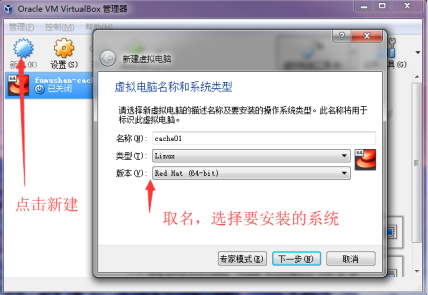
Linux-- virtual machine to install Linux
First, install the virtual machine Virtual Box virtual box can be found directly on Baidu software, the operating system after the selection according to their 32-bit or 64-bit. Second, the installati...

Install a Linux virtual machine on a vm virtual machine
1, in the centos official website (http://vault.centos.org/6.5/isos/Download the image, I am here 6.5 version of the image, you can customize the choice; 2. Open the vm virtual machine, click to creat...

How to install a virtual machine in Linux
"Virtual machine installation" Preparation: Your Linux has an image file for us to install and use. The installation steps are performed through a graphical interface: 1. Look at the basic c...
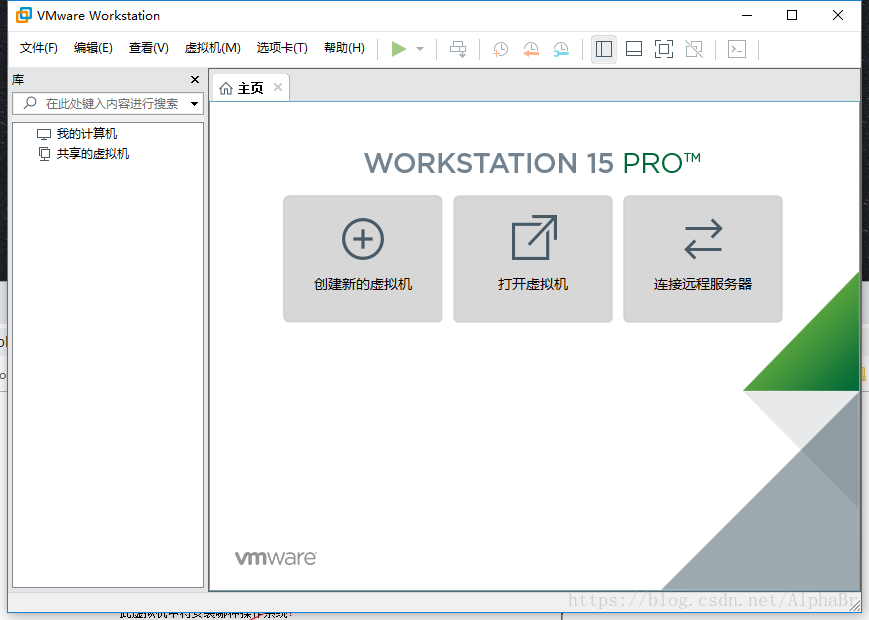
Windows install Linux virtual machine
Article directory Ready to work Install virtual machine Linux system installation A Qiang teaches you the series: I will teach you to install Linux (CentOS6.5) virtual machine with VMware Workstation ...

Install virtual machine and linux system
Virtual machine and Linux system learning process 1. Install the Linux system in the virtual machine a) The process of creating a virtual machine first step Second step third step the fourth step the ...
More Recommendation
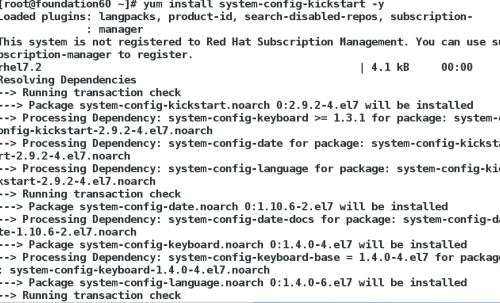
Linux--automatically install virtual machine
Kickstart introduction and use 1 Overview: 1>With kickstart, a system administrator can create a file containing answers to all common questions during installation to automatically install Red Hat...
[Linux] Install CentOS7 on a virtual machine
On the configured machine, you can install a dual system, but on my own book, the disk read and write is too garbage, even the compressed volume can not be executed, can not be separated, can not inst...

How to install Linux in a virtual machine
1. Download an ISO file as shown below 2. Open the virtual machine and create it. The specific steps are as shown below. Select no CD to drag the downloaded ISO file into it, as shown below 3, after t...
Vue + Element EL-Tree Implementation Tree Allocation Cancellation and All Expansion Cancellation
Positively selected Recutably...
Ubuntu14 configure Bonding multi-network card
Installation Interface Configuration Step 1: Ensure kernel support Before Ubuntu can configure your network cards into a NIC bond, you need to ensure that the correct kernel module bonding is present,...