[Translation] Using Blazor to build desktop applications

With the recent official release of .NET Core 3, I think I will try an interesting little experiment. I like to use Electron to create web-based desktop applications. I want to learn more about Blazor (the newest member of the ASP.NET series). In this article, I will show you exactly how to start using Blazor and Electron in 15 minutes!
prerequisites
.NET Core 3.0 SDK
Node.js with npm
Make sure to install at the same time.NET Core SDK with Node.js(you can use it dotnet--versionwith node--versionCheck the version). We need .NET Core 3.0 because we will use dotnet new to build Blazor applications. We also need Electron.NET's .NET Core 3.0, which allows Electron and .NET integration. Node.js is used to download, configure and integrate with the actual Electron instance.
set up
The installation procedure requires some simple steps. Although most of the steps are just commands, there are 2 files that need to be edited manually. After setting up the project, you only need one command to start it!
command
mkdir blazor-electron-demo
cd blazor-electron-demo
dotnet new blazorserver --no-https
dotnet add package ElectronNET.API
dotnet new tool-manifest
dotnet tool install ElectronNET.CLI
dotnet electronize init
Quite a few command blocks, but they are all simple and do not require any user interaction. Let's break down the role of each command:
mkdir blazor-electron-democd blazor-electron-demo |
Create a folder for our project and set it as the current working directory. Make sure to change it to your preferred project name! |
dotnetnewblazorserver--no-https |
Created a new server-side Blazor application using the scaffolding template, which does not use HTTPs. |
dotnet addpackageElectronNET.API |
Install the NuGet package, which adds Electron support to ASP.NET applications. |
dotnetnewtool-manifest |
Added support for locally installed "dotnet" tools. |
dotnet tool installElectronNET.CLI |
Install the required ElectronNET.CLI locally in the project. |
dotnet electronize init |
Set up the Electron.NET manifest and update the startup configuration file. |
All commands should be executed in order, one at a time. Once they are all done, you only need to change two files to run the application!
File modification
In order to integrate the ASP.NET application (in this case, the Blazor application) with Electron, we need toProgram.cswith Startup.csto modify. InProgram.csin:
using System;
using System.Collections.Generic;
using System.IO;
using System.Linq;
using System.Threading.Tasks;
using Microsoft.AspNetCore;
using Microsoft.AspNetCore.Hosting;
using Microsoft.Extensions.Configuration;
using Microsoft.Extensions.Hosting;
using Microsoft.Extensions.Logging;
using ElectronNET.API; // ADD THIS!
namespace blazor_electron_demo
{
    public class Program
    {
        public static void Main(string[] args)
        {
            CreateHostBuilder(args).Build().Run();
        }
        public static IHostBuilder CreateHostBuilder(string[] args) =>
            Host.CreateDefaultBuilder(args)
                .ConfigureWebHostDefaults(webBuilder =>
                {
                    webBuilder.UseStartup<Startup>()
                              .UseElectron(args);  // ADD THIS!
                });
    }
}InStartup.csin:
using System;
using System.Collections.Generic;
using System.Linq;
using System.Threading.Tasks;
using Microsoft.AspNetCore.Builder;
using Microsoft.AspNetCore.Components;
using Microsoft.AspNetCore.Hosting;
using Microsoft.Extensions.Configuration;
using Microsoft.Extensions.DependencyInjection;
using Microsoft.Extensions.Hosting;
using blazor_electron_demo.Data;
using ElectronNET.API; // ADD THIS!
namespace blazor_electron_demo
{
    public class Startup
    {
        public Startup(IConfiguration configuration)
        {
            Configuration = configuration;
        }
        public IConfiguration Configuration { get; }
        public void ConfigureServices(IServiceCollection services)
        {
            services.AddRazorPages();
            services.AddServerSideBlazor();
            services.AddSingleton<WeatherForecastService>();
        }
        public void Configure(IApplicationBuilder app, IWebHostEnvironment env)
        {
            if (env.IsDevelopment()) {
                app.UseDeveloperExceptionPage();
            } else {
                app.UseExceptionHandler("/Error");
            }
            app.UseStaticFiles();
            app.UseRouting();
            app.UseEndpoints(endpoints =>
            {
                endpoints.MapBlazorHub();
                endpoints.MapFallbackToPage("/_Host");
            });
            // ADD THIS!
            Task.Run(async () => await Electron.WindowManager.CreateWindowAsync());
        }
    }
}
With the update of these two files, we can now run our application in Electron!
use
run
Our application can be run in two different ways. Through the command line or through the "Run" dialog of Visual Studio (through the startup configuration file added during the installation using dotnet electroize init).
dotnet electronize start
Blazor runs in a desktop application
debugging
After running, you can attach the debugger from Visual Studio's "Debug"> "Attach to Process..." and filter by project name.When running a .NET application, the breakpoint will work exactly as expected.You can even debug the code in Razor files!The only downside is that when you need to make changes, you must stop the application, edit the changes and restart it.We will discuss it later.
release
Thanks to Electron.NET, we can publish the application to the platform-specific installer with one command!
dotnet electronize build /target win
# OR
dotnet electronize build /target osx
# OR
dotnet electronize build /target linux
Windows Note: I did encounter an exception
Thegiven key'target'wasnotpresentinthe dictionary.Inmingw64When running a command at the prompt. Use this machinecmdOrpowershellTry the command again at the prompt.
This command will create a new installer in the ./bin/desktop folder. Inside, you will find an installer suitable for your platform!
Sample code
I created a GitHub repository showing all the changes we just made. If you run into problems, please use it as a resource, or contact me on Twitter!
Precautions
Although the combination of these two technologies is interesting, it does have its drawbacks. From developer workflow issues to API mismatches, these issues can be annoying, but when it comes to using Blazor and Electron, they are by no means a transaction barrier.
Developer workflow
The most serious problem is the slow iterative development process. At this point, the developer's workflow includes starting the application, manually attaching the debugger, testing the application, then stopping the application to make changes and finally restarting the cycle. If there is no changed hot reload function, this will greatly increase the difficulty of development. The maintainers of Electron.NET recommend developing the application in a browser to accomplish most of the tasks and only switch to electronic for regular testing.
Electron API/Interop
Electron.NET is very young, but fully functional. Creating a functional bridge from C# and .NET to JavaScript & Node.js/Electron is not easy. But you will most likely find unimplemented methods or events. Remember, Electron.NET is a free library that people create in their spare time. Every function may not exist, but this is where the brilliance of open source lies. If you find a bug in an API or function that requires some work, then please fork the project and try to find a fix yourself. Most of the time, building software is the result of collaboration, and it makes sense to help solve problems instead of just waiting to solve them.
to sum up
We created a brand new Blazor project, added support for Electron with the help of Electron.NET, and created an installer ready to be released! Although there are indeed some warnings when using the development stack for this cutting-edge build, there are absolutely no warnings that prevent you from using Blazor to build incredible desktop applications. With the help of developers like you, Electron.NET will continue to improve!
Special thanks to Rob Horner and John Sedlak for helping to edit this article! Thank you Rob and John!
As always, if you like this article, please let me know on Twitter! If you have any questions or don’t know something, please let me know! I really appreciate your feedback!

Intelligent Recommendation
(1) Start using Zend Framework 2 to build applications - ZF2 official tutorial translation
2019 Unicorn Enterprise Heavy Gold Recruitment Python Engineer Standard >>> StartBuild apps with Zend Framework 2 The purpose of this tutorial is to show you how to use Zend Framework 2 to cr...
Translation - using Ratpack and Spring Boot JVM to build high-performance micro-service applications
This is my translation of InfoQ article, the original address:Build High Performance JVM Microservices with Ratpack & Spring Boot, Chinese address on InfoQ:Spring Boot using Ratpack and building h...
Electron-vue + VueRouter to build desktop applications
In the process of desktop application development, changes in window size and location are often involved. If every window of different size is renewed,BrowserWindowPersonally, I feel too consuming! F...
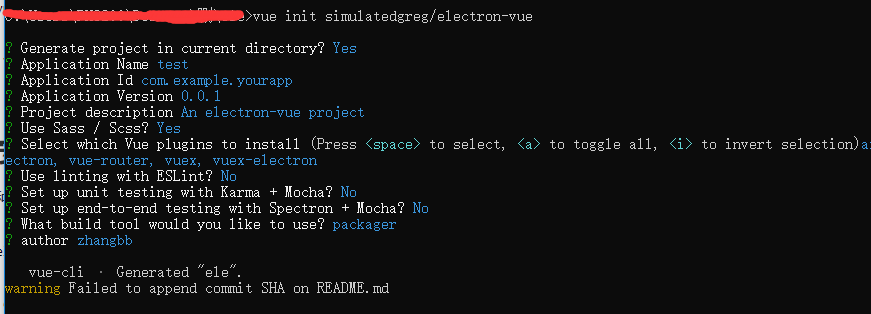
Electron + VUE quickly build desktop applications
Electron + VUE quickly build desktop applications The first step is to install Nodejs Step 2: Build a VUE development environment Step 3 install Electron Step 4 Use vue-cli scaffolding tool to create ...
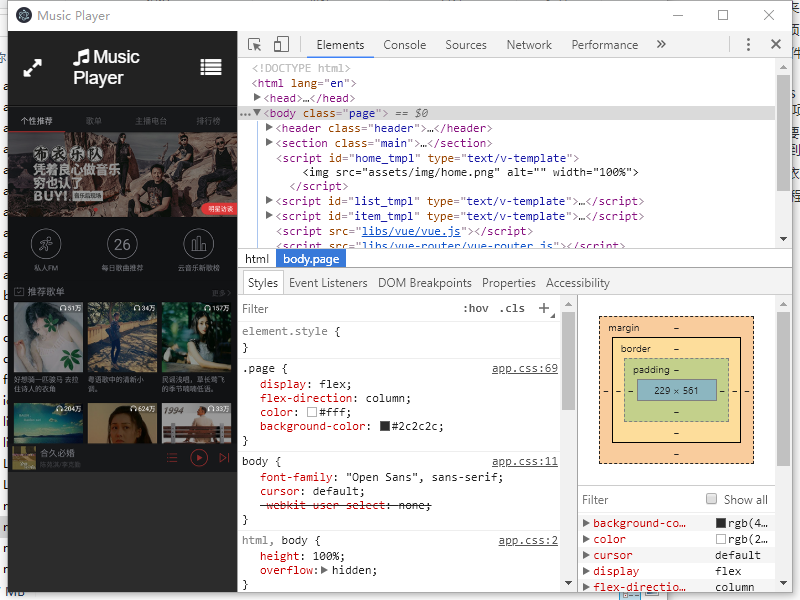
Use electron to build html-based desktop applications
Author: lizhonglin github: https://github.com/Leezhonglin/ blog: https://leezhonglin.github.io/ There is a need to build a desktop application for the system. After searching a lot of information, I f...
More Recommendation
Build cross-platform desktop applications Electron + Vue
Build cross-platform desktop applications Electron + Vue Create a project Create a project Install Vue-CLI and Scaffolding Code Create a project Install Electron Next, configuration options appear: ※ ...

VITE+VUE3+TS+Electron build desktop applications
Foreword When the development of the development project encountered the front -end demand, I usually choose Vue2, without him, but among the many front -end frameworks, I am more familiar with Vue2. ...
# Package web projects into desktop applications using Electron
Packaging web projects into desktop applications using Electron Introduce electron Electron is an open source library developed by Github to build cross-platform desktop applications using HTML, CSS a...
vue packaged into desktop applications using Electron
1. cd to the directory npm run build-generated dist folder New package.json under 2.dist directory, electron.js file, as follows: electron.js: 3.npm install electron -g 4.npm install e...

Hello, World using nwjs to develop desktop applications!
Today I discovered that JavaScript can also be used to develop desktop applications. I immediately felt awesome, so I immediately started Hello, World! to feel the power of JavaScript. There are th...