SecureCRT color settings
tags: SecureCRT
Set the background color
Sets the cursor color
note:
1: Select the character set utf8, avoid displaying garbled characters
2: Choose a typeface, you need to choose ture type font (such as Times New Roman), otherwise there will be garbled characters
3: scrollback buffer to transfer large (5000), so you can see the previously displayed content, so a lot easier
4: terminal to select xtem, so you can ssh to the serverColor display, and the ANSI Color tick
5: I chose the color scheme Windows or Traditional.
With SecureCRT (Linux) to upload and download data
Set the default directory to upload and download it on the line
options-> session options-> file transfer can be set at upload and download directory
You just landed in the rest of the linux terminal using SecureCRT time:
Send the file to the windows client: sz file1 file2
zmodem reception may start its own.
Upload files from the client to linux server:
As long as the server to perform: rz (rz -y)
SecureCRT and then send the file in the election, the agreement zmodem
It is simple, if you have been using ssh ago, but did not open ftp service, you will directly use this method to transfer your files
Intelligent Recommendation
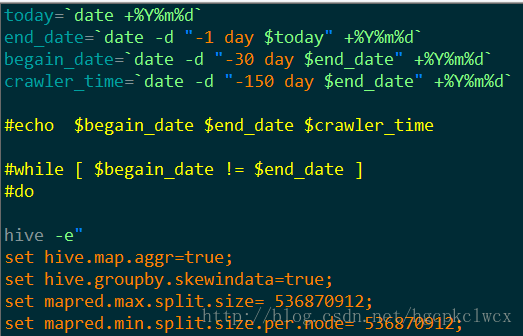
SecureCRT beautiful color scheme
SecureCRT beautiful color scheme Refer to the online color matching, plus some of your own debugging, to form such a beautiful and eye-protecting color scheme, first not BB, the last two pictures: The...
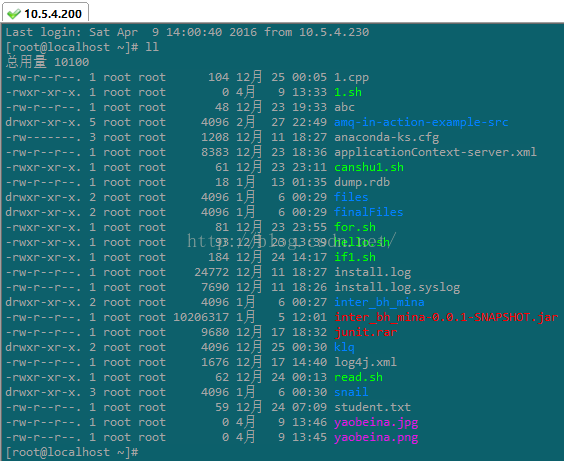
secureCRT set color scheme
secureCRT, permanently set, eye protection, color scheme April 12, 2016 10:54:50 Read Number: 41883 After the color effect is as follows: Let's start color 1, option (Options) == "Session ...
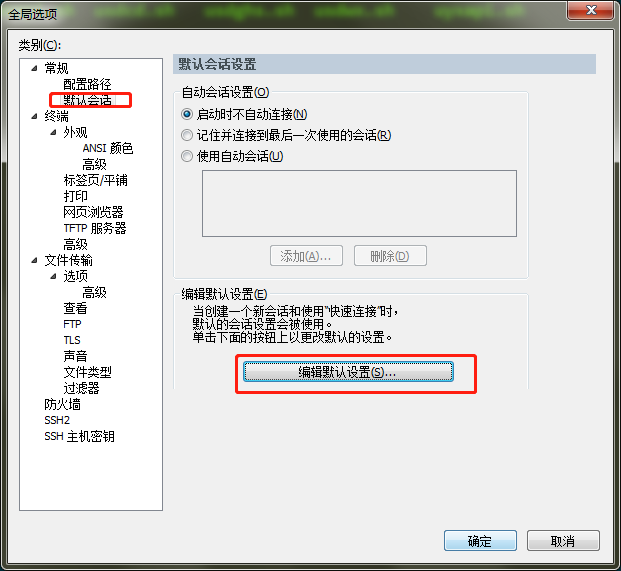
SecureCRT background color
1. Options》 Global options (Global options)》 General》 Default session (Default session)》 Edit default setting = Edit emulation-》 Terminal-》 ANSI color 2. Appearance From left to right: Red Greem Blue ...

Securecrt color configuration scheme
SecureCRT is a very easy-to-use terminal access tool that supports SSH. When we log in to a remote host or virtual machine or network device, we need to use SecureCRT. The initial interface of SecureC...

SecureCRT sets the background color
The English language is sparsely installed, and his face is ignorant. It was just a pink color. It was dizzy. I could n’t stand it. With my little English skills, I finally found the base. Ple...
More Recommendation
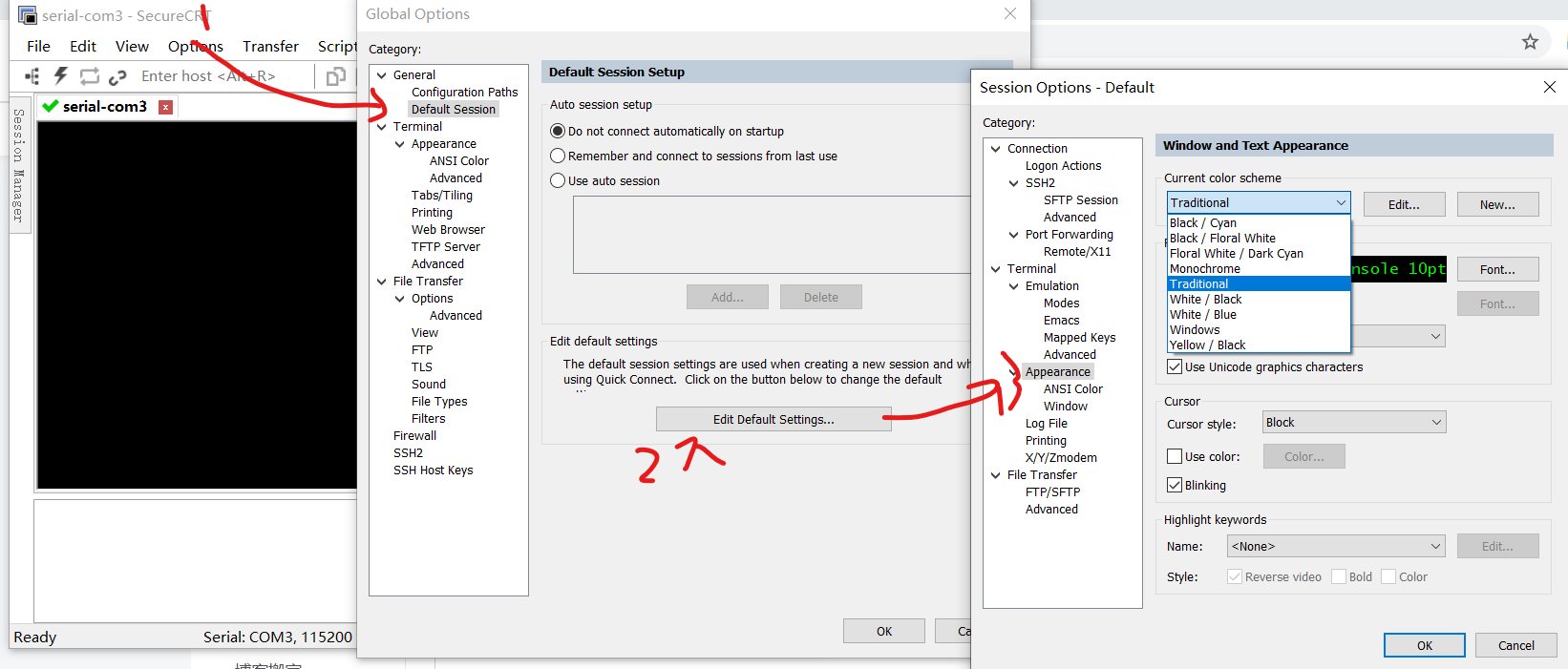
Set SecureCRT background color
Simply record: 1. Click "Options"-"Global Options" 2. Select "Default Session" on the left 3. Select "Edit default setting" on the right Finally, choose to save...
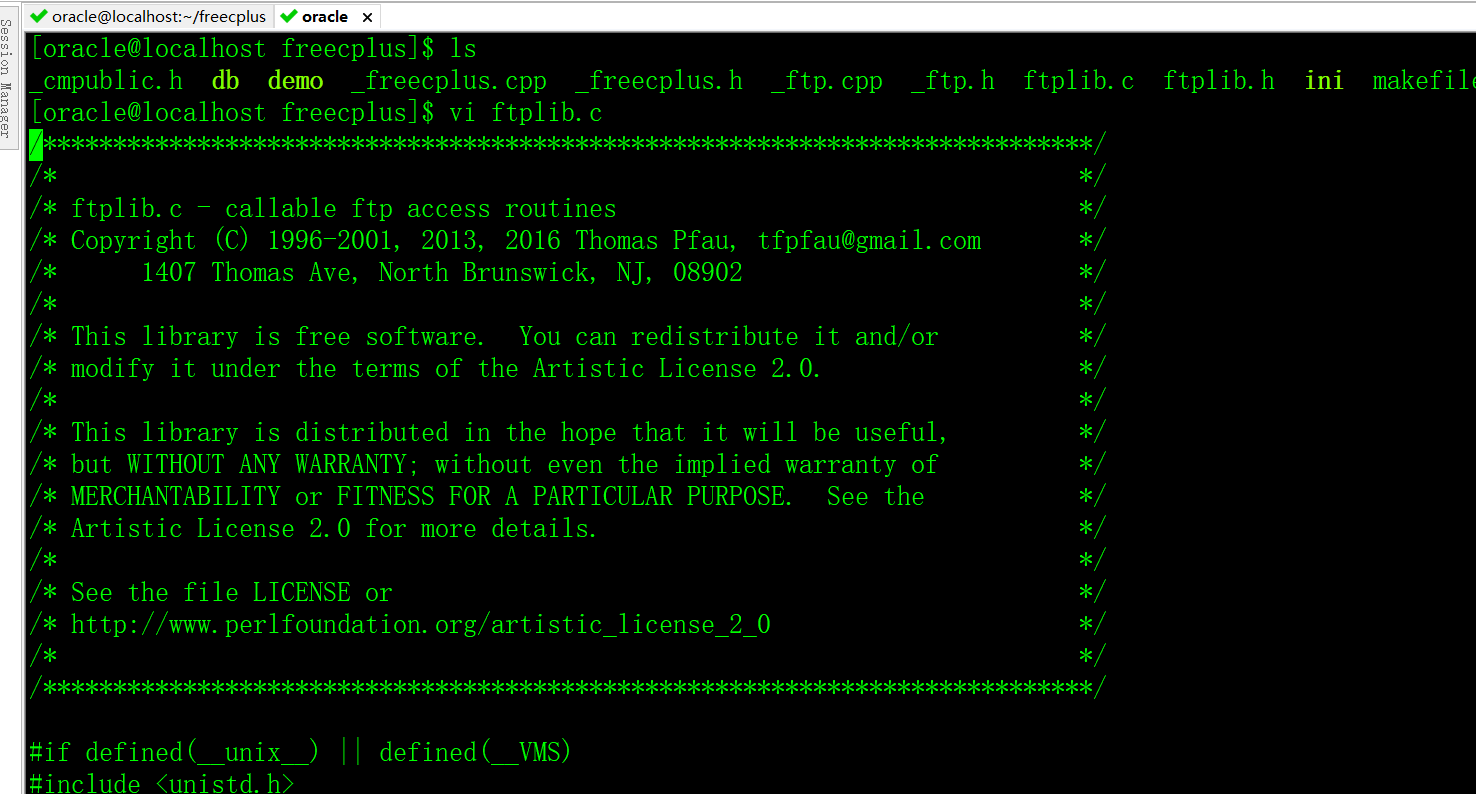
SecureCRT color matching
table of Contents 1. Set the color scheme Second, set the session to use color scheme Using the experience of seniors, black background, green text, the best color protection for eyes. 1. Set the colo...
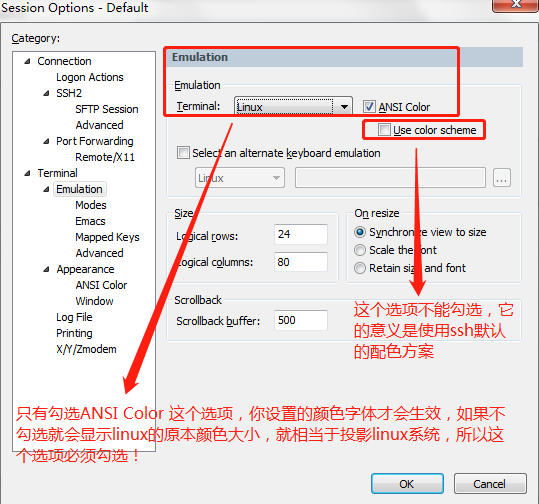
SecureCRT modify font and color
1. Background When connecting remotely, I always use SecureCRT. I am not used to Xshell, because the former will automatically copy the content after selecting the content, and the stand-alone mouse r...
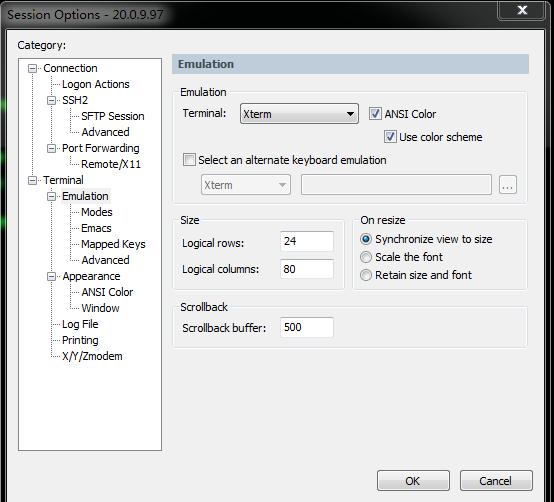
SecureCRT set vim color
1 Set the corresponding Session Options of securecrt as follows: Terminal -> Emulation -> Check ANSI Color & Use color scheme 2 Add in .bashrc: export TERM=xterm 3 Modify the .vimrc file in ...

SecureCRT classic color scheme
Article Directory 1. Initial effect 2. Solve the problem of color matching 3. Solve the font problem 4. File directory color matching When we use SecureCRT for a long time, it may cause visual fatigue...