【D3 tutorial】(4) Add number axis
tags: data visualization D3 number axis
(1) Set the number axis
The actual quotient of the number axis of D3 is a function whose parameters are defined by the programmer. Calling the number axis function will generate visible elements related to the number axis, including axis, label and scale.
Use d3.svg.axis() to create a general number axis function:
var xAxis = d3.svg.axis();
But you have to pay attention, before using it, you have to tell this function based on what scale it works. For example, ordinal scale.
At the same time, you can set the display position of the label relative to the number axis, which will appear below the axis by default. Generally speaking, the horizontal number axis can be placed at the top or bottom, and the vertical number axis can be placed either on the left or right.
var Axis = d3.svg.axis()
                 .scale(xScale)
                 .orient("bottom");
Finally, if you want to insert the lines and labels of the actually generated number axis into the SVG, you must call the xAxis function.
svg.append("g").call(xAxis);
//In the svg tag, the g element is a grouping element. Grouping elements are invisible, unlike line, rect, and circle, but it has two major uses: one is to contain other elements; the other is to apply transformation to the entire group, thereby affecting all elements in the group.
//call() will get the passed element in D3, and then pass it to other functions. For this example, the passed element is the new grouping element g of hi. The call() then passes g to the xAxis function, which generates a number axis within the g element.
(2) Repair the integer axis
In the above situation, we are still unable to style the newly created g element.
What should I do? Normally, we can assign an axis class to the g element.
svg.append("g")
     .attr("class","axis")
     .call(xAxis);
 Then write the style:
.axis path,
.axis line {
      fill: none;
      stroke:black;
      shape-rendering:crispEdges;
}
.axis text {
     font-size:11px;
}
So, in this way, we put all the number axis elements in a group g, and can use the CSS selector .axis to apply styles to any element.
As you can see from the above style, the number line itself is composed of path, line, and text elements.
However, it should be noted that when applying styles to SVG elements, make sure that the applied attribute name is SVG, not CSS. (SVG attribute name reference:https://developer.mozilla.org/en-US/docs/SVG/Attribute)

However, we see that the number line is on the top. According to common sense, shouldn't they all be below?
At this point, we can transform through SVG:
svg.append("g")
     .attr("class","axis")
     .attr("transform","translate(0,"+(h-padding)+")")
     .call(xAxis);

//translate(x,y) This is a translation transformation, only translation in the above codeyaxis,xThe axis is unchanged. (h-padding) is the top edge of the groupySet the coordinate to h, which is the height of the entire SVG element, and then subtract the padding we defined earlier.


We see that a transform attribute is added to the g element.
In addition, if you think there are too many tick marks on the number line, you can also set the number of tick marks:
When defining the number axis, use the ticks(num) function to set the number value. As shown:

(3) Vertical number axis
Compared with the horizontal number axis xAxis, we can define a y axis relative to the yScale scale by modifying its code.
let yAxis = d3.svg.axis()
        .scale(yScale)
         .orient("left")
         .ticks(5);
svg.append("g").attr("class","axis").attr("transform","translate("+padding+",0)").call(yAxis);

(4) Optimization
In order to prove that the new axis is dynamically scalable, we changed the static data set to randomly generated:
let dataset = [];
let numDataPoints = 50;
let xRange = Math.random() * 1000;
let yRange = Math.random() * 1000;
for(let i = 0;i<numDataPoints;i++) {
    let newNumber1 = Math.floor(Math.random()* xRange);
    let newNumber2 = Math.floor(Math.random()* yRange);
    dataset.push([newNumber1,newNumber2]);//Initialize a random data set
}
Now we are refreshing the next page, you will find that each refresh will generate a different data set. However, you also see that the number line will scale accordingly as the input value range changes, and the scale and label will also change accordingly.
In addition, we can also define the style of the label on the scale. Use tickFormat() to apply different formats to the value, such as the value retains three decimal places, or displays it as a percentage, etc. For example, a value of 0.23 returns 23%
However, before using tickFormat(), you must first define a new numeric format function. Through this function, you can tell D3 to treat the value as a percentage, while keeping one decimal place and so on.
let formatAsPercentage = d3.format(".1%");
xAxis.tickFormat(formatAsPercentage);
(5) With complete code
<!DOCTYPE html>
<html lang="en">
<head>
<meta charset="UTF-8">
<meta name="viewport" content="width=device-width, initial-scale=1.0">
<meta http-equiv="X-UA-Compatible" content="ie=edge">
<title>Document</title>
<style>
div.bar {
display: inline-block;
width: 20px;
height: 75px;
margin-right: 2px;
background-color: teal;
}
.axis path,
.axis line {
fill: none;
stroke:black;
shape-rendering:crispEdges;
}
.axis text {
font-size:11px;
}
</style>
</head>
<body>
<script src="https://cdn.bootcss.com/jquery/3.2.1/jquery.js"></script>
<script src="https://d3js.org/d3.v3.js"></script>
<script>
//D3.js code
let w = 600;
let h = 200;
let padding = 30;
let svg = d3.select("body").append("svg").attr("width",w).attr("height",h);//Save the new element returned by append() in the variable svg
// let dataset = [
// [5,20],[480,90],[250,50],[100,33],[330,95],[410,12],[475,44],[25,67],[85,21],[220,88]
// ];
let dataset = [];
let numDataPoints = 50;
let xRange = Math.random() * 1000;
let yRange = Math.random() * 1000;
for(let i = 0;i<numDataPoints;i++) {
let newNumber1 = Math.floor(Math.random()* xRange);
let newNumber2 = Math.floor(Math.random()* yRange);
dataset.push([newNumber1,newNumber2]);//Initialize a random data set
}
let xScale = d3.scale.linear()
.domain([0,d3.max(dataset,function(d){return d[0];})])
.range([padding,w-padding*2])
.nice();//nice() tells the scale to get any value range set for range() and expand the values at both ends to the nearest integer. For example, [0.2000011166,0.99999943] is optimized to [0.2,1]
let yScale = d3.scale.linear()
.domain([0,d3.max(dataset,function(d){return d[1];})])
.range([h-padding,padding])
.nice();
let rScale = d3.scale.linear()
.domain([0,d3.max(dataset,function(d){return d[1];})])
.range([2,5])
.nice();
// axis
let xAxis = d3.svg.axis()
.scale(xScale)
.orient("bottom")
.ticks(5);
let yAxis = d3.svg.axis()
.scale(yScale)
.orient("left")
.ticks(5);
svg.selectAll("circle")
.data(dataset)
.enter()
.append("circle")
.attr("cx",function(d,i){
return xScale(d[0]); //Return the scaled value
})
.attr("cy",function(d){
return yScale(d[1]);
})
.attr("r",function(d){
return rScale(d[1]);
});
//add tag
// svg.selectAll("text")
// .data(dataset)
// .enter()
// .append('text')
// .text(function(d){
// return d[0]+ "," + d[1];//Set label content
// })
// .attr({
// fill : "black",
// x: function(d) {return xScale(d[0])+10;},//correspond the label to the scatter position one by one
// y : function(d) {return yScale(d[1]);}
// })
// .style("font-size", "11px");
//Add number axis
svg.append("g")
.attr("class","axis")
.attr("transform","translate(0,"+(h-padding)+")")
.call(xAxis);
svg.append("g")
.attr("class","axis")
.attr("transform","translate("+padding+",0)")
.call(yAxis);
</script>
</body>Intelligent Recommendation

D3 scale and coordinate axis
The d3 used in this article is the v5 version. The scale can map data from "one interval" to "another interval". E.g[0, 1]Corresponds to[0, 300], When 0.5 is input, 150 is output. ...
D3.js-coordinate axis
Put coordinate in SVG Complete code:...
D3 coordinate axis
Chapter 7 Coordinate axis The coordinate axis is a graphic that often appears in the visualization chart, consists of some column segments and scale. The coordinate axis is not a ready-made graphic el...
D3 (4)
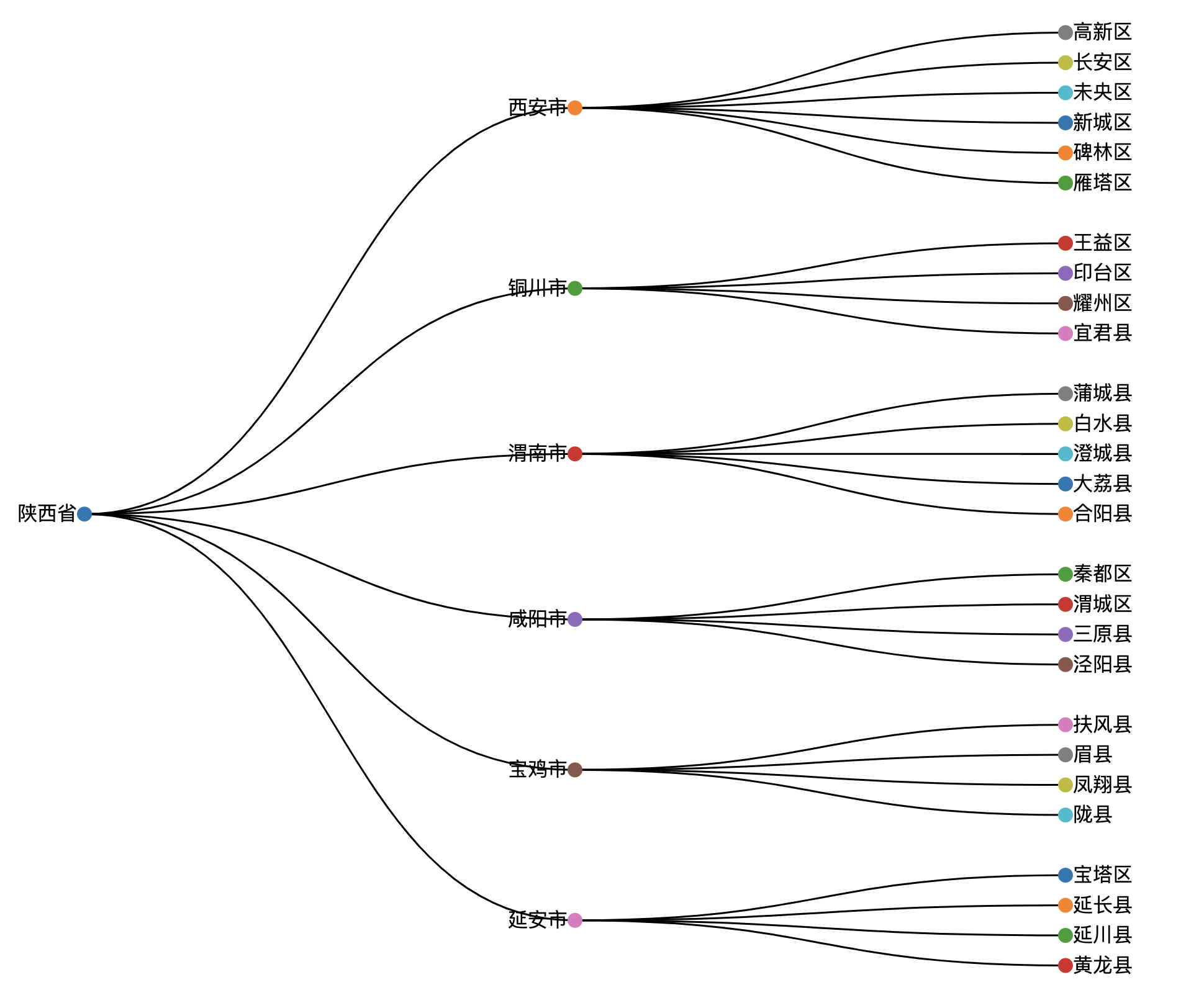
Visual graphics There are two main types of visualized graphics: Clinical structure visualization Hierarchical structure: tree, most direct, and intuitive visualization. The data format is JSON format...
More Recommendation
Arcgis JS 4 Use d3.js to add filter light
We use the D3 filter to increase the effect of D3 elements to increase light We have some global variables this.animateOption = null; this.defs = null; this.animateId = “”; this.feDropShad...
Echarts visualize X-axis or Y-axis copying, add omitial number
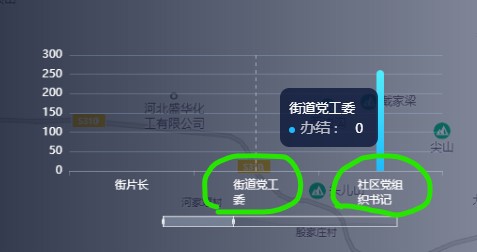
Write custom directory headings here X-axis word wrap, Y-axis Renderings Too much text wants to add an omitted number Renderings X-axis word wrap, Y-axis Renderings Too much text wants to add an omitt...
Visual Tool D3.JS Tutorial Getting Started (Chapter 7) -Conal axis
Visual Tool D3.JS Tutorial Getting Started (Chapter 7) -Conal axis Continue to follow the chart of the previous chapter, plus a X coordinate axis Effect...
Learn D3JS in depth: d3-axis
The purpose of axis is to add a ruler to the axis. Draw through the scale defined in advance, so first understand the method of the scale object. Behind more. ...
D3.js axis method deprecated
Before v4 After v4 Reprinted at: https://www.jianshu.com/p/e32b21376775...