Interface Control Telerik UI for WinForm Getting Started Guide - Install from the Progress Control Panel
Telerik UI for WinFormsControls can also be installed through the Progress Control Panel.
Click to get the tool download - Telerik UI for Winform

Download and log in
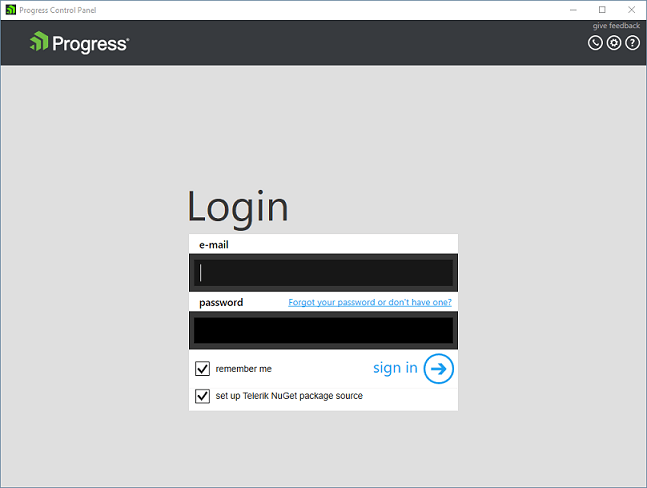
First, download the Progress Control Panel from the following page and run the downloaded .exe file. You will soon see the login screen where you will need to provide your Telerik account credentials to log in.
Progress control panel login screen
Select products to install
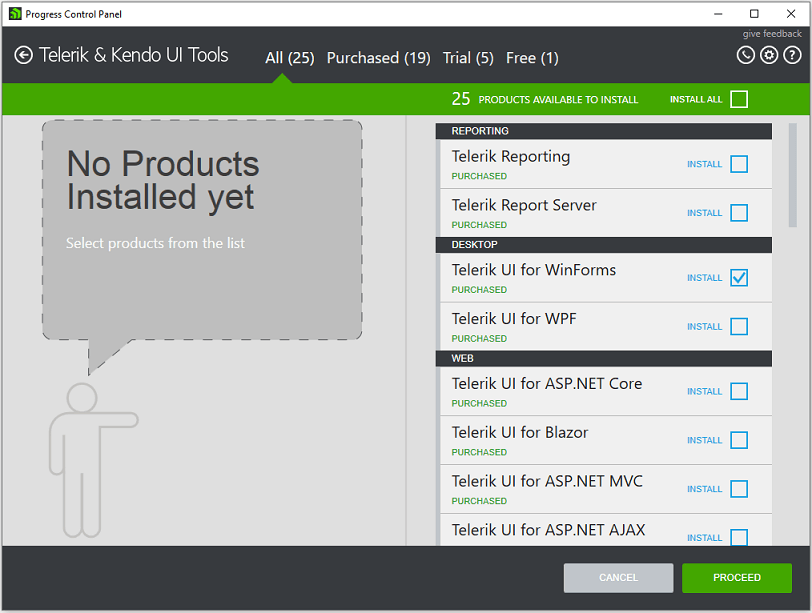
After that, you will see a screen with sections for all products, purchase products, trial products, and free products. Each of these sections has a split-screen view - the left contains installed products that can be updated, and the right contains products that can be installed.
You can continue to chooseTelerik UI for WinFormsSuite, once you click the checkbox, you will be presented with the option to continue or cancel.
Progress control panel list of available products
Configure installation
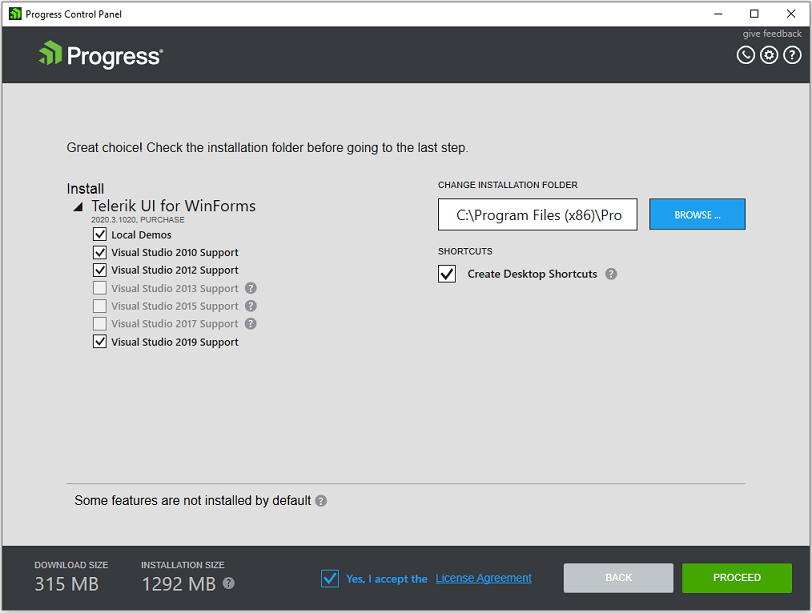
After clicking Continue, you will have the opportunity to review your selections and make changes to the installation folder. When you are ready to continue, accept the license agreement and click Proceed again. If you forgot something or checked the wrong box, click Back and correct your selections.
Progress control panel installation configuration page
When you click Proceed, the Progress Control Panel will download the files required for the installation and then install them to the location of your choice.
Next step
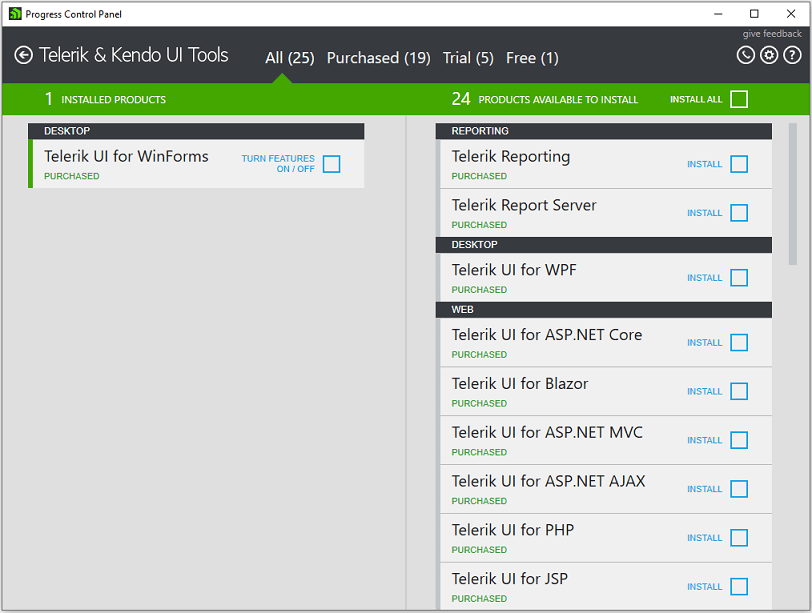
Once the installation is complete, you will return to the home screen to install or update more products.
InstallTelerik UI for WinFormsProgress Control Panel
You can now start creating your firstTelerik UI for WinFormsproject.
Remove from progress control panel
After installing the Telerik UI for WinForms suite in the progress control panel, you can click on it and check the remove option:
Remove Telerik UI for WinForms installation from Progress Control Panel
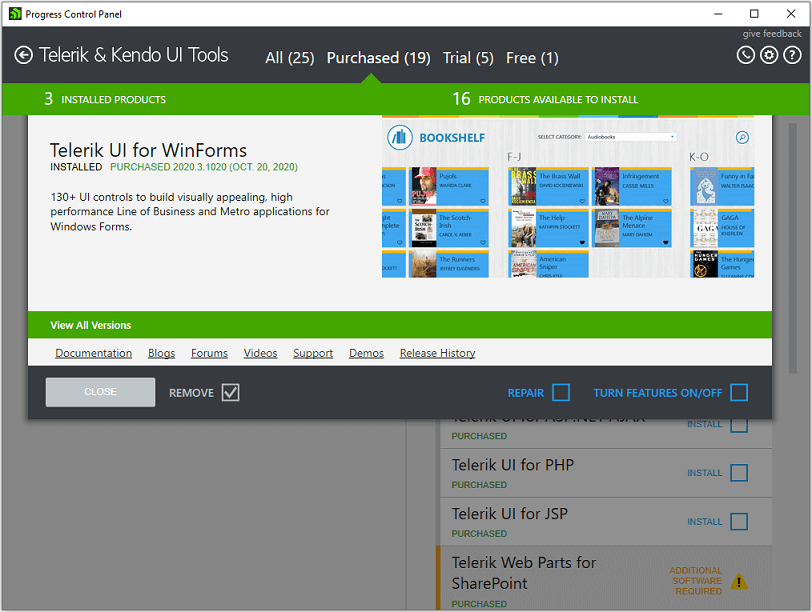
Close the window and continue:
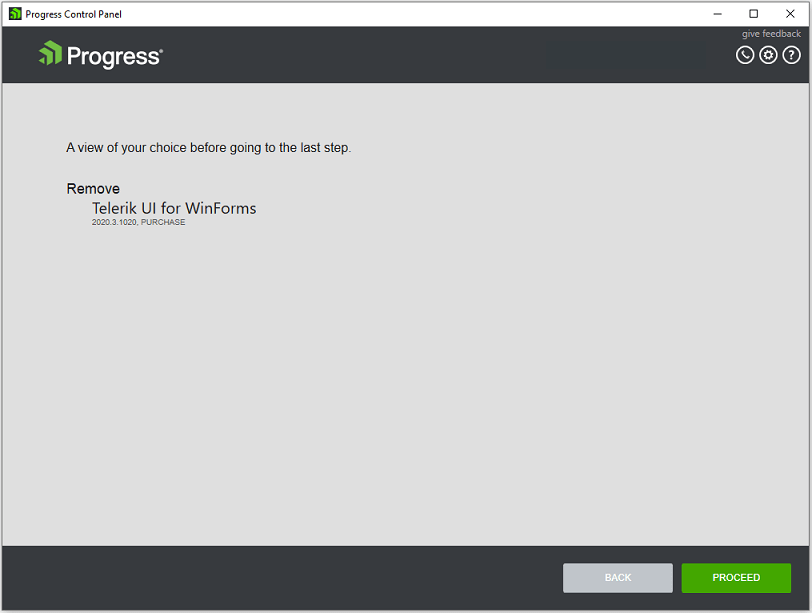
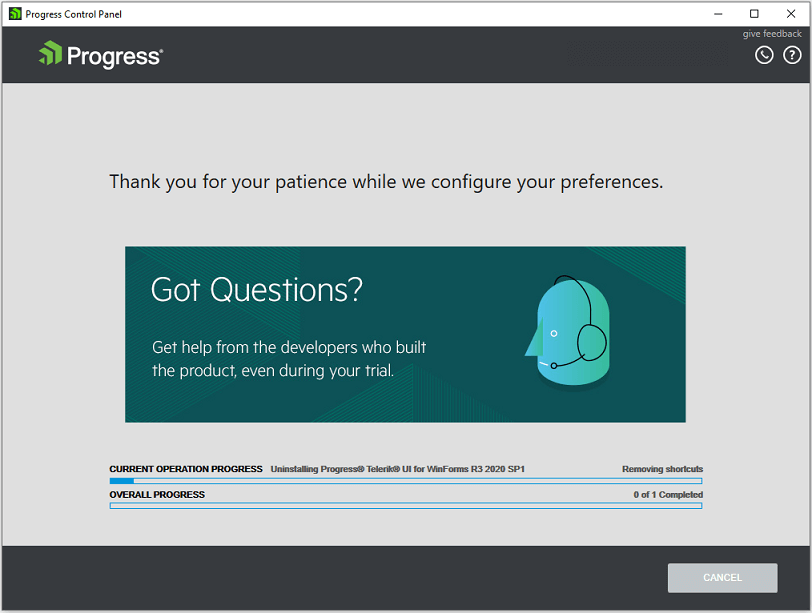
Telerik UI for WinForms | Download and try it out
Telerik UI for WinFormsFeaturing over 110 stunning UI controls for Windows Forms. All UI for WinForms controls come with full theme support, making it easy for developers to deliver a consistent and beautiful next-generation user experience across desktop and tablet applications.
To learn about the latest Kendo UI information, please pay attention to Telerik Chinese website!
Intelligent Recommendation

Interface Components Telerik UI for WPF Getting Started Level Tutorial - Edit Control Template (1)
This article mainly demonstrates how to extract and editTelerik UI for WPFThe default control template two methods. Get the official latest version of Telerik Ui for WPF Manually extract the control t...
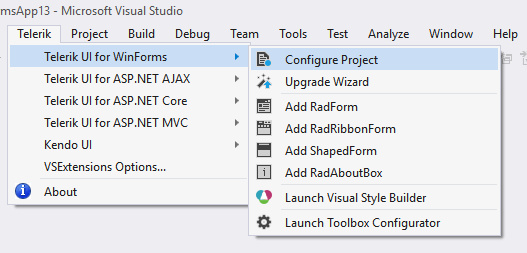
Interface Control Telerik UI for WinForms Getting Started Tutorial - Visual Studio Extension
Telerik UI for WinFormsThe Visual Studio extension for the control is designed to help developers create WinForms applications using Telerik UI for WinForms. Get the official latest version of Telerik...
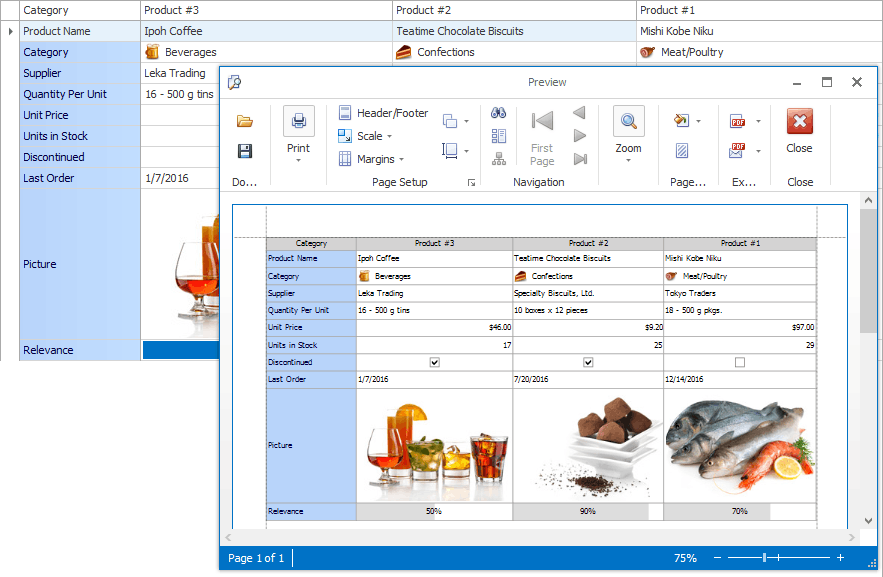
Getting Started Guide to WinForm Interface Control Development - Customizing Printing Appearance
Get the tool download - DevExpress WinForm v21.1 DevExpress technical exchange group 4: 715863792 Welcome to join the group for discussion How to preview the XtraGrid control The following example sho...
Winform interface control Devexpress Getting Started Guide -Window Service
DevExpressServices pass the command to the control from ViewModel to the View, which allows you to modify the UI without separating the application layer. Get tool download -Devexpress v21.2 Window Se...
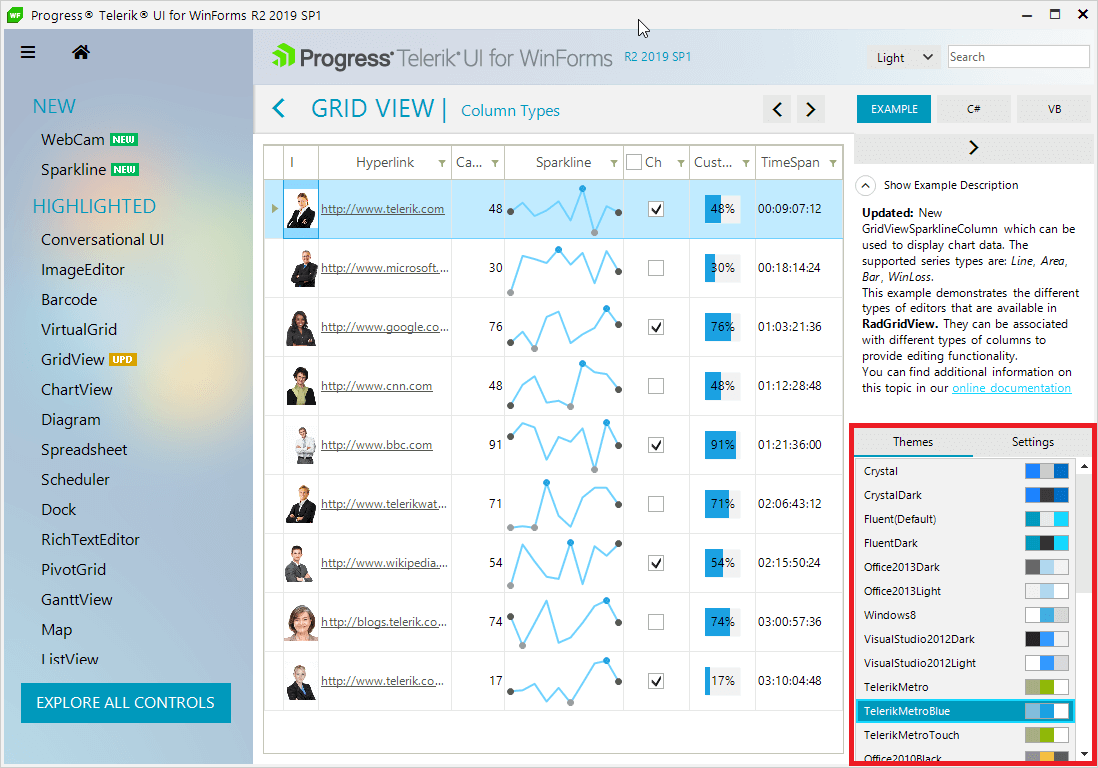
Interface Control Telerik Ui for Winform Primary Tutorial - Preview and Change Control Appearance
Click Get Tools Download - Telerik Ui for WinForms Preview Customize theme Using Live Demo is a previewTelerik UI for WinFormsA simple and short way to control the subject theme. Live Demo ThemeViewer...
More Recommendation
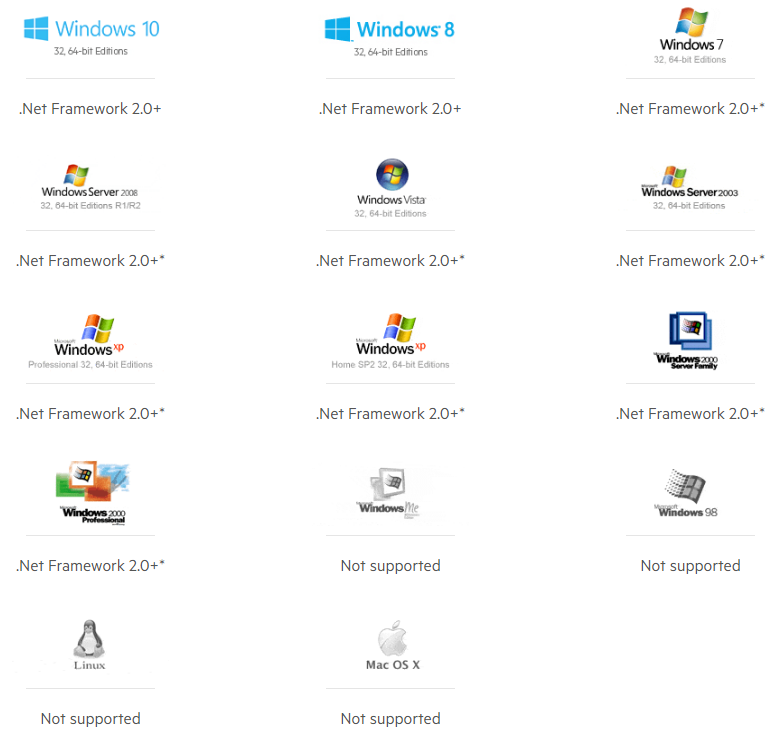
Interface Control Telerik UI for WinForm Basic Tutorial - System Requirements & Installation Steps
Click to get the tool download - Telerik UI for Winform System Requirements operating system *RadRichTextEditor, RadSpellChecker, RadPdfViewer, RadSpreadsheet and RadDiagram require .Net Framework 4.0...
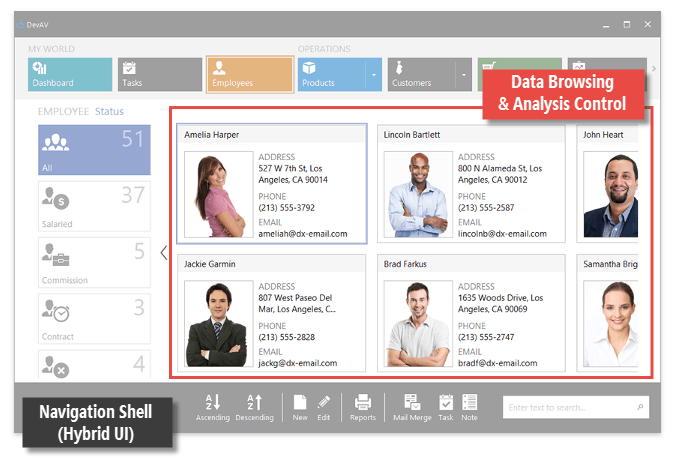
DevExpress WinForm Control Getting Started Guide - Data Management Control
The Choosing an App UI section provides tutorials on how to simulate popular UI types from Microsoft, such as Office, Visual Studio, and Windows Modern. The controls listed in this article are designe...
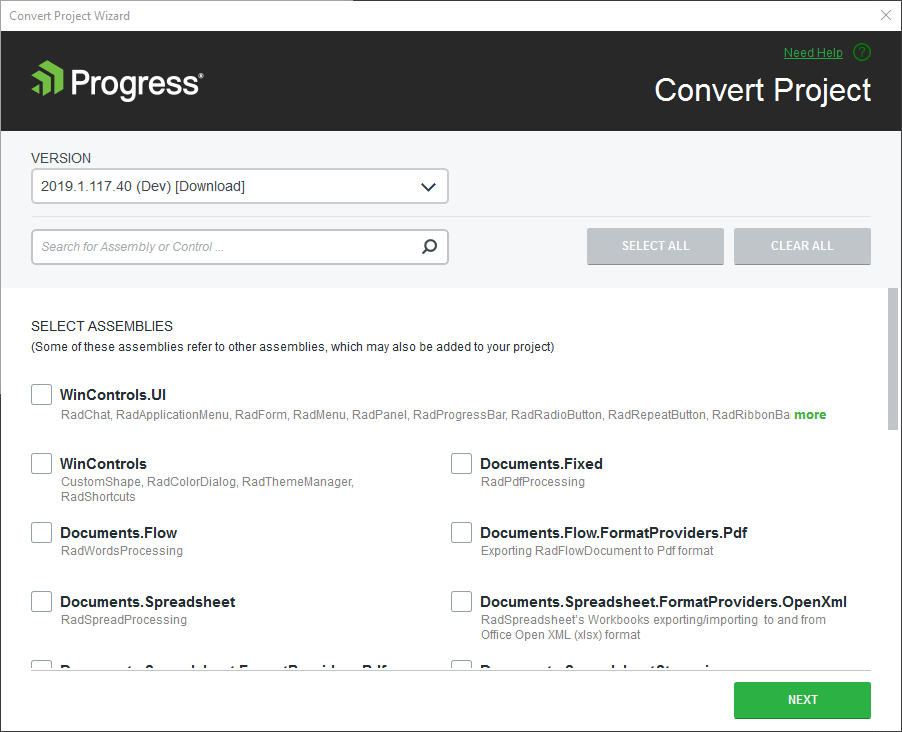
Interface Development Components Telerik UI for WinForms Getting Started Guide - How to Convert Projects
Get the official latest version of Telerik UI for WinForms When you need to convert an existing WinForms application toTelerik WinFormsapplication, the Telerik Visual Studio extension Convert Project ...
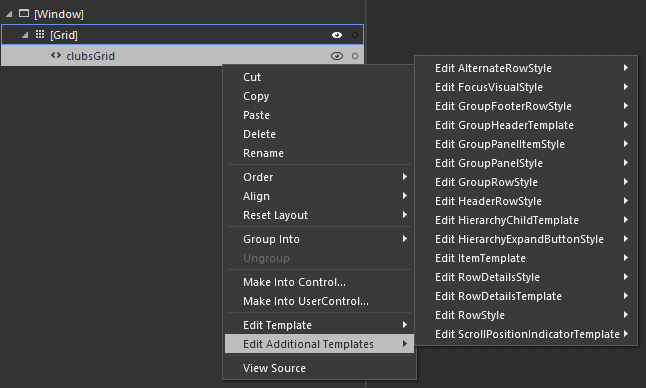
Interface Components Telerik UI for WPF Getting Started Guide - Modifying the Default Style
Get the official latest version of Telerik UI for WPF This article will show you two ways to modify the default style of controls: Modify default styles with Microsoft Blend Modify default styles usin...
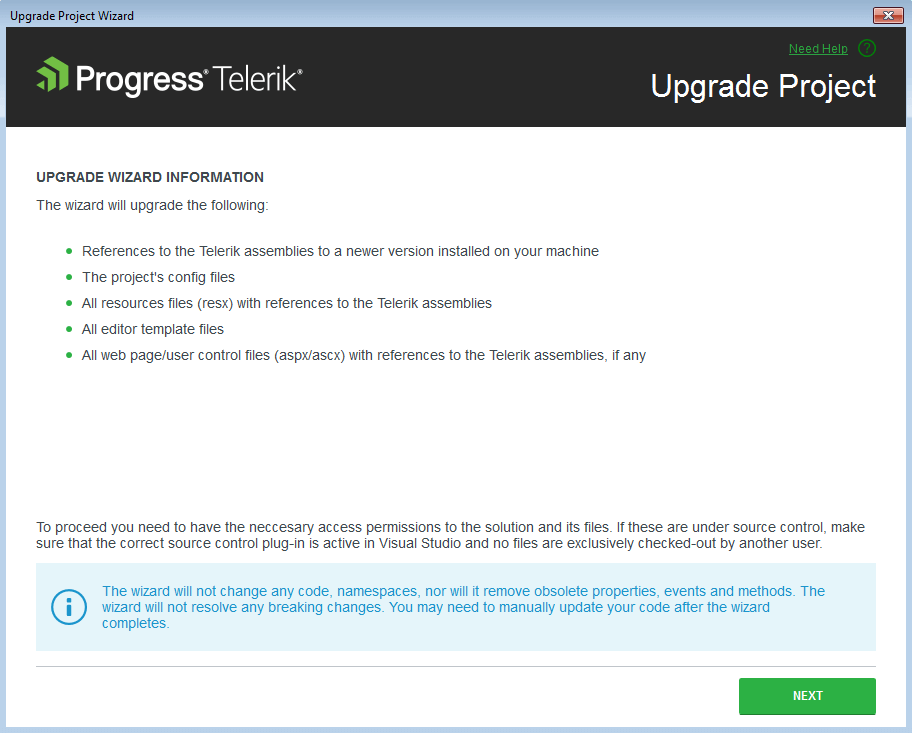
Interface Controls Telerik UI for WinForms Getting Started Guide - Using VS Extensions to Upgrade Projects
An important feature in Visual Studio Extensions is the Project Upgrade Wizard. The Upgrade Wizard (started using the Telerik > Telerik UI for WinForms > Upgrade Wizard menu item) is used to cha...