Linux's TOP command parameter detailed PID User PR Ni Virt Res SHR S% CPU% MEM TIME + Command
tags: operating system linux java cpu
Linux's TOP command details
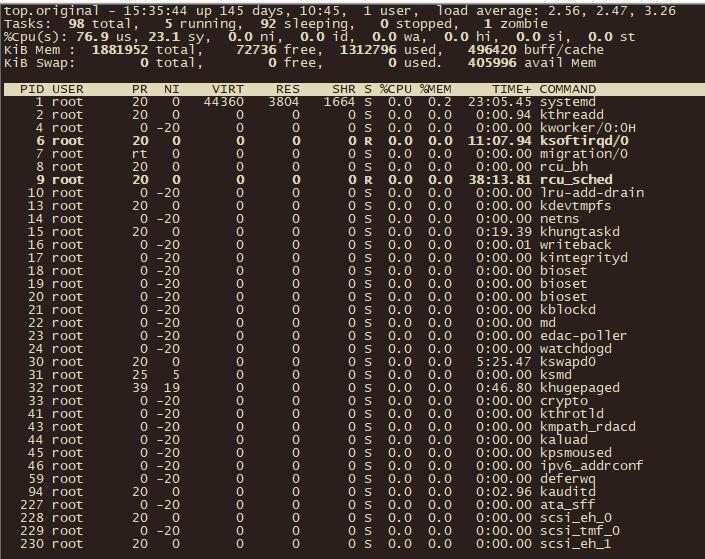
This picture is the real Ali cloud server, using the information after the TOP command.
1. The upper part shows the overall system load
1.1 TOP first line:
From left to right as the current system time, the system is running, the system is in the previous 1min, 5 min, and 15 min within the average load value of the CPU.
For example, I am in this picture
- 15:35:44 ====> The current system time is 15:35:44
- 126 days, 14:29 ====> The system is running 145 days 10 hours 45 minutes (there is no restart during this period)
- 1 user ===> There are currently 1 user login system
- Load average: 2.56, 2.47, 3.26 ===> The average load value of the CPU is 2.56 2.47 3.26 before 1 min, 5 min, 15 min.
1.2 Tasks one line:
The bank gives the overall statistics of the process, including the total number of processes in the statistical cycle, the number of operational state processes, sleep state processes, stop state processes and zombies.
For example, I am in this picture
- Total number of processes in the statistics cycle ====> 98
- Running status process number ====> 5
- Sleep status process number ====> 92
- Stop state process number ====> 0
- Zombie State Process Number ====> 1
Here, you can refer to my article in this article, you can refer to my article.
1.3 CPU (s) one line:
CPU overall statistics, including user state processes, system states take up CPU time ratio, and the NICE value is greater than 0 in the user state, the CPU time ratio, the CPU is in the IDLE state, the time ratio of the WAIT state, and the hard interruption , Time ratio of soft interruption
For example, I am in this picture
-
76.9% US, 23.1% SY, this is the percentage of CPU for user space and kernel space
- User state's process occupies CPU time ratio ====> 76.9%
- The process takes up the process compared to the CPU time ratio ====> 23.1%
-
0.0 NI User Process Space Changes the priority process occupies CPU percentage
-
0.0 ID Idle CPU Percentage
-
0.0 WA Waiting for the CPU Time Percentage of Enter Output
-
0.0 Hi hard interruption (Hardware IRQ) occupies the percentage of CPU
-
0.0 Si Soft Interrupt (Software Interrupts) occupies the percentage of CPU
1.4 MEM one line:
The row provides memory statistics, including the total amount of physical memory, has been used, idle memory, and memory used as buffers.
For example, I first figure 1881952 Total, 72736 Free, 13127996 Used, 496420 Buffer / Cache
- 1881952 Total physical memory total
- 72736 Free Space Memory Total
- 13127996 USED has used memory total
- 496420 Buffer / Cache used as the amount of memory in the buffer
1.5 SWAP line
Virtual statistics, including the total amount of swap space, existing switching zone size, idle switching area size, and switching space for cache
Swap: 0 total, 0 free, 0 used, 405996 avail Mem
This behavior exchanges partition usage, and the interpretation of the above memory is basically consistent
- 0 TOTAL, exchange partition physical memory total
- 0 Free, exchange partition space memory total
- 0 Used, exchange partitions have been used in total memory
- 405996 Avail MEM swap partition used as the amount of memory in the buffer
2. The lower half of the head
PID USER PR NI VIRT RES SHR S %CPU %MEM TIME+ COMMAND
- PID process number
- User username
- PR priority (priority)
- Ni nice value. Negative value represents high priority, positive value indicates a low priority M
- Virtual memory used by Virt processes
- The physical memory size used by the RES process, the unit KB, unit KB
- SHR shared memory size, unit KB
- S process status.
- D = sleep state of uninterrupted
- R = operation
- S = sleep
- T = tracking / stop
- Z = zombie process
- % CPU CPU usage
- Percentage of physical memory used by the% MEM process
- Time for Time + process used, unit 1/100 seconds
- Command execution
TOP common summary:
- Top defaults to explicit all processes in all processes every 5 seconds
- Top -d 10 explicitly all process resources occupation every 10 seconds
- Top -c occupies the resource of the explicit process every 5 seconds, and displays the command line parameters of the process (the default only process name)
- TOP -P 2088 -P 3088 Displaying PID is a resource occupancy of two processes of 2088 and PIDs every 5 seconds.
- Top -d 2 -c -p 3008 Displays the resource usage of the PID is the process of the process of 3008 every 2 seconds, and explicitly the process line parameter started by the process.
Intelligent Recommendation
Linux's TOP command details
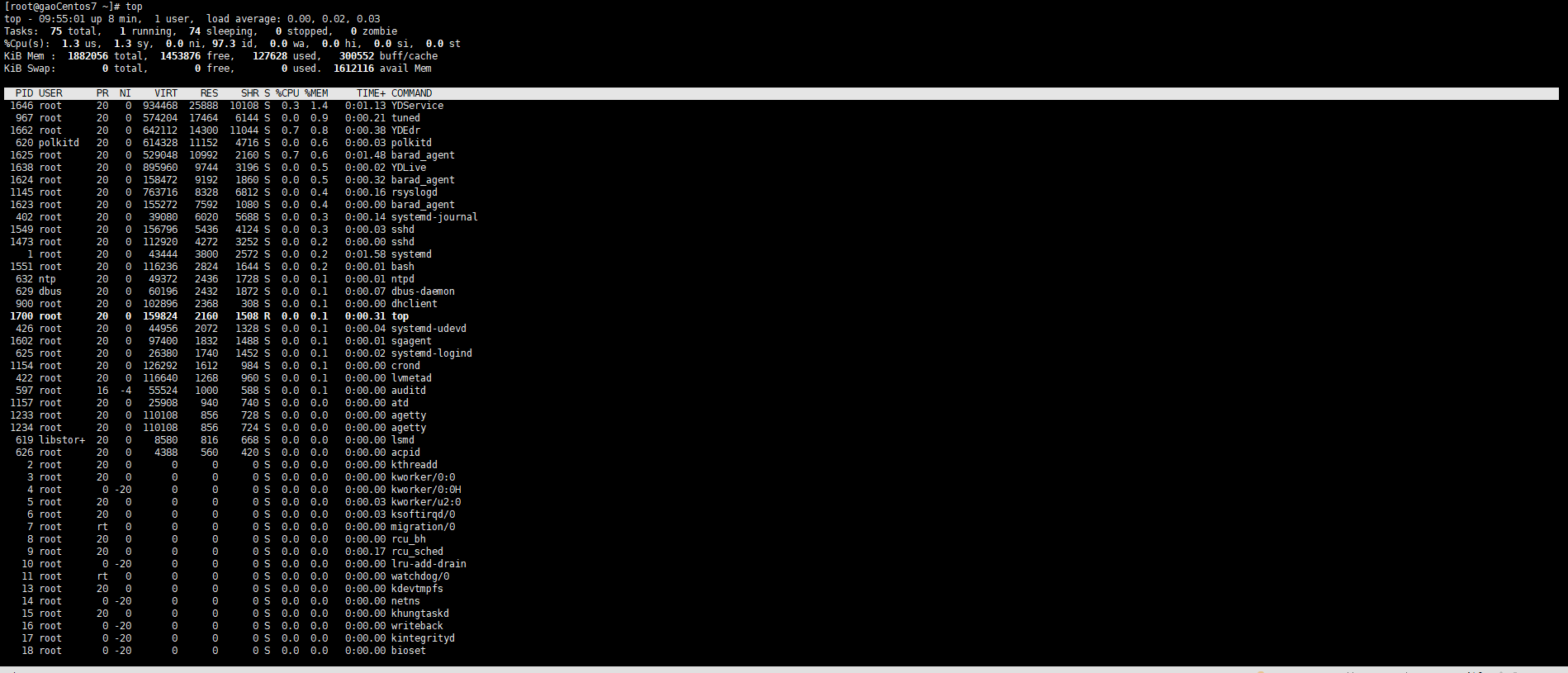
Linux Top Command Interface top- Tasks: % CPU (s): means this line shows the overall information of the CPU KiB Mem : 1882056 Total: The system physical memory is total. 1453876 free: The total amount...

Detailed explanation of virt-install command
virt-install command General options: specify the name, memory size, number of VCPUs and characteristics of the virtual machine; parameter Introduction -n NAME, --name=NAME The name of the virtual mac...
linux top ni pr
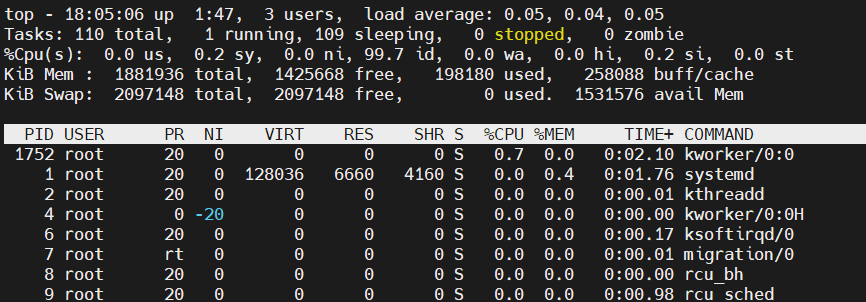
Analyzing the performance of the Linux server, the first command that thinks must be TOP. Through it, we can see that the current server resource usage and process operation resource occupation. When ...
Linux's iostat command details --- IO and CPU real-time monitoring
1 Introduction Iostat is used to monitor the use of statistical system input and output devices and CPUs, and the abbreviation of English I / O Statistics. iostat is mainly used to monitor the IO load...
Linux's Find Command Detailed
Find command introduction Many times in Linux need to query the path path, then you need to use the find command. find command: Real-time lookup tool, complete file search by traversing the file syste...
More Recommendation

Linux top command inside% CPU and cpu (s) of the difference
Some students will engage us%% CPU and Halo, which is shown below in top view information cpu time. Then some students will ask: Which is right in the end these two CPU. In fact, all right, but the me...
Linux's TOP command average load
Can be used in Linuxuptime or topCommand View the average load of the system load average: 0.01, 0.04, 0.05 Display the average load of 1,515 minutes. 1, concept (1), average load In the unit time, in...
Assembly shr command
Move left command For example: The above command is to shift the value of eax to the left by two bits. How to shift it to the left? First, convert the value of eax to binary 10------》1010, and then sh...
Detailed explanation of Linux's TCPDUMP command
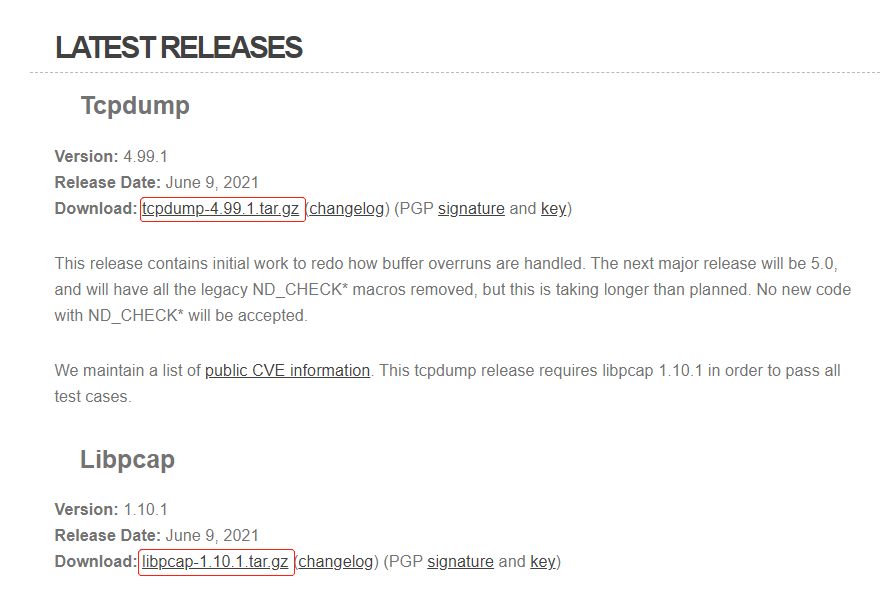
Detailed explanation of Linux's TCPDUMP command Install TCPDUMP principle Details Install TCPDUMP download https://www.tcpdump.org/ Click the red part in the figure to download TCPDUMP and libpcap pac...