A plug-in for Visual Studio to add background-ClaudiaIDE
tags: Add background Visual Studio ClaudiaIDE
ClaudiaIDE
In the previous blog, we explained howModify the theme of VS2015In addition, we can also add background. This requires another plug-in—ClaudiaIDE, It provides a single background display, a slide show form, background transparency settings, background display position settings and so on.
how to install
The installation process is very simple, but in order to make the structure clear, it is still extracted and explained separately, search for ClaudiaIDE in the extension and update interface of VS, and install it directly after finding it.

how to use
After the installation is complete, restart VS, you can see the following effects:

We can make some settings for the effect of the background image, it is in "Tools"-"Options"-"ClaudiaIDE":

Presentation form
"Background picture display type" determines whether the background is a single picture display or a slide show, and the settings correspond to "Single" and "Slideshow" respectively.
The "Horizontal Alignment" and "Vertical Alignment" in "Layout" determine the position of the image. When "Right" and "Bottom" are selected, the image will be located in the lower right corner.
The slide show provides the update interval and other settings. This is easy to understand, just set it according to your own preferences. The path of the image "images" is a relative path. After the default installation is selected, its absolute path is:
..\AppData\Local\Microsoft\VisualStudio\14.0\Extensions\fklmekuz.p15\ImagesCustom picture
We can make some pictures by ourselves and put them in the path above. These pictures support .jpg.png .bmp.gif format, but it is recommended to choose pictures in .png format because we can remove the background and present a transparent background effect.
Here is a relatively rudimentary solution to the background, you can useWord image editingFunction, of course, there are many other methods.
The effect of adding some custom pictures is as follows:


Intelligent Recommendation
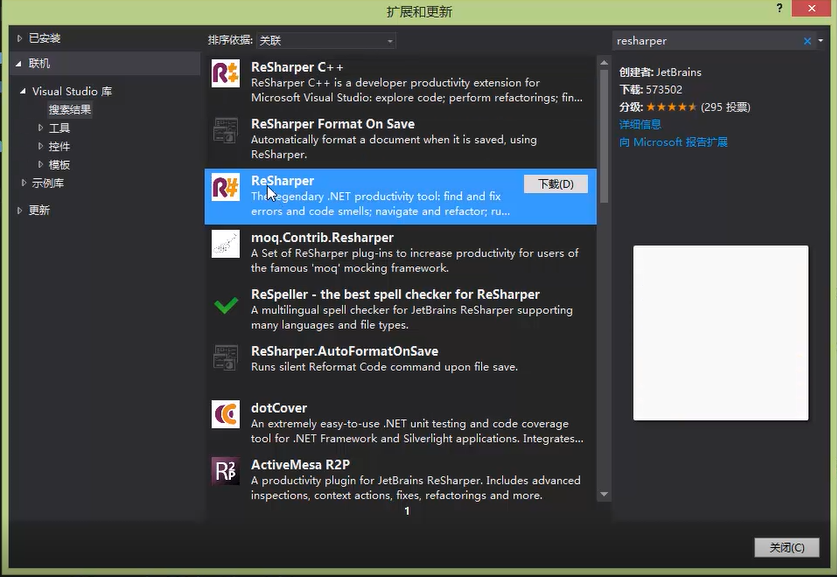
Visual studio plug-in ReSharper
Using ReSharper, you can perform in-depth code analysis, intelligent code assistance, real-time error code highlighting, code analysis within the solution, quick code correction, one-step code formatt...
Visual Studio Code plug -in
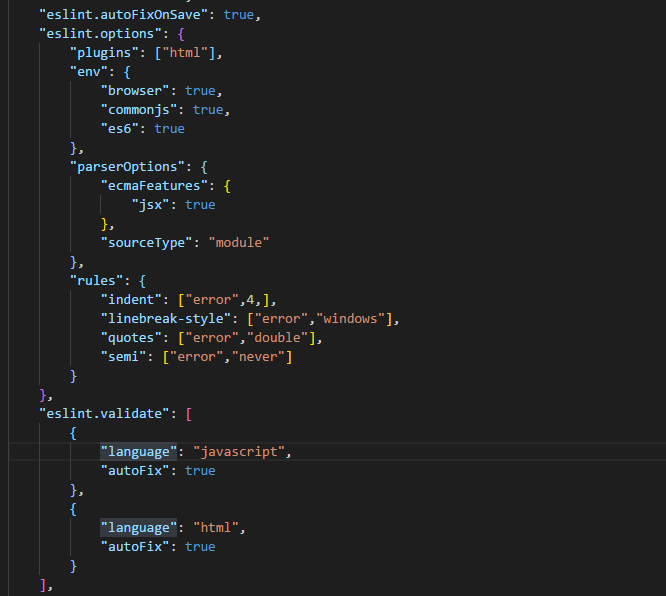
1. Improve efficiency plug -in 1.1: ESLint (formatting program and specification code) If you need formatting program and specification code, then this plug -in is suitable for you. It can automatical...
VS Code || Visual Studio Code How to modify and add background images
The first step is to open the extension tool. The second step, search: background, install The third step, open the file in the upper left corner → Preferences → Settings The fourth step, cl...

Visual Studio background plugin
Share a Visual Studio background plugin to make the stacking more interesting. . Haha Forgetting an important thing, I am using the VS 2012 version. Other higher versions should be available....
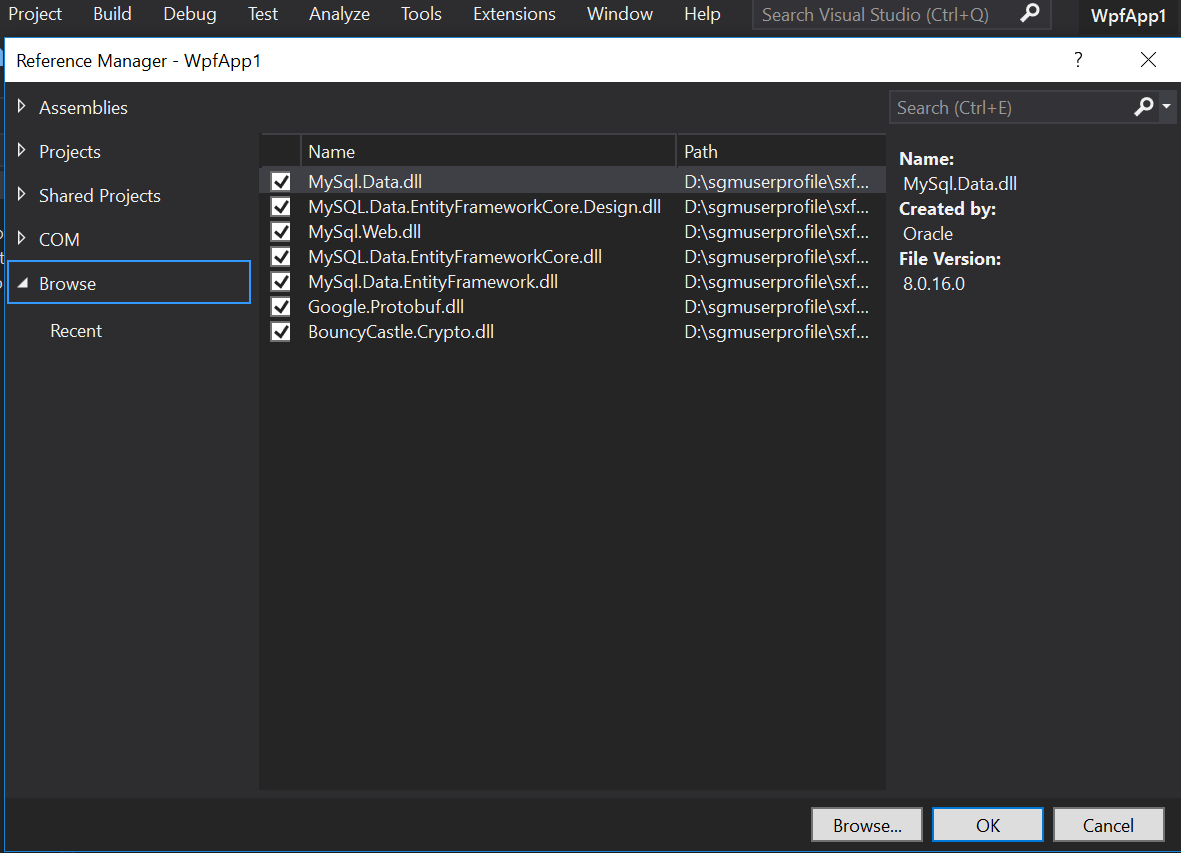
Visual Studio add reference
Visual Studio reminds you that the class library does not exist when you refer to it. At this time, you need to manually add the reference. First download the corresponding class library from the Inte...
More Recommendation
Visual Studio Code plug-ins
scode-color-highlight ------ highlight color code plug. (Sublime text also) vscode-Open in Browser ------ open right in the browser. (Sublime text also) vscode-Path Intellisense ------ file path promp...

Visual Studio plug-in installed VSN
1 https://www.visualsvn.com/downloads/ Download VisualSVN. Note download the appropriate version of Visual Studio 2 Restart Visual Studio, in the Tools => Options => Source Control => Plug-se...
Essential plug-in for Visual Studio Code
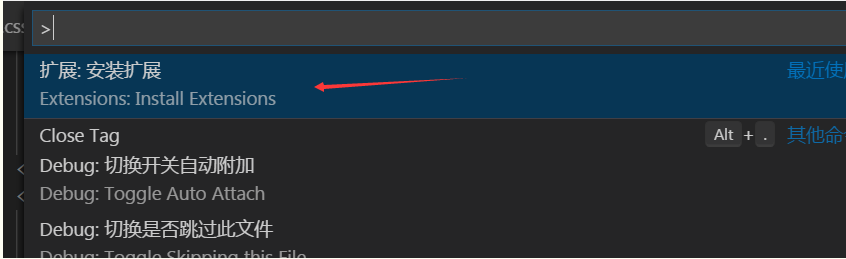
First ctrl + shift + p, pop up the command panel-select Extensions: Install Extensions Or directly click the expansion button in the left column (Ctrl + Shift + X) Then the left column will sho...

Recommend a useful Visual Studio plug-in
Introduction: I believe that many programmers have this experience. When there are too many parentheses in a sentence, after the square brackets, there is no way to distinguish which two parentheses a...

Visual Studio Package plug-in development
background During this period, the company created a new payment system with N back-end services. Every time there is an update and modification, copy the package and release the package "It's...