GMap.NET tutorial [3]
tags: GMap tutorial Gmap C# GMap
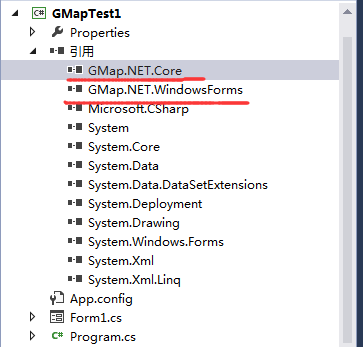
First, a winform project was created, named GMapTest1 and a reference to GMap was added to the project (GMap.NET.Core.dll and GMap.NET.WindowsForms.dll)
After the addition is complete, drag the GMapControl control onto the Form panel. The default GMapControl name is gMapControl1 (Shannon doesn't want to change it, the package can be changed).
1, loading the map
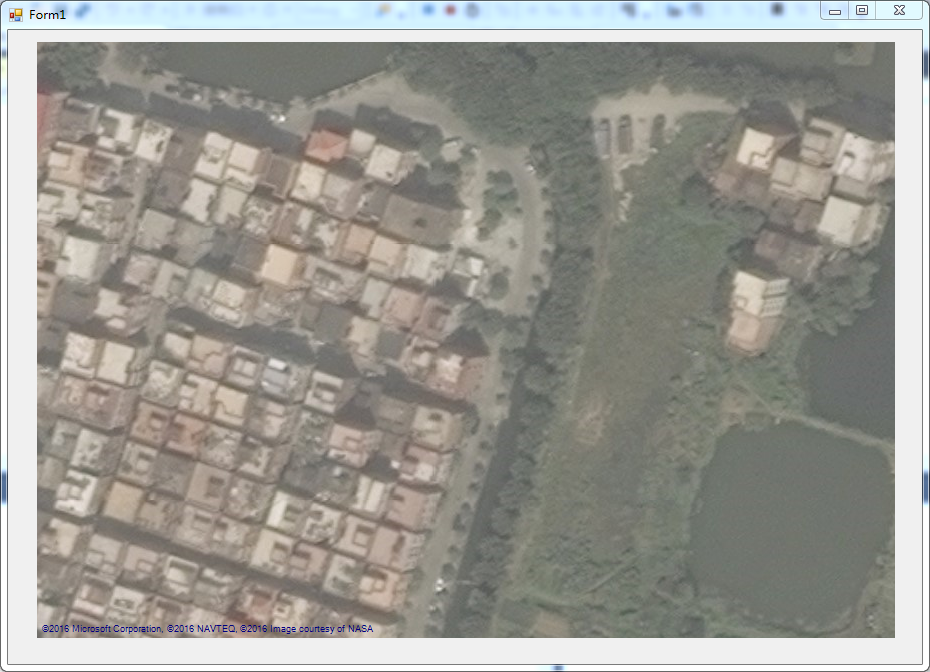
To load a map using GMap, you first need to specify the basic map properties such as the loaded map class, map loading method, map zoom ratio, and map display center. The specific operation code is as follows:
this.gMapControl1.CacheLocation = System.Windows.Forms.Application.StartupPath;//Specify the map cache storage path
 this.gMapControl1.MapProvider = GMapProviders.BingHybridMap;//Specify the map type
 this.gMapControl1.Manager.Mode = AccessMode.ServerAndCache;//map loading mode
 this.gMapControl1.MinZoom = 1; //minimum ratio
 this.gMapControl1.MaxZoom = 23; //Maximum ratio
 this.gMapControl1.Zoom = 15; //current ratio
 this.gMapControl1.ShowCenter = false; //Do not display the center cross point
 this.gMapControl1.DragButton =System.Windows.Forms.MouseButtons.Left;//Left and drag the map
        this.gMapControl1.Position = new PointLatLng(23,113);
GMap has three load mode Servers (loaded from the target server), Cache (loaded from the specified cache), and ServerAndCache (loaded using the server and cache load). According to the actual situation of the project, GMap maps have a total of 24 levels, scaling. From 1 to 24, the map display area gradually becomes larger, and the display scene range becomes larger. In other words, the larger the zoom ratio, the more detailed the display geographic information, the smaller the zoom ratio, the larger the display geographic width, and the map scale. It is bigger. By default, GMap uses the right mouse button to drag the map. This is not consistent with our usual habits, and it is changed to the left mouse button. Run our project and you will see the map we loaded.
2, GMapOverlay class introduction
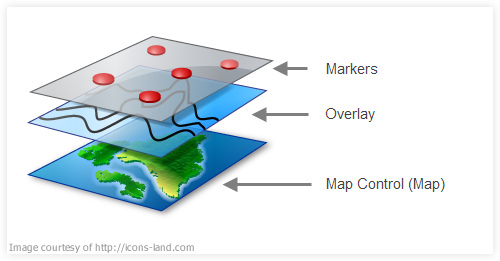
When we successfully load the map, we need to operate on the map. In this case, we need to use the GMapOverlay class. We can think of GMapOverlay as a transparent canvas, which is hidden in our map. Above, when we operate on GMapOverlay, the content drawn on GMapOverlay will be overlaid on the top of the map, making our Marker, Routes, etc., and map information one-to-one.
First declare a GMapOverlay object, you can use a constructor with parameters or a constructor with no arguments.
public GMapOverlay overlay = new GMapOverlay("Marker"); There is a public collection property variable Overlays in the GMap object. When we declare a property GMapoverlay variable, we add the declared overlay to the collection.
this.gMapControl1.Overlays.Add(overlay);So when we operate on the overlay, we are working on GMap.
There are three more important collection type variables in GMapOverlay: Markers, Routes, Polygons.
Markers:
Markers are used to identify the information that our map user wants to highlight or mark. Usually it is used to indicate the location, name and other information of a point. Here, make a single mouse button on the map. Mark the instance of Marker. First we need to use the mouse click event of GMap:
this.gMapControl1.MouseClick += gMapControl1_MouseClick;We can perform the Marker display operation in the message response function gMapControl1_MouseClick.
PointLatLng p = this.gMapControl1.FromLocalToLatLng(e.X, e.Y);//Convert mouse click point coordinates to latitude and longitude coordinates
GMapMarker marker = new GMarkerGoogle(p, GMarkerGoogleType.arrow);
 marker.ToolTipText = "Click this point";
this.overlay.Markers.Add(marker);
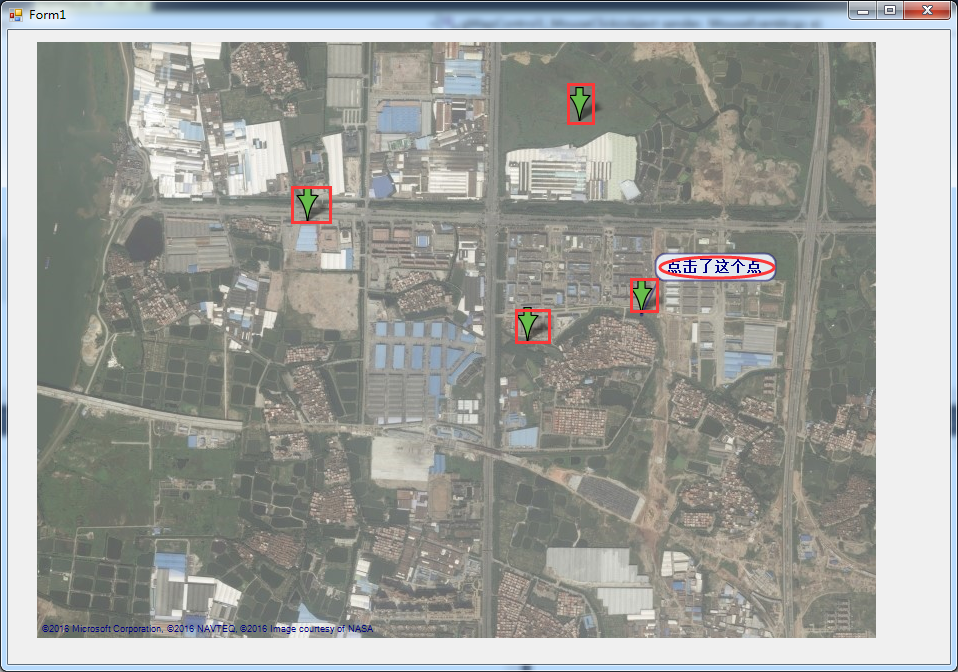
The display effect is as follows:
The red rectangle on the way is marked with the Marker used to identify the point on the map, and the part marked with the red ellipse is used to indicate the Marker's prompt tool. The mouse will be automatically displayed when it is moved to the corresponding Marker.
Routes:
The Routes collection is literally used to store paths, and in fact it is, but how is the storage path stored? Here Shannon also made an example of generating a path by clicking the mouse and displaying it. First declare a set variable of latitude and longitude points in the project code:
List<PointLatLng> list = new List<PointLatLng>();Add the following code to the mouse click event of gMapControl1 (preferably delete or comment out the code about Marker first):
overlay.Routes.Clear();
list.Add(p);
GMapRoute route= new GMapRoute(list, "line");
route.Stroke.Color = Color.Red;
 route.Stroke.Width = 2; //Set the painting
overlay.Routes.Add(route);
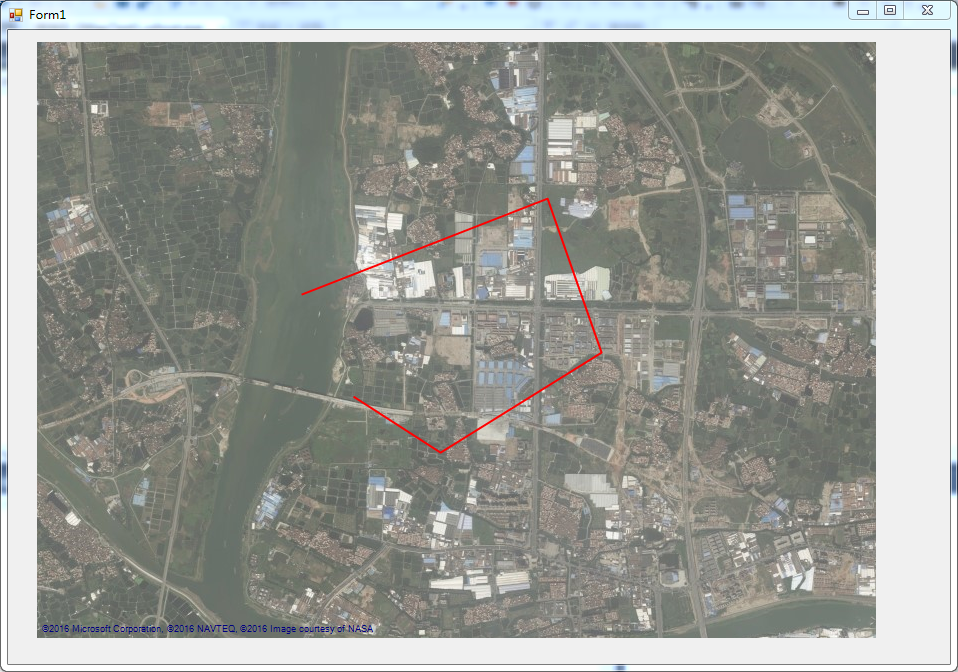
The mouse clicks on the red line generated between the two points, and the lines are connected end to end to form the path we generated when clicked. In the code, we set the color of the line segment by route.Stroke.Color, and route.Stroke.Width sets the thickness of the line segment.
Polygons:
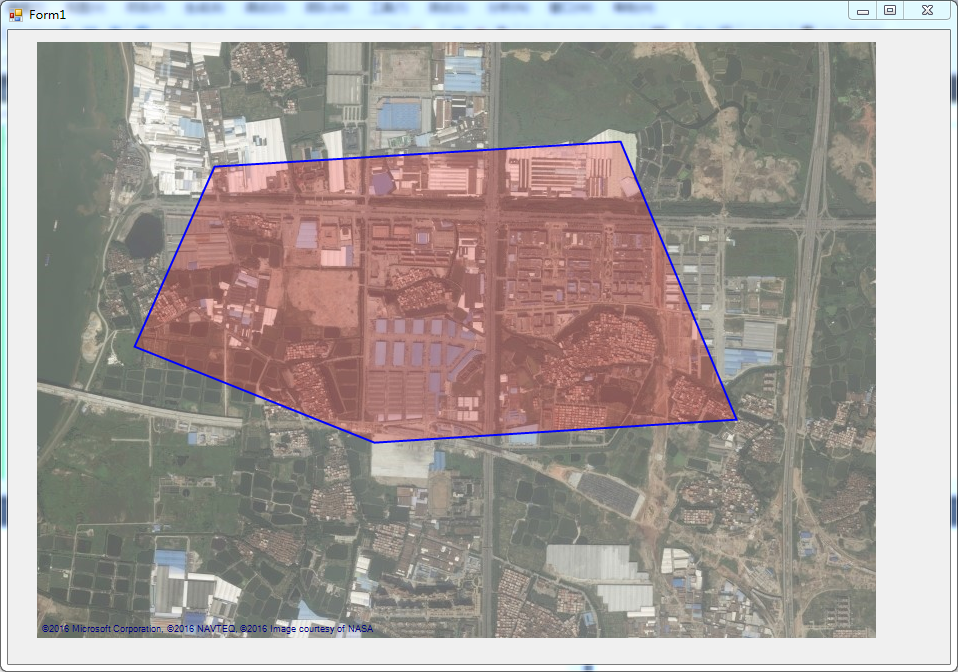
The Polygons collection object actually represents an area selected on the map. The same Shannon here makes a mouse click to generate an instance of Polygon:
overlay.Polygons.Clear();
 GMapPolygon polygon = new GMapPolygon(list, "polygon");
polygon.Fill = new SolidBrush(Color.FromArgb(50, Color.Red));
polygon.Stroke = new Pen(Color.Blue,2);
polygon.IsHitTestVisible = true;
overlay.Polygons.Add(polygon);
Click Debug Run, the running effect is as follows, you need to click the mouse at least three times:
At this point, we can customize or extend the related functions of the GMap map control by operating on the GMapOverlay object.
Finally attached this source code: http://download.csdn.net/detail/yuanquanzheng/9591930
---------------------
Original: https://blog.csdn.net/yuanquanzheng/article/details/52086343
Intelligent Recommendation
Custom Marker developed by GMap.Net
Previous articleIntroduced how to use GMap control in WinForm and WPF. This article introduces the use of Marker in GMap. Custom Marker can be understood as customizing the icon on the map (Custom Mar...

Some notes on the use of GMap.NET
Some notes on the use of GMap.NET Tip: Here you can add a catalog of all articles in the series, and the catalog needs to be manually added by yourself For example: the first chapter Python machine le...
GMap.net Customize MARKER
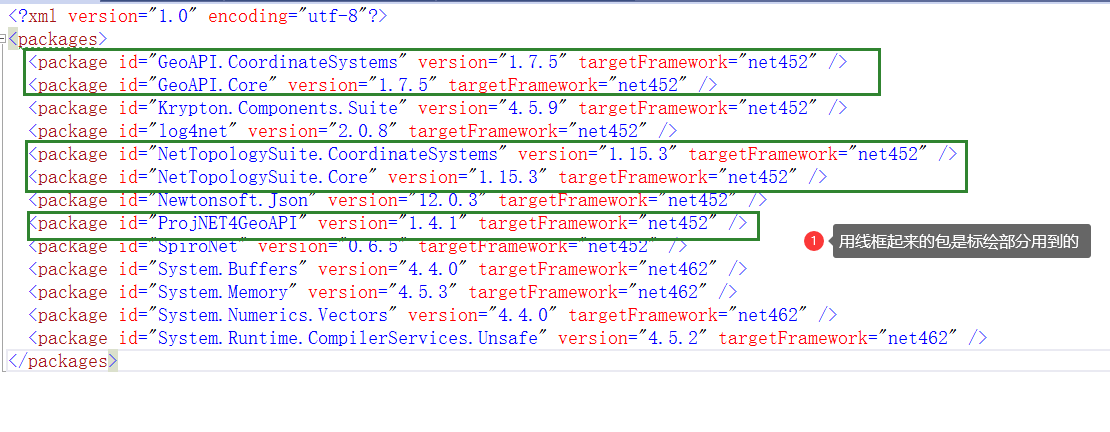
instruction Customize the content of the Marker part from the Internet, and the specific source doesn't remember. If someone finds that there is no indication here, please Hanan! NuGet package ...

GMap.Net development uses GMap.Net map plugin in WinForm and WPF
What is GMap.NET? Take a look at its official description: GMap.NET is great and Powerful, Free, cross platform, open source .NET control. Enable use routing, geocoding, directions and maps from Coogl...
GMap.Net development using GMap.Net map plug-in in WinForm and WPF
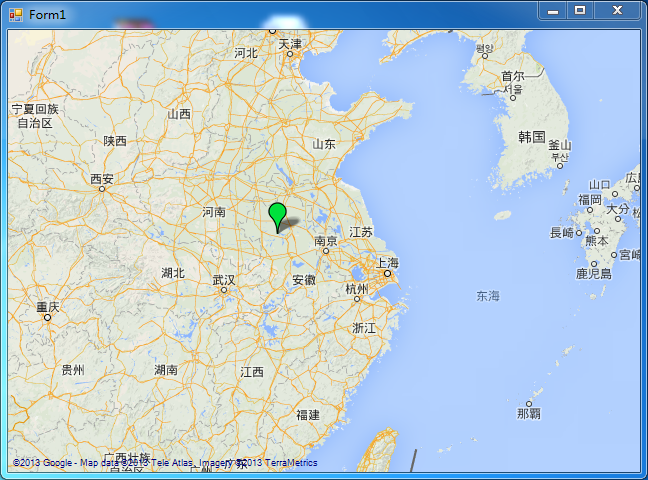
GMap.Net development using GMap.Net map plug-in in WinForm and WPF What is GMap.NET? Take a look at its official description: GMap.NET is great and Powerful, Free, cross platform, open source .NET con...
More Recommendation
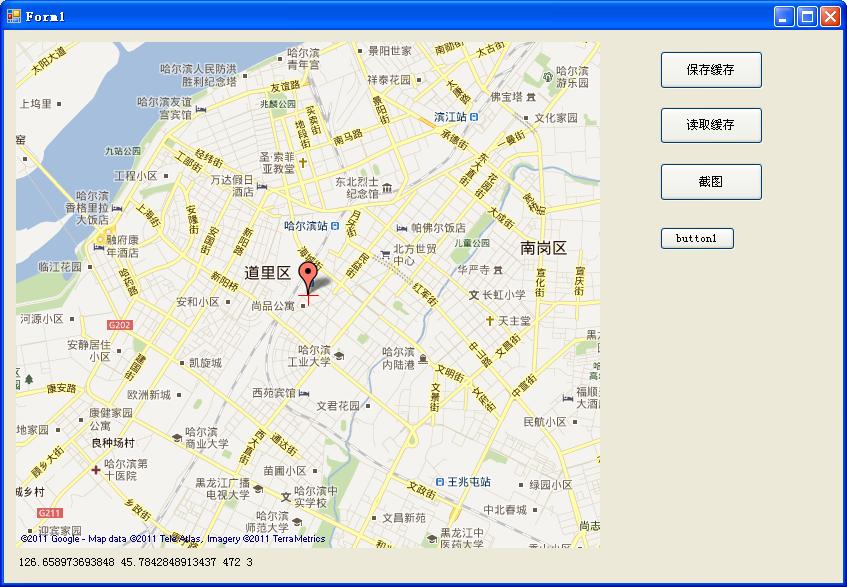
The experience of using the GMap.Net control in development
The experience of using the GMap.Net control in development 2013-12-11 10:33 by swarb, ... Reading,... Comment,Collection, edit First of all, you must first load the GMap.Net control, first load the c...
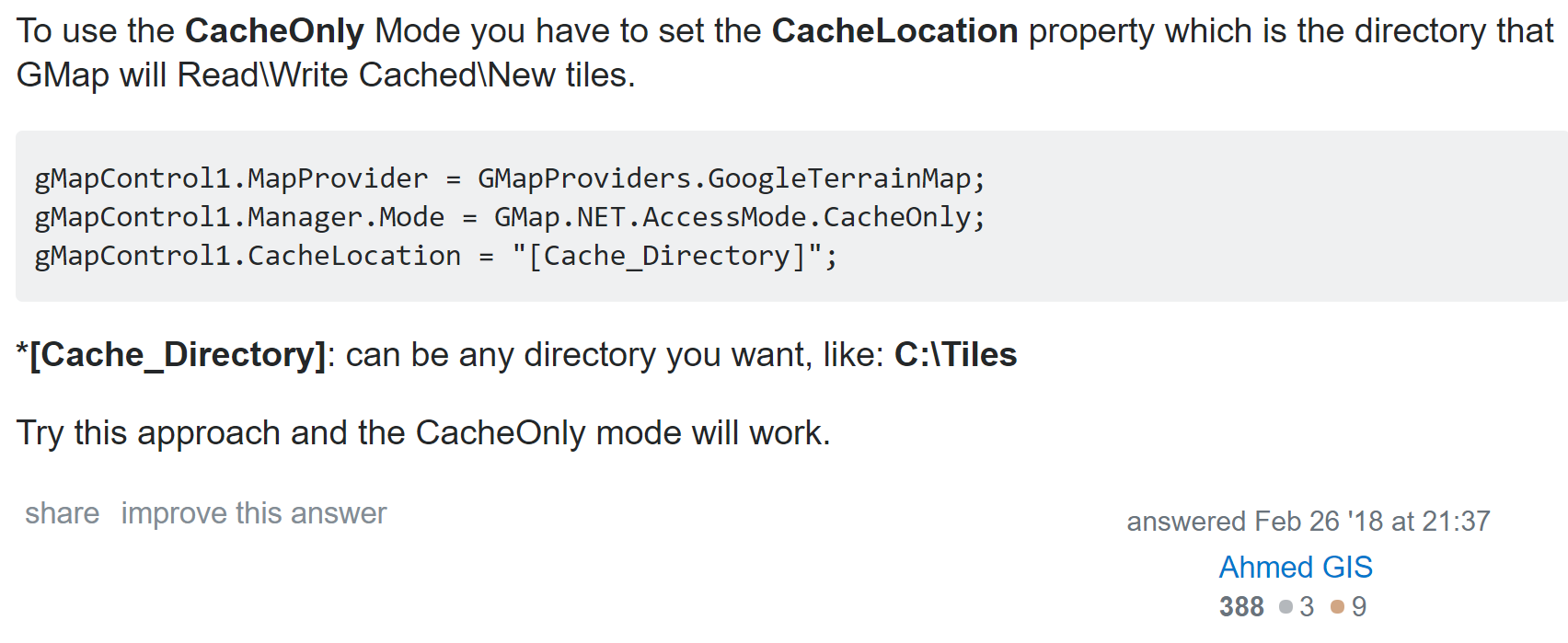
GMAP.NET application and offline map loading
Without further ado, go to the code first: `using System; using System.Collections.Generic; using System.ComponentModel; using System.Data; using System.Drawing; using System.Linq; using System.Text; ...
GMap.Net Map Corporation Decree (1)
Geometryutil Help class: Mainly used for spatial reference (coordinate) conversion, distance calculation, etc. Interface for drawing definition iPlot Constants: Constant Definition PlotTypes: Corrupte...
GMap.Net Map Corruption (4): Arrow
DoubleRrow: clamp StraightArrow: straight arrow Finearrow: fine arrow AssaultDirection: Assault direction AttackARROW: Attack direction TAILEDATTACKARROW: Attack direction (tail) &...