Questions: Use JDBC to connect to SQL Server database
tags: SQL Server Connect to the database JDBC
When I first came into contact with using JDBC to connect to a database, I always encountered a lot of problems, making people confused. Therefore, I use SQL Server
As an example, explain in detail how to use JDBC to connect to SQL Server. Click to downloadSQL Server 2017、SQL Server 2016
Tomcat 9.0.1
Before starting, please install SQL Server and Tomcat correctly. (The author uses SQL Server 2017 and Tomcat9.0.1 to demonstrate)
Preparation: After installing SQL server and Tomcat correctly, open cmd and run the command "telnet 127.0.0.1 1433", if it appears
"Telnet is not an internal command or program..." means you have not opened the telnet service, then please refer to another blog of the author"Open telnet service problem"
If you open the telnet service correctly, but run the above telnet command, "cannot connect to 127.0.0.1, port 1433..." appears, it means that you need to
Server configuration, the next step is the detailed configuration process.
first step:Use the keyboard shortcut "window+x" to select "Computer Management" or directly use SQL Server Configuration Manager, as shown in the figure:

The second step:The opened window is shown in the figure below. Find in the left column SQL ServerNetwork configuration option, click on its small arrow, it will
See "[Your database name] agreement" , Select it and look at the right column. As shown:

third step:If Named Pipes Not enabled, then right click → enable,Right-click TCP/IP,select Enable,Double click TCP/IP
(Right click→Properties), select in the pop-up window “IPaddress" Tab, set IP1And the [IP address] of IP10 is set to 127.0.0.1,
And set all 【IPx】【enabled】to yes. Then, drag the drop-down bar to the bottom, IPAll [TCPPort] Set
to make 【1433], the rest remain unchanged. As shown:
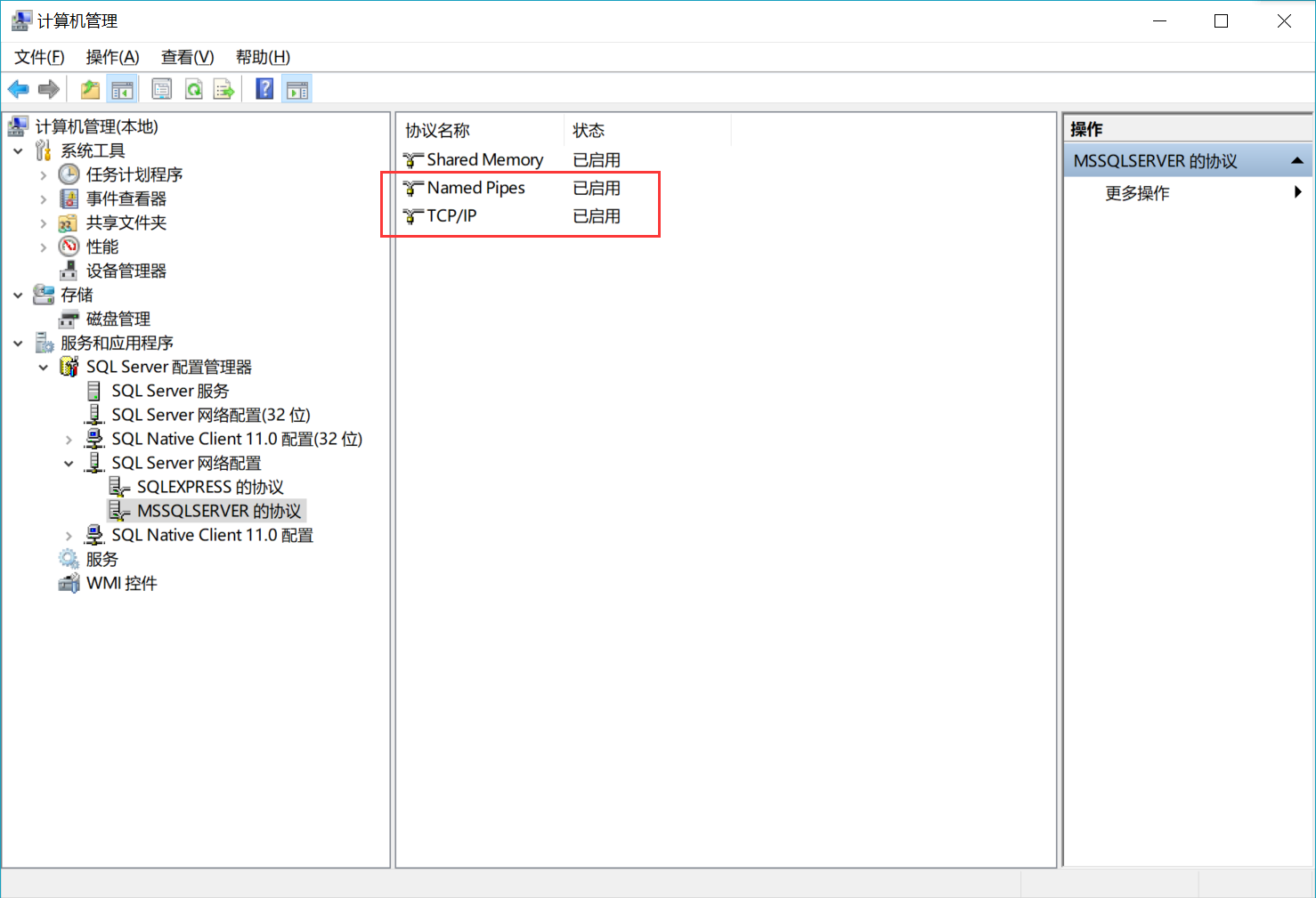

the fourth step:Restart the computer,Next use telnetThe command "telnet 127.0.0.1 1433" tests whether port 1433 is open.
the fifth step:Environment variable CLASSPATHConfiguration: DownloadJDBC,thenIn DCreate a new folder on the disk, name it sqljdbc4, and change
Copy sqljdbc42.jar into it.
The sixth step:Right click my computer → Attributes → Advanced system settings (advanced) → Environment variables, double click in the system variables
CLASSPATHVariable (or after selecting CLASSPATH → Edit), append at the end “;D:\sqljdbc42\sqljdbc42.jar”
(Note that there is a ; ) If CLASSPATH does not exist, Create a new CLASSPATH variable and set its value
It is "D:\sqljdbc42\sqljdbc42.jar".Continuous click determine To exit the environment variable configuration.

Step Seven:(Very important)We need to add sqljdbc4.jarCopy the class library file to D:\Java Tools\jdk1.7.0\jre\lib\ext
Mark down. (It depends on which drive you install on, if it is drive C, the first D is changed to C, the same below).
We need to add sqljdbc42.jarCopy the class library files to the D:\Program Files\Java\jre7\lib\ext directoryPreferably, as long as
Is jreFolder, copy a sqljdbc42.jar to jre7\lib\ext! !
If you are using TomcatAs a server (I use Tomcat7), then we need to add the sqljdbc42.jar class library file
Copy it to the D:\Tomcat_9.0.1\lib directory.
The eighth step:Open SQL Server 2017To create a new database Test, And then exit SQL Server2017。
Run Eclipse, Create a new JavaProject Named Test。Right click on src, Select Build Path → Configure Build Path,in
Select on the right side of the opened window LibrariesTab and click Add External JARs,turn up sqljdbc42.jar File and type
Open and click OK Complete the configuration of the build path. As shown:

Finally: enter the code to test
importjava.sql.*;

publicclass Main {
 publicstatic void main(String [] args)
 {
  StringdriverName="com.microsoft.sqlserver.jdbc.SQLServerDriver";
  StringdbURL="jdbc:sqlserver://localhost:1433;DatabaseName=Your database name";
     String userName="Fill in your username, mine is sa";
     String userPwd="Fill in your password";
  try
  {
   Class.forName(driverName);
   ConnectiondbConn=DriverManager.getConnection(dbURL,userName,userPwd);
         System.out.println("Connect to the database successfully");
  }
  catch(Exception e)
  {
   e.printStackTrace();
       System.out.print("Connection failed");
  }
 }
}
Intelligent Recommendation
JDBC connect to SQL server
Article Directory JDBC connect to SQL server Download the Jar package of SQL Server JDBC Build a java project How to determine the port How to restart the service? JDBC connect to SQL server Download ...
Use JDBC to access SQL Server database
You can read the previous article about the configuration of the environment. This is a demo for accessing the database. You can make simple modifications according to your requirements. ...

Java web database connection (using JDBC to connect to sql server 2017)
First, install the JDBC driver Second, load the driver and establish a connection object 1. Connection code of sql server: 2. About the username and password here 3. Solve the problems that may occur ...
JAVA JDBC connect to SQL Server database advanced (1) ---ConnectionFactory
Every time you perform an operation in the previous stage, you need to establish a connection, and then close the connection. This produces a lot of redundant code, which is contrary to the reusabilit...
JAVA JDBC connect to SQL Server database advanced (2) --- batch processing
In the previous study, every SQL statement executed is sent to the database once. Although PreparedStatement will store the SQL statement on the database side, its parameters are also sent to the data...
More Recommendation
JDBC preliminary--java to connect to SQL Server database (1)
JDBC preliminary--java to connect to SQL Server database (1) (1)test01Databasestudenttable (2)JDBCThe four core objects of operation: 1)DriverManager: Create connection 2)Connection: A connection 3)St...
Java JDBC Connect SQL Server, MySQL, Oracle, Access Database
First, connect SQLServer 1, SQL Server Verification (username / password connection) 2, Windows authentication (no username and password) Second, connect MYSQL Third, connect Oracle Fourth, connect Ac...
Python use pymssql to connect to sql server database
Python connects to SQL Server database - pymssql uses the basics ----Original address: The following is the instructions for using the parameters in pymssql, as follows: pymssqlCnx class (used to conn...
SQL Server installation and use SSMS to connect to the database
Article Directory 1. Installation of SQL Server and SSMS Second, the connection of SQL Server 1. Installation of SQL Server and SSMS 1. SQL installation download link:SQL Server。 Enter the download ad...

Use DataGrip to connect to SQL Server 2017 database
Microsoft's SQL Server database is a good friend for .NET development. The latest version is now 2017. The SQL Server database has its own Management Studio tool, which is basically similar to Visual ...