Instructions for RK61 RGB Bluetooth Dual Mode Keyboard
| model | RK61 RGB Bluetooth |
| size | 290x100x39mm |
| Shaft | Mechanical shaft green/red/tea/black |
| specification | 61 full key without punch |
| Backlight | RGB |
| Keycap | Two-color injection light transmission |
| Voltage | 5v ≤200mA |
| connection | USB anti-interference cable |
Instructions for use
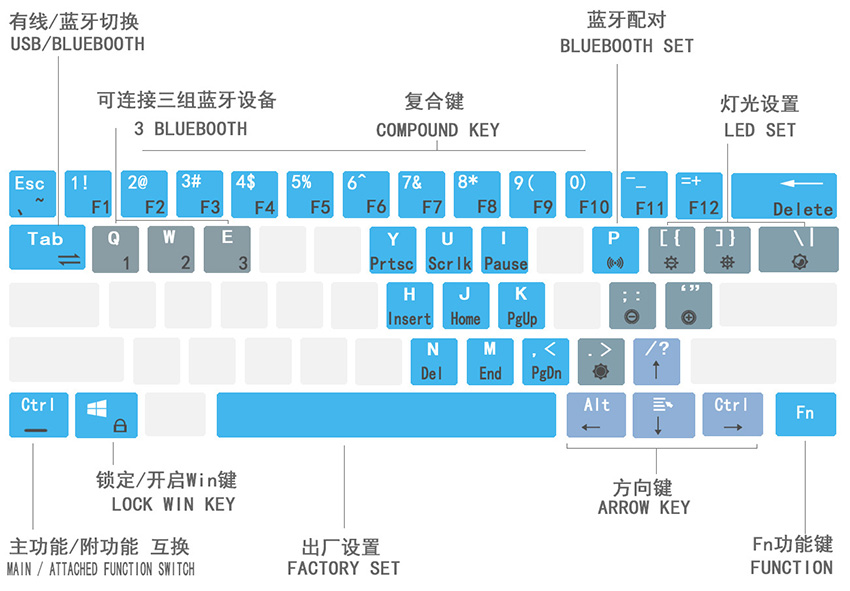
●List of function keys
| Fn+Q/W/E can store/switch three Bluetooth devices | Fn+P Enter Bluetooth pairing mode | Fn+]) Increase backlight brightness |
| Fn+Left Ctrl key to switch between primary and secondary functions | Fn+Tab Wired/Bluetooth mode switch | Fn+[{Reduce backlight brightness |
| Fn+Right Shift Unlock/lock arrow keys | Fn+ | Backlight mode cycling | Fn+;: Reduce backlight conversion speed |
| Fn+Win Close/Open Win key | Fn+.> Backlight color switching | Fn+'"Increase the speed of backlight change |
| Fn+Space Long press for 3 seconds to restore factory settings |
●First use
▍About the back switch
1. When using the USB data cable to connect to the keyboard, the back switch does not need to be set, and it can be OFF/ON.
2. When using Bluetooth to connect the keyboard, the back switch must be ON.
3. In the charging state, the back switch does not need to be set, both OFF/ON can be used, and the charging can also be used normally, but in order to complete the charging efficiently and quickly, it is recommended that the switch is in the OFF state.
▍About power
·Due to long warehouse storage/long-distance transportation, the battery power is not 100%. To ensure your normal use, please fully charge it for the first time. You can also use the keyboard while charging, without waiting.
●Composite key

▍What is a compound key?
As shown in the figure above: the composite function key is composed of the main function and the auxiliary function. The auxiliary function needs to be used with Fn. When you press Fn+the composite function key, the auxiliary function of the key can be realized.
▍How to use composite keys?
Take button 1 as an example
1. When using [Main Function], only press 1 button alone, and the function of this button is 1
2. When using [secondary function], combined with the Fn key (Fn+1), the function of this key is F1
▍Composite keys List of main/minor function keys
| Main function | Side function | Main function | Side function | Main function | Side function |
| ESC | `~ | 8 | F8 | I | Pause |
| 1 | F1 | 9 | F9 | H | Insert |
| 2 | F2 | 0 | F10 | J | Home |
| 3 | F3 | -_ | F11 | K | Pgup |
| 4 | F4 | =+ | F12 | N | Del |
| 5 | F5 | Backspace | Delete | M | End |
| 6 | F6 | Y | Prtsc | ,< | PgDn |
| 7 | F7 | U | Scrlk |
▍Fn+Left Ctrl: switch between main function and sub-function of compound key
Because different users have different usage habits, this feature is hereby provided.
By default: the main function is upper-row characters, and the minor function is lower-row characters, as shown below
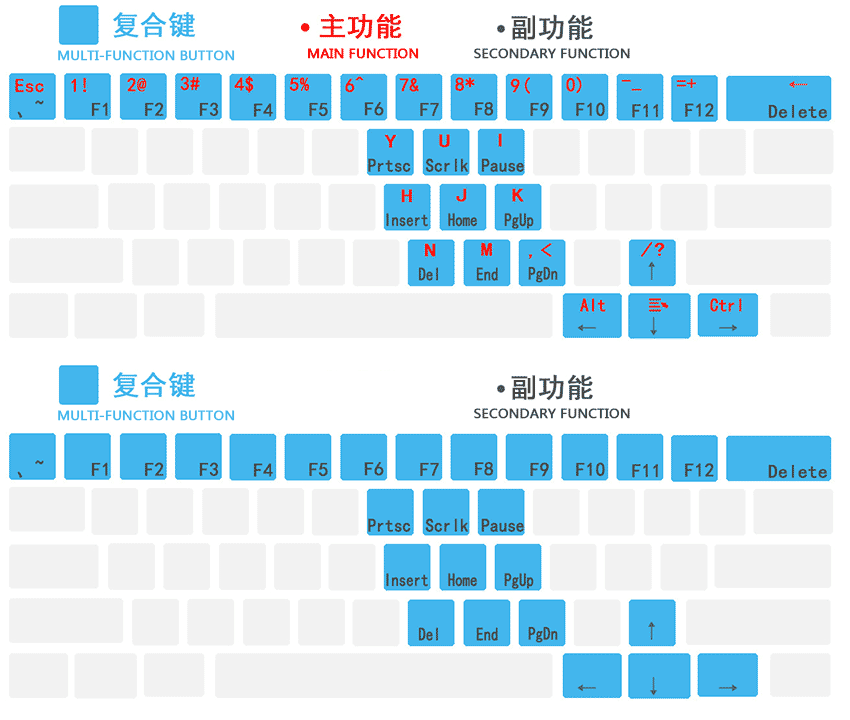
Press Fn+Left Ctrl once, the main/minor functions are interchanged, the main function is the lower character, and the subsidiary function is the upper character, as shown in the figure below
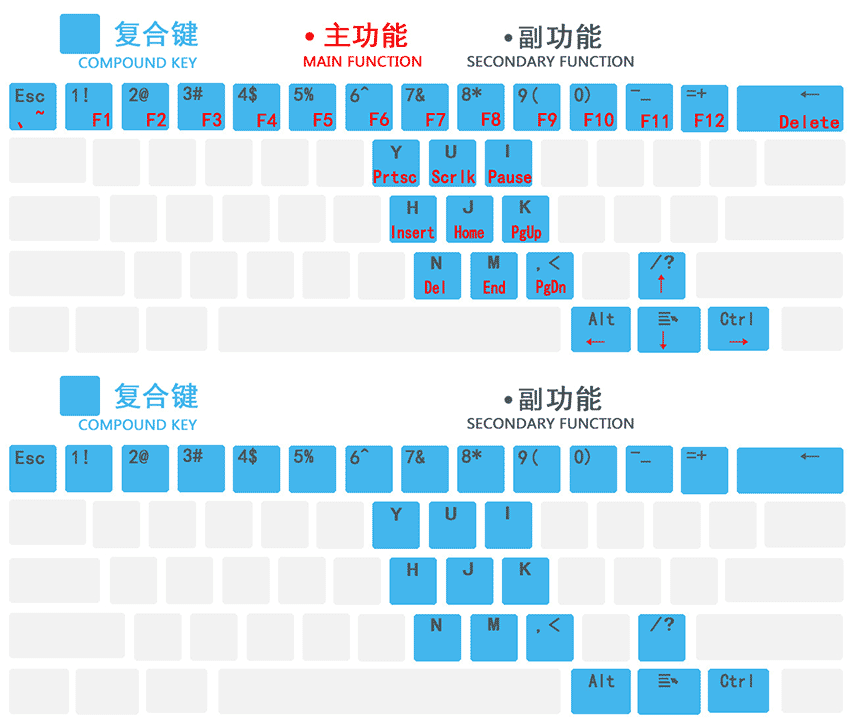
Once again Fn+LeftCtrl, Y/U/I/H/J/K/N/M/, <Restore the primary key function, and the others are still secondary key functions, as shown in the figure below
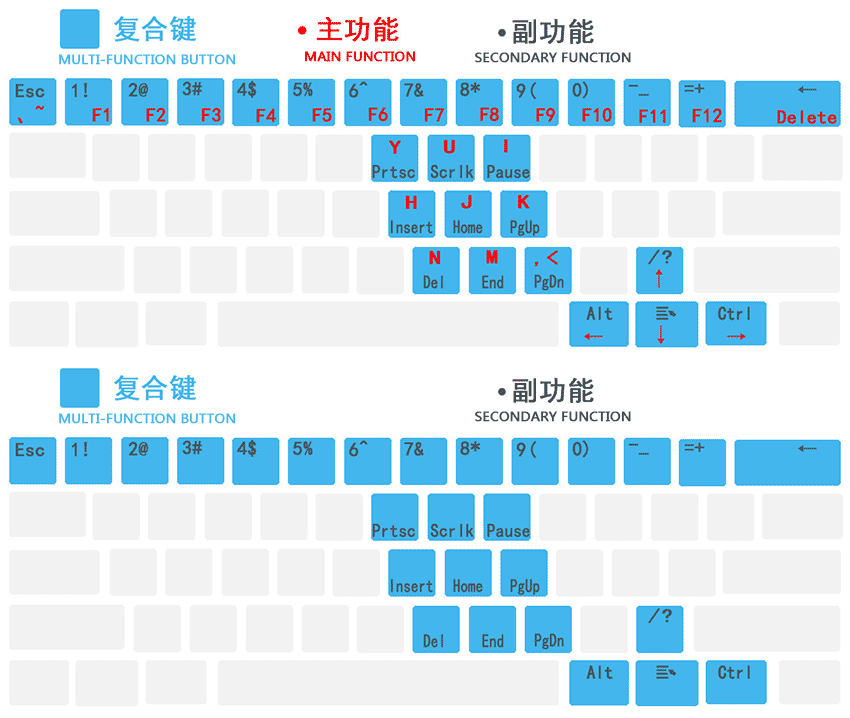
Press Fn+Left Ctrl for the third time to restore to the default state
The three modes can be used in combination with your own situation. If you don’t know which mode you are currently in, you can press and hold Fn+space for 3 seconds to restore the factory settings. At this time, it is the default state (Note: The factory settings will clear all custom backlights/paired Bluetooth device, need to be reset)
▍Fn+right Shift: lock/unlock arrow keys
In any case, you can lock/enable the arrow keys by Fn+Right Shift.
Tips
1. After the primary key function and the secondary key function are interchanged, the arrow keys need to be locked again by Fn+Right Shift
2. When the arrow keys are locked, press Fn+↑ The function is /; Press Fn+LeftShift+↑ What is the function? To
●Bluetooth settings
▍Fn+Tab USB wired/Bluetooth mode switch
The default factory state of the keyboard is Bluetooth mode. Press Fn+Tab to switch Bluetooth/wired mode. When switching, the full-key backlight flashes multiple times, indicating that the switch is successful
Reminder: If you use USB connection, please switch the keyboard to wired mode; if you use Bluetooth connection, please switch the keyboard to Bluetooth mode, otherwise the keyboard will not work normally!
▍Fn+P enter Bluetooth pairing mode
Press Fn+P for 3 seconds to enter Bluetooth pairing mode. The P key flashes continuously during pairing, and the P key stops flashing when the pairing is over.
Reminder: Please switch the keyboard to Bluetooth mode before Bluetooth pairing, otherwise this function will be invalid
▍Fn+Q/W/E Bluetooth device switching
The product supports the storage of 3 Bluetooth devices at the same time, and can switch between the 3 devices at will. When switching, the full-key backlight flashes multiple times, indicating that the switching is successful
Reminder: Before switching Bluetooth devices, please make sure that three sets of devices have been successfully paired and stored
●Detailed Bluetooth pairing method
1. Turn on the switch on the back of the keyboard, the state is ON
2.Fn+Tab switch to Bluetooth mode
3. Use Fn+Q/W/E to select a set of Bluetooth modes to be connected, such as Fn+Q. At this time, the full-key backlight flashes multiple times, indicating that the switch is successful. If there is no response, the keyboard has not entered Bluetooth mode. Repeat step 2 again to switch to Bluetooth mode
4. Long press Fn+P to enter the Bluetooth pairing mode, at this time the P key flashes continuously
5. Turn on the computer/mobile bluetooth, search and connect the device named "RK bluetooth keyboadr"
6. The connection is successful, the P key stops flashing, and it is complete
By analogy, repeat the above steps to store three Bluetooth devices in Q/W/E, and switch between the three devices at any time
●Backlight setting
▍Fn+ | Support 19 kinds of backlight effect switching
19 backlight modes can be switched, in order: constant light, single light, single light off, raindrops, group flying and flurry, colorful flashing, breathing, colorful cyclic gradual change, center blooming, single row falling, wave, round horse racing, one Word radiation, one finger diffusion, single-row horse racing, sea waves, diagonal horse racing, interspersed horse racing, turning off the backlight
▍Fn+.> Backlight color switching
In any mode, the backlight color can be switched, in order of red, orange, yellow, green, cyan, blue, purple, white, RGB
●Backlight brightness/speed setting
▍Fn+【{ Backlight brightness increase
There are five levels of adjustment. When the maximum peak value is reached, the indicator light flashes continuously, indicating that the maximum brightness has been reached.
▍Fn+】}Reduced backlight brightness
A total of five adjustments, support turning off the backlight, when the adjustment reaches the minimum peak value, the indicator light flashes continuously, indicating that the minimum brightness has been reached (the backlight is off).
▍Fn+;: The dynamic conversion speed decreases
There are five levels of adjustment. When the adjustment reaches the minimum peak value, the indicator light flashes continuously, indicating that the minimum change speed has been reached.
▍Fn+" ’The dynamic change speed increases
A total of five adjustments, when the adjustment reaches the peak value, the indicator light flashes continuously, indicating that the conversion speed has reached the maximum
●Other key functions
▍Fn+Space Long press for 3 seconds to restore factory settings
▍Fn+Win Close/Open Win key
●Charging instructions
Reminder: The product is not equipped with a charger, it can be connected to a mobile phone charger or a computer USB for charging
1. In order to ensure your normal use, please charge the product before using this product for the first time. When you carry this product with you, please turn the switch on the back of the product to off to save power.
2. When charging, the charger should not be greater than 5V 1A, or it can be directly plugged into the computer USB for charging
3. When charging, the blank red light is always on, fully charged and turned off, and fully charged in about three hours. Do not use a charger larger than 5V1A to accelerate the charging, otherwise the battery life will be damaged and affected.
4. You can use the keyboard while charging. It can be charged regardless of whether it is off or on. If you want to improve the charging efficiency, it is recommended to turn off to charge.
●Energy saving
If the product has no operation for one minute, the keyboard backlight will automatically turn off; if there is no operation for five minutes, the keyboard enters the standby state; if there is no operation for ten minutes, the keyboard enters deep sleep, and only needs to press any key to wake the keyboard.
Intelligent Recommendation
RK Sketch (929) Single Mixed Bluetooth Dual Mode Manual
Product Parameters | User Description | Maintenance Information | Warranty Regulations Product parameters Model RK Sketch (929) Key Cap Transpiotic Cap Size 34212422 ± 2MM voltage 5V ≤200mA ...
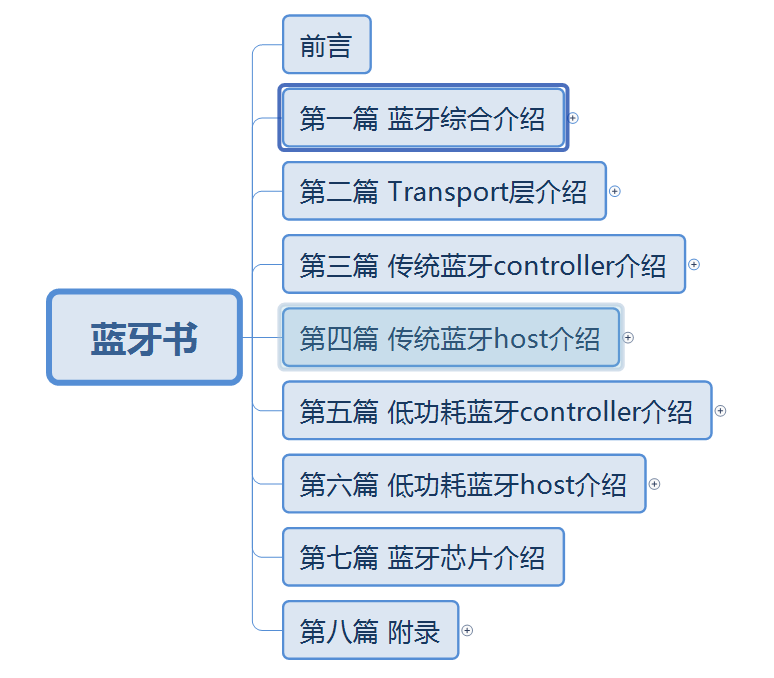
Open source dual-mode Bluetooth protocol stack-introduction to the use of Bluetooth modules and development boards
Zero. Overview This article mainly talks about the functions and short instructions of our development version (STM32F1+CSR8311) and the extended version of the Bluetooth module (CSR8311) 1. Statement...
Dual test lock of singles mode+volatile forbidden instructions to sort
Double check -lock+volatile forbidden instructions to be sorted The following is a volatile to optimize the dual check -locking code: However, after joining Volatile, because it is prohibited to sort ...
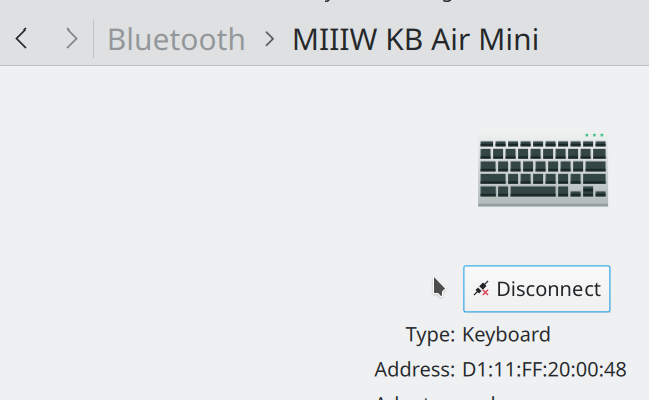
Branding steps for sharing a dual system Bluetooth keyboard: WIN + ARCH ~ IRK, LTK, Erand, EDIV
Introduction This film isMulti-duplex system with Bluetooth keyboard mouse sharing matching problem solution: Win + Debian + Arch ~ Irk, LTK, Erand, Ediv, CSRKOne brief process is illustrated, and the...
C# singles mode-lazy man (dual verification, instructions for instructions, multi-threaded)
C# single mode -lazy man Code: Singletonlazy.cs Code: Program.cs...
More Recommendation

THC63LVD827: RGB to dual LVDS chip
General Description The THC63LVD827 transmitter is designed to supportpixel data transmission between Host and Flat PanelDisplay and Dual Link transmission between Host andFlat Panel Display up...

New member - Bluetooth keyboard
Nickname: Key Because I used to use the MacBook's own keyboard, it is very difficult to coordinate the MacBook screen with the extended screen position during the writing process. The result is that w...
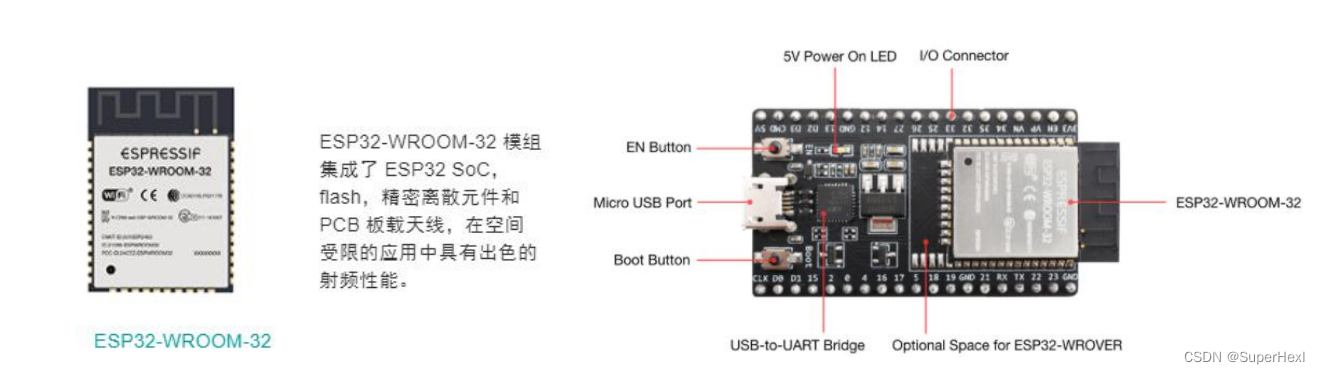
mini Bluetooth keyboard
Table of contents 1. Source of inspiration 2. The required device 3. Device introduction 4. Realization process 5. Code display 6. Final product and effect 1. Source of inspiration Because I have only...
Linux connecting the Bluetooth keyboard
in conclusion System environment System version: Linux Kali-Raspberry-Pi 5.15.44-Re4son-V81+ #1 SMP Preempt Debian Kali-Pi (2022-07-03) AARCH64 GNU/Linux BluetoothCTL version: 5.64 Unexposed problems ...