Still not organize the import statement in the Python code? You need this tool! (ISORT use details)
tags: python Code specification pep8
Introduction to a powerful Python tool ISORT, you can classify, sort, implement formatting, sorting, implementing the unified code style, and facilitating teamwork.
This article should be the most comprehensive detailed article in the Chinese community (seven thousand words, Chinese translation for the official documentation of considerable range), just praise, collection, reading, and exit it.
Canmy blogView the original text, the reading experience is better, and the errata will also update the blog:
ISORT well with a strip - Python Import Format Tool - Muzing Grocery
Introduction

isort your imports, so you don’t have to.
GitHub | Official document | PyPI | Online trial
Isort is a practical Python program / library for sorting IMPorts in alphabetical order, and automatically divides the part (standard library / third-party library / own module / ...). It provides a command line program, a Python library, and plug-in for a variety of editors to quickly sort all imports. Python 3.6 + is required, but also supports Python 2.
To see the examples provided by the official website:
# Before isort
from my_lib import Object

import os

from my_lib import Object3

from my_lib import Object2

import sys

from third_party import lib15, lib1, lib2, lib3, lib4, lib5, lib6, lib7, lib8, lib9, lib10, lib11, lib12, lib13, lib14

import sys

from __future__ import absolute_import

from third_party import lib3

print("Hey")
print("yo")
After using ISORT format:
# After isort
from __future__ import absolute_import

import os
import sys

from third_party import (lib1, lib2, lib3, lib4, lib5, lib6, lib7, lib8,
                         lib9, lib10, lib11, lib12, lib13, lib14, lib15)

from my_lib import Object, Object2, Object3

print("Hey")
print("yo")
The Import part is obviously refreshing and has a lot of organizers.
Install
Installation is very simple, just:
pip install isort
Install Isort and support Requirements.txt:
pip install isort[requirements_deprecated_finder]
ISORT installation with PIPFile support:
pip install isort[pipfile_deprecated_finder]
Support two format ISORT installations:
pip install isort[requirements_deprecated_finder,pipfile_deprecated_finder]
Tip
If you want isort as the project's Linter, you may need to add ISort to each item using it as a display development dependency. On the other hand, if you are a personal developer, just use ISort as a personal tool to clean your own commit, then the overall or user-level installation is meaningful. Both seamlessly on a machine.
Simple use
Command line
Run on a specific file:
isort mypythonfile.py mypythonfile2.py
Recursively use:
isort .
If it is openedglobstar ,butisort .Equivalent to:
isort **/*.py
Only about ISORT will make changes, but do not apply:
isort mypythonfile.py --diff
Run ISORT at an atomic way, apply changes only without introducing syntax errors:
isort --atomic .
(Note: This is disabled by default because it prevents ISORT from running on code written in different versions of Python.)
For more options to see this articleCommand line optionone period.
Use in Python
import isort

isort.file("pythonfile.py")
or
import isort

sorted_code = isort.code("import b\nimport a\n")
See this article for more information.Python API one period.
Integrate into the IDE / editor
exist isort Wiki You can view all ISORT plugins.
Use in Pycharm
ISORT can be integrated into the Pycharm through the "External Tool" manner.
Confirm the ISORT installation location
On MacOS / Linux:
$ which isort
/usr/local/bin/isort # Possible location
Similar, can be used on Windowswhere isort Command lookup.
If you are using the virtual environment created using Pycharm, use it directly.$PyInterpreterDirectory$/black As the program path.
Add external tools in Pycahrm
Open File -> Settings -> Tools -> External Tools
File -> Settings -> Tools -> External Tools
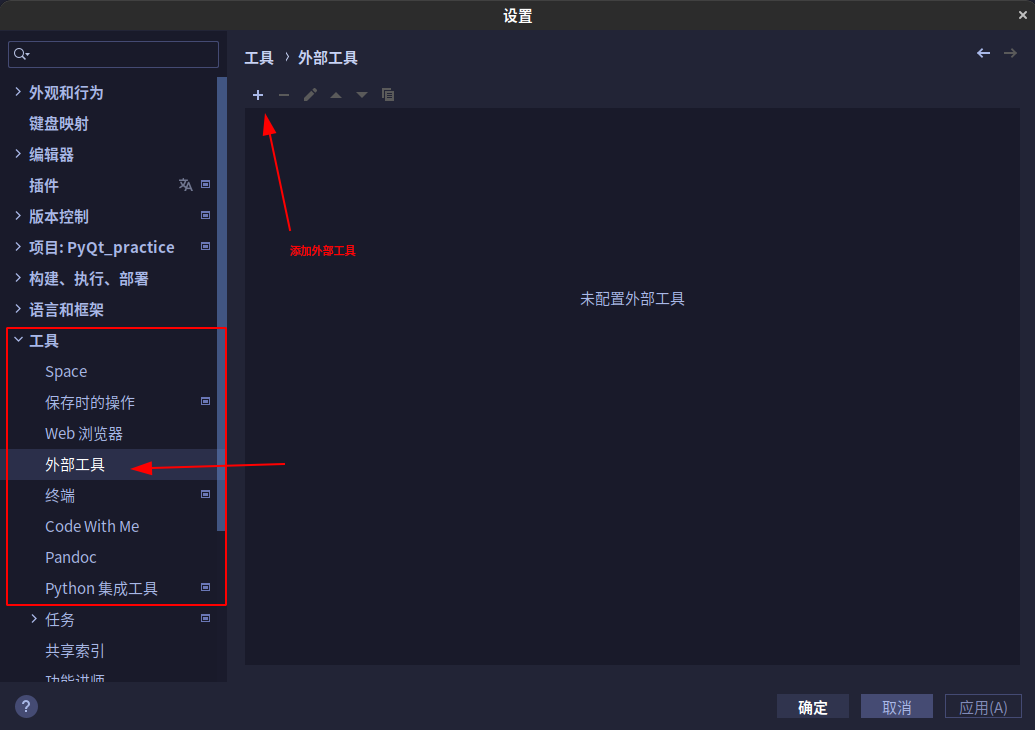
Create tool
- Name: ISORT
- Description: Isort your imports, so you don't have to.
- Procedure: "The installation position you get in the previous section"
- parameter:
$FilePath$ - Work list:
$ProjectFileDir$
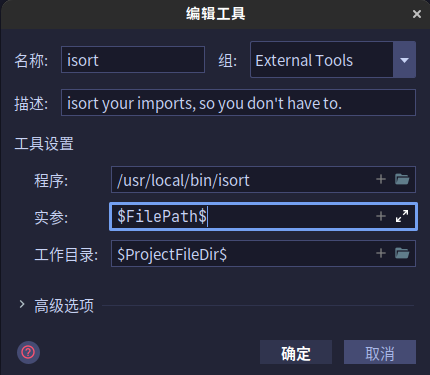
If neededCustomize other options,write on $FilePath$ Before you can.
use
Right-click on the code editing interface that has been opened (or a directory of the project file tree), find External Tools -> ISORT, click to click.
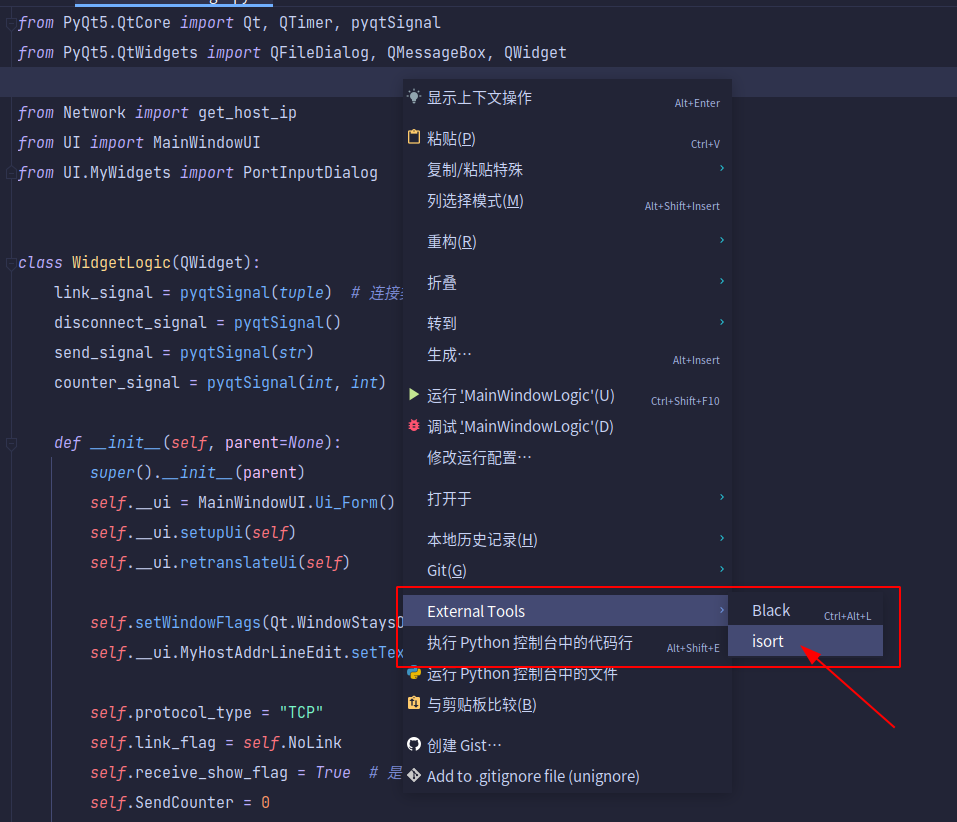
Use File Watcher (optional)
In addition to external tools,File Watchers The plugin uses ISORT.
After installing the plugin, enter the settings -> Tools -> File Watchers, click + to add a new Watcher:
- Name: isort
- File Type: Python
- Scope: Project Files
- Program:
$PyInterpreterDirectory$/python - Arguments:
-m isort $FilePath$ - Output paths to refresh:
$FilePath$ - Working directory:
$ProjectFileDir$ - In Advanced Options
- Cancel the "Auto-Save Edited Files to Trigger The Watcher"
- Cancel the "Trigger The Watcher On External Changes"
A little supplement
Pycharm is actuallyBuilt-in automatic IMPORT optimization tool. Similar to useBlack Instead of the practice of built-in code formatting tools, the meaning of ISORT is largely inherited. In this way, in the team collaboration, even if some developers do not use Pycahrm editing code, you can also pass the sameProfileISORT ensures that the code import style is identical.
Use in VS CODE
Install Python plugin
First, make sure the Python plugin has been installed in VS CODE. If there is no installation, press in VS CODECtrl + P And enter the following command:
ext install ms-python.python
Or search Python directly in the extended store and install it.
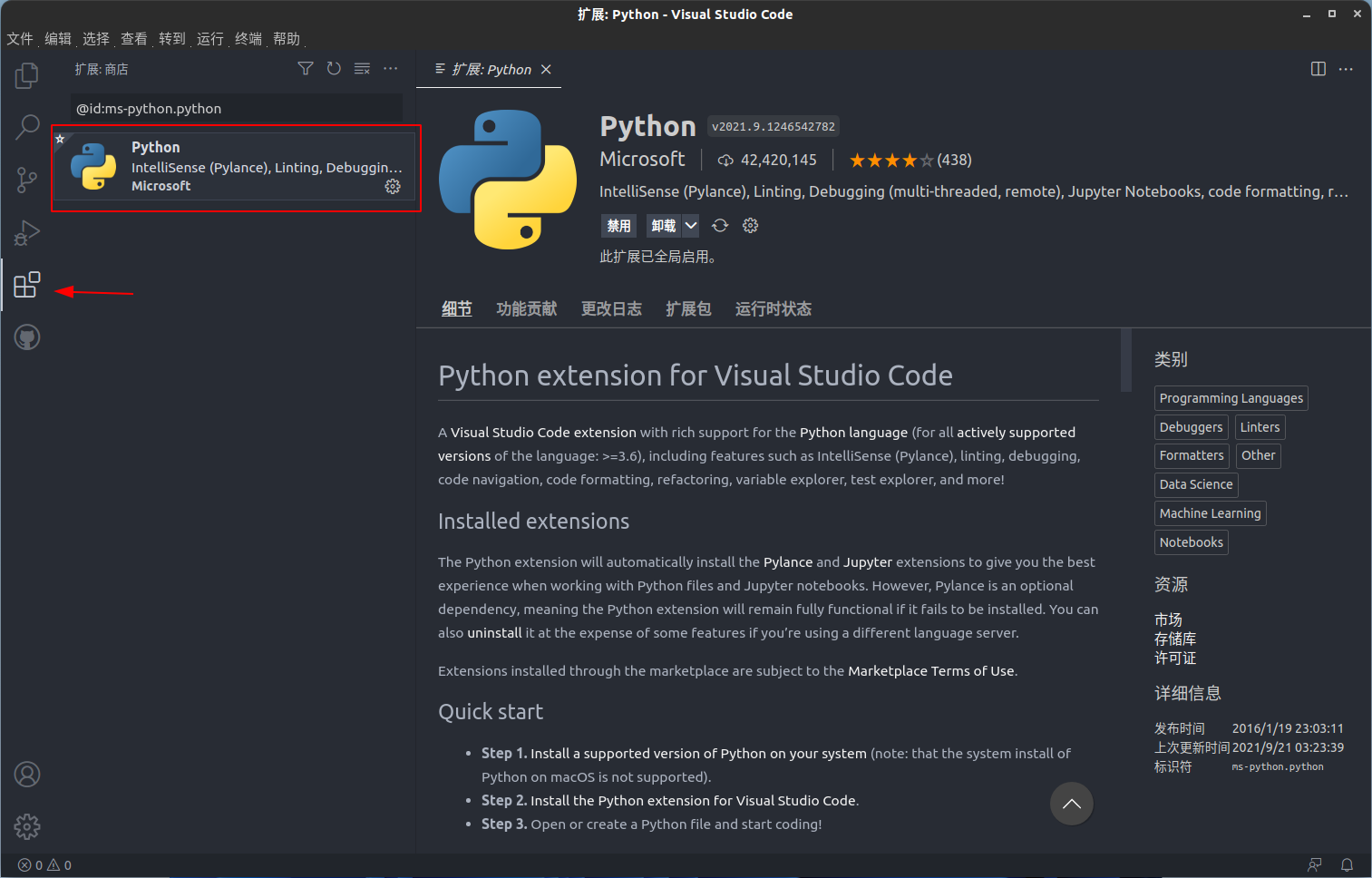
Configuration option
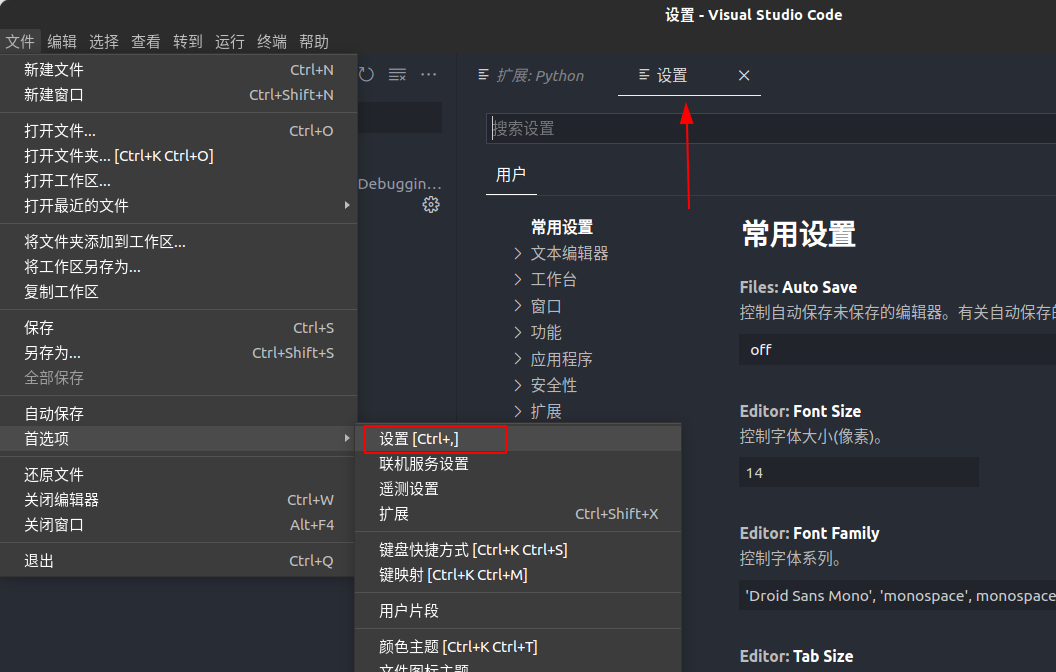
PressCtrl + , Open the VS Code settings
Search Python Sort Imports in "Settings", then set the ISort script location. For example, on my machine:
$ whereis isort
isort: /usr/local/bin/isort # This is the path on my machine, not necessarily the same
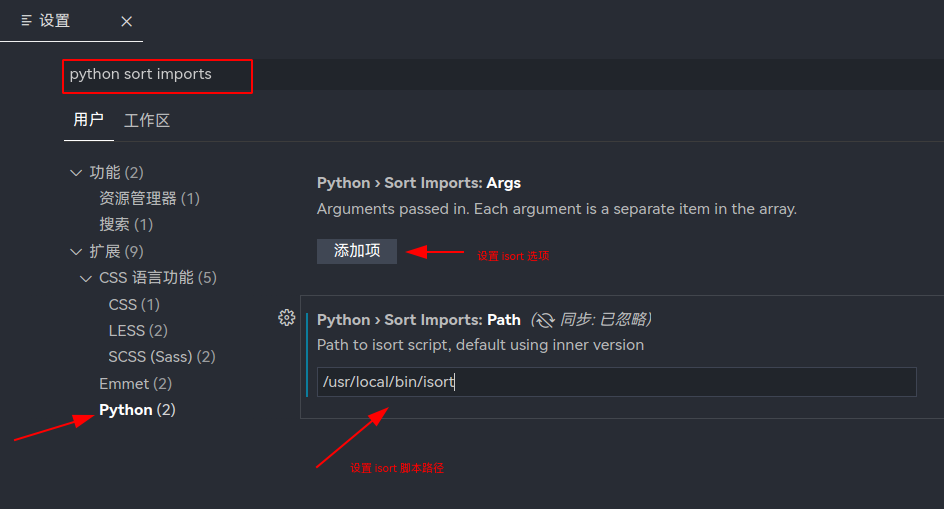
If you don't manually set the ISort path, the Python plugin will use its built-in ISORT, the current version isisort==4.3.21 ,compared toThe latest ISORT 5.9 is still some difference.
If neededIsort's custom optionsIn the first line, "add item".
use
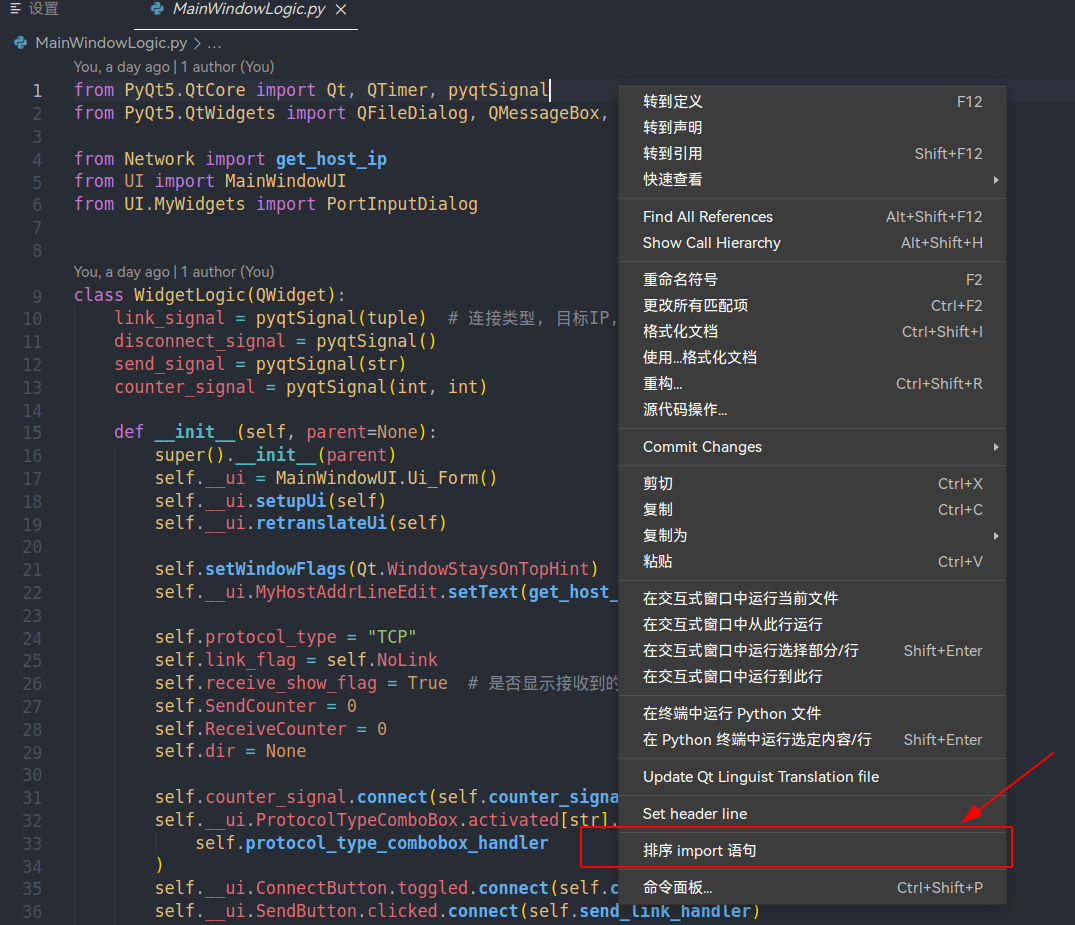
You can click the right button in the Python file editing window that has been opened, and you can select "Sort IMPORT statement" in the pop-up menu.
Detailed use
Command line option
Full option list and instructions can be found in the official documentation:「Configuration options for isort」
The ISORT command line option is large, only ISORT --HELP returns the content of the General Options section in the help document returned by ISORT - HELP, and do our translation:
general options:
     -H, --Help Display this help information and exits

     -V, --Version displays the currently installed ISORT version

  --vn, --version-number
                                                 Returns only the current version number without the version information of LOGO

     -v, --verbose displays detailed output, such as skipping files or inspections

  --only-modified, --om
                                                 Disable detailed output for unmodified files

     --Dedup-headings Inform ISORT Only the same customization import  Title comment,
                                                 Even if there are multiple parts, an annotation group is set

     -q, --quiet display less output, only output error message

     -d, --stdout enforces the output to the STDOUT standard output, not the local change

     --overwrite-in-place Inform Iort to overwrite the same file handle
                                                 Compared with standard methods, performance and memory usage will decline, but ensure all
                                                 File logo and mode remain unchanged

     --Show-Config View ISORT's Determination Configuration, and Source of Configuration Options

     --Show-files View on the current option, which files are processed by ISORT

     --DF, --diff Display ISORT All changes to a file diff  Not alive in the ground

  -c, --check-only, --check
                                                 Check if there is no sorting / unformatted import  And print them to the command line
                                                 Not modifying the file. Returns when there is no change 0, Return when the file is reformatted 1

  --ws, --ignore-whitespace
                                                 When using the -Check-Only option, inform ISORT Ignore the difference between the space

  --sp SETTINGS_PATH, --settings-path SETTINGS_PATH, --settings-file SETTINGS_PATH, --settings SETTINGS_PATH
                                                 Explicit setup path or file instead of automatically determined according to the file location.

     --Profile profile is used to configure the basic configuration file type. The configuration file includes:
                        black, django, pycharm, google, open_stack,plone, attrs,
                                                 Hug, Wemake, Appnexus. And any shared profile

  --old-finders, --magic-placement
                                                 Using old-discarded lookup logic dependent on environmental self-provincial magic methods

  -j [JOBS], --jobs [JOBS]
                                                 Number of files to be handled in parallel

     --Ac, --atomic If the generated file contains syntax errors, make sure not saving the output

     --INTERACTIVE informs ISort to apply changes in interactive mode

  --format-error FORMAT_ERROR
                                                 Cover format for printing errors

  --format-success FORMAT_SUCCESS
                                                 Cover format for printing success
Add / remove imports
This section is translated from the official document「Add Or Remove Imports」
Add an Import to multiple files
ISORT can easily add imported statements in multiple files while ensuring that it is properly placed.
Add an Import to all files:
isort -a "from __future__ import print_function" *.py
Add only an Import to an existing IMPORT:
isort -a "from __future__ import print_function" --append-only *.py
Remove an Import from multiple files
ISORT can also easily remove imports from multiple files without having to care about its original format.
Command usage:
isort --rm "os.system" *.py
API
This section is translated from the official document「Programmatic Python API Usage」More API detailsAPI reference documentation
In addition to the powerful command line interface, ISORT also provides a complete Python API.
To use the Python API,import isort Then call the required function.
Each function has a complete type prompt and receives and returns all Python built-in objects.
mainly includes:
isort.code- Receive a string containing the code and returns it after being sorted by IMPORTisort.check_code- Receive a string containing the code, if all import has been properly sorted, then returnTrueOtherwise, returningFalseisort.stream- Receive a input stream containing the Python code and an output stream. The code that has been sorted by IMPORT to the output stream output.isort.check_stream- Receive an output stream containing the Python code, if all IMPORT has been properly sorted, then returnTrueOtherwise, returningFalseisort.file- Receive the path to the Python source file and sort import on the groundisort.check_file- Receive the path to the Python source file, if all IMPORT has been properly sorted, then returnTrueOtherwise, returningFalseisort.place_module- Classification of the name of the module as a string and returns the classification to its determinedisort.place_module_with_reason- Create the name of the module as a string and return to its determined classification, and give the reason for determining this classification
For a complete definition of the API, seeAPI reference documentation, Or try in an interactive interpreterhelp(isort) 。
Profile
This section is translated from the official document「Supported Config Files」
ISORT supports many standard configuration formats, allowing custom options to quickly integrate into any project. When Application Configuration, IOSRT looks for the most recent supported profiles in the order listed below. You can set it from the command line settings--settings-path To manually specify the settings file or path. Otherwise, ISORT will traverse up to 25 parent catalogs until you find the right configuration file. Note ISORT will not leave the Git or Mercurial repository (check.git or .hg contents). Once the file is found, it will stop finding. If it is incoming.isort Or the file stream, the search for the configuration file is completed relative to the current directory, and if it is incorporated into the first path relative to the incoming first path. ISortwill neverMerger multiple profiles together because this may cause confusion.
Tip
You can run at any time by running
isort . --show-configCome to the configuration settings determined by the province ISORT, and find out which profile it is selected.
.isort.cfg [preferred format]
ISORT will look up the primary location of the setup item is in a special .isort.cfg file. The advantage of using this configuration file is that it is clear for ISORT and follows the easy-to-understand format. Aspects are there, in your project (perhaps the file level relationship has been more confusing because of several profiles).
An example from the ISORT project itself:
[settings]
profile=hug
src_paths=isort,test
pyproject.toml [preferred format]
ISORT will look for the second location, a selection of the same sensible save configuration, which is in the pyproject.toml file. The advantage of using this configuration file is that it is quickly a standard location for all Python tools to save configuration. This means that other developers will also know here, and your project root will remain neat. The only disadvantage is that other tools you use may not support this format, which affects the cleanliness.
[tool.isort]
profile = "hug"
src_paths = ["isort", "test"]
setup.cfg
setup.cfg Can be consideredpyproject.toml Prequel. Although ISORT and updated tools are increasingly transferred to PyProject.Toml, if you rely on many tools that use this standard, you are also natural and appropriate.
[isort]
profile=hug
src_paths=isort,test
tox.ini
tox It is a tool commonly used by the Python community to specify multiple test environments. Because ISORT verification is usually run as a test step, some people prefer to put the ISORT configuration in the Tox.ini file.
[isort]
.editorconfig
Finally, ISORT will look for a Python source file settings..editorconfig Configuration.EditorConfig It is a project that specifies a configuration for text editor behavior, allowing multiple command line tools and text editors to choose it. Since ISORT is concerned about the same settings (such as row length), it will also find in these files.
Custom config files
Optional, you can also use--settings-fileCreate a configuration file with a custom name, or direct ISORT to a lower priority order. This may be useful, for example, if you want to set a configuration for .py files, set another configuration for .pyx - Also retain the configuration file in the root directory of the repository.
Tip
Custom profile should put their configuration options
[isort]Part rather than universal[settings]part. This is because ISORT cannot determine how other tools use the configuration file.
Custom and behavioral control
Action notes
This section is translated from the official document「Action Comments」
The behavior of ISORT can be controlled by comments in the Python code.
isort: skip_file
Let ISort skip the entire file.
example:
# !/bin/python3
# isort: skip_file
import os
import sys

...
Warning
This should be based on the top of the file as much as possible. Since ISORT is using a streaming architecture, it may have completed some work before reading the bank comment. Under normal circumstances, the problem is not large, but if used from the command line
--diffOr any interactive option, it may cause confusion.
isort: skip
If it is placed in the same row with the Import statement, ISORT will not sort this import. More specifically, it prevents the IMPORT statement from being identified by ISORT as import. Therefore, this line will be considered as code and is pushed below the file import portion.
example:
import b
import a # isort: skip <- this will now stay below b
Note
It is recommended to use it as much as possible
# isort: offwith# isort: onorisort: splitAlternatively, such behavior is more clear and predictable.
isort: off
Close ISORT analysis.# isort: off Every line after the statement will remain unchanged until# isort: on Comments or files end.
example:
import e
import f

# isort: off

import b
import a
isort: on
Re-open ISORT analysis. This only exists in the file aboveisort: off Remarks! This allows you to have unsatisfined import blocks around other sorted import blocks.
example:
import e
import f

# isort: off

import b
import a

# isort: on

import c
import d
isort: split
Inform ISort The current sorted part has been completed, all future imports are new sort packets.
example:
import e
import f

# isort: split

import a
import b
import c
import d
You can also use it inline to prevent IMPORT from switching from above or below:
import c
import b  # isort: split
import a
Tip
Isort split with
# isort: offNext line placement# isort: onThe effect is exactly the same.
isort: dont-add-imports
Tell ISort does not automatically add import to this file, even if -add-imports have been set.
isort: dont-add-import: [IMPORT_LINE]
Tell ISORT Do not automatically add specific imports, even if -add-imports explains to add it.
Customize "Part" and sort
This section is translated from the official document「Custom Sections and Ordering」
ISORT provides a number of features to configure how it will be sorted in the imported partition, and how to import in these "section". you can use it sections Options Change the order between "section", from the default value:
FUTURE,STDLIB,THIRDPARTY,FIRSTPARTY,LOCALFOLDER
Change to your preferences (if defined, omitting a default "section" can cause errors):
sections=FUTURE,STDLIB,FIRSTPARTY,THIRDPARTY,LOCALFOLDER
You can also define your own "section" division and its order.
E.g:
known_django=django
known_pandas=pandas,numpy
sections=FUTURE,STDLIB,DJANGO,THIRDPARTY,PANDAS,FIRSTPARTY,LOCALFOLDER
Two "parts" will be created using the specified known modules.
no_lines_before The option will prevent the "part" from being separated from the previous "section".
E.g:
sections=FUTURE,STDLIB,THIRDPARTY,FIRSTPARTY,LOCALFOLDER
no_lines_before=LOCALFOLDER
A "section" combined with the firstParty and LocalFolder modules will be generated.
important hint: Setting upknown When "Part", it is important to know that because historical reasons are not nammented by direct mapping. For custom settings, the only difference is case sensitive (known_custom=custom VS sections=CUSTOM,...), All other references are mapped as follows:
known_standard_library:STANDARD_LIBRARYextra_standard_library:STANDARD_LIBRARY# Similar to a known standard library, but attached rather than replacingknown_future_library:FUTUREknown_first_party:FIRSTPARTYknown_third_party:THIRDPARTYknown_local_folder:LOCALFOLDER
This may make changes in later compatibility in ISORT 6.0.0+.
Automatic comment on IMPORT "Part"
Some projects are more inclined to give each imported "section" unique title to assist these "parts" when sweeping. ISORT can also do this. To this end, you only need to simply put each of the "part" of the automatic comment.import_heading_{section_name} Set to the desired comment.
for example:
import_heading_stdlib=Standard Library
import_heading_firstparty=My Stuff
Will cause the output as follows:
# Standard Library
import os
import sys

import django.settings

# My Stuff
import myproject.test
Sort by IMPORT length
ISORT can also be easily sorted by length, onlylength_sort Option settingsTrue . This will result in the following output styles:
from evn.util import (
    Pool,
    Dict,
    Options,
    Constant,
    DecayDict,
    UnexpectedCodePath,
)
Can also be usedlength_sort_ After the "partial" name as the configuration item, select only the length of the introduction to the specific section, for example:
length_sort_stdlib=1
Control ISort how to handlefrom Import "Part"
By default, ISORT will be imported directly (import y) Imported in FROM (from x import yThe above:
import b
from a import a  # This will always appear below because it is an from Import.
However, if you prefer to sort in alphabetical order, you canforce sort within sections Set to True. turn out:
from a import a  # Now this will appear at the top, because A before b in the alphabet
import b
You can even usefrom first Inform ISORT Always import from import on top, not the default place at the bottom:
from b import b # If the from first is set to True, all from import will be placed before non-FROM import.
import a
Multi-line output mode
This section is translated from the official document「Multi Line Output Modes」
thisConfiguration optionDefine how to go online when the from imports exceeds LINE_LENGTH, a total of 12 optional settings:
0 - Grid
grid
from third_party import (lib1, lib2, lib3,
                         lib4, lib5, ...)
1 - Vertical
vertical
from third_party import (lib1,
                         lib2,
                         lib3
                         lib4,
                         lib5,
                         ...)
2 - Hanging Indent
Hanging indent
from third_party import \
    lib1, lib2, lib3, \
    lib4, lib5, lib6
3 - Vertical Hanging Indent
Vertical hanging indent
from third_party import (
    lib1,
    lib2,
    lib3,
    lib4,
)
4 - Hanging Grid
Hanging grid
from third_party import (
    lib1, lib2, lib3, lib4,
    lib5, ...)
5 - Hanging Grid Grouped
Packet hanging grid
from third_party import (
    lib1, lib2, lib3, lib4,
    lib5, ...
)
6 - Hanging Grid Grouped
Same as mode 5
7 - NOQA
from third_party import lib1, lib2, lib3, ... # NOQA
Or you canforce_single_line Set as True (Command line-sl), Then each import will appear on its own line:
from third_party import lib1
from third_party import lib2
from third_party import lib3
...
8 - Vertical Hanging Indent Bracket
Brand vertical suspension indent
And mode 3 - vertically suspended indentation, but the right brackets of the last line are indented.
from third_party import (
    lib1,
    lib2,
    lib3,
    lib4,
    )
9 - Vertical Prefix From Module Import
From Module Import Vertical Prefix
When the length of the line is greater than the length limit, the samefrom MODULE import The prefix starts a new line.
from third_party import lib1, lib2, lib3
from third_party import lib4, lib5, lib6
10 - Hanging Indent With Parentheses
Suspension indent
With the mode 2 - suspension indent, but use parentheses rather than a backslash to the long row.
from third_party import (
    lib1, lib2, lib3,
    lib4, lib5, lib6)
11 - Backslash Grid
Anti-slash grid
The same is the same as the mode 0 - grid, but the import is packet with a backslash rather than parentheses.
from third_party import lib1, lib2, lib3, \
                        lib4, lib5
Collaborative work and incoming workflow
Collaboration with Black
This section is translated from the official document「Compatibility with black」
Isort's code itself is usedBlack To make a code format. ThatOfficial documentAlso high-profile announced the intimate relationship between the two.
Compatibility with Black is very important for the ISort project and starting from version 5. Cooperating ISORT and Black Use the required all the operations only to set the ISORT profile to "Black".
Tip
In addition to the configuration file, you usually need to set upskip_gitignore (Not ISORT is not enabled by default because it needs to have git) andline_length(Because it is usually deviated from the default 88 of Black).
Use profiles (for example, .isort.cfg)
For projects officially used in the simultaneous use of Ist and Black, we recommend setting the Black configuration file in the profile in the project warehouse root directory. This way, it is independent of how the user calls isort (pre-commit, command line, or editor integration), and the Black configuration file is automatically applied.
For example, yourpyproject.toml The file seems to be like this:
[tool.isort]
profile = "black"
multi_line_output = 3
Refer to supportProfileMore information.
Command line interface
To use the Profile option directly from the command line, simply add -Profile Black options:isort --profile black
one .travis.yml example of:
language: python
python:
  - "3.6"
  - "3.7"
  - "3.8"

install:
  - pip install -r requirements-dev.txt
  - pip install isort black
  - pip install coveralls
script:
  - pytest my-package
  - isort --profile black my-package
  - black --check --diff my-package
after_success:
  - coveralls
For more information on more configuration files, seeBuilt-in configuration file。
Collaborate with pre-commit
This section is translated from the official document「Using isort with pre-commit」
ISORT providespre-commit Official support.
ISORT pre-commit step
Add the following configuration for the official pre-commit integration of ISORT:
  - repo: https://github.com/pycqa/isort
    rev: 5.8.0
    hooks:
      - id: isort
        name: isort (python)
      - id: isort
        name: isort (cython)
        types: [cython]
      - id: isort
        name: isort (pyi)
        types: [pyi]
Put in your project.pre-commit-config.yaml In the filerepos Part below.
seed-isort-config
The old version of ISORT uses a large magic method to determine the import position, which is easy to interrupt when running on the CI / CD. In order to solve this problem, a name is createdseed-isort-config Utility. However, since ISORT 5, the project has greatly improved its placement logic and ensures a good cross-platform consistency. If there is a name in your pre-commit configurationseed-isort-config Or similar things, it is highly recommended that you delete it. This will definitely slow down and may conflict with ISORT's own module.
Git Hook
This section is translated from the official document「Git Hook」
ISORT provides a hook function that can be integrated into your git pre-commit script to check Python code prior to commit.
To implement if there is an ISORT error (strict mode), will cause the commit failure, please.git/hooks/pre-commit The following is included:
#!/usr/bin/env python
import sys
from isort.hooks import git_hook

sys.exit(git_hook(strict=True, modify=True, lazy=True, settings_file=""))
If you only want to display a warning, but in any case, please allow CommIT, please call without strict parameters.git_hook . If you want to show a warning, don't want to fix the code, please call without the modify parametergit_hook 。lazy Parameters are used to support tendencygit commit -a Instead of adding files to "lazy" users in the index. Set it toTrue To ensure that all tracking files are correctly ISORT, ignore or set it toFalse Use only files added to the index.
If you want to use a specific configuration file for the hook, you can pass its path to Settings_File. If there is no special specified path,git_hook Start search profile from a directory containing the first teleconcount file, that is, according to eachgit diff-index The order, then search for the upper class directory structure until a valid profile is found, or have been checked.MAX_CONFIG_SEARCH_DEPTH Since the depth directory. Settings_file parameters are used to support users who save the configuration file in the parent directory that may not be other files.
GitHub Actions
This section is translated from the official document「Github Action」
ISORT provides an officialGithub Action It can be used as part of the CI / CD workflow to ensure that the import of the project is properly sorted. This action can beGithub Actions Marketplace I found it.
python-isort Plug-in is designed tocheckout with setup-python Operation combination operation. By default, it will run from the root directory of the Linted repository, if the code is not properly sorted, it will exit and display an error.
enter
isortVersion
Optional. Askedisort Version. Default is the latest versionisort。
sortPaths
Optional. To sort the path list, relative to your project root directory. The default is . 。
configuration
Optional.isort Configuration option passesisort Command Line. The default is --check-only --diff。
requirementsFiles
Optional. The path to the Python demand file to be installed before running Isort. If multiple demand files are provided, they should be separated from spaces. If you need a custom package installation, you should install dependencies in separate steps before using this.
Tip
It is important to install the project's dependence before running Isort to properly sort third-party libraries.
Output
isort-result
isort Command line output
Use
name: Run isort
on:
  - push

jobs:
  build:
    runs-on: ubuntu-latest
    steps:
      - uses: actions/checkout@v2
      - uses: actions/setup-python@v2
        with:
          python-version: 3.8
      - uses: jamescurtin/isort-action@master
        with:
            requirementsFiles: "requirements.txt requirements-test.txt"
Setuptools integration
This section is translated from the official document「Setuptools integration」
ISORT is enabled after installationsetuptools Command, used to check the Python file that your project declares.
Run on the command linepython setup.py isort Will check yourpy_modules with packages The files listed in it are. If you find any warning, this command will exit in an error code:
$ python setup.py isort
In addition, in order to allow users to use this command without installing ISORT, add ISORT tosetup() SETUP_REQUIRES, as shown below:
setup(
    name="project",
    packages=["project"],

    setup_requires=[
        "isort"
    ]
)
other
Show in Readme
If your project uses the ISort tool, you can add the following line in Readme.md:
[](https://pycqa.github.io/isort/)
This will display a shields icon.
Report security vulnerability
To report security vulnerabilities, please useTidelift security contact . Tidelift will coordinate and disclose.
Intelligent Recommendation
Use push the little details you need to know
I believe the process we usually developed, it is often necessary to operate the array, when it comes to the operation of the array, or push high appearance rate. Today I am in the process of using a ...
The small details you need to master in Python
You don't necessarily know the single quotes, double-quotes But you only need to add before and after you want to output.Three single quotesorThree double quotesCan solve this problem You don't know t...
You need to use a small example of statement
The user enters the desc in the console is the order, and the input ASC is the promotion order...

Write a small tool with Python, and then complicate a folder to help you organize in minutes!
Mortal I admit that I am not a person who loves to organize the desktop, because I feel messy desktop, but it is easy to find files. Haha, but the desktop is too messy recently, I can't stand it anymo...
Formatting / Linting / ISORT in VScode Python
Article catalog 0. Preface VSCode configuration formatting / linting / isort 1.1. formatting & isort 1.2. linting 2. Basic use of third party packages 2.1. flake8 2.2. mypy 2.4. yapf 2.5. black 2....
More Recommendation
Python project uses Pre-Commit+Black+Isort+Automation (Formatal Code) code specification
Step 1: Install Pre-Commit Step 2: Create .pre-commit-config.yaml files in the root directory of the project Step 3: Write .pre-commit-config.yaml file Step 4: After git add, run the following command...

Installation and use of the download tool you-get (details)
About you-get: you-get is a very powerful downloading tool. It is an open source python project that supports many websites and is extremely easy to use. If you want to use you-get, you must first ins...
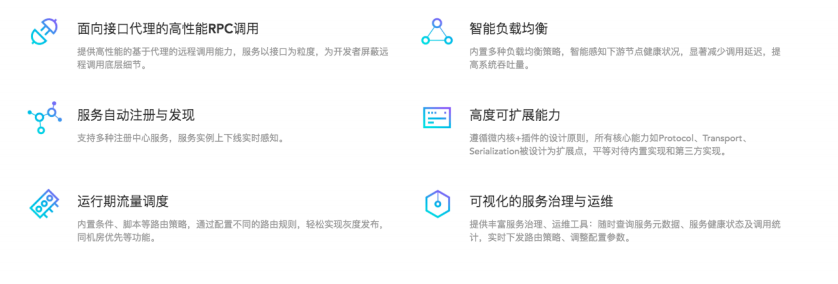
Why do you still need to use dubbo with Http?
Ant Financial Dubbo related interview questions Definition (positioning): Directly to the official positioning Advantages of rpc over http 1. The tcp packet of the http1.1 protocol commonly defined pr...
Do you still in Baidu DSL statement when elasticsearch? You may need this summary
Gyan hair ride on my happy small motorcycle conscience public number! I went to the wall, you started to be Hahahaha leapi shrimp we walk Coke in the kitchen red cattle in the refrigerator 666666 See ...

Are you still looking for a Python editor? no need! PyCharm installation package is in place!
Seriously, I want to write this article for a long time, because I always think that the choice of IDE should not be the focus of learning Python programming. But there are still a lot of people askin...