Source Insight common shortcuts and comment shortcut settings
In the process of using SI, I modified its default shortcut according to my own usage habits, and added some user-friendly functions to the configuration file.
Modify shortcuts: Options->Key Assignments...
1.main window:Esc 2.Hight light:Middle Mouse
3.Go Back:Alt+z 4.Go Forward:Alt+x
5.Caller:Alt+c 6.Reference:Alt+r
7.Previous Link:Alt+a 8.Next Link:Alt+s
9.First Link:Alt+d
10.Go Line:Alt+g 11.Select Line:Alt+l
12.Symbol Win:Alt+q 13.Activate SW:Alt+w
14.Projcet Win:Alt+[ 15.Activate PW:Alt+]
16.Contex Win:Alt+, 17.Activate CW:Alt+.
18.Relation Win:Alt+; 19.Activate RW:Alt+’
20.Select All:Ctrl+a 21.Save All:Ctrl+Shift+a
22.Browse Project Symbols:Alt+b
Add some configuration file macros, such as: comment out the code: single-line comments, multi-line comments, comment out the selected content; add annotative text before and after a line of code.
Open Projcet->Open project, select base, you can see the utils.em file, add the following macros to the file, and add the file to other projects.
Find the macro and customize the shortcut in the shortcut add method described above.
Single-line, multi-line comments:
macro MultiLineComment()
{
hwnd = GetCurrentWnd()
selection = GetWndSel(hwnd)
LnFirst = GetWndSelLnFirst(hwnd) //Get the first line number
LnLast = GetWndSelLnLast(hwnd) // take the last line number
hbuf = GetCurrentBuf()
if(GetBufLine(hbuf, 0) == "//magic-number:tph85666031"){
    stop
}

Ln = Lnfirst
buf = GetBufLine(hbuf, Ln)
len = strlen(buf)

while(Ln <= Lnlast) {
    Buf = GetBufLine(hbuf, Ln) // take the line corresponding to Ln
         If(buf == ""){ // skip empty lines
        Ln = Ln + 1
        continue
    }

         If(StrMid(buf, 0, 1) == "/") { //Uncomment to prevent single-character lines
        if(StrMid(buf, 1, 2) == "/"){
            PutBufLine(hbuf, Ln, StrMid(buf, 2, Strlen(buf)))
        }
    }

         If(StrMid(buf,0,1) != "/"){ //Need to add a comment
        PutBufLine(hbuf, Ln, Cat("//", buf))
    }
    Ln = Ln + 1
}

SetWndSel(hwnd, selection)
}
Save the above code to the utils.em file, open source insight, add the file to the project, and then you can see the macro in Options->Key Assignments. The name of the macro is MultiLineComments, then we have it. Assign the shortcut "Ctrl + /" and you're done.
This is a macro code that adds "#ifdef 0" and "#endif". The shortcut key is Ctrl+#:
macro AddMacroComment()
{
hwnd=GetCurrentWnd()
sel=GetWndSel(hwnd)
lnFirst=GetWndSelLnFirst(hwnd)
lnLast=GetWndSelLnLast(hwnd)
hbuf=GetCurrentBuf()
if(LnFirst == 0) {
        szIfStart = ""
}else{
        szIfStart = GetBufLine(hbuf, LnFirst-1)
}
szIfEnd = GetBufLine(hbuf, lnLast+1)
if(szIfStart == "#if 0" && szIfEnd == "#endif") {
        DelBufLine(hbuf, lnLast+1)
        DelBufLine(hbuf, lnFirst-1)
        sel.lnFirst = sel.lnFirst – 1
        sel.lnLast = sel.lnLast – 1
}else{
        InsBufLine(hbuf, lnFirst, "#if 0")
        InsBufLine(hbuf, lnLast+2, "#endif")
        sel.lnFirst = sel.lnFirst + 1
        sel.lnLast = sel.lnLast + 1
}

SetWndSel( hwnd, sel )
}
The code of this macro can comment out the line where the cursor is located, and define the shortcut key as Ctrl+*:
macro CommentSingleLine()
{
hbuf = GetCurrentBuf()
ln = GetBufLnCur(hbuf)
str = GetBufLine (hbuf, ln)
str = cat("/",str)
str = cat(str,"/")
PutBufLine (hbuf, ln, str)
}
Comment out the selected part of the mouse in a line and define the shortcut key as Ctrl+shift+*:
macro CommentSelStr()
{
hbuf = GetCurrentBuf()
ln = GetBufLnCur(hbuf)
str = GetBufSelText(hbuf)
str = cat("/",str)
str = cat(str,"/")
SetBufSelText (hbuf, str)
}
Add annotative text before a line of code, defining the shortcut key as Alt+/:
Add annotative text before a line of code, defining the shortcut key as Alt+:
Author: Fang forever
Source: CSDN
Original:
Copyright Notice: This article is the original article of the blogger, please attach the blog post link!
Intelligent Recommendation
Source Insight partial shortcuts
Source Insight shortcut keys...

source insight 4.x common settings
Sourceinsight, a new generation of artifacts, has released a 4.x version, which supports UTF-8 very well! ! Although many people use vscode now, unfortunately I won’t configure it, it’s us...
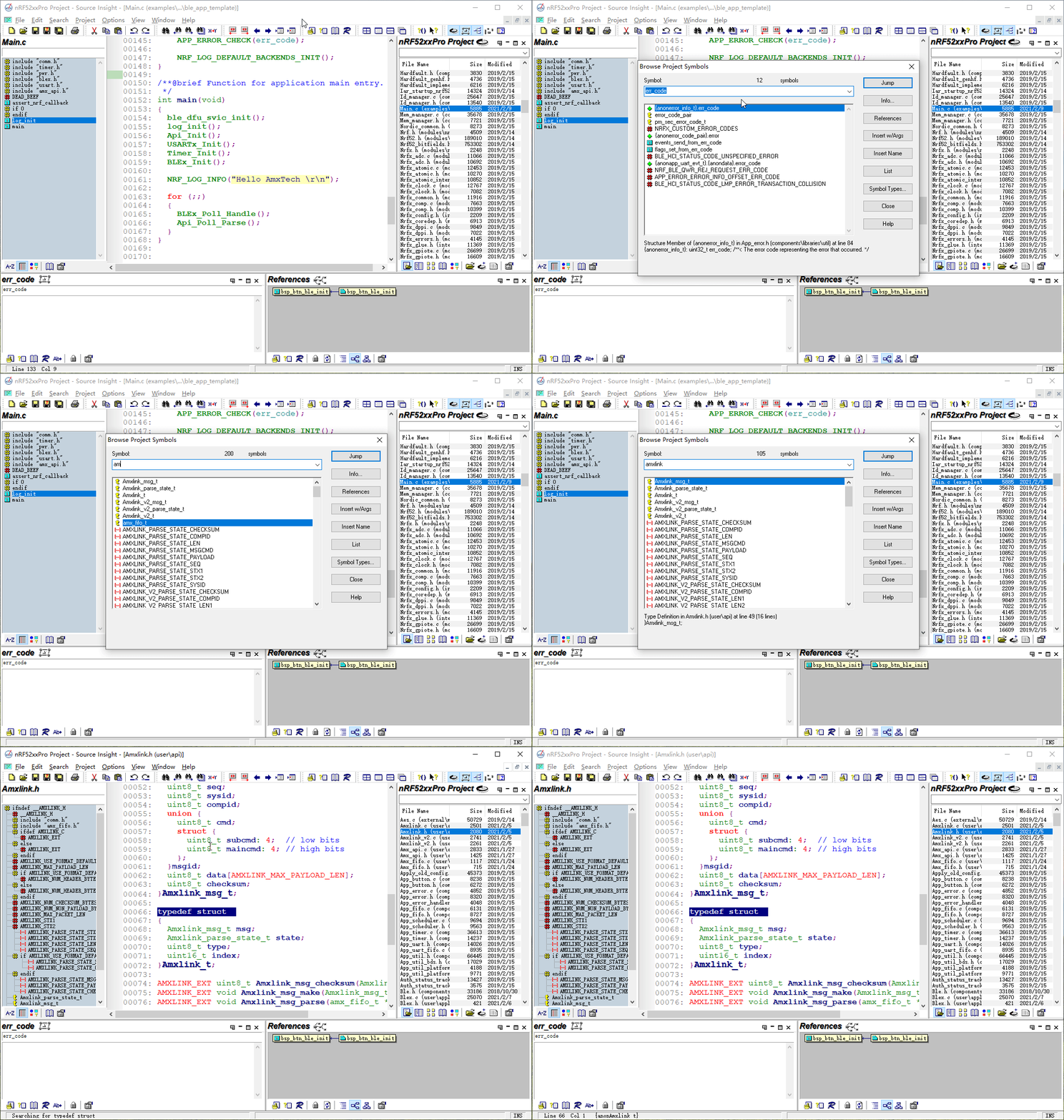
Source Insight-Common Settings and Use (2)
1. Development environment and tools Windos 10 Source Insight v3.5/v4.0 (https://www.sourceinsight.com/) 2. Commonly used toolbar buttons From left to right in order of sequence number: save, save all...
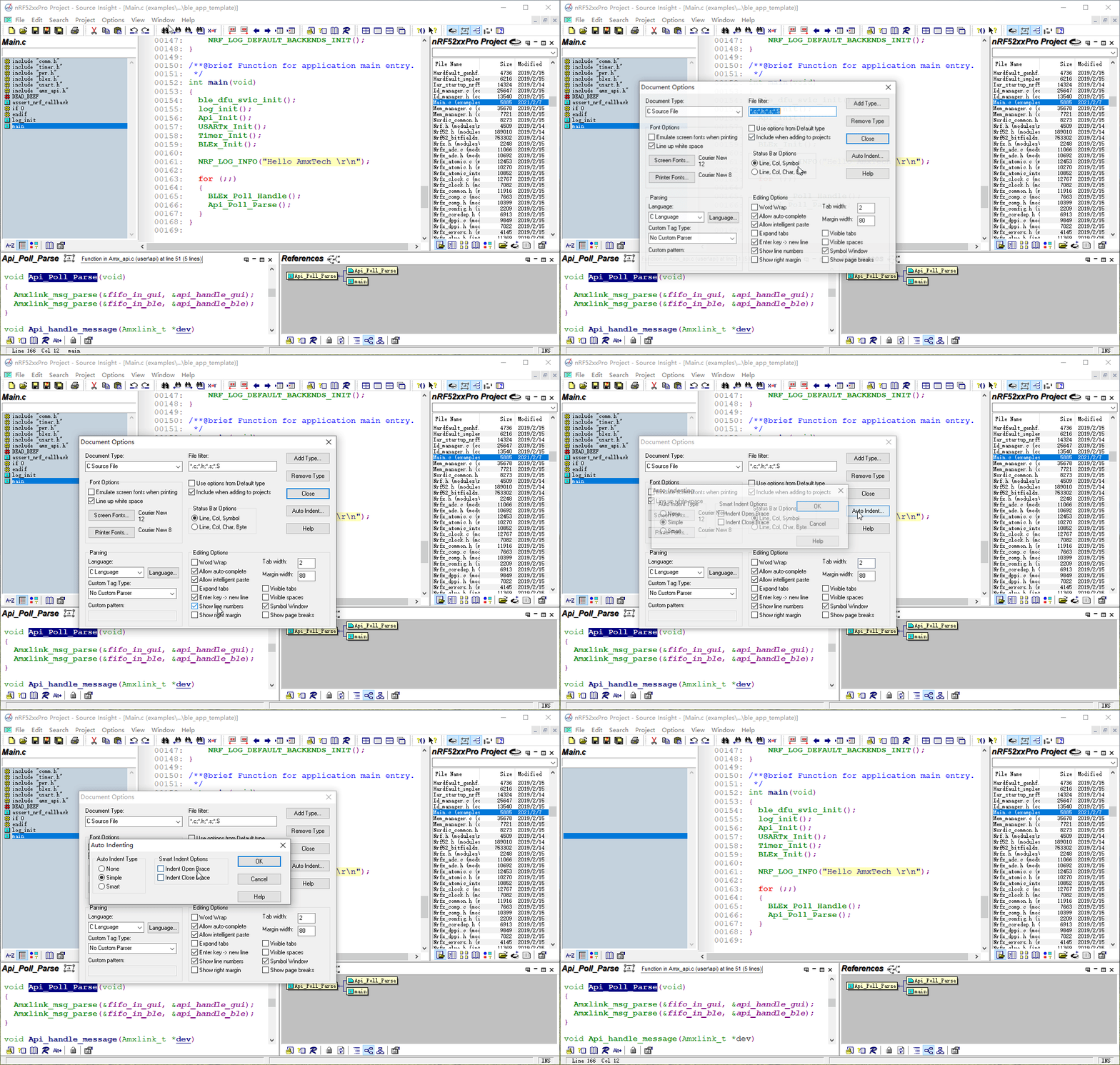
Source Insight-Common Settings and Use (1)
1. Development environment and tools Windos 10 Source Insight v3.5 (https://www.sourceinsight.com/) 2. Context and Relation window display and settings Three, Document Option settings (display line nu...
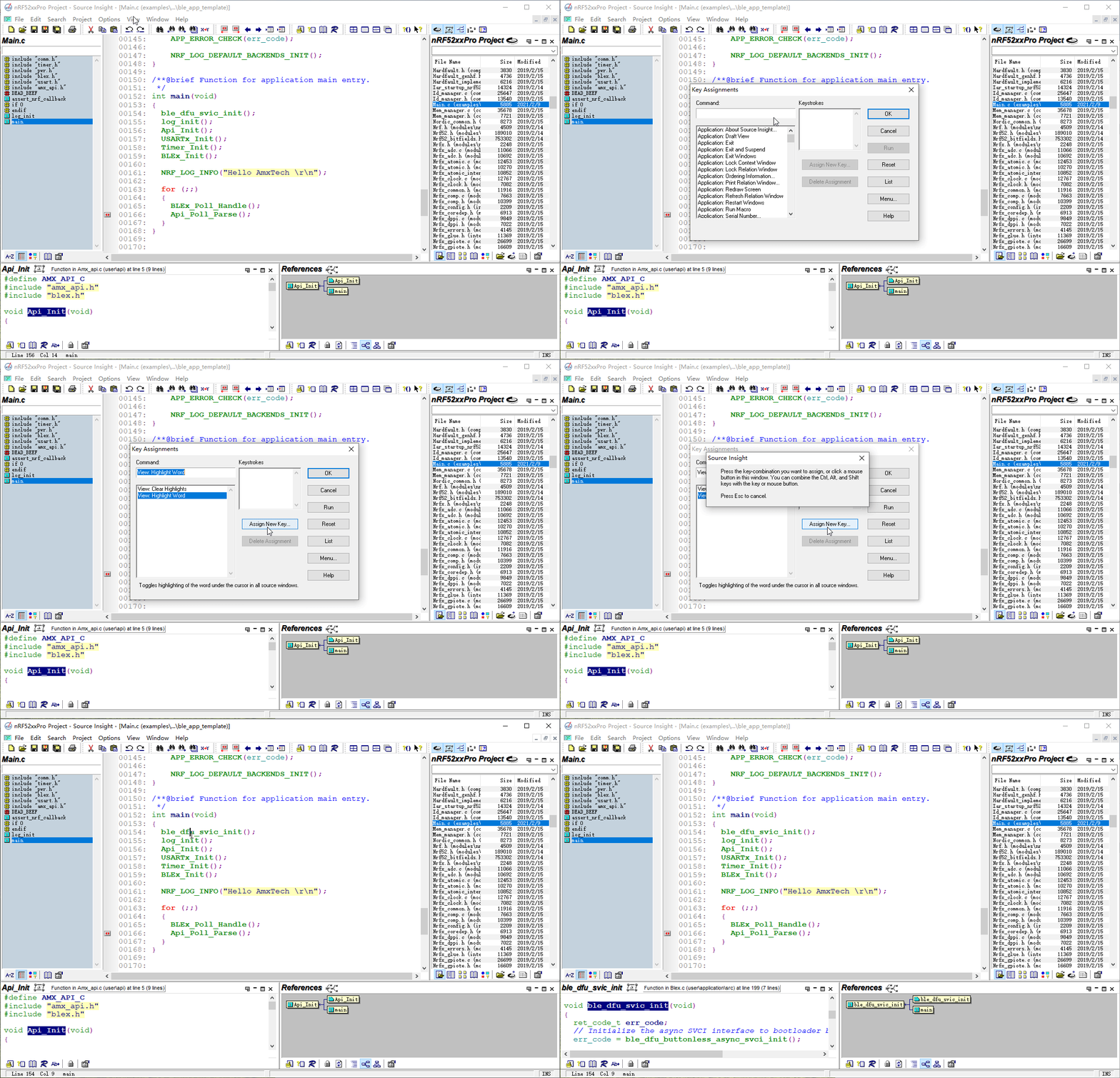
Source Insight - Common Settings & Use (3)
First, development environment and tools Windos 10 Source Insight v3.5/v4.0 (https://www.sourceinsight.com/) Second, highlight shortcut key settings When you click Assign New Key, enter a custom short...
More Recommendation
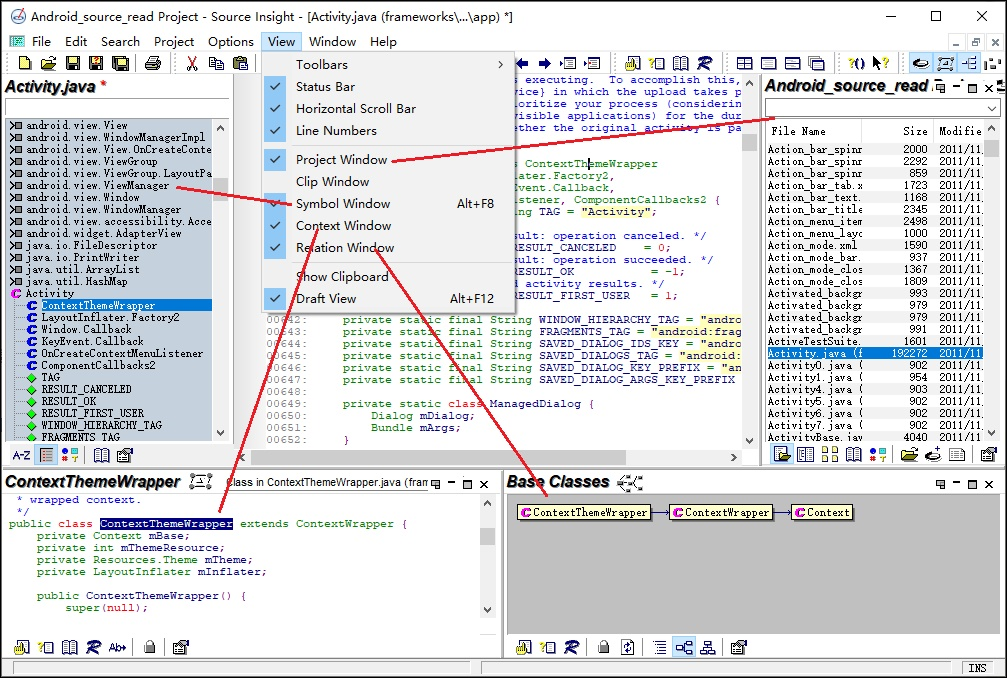
Source Insight shortcut keys
window recognition Custom Shortcuts hot key meaning Ctrl + F search text F3 search previous F4 search next Alt + , step back Alt + . go ahead Ctrl + = jump to definition Alt+ / Pop-up prompt variable ...
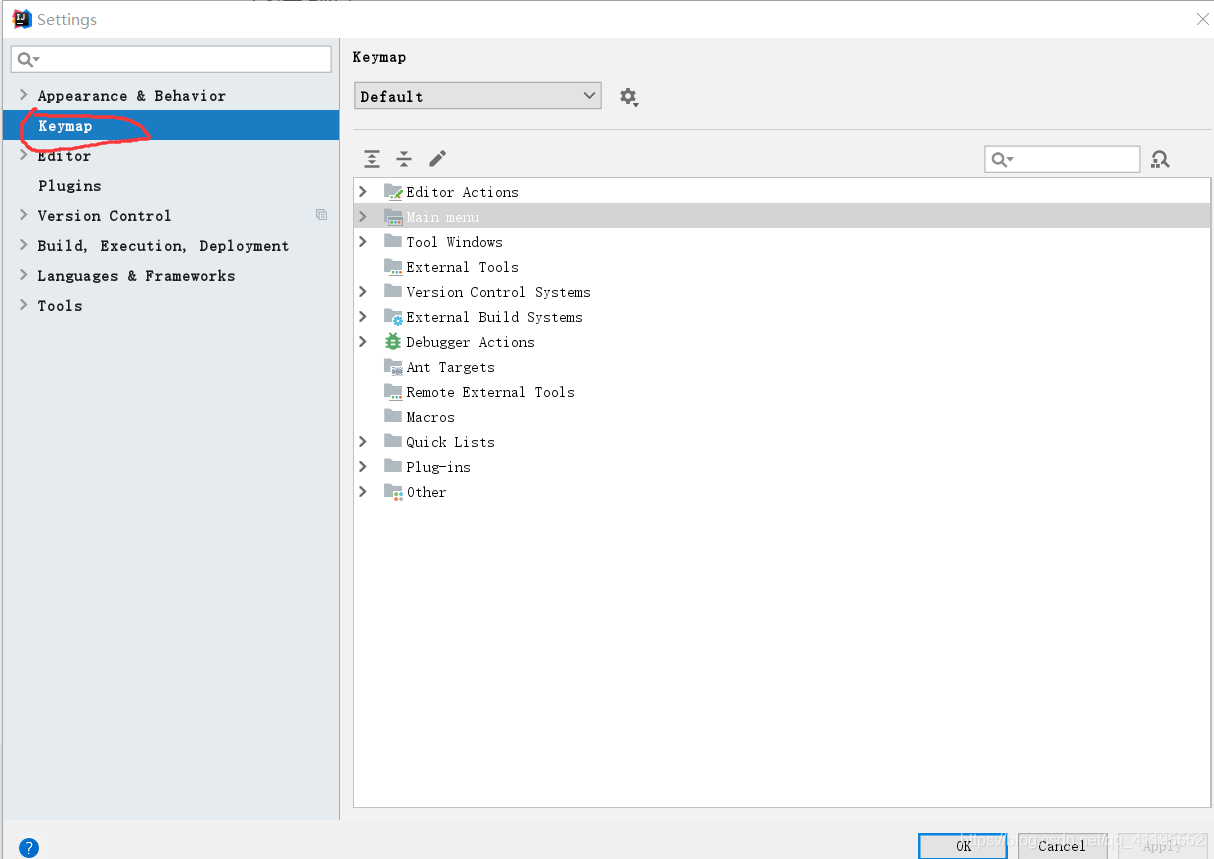
Intellij idea common shortcuts and code custom shortcut settings
After installing the intellij idea, I am not familiar with the new environment. After referring to the relevant information on the Internet, I summarized the most commonly used shortcut keys and how t...

Source Insight Tutorial: Common Setup, Shortcut Key, Compared with Source Insight 3.5 and 4
This content is based on the Source Insight4 version, and finally explains that Source Insight4 is improved compared to 3.5. Foreword Go, find orde, Source Insight is almost the best choice for browsi...

Source Insight basic usage and shortcuts
Project establishment and work area Select from the menuProject->New Project... can create a new project, customize the project name, select the save path, and create a new one. After the new deter...