Pyside6 display data using table widgets
tags: Qt and Python Applications
If you want to display data arranged in the table, you can use qtableWidget to display without having to handle too much configuration.
Note that using QTableWidget is not the only path to display information in the table. You can also create a data model and use QTableView to display it, but this is not within the scope of this tutorial.
note
This widget is an outstanding version you can further customize. To learn more about model / view architecture in QT, see its official documentation.
1. Import qtableWidget, QTableWidgetItem and QColor to display background colors:
import sys
from PySide6.QtGui import QColor
from PySide6.QtWidgets import (QApplication, QTableWidget,
                               QTableWidgetItem)
2. Create a simple data model that contains the names and hexadecimal code lists of different colors:
colors = [("Red", "#FF0000"),
          ("Green", "#00FF00"),
          ("Blue", "#0000FF"),
          ("Black", "#000000"),
          ("White", "#FFFFFF"),
          ("Electric Green", "#41CD52"),
          ("Dark Blue", "#222840"),
          ("Yellow", "#F9E56d")]
3, define a function, convert the hexadecimal code into an equivalent RGB:
def get_rgb_from_hex(code):
    code_hex = code.replace("#", "")
    rgb = tuple(int(code_hex[i:i+2], 16) for i in (0, 2, 4))
    return QColor.fromRgb(rgb[0], rgb[1], rgb[2])
4, initialize QAPPlication Some case:
app = QApplication()5. Configure the QTableWidget to have the number of rows equal to the number of items in the Colors structure, and the number of columns with a color entry, plus one. You can set the column name using SethorizontalHeaderLabels, as described below:
table = QTableWidget()
table.setRowCount(len(colors))
table.setColumnCount(len(colors[0]) + 1)
table.setHorizontalHeaderLabels(["Name", "Hex Code", "Color"])
note
The reason for using +1 is to include a new column, we can display colors in it.
6, iterative data structure, create a QTableWidgetItems instance, and use X, Y coordinates to add them to the table. Here, the data is allocated:
for i, (name, code) in enumerate(colors):
    item_name = QTableWidgetItem(name)
    item_code = QTableWidgetItem(code)
    item_color = QTableWidgetItem()
    item_color.setBackground(get_rgb_from_hex(code))
    table.setItem(i, 0, item_name)
    table.setItem(i, 1, item_code)
    table.setItem(i, 2, item_color)
7. Display the table and execute QApplication.
table.show()
sys.exit(app.exec())
The final application is as follows:
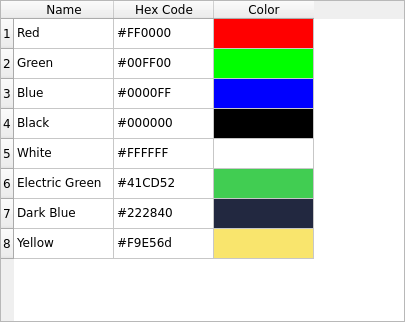
Test code:
# This Python file uses the following encoding: utf-8
import sys
from PySide6.QtGui import QColor
from PySide6.QtWidgets import (QApplication, QWidget, QTableWidget,
                               QTableWidgetItem, QVBoxLayout)

colors = [("Red", "#FF0000"),
          ("Green", "#00FF00"),
          ("Blue", "#0000FF"),
          ("Black", "#000000"),
          ("White", "#FFFFFF"),
          ("Electric Green", "#41CD52"),
          ("Dark Blue", "#222840"),
          ("Yellow", "#F9E56d")]


def get_rgb_from_hex(code):
    code_hex = code.replace("#", "")
    rgb = tuple(int(code_hex[i:i+2], 16) for i in (0, 2, 4))
    return QColor.fromRgb(rgb[0], rgb[1], rgb[2])


class tableData(QWidget):
    def __init__(self, parent=None):
        super(tableData, self).__init__(parent)
        self.setWindowTitle("My TableData")

        self.table = QTableWidget()
        self.table.setRowCount(len(colors))
        self.table.setColumnCount(len(colors[0]) + 1)
        self.table.setHorizontalHeaderLabels(["Name", "Hex Code", "Color"])

        for i, (name, code) in enumerate(colors):
            item_name = QTableWidgetItem(name)
            item_code = QTableWidgetItem(code)
            item_color = QTableWidgetItem()
            item_color.setBackground(get_rgb_from_hex(code))
            self.table.setItem(i, 0, item_name)
            self.table.setItem(i, 1, item_code)
            self.table.setItem(i, 2, item_color)

        layout = QVBoxLayout(self)
        layout.addWidget(self.table)


if __name__ == "__main__":
    app = QApplication([])
    window = tableData()
    window.show()
    sys.exit(app.exec())
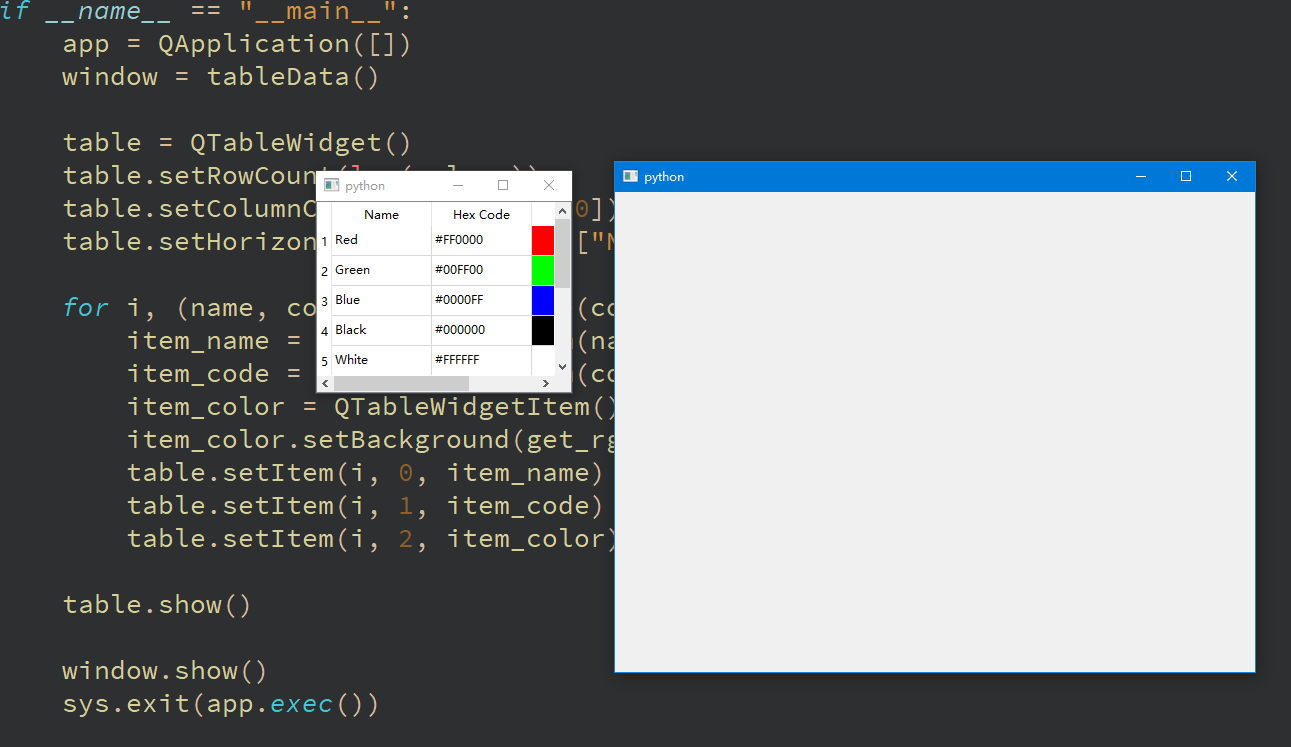
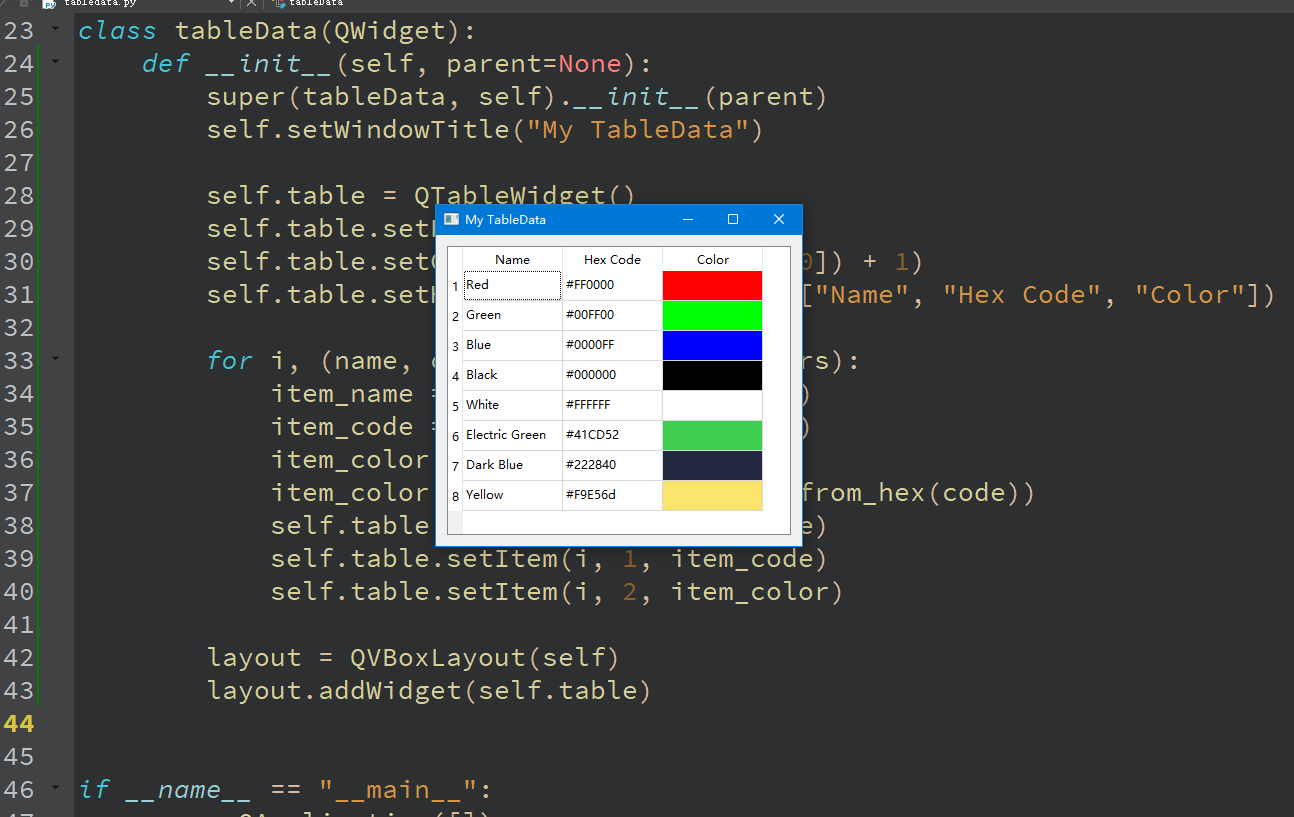
test results:
Intelligent Recommendation
Qt-Widgets excellent example display
Article Directory 1. Effect display 2. Related Articles Original link:Qt-Widgets excellent example display 1. Effect display analogclock anchorlayout basicdrawing calculator chart coloreditorfactory c...
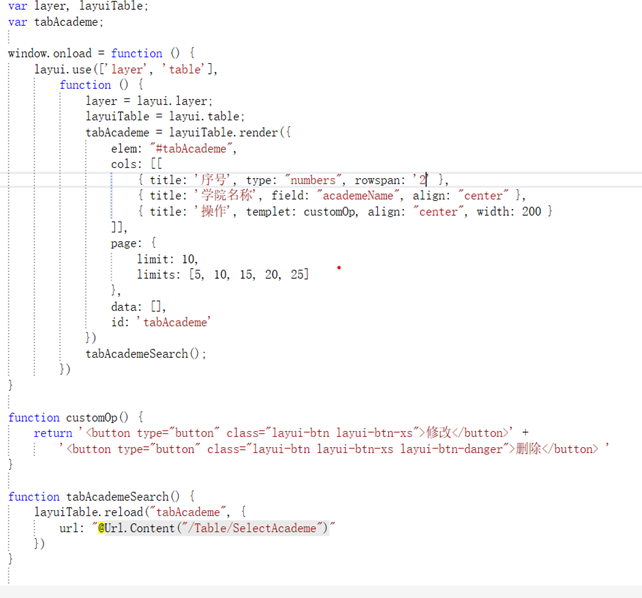
Layui table display data
Layui table display data Let the page table display data need to link the controller As shown: Need to declare a method first Then use the reload method in the data table in layui The tabAcademe in th...
Data table display
According to different resolutions, the page displays different amounts of data First get the dom element of the display data, because the class is used, so at this timefillcontainIt is an array, just...
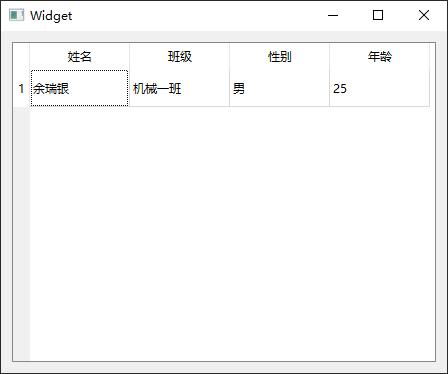
Qt Table Display Data
Environmental note Qt version: 5.12 mingw32 Operating system: Win10 Implementation Qt uses the TABLE control to display data Direct code head File Interface display The controls on the left and right ...
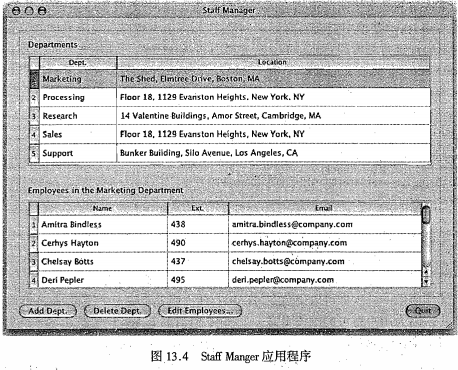
Qt4_ Display data in the table
Display data in the table In many cases, the user displaying a data set is the easiest way to display the user's view. This section gives the main form of the Staff Manager application, which consists...
More Recommendation
WPF table display data
Insert in Xaml: Then create a data structure: Finally filled data in Xaml.cs: Note: binding = "{binding number}" and the name of TestData.Number Effect:...
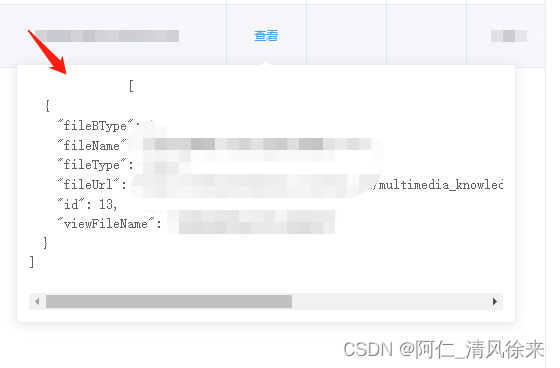
JSON data display in the table
JSON data display in the table Some columns in the table return the JSON format, which can be displayed in El-Popover Note: Do not change the row in the Pre -label, the change will cause the previous ...
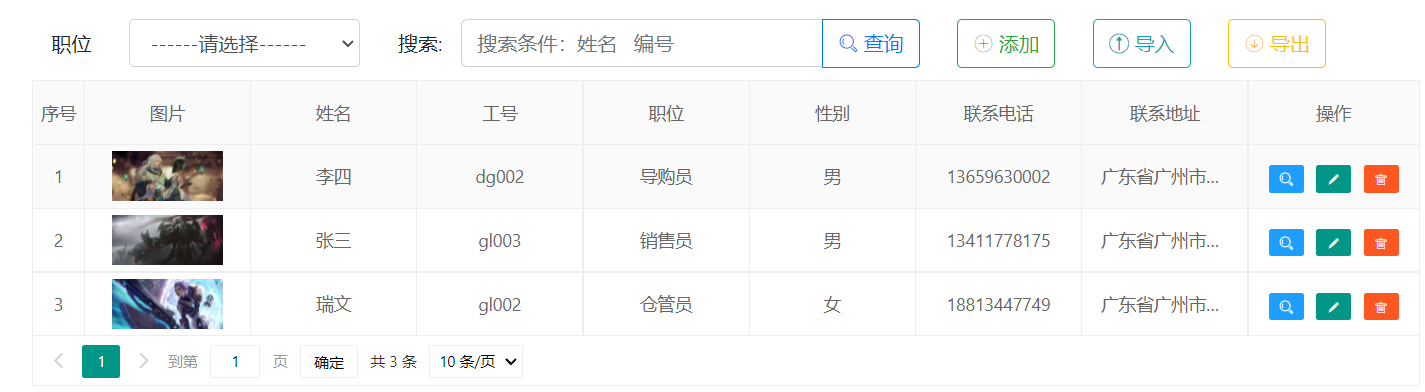
Data table display picture
Share with you how to display the uploaded pictures in the data table, the following picture is an example picture When processing data information, it is often necessary to upload related pictures. T...
vue using Chinese weather widgets
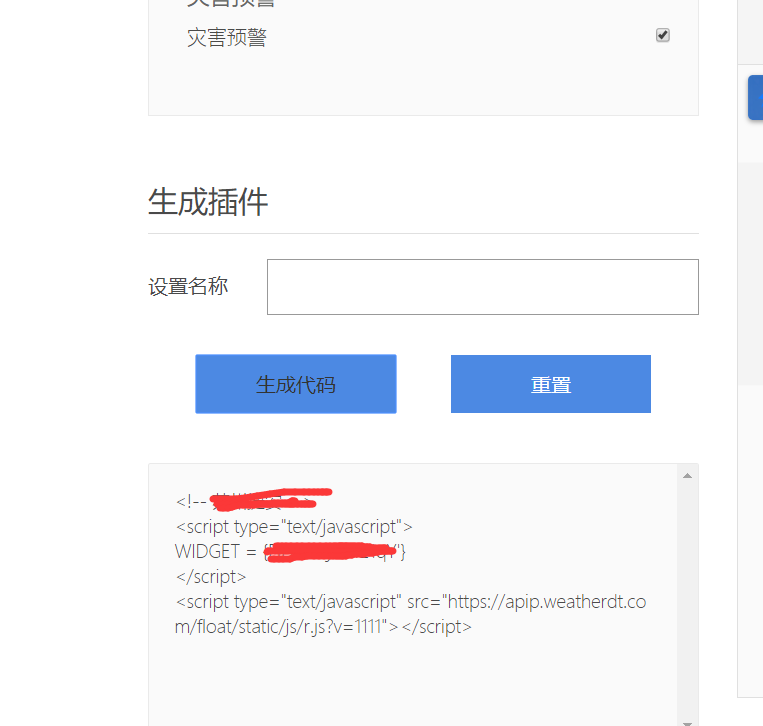
Because to do a system, you need a weather plug-in, the election for a long time, that China weather this plug-in inside style all are rather good-looking, what is required are styles to choose from, ...